

Before you start
- Barndoor installed by IT, on macOS 15 Sequoia or later or Windows 11.
- A Barndoor account in your organization.
- The clients you want to use. Bridge starts them but doesn’t install them. Supported clients lists which work on macOS and Windows.
- For Claude Desktop: version 3.1623.0 or later. On Windows, the Microsoft Store (MSIX) build.
Open Bridge and sign in
Bridge starts in the background when you log in to your computer.- macOS: open Barndoor from Applications, Spotlight, or the Dock, or choose Show Window from its menu-bar icon. Closing the window hides it; to stop Bridge, choose Quit or press Cmd-Q. If your menu bar is crowded, macOS may hide the icon, but the Dock icon always works.
- Windows: click the Barndoor icon in the system tray (it may be under the ^ overflow) and choose Open in Browser. Bridge’s panel opens in your browser.
1
Click Log in
It’s on the Status tab and in the menu. Your browser opens Barndoor sign-in; finish it with your organization’s sign-in.
2
Check that you're signed in
Back in Bridge, the header reads Connected, and the Status tab shows how many servers you have and when Bridge last synced. No cache means the first sync hasn’t finished; wait a few seconds. If your organization has Bridge govern models only, there are no servers to sync, and the header reads Signed in instead.
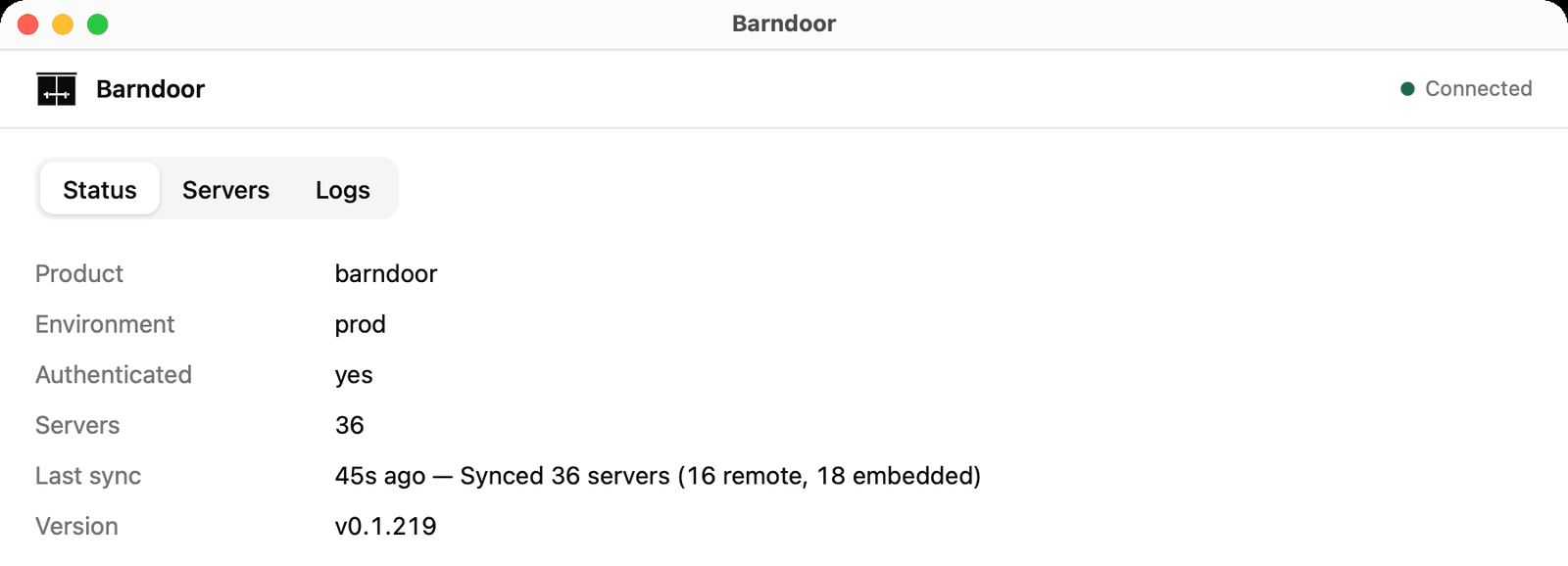
The Bridge window and menu
When Bridge needs an answer from you, such as a sign-in that expired, the question appears at the top of the window, whichever tab is open.
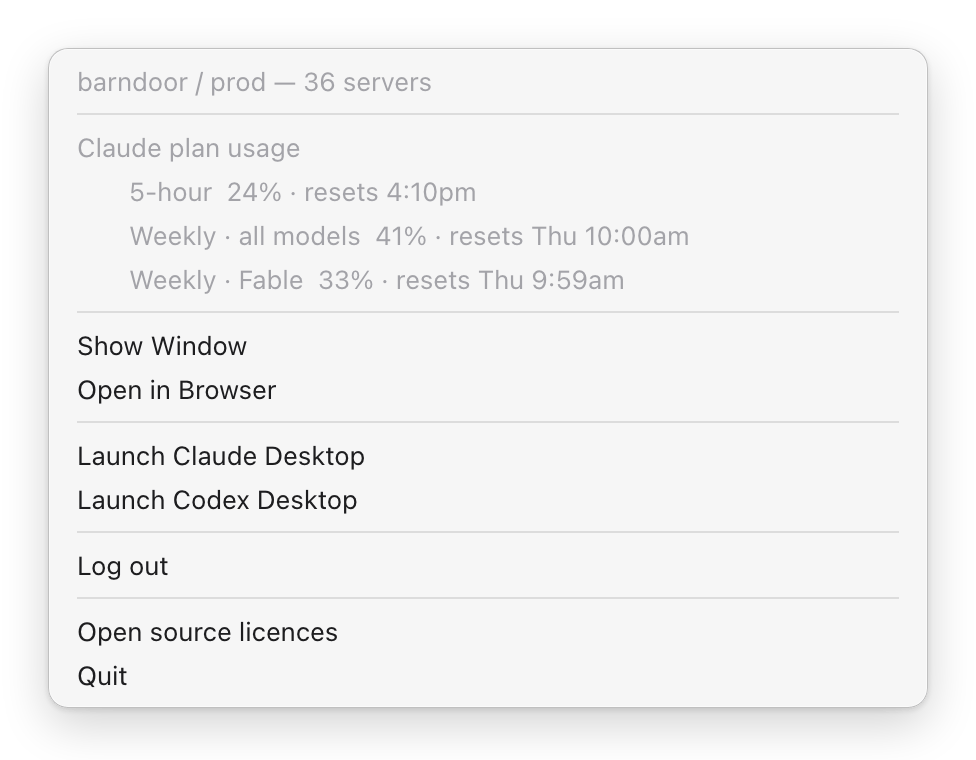
Claude plan usage shows how much of your 5-hour and weekly Claude limits you’ve used, once a governed Claude session has run. If your plan runs out and your organization has an API-key fallback, Bridge shows Org API key in use until your plan resets.
The menu-bar icon on macOS, and the tray icon on Windows, has the same launch buttons, plus:
- a status line with your environment and how many servers Bridge has synced
- your Claude plan usage
- Update available, when IT has a newer Bridge to install for you
- Show Window (macOS) and Open in Browser, which opens the same panel in your browser
- Log in or Log out, and Quit
Launch a client
Claude Desktop
Click Launch Claude Desktop. It’s greyed out until you sign in. The governed Claude Desktop runs as a second copy next to your personal one, with its own data, so you may see two Claude icons. The governed one shows Gateway next to your name at the bottom of the sidebar.- Chat: ask in plain language, for example “list my open Jira issues”. Claude finds the right tool among the servers your organization connected in Barndoor.
- Cowork: works as usual. Its commands run through Barndoor’s shell, so everyday tools such as
git,gh, andcurlwork unless your admin has blocked a command. - Code tab: works as usual in a project folder.
If your organization has Bridge govern MCP only, there’s no second copy: Launch Claude Desktop opens your own Claude Desktop, on your own Claude sign-in, with a
barndoor server added. If Claude Desktop is already open, Bridge v0.1.250 and later on a Mac ask Quit Claude Desktop? and reopen it for you. On Windows, or with an earlier Bridge, quit Claude Desktop completely before you launch it from Bridge; otherwise barndoor may not appear, or may disappear the next time you change a setting. In a chat, barndoor is under + → Connectors; if you switch it off or remove it, launch from Bridge again to get it back.If you also see your own Barndoor connector there, from your claude.ai account, turn it off in chats and Code sessions where you need tools that run on your computer. Otherwise Claude may use it, and those tools are refused with a message that they only run locally through barndoor-cli.Claude Code and Codex in a terminal
Start a governed session in the current folder:-- goes to the client, for example barndoor run claude -- -p 'say ok' or barndoor run codex -- exec 'say ok'. Barndoor’s own options go before it:

Codex Desktop
Launch Codex Desktop appears where IT has set up Codex and Codex Desktop is installed (ChatGPT.app on a Mac, the Microsoft Store Codex app on Windows). If you don’t see it, ask IT; there’s nothing to turn on in Bridge. Click it and choose the project folder Codex should work in. Codex can read and change files only in that folder. It opens without the welcome screens, and your conversations are kept between launches. Where IT has set up Codex, Codex Desktop and thecodex command work only when started through Barndoor.
Bridge asks you to sign in to ChatGPT again in your browser when your sign-in is no longer valid, about every ten days if you use Codex only through Bridge. On Windows, closing the Codex Desktop window doesn’t quit Codex; click Launch Codex Desktop again to bring the window back.
Kilo
- Kilo Desktop: Launch Kilo Desktop in Bridge opens Kilo working in your home folder.
- Kilo in VS Code: Kilo Code (VS Code) opens a separate VS Code window set up for Barndoor, with your extensions. Tools installed through Homebrew or a version manager may not be on that window’s
PATH. - Kilo CLI:
barndoor run kiloin a terminal.
Which models you get
Your organization decides which models you can use, unless it has Bridge govern MCP only, where you use the models on your own Claude or ChatGPT sign-in. Each client shows your organization’s models in its own way:
A running session keeps the models it started with. If you see fewer models than you expected, ask your admin.
Use your organization’s tools
Your organization’s MCP servers (Jira, GitHub, Salesforce, and so on) are available in every client Bridge launches. Your organization’s policy decides which tools you can use, and some actions need your approval first: the client shows you exactly what it’s about to do and asks. Approve only after you’ve seen that description; saying “I approve” in advance doesn’t count.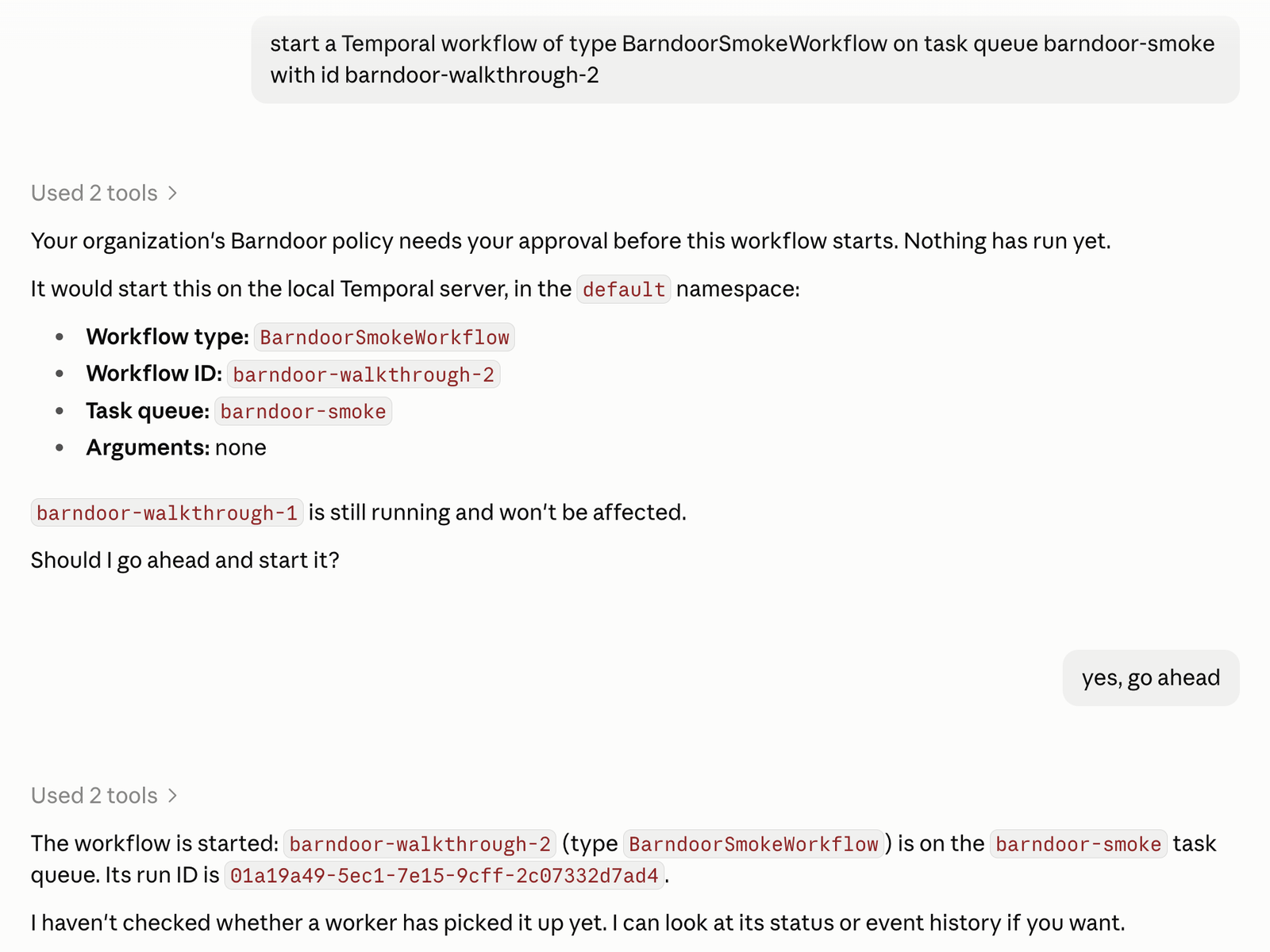
- In Barndoor, open My Apps and select Connect on the server. Enter credentials if it asks.
- Bridge picks it up within about five minutes. To sync now, run
barndoor sync. - Start a new session. A session that was already open keeps the servers it started with.
aws sso login --profile <name> in your own terminal.
If your admin asks you to run a one-time setup command for a server, run it yourself in your own terminal, for example barndoor local-mcp exec auth0 init. It won’t run inside a Claude or Codex session.
Bring over your history
- Claude Desktop chats, Cowork tasks, and Code sessions, and claude.ai chats and projects: in the governed Claude Desktop, use Settings → Import.
- Claude Code CLI sessions (
~/.claude): runbarndoor sessions importonce in a terminal.