

At least one Protection Profile must exist before you can create an MCP policy.
View your MCP policies
Navigate to Data Control Center → MCP Policies.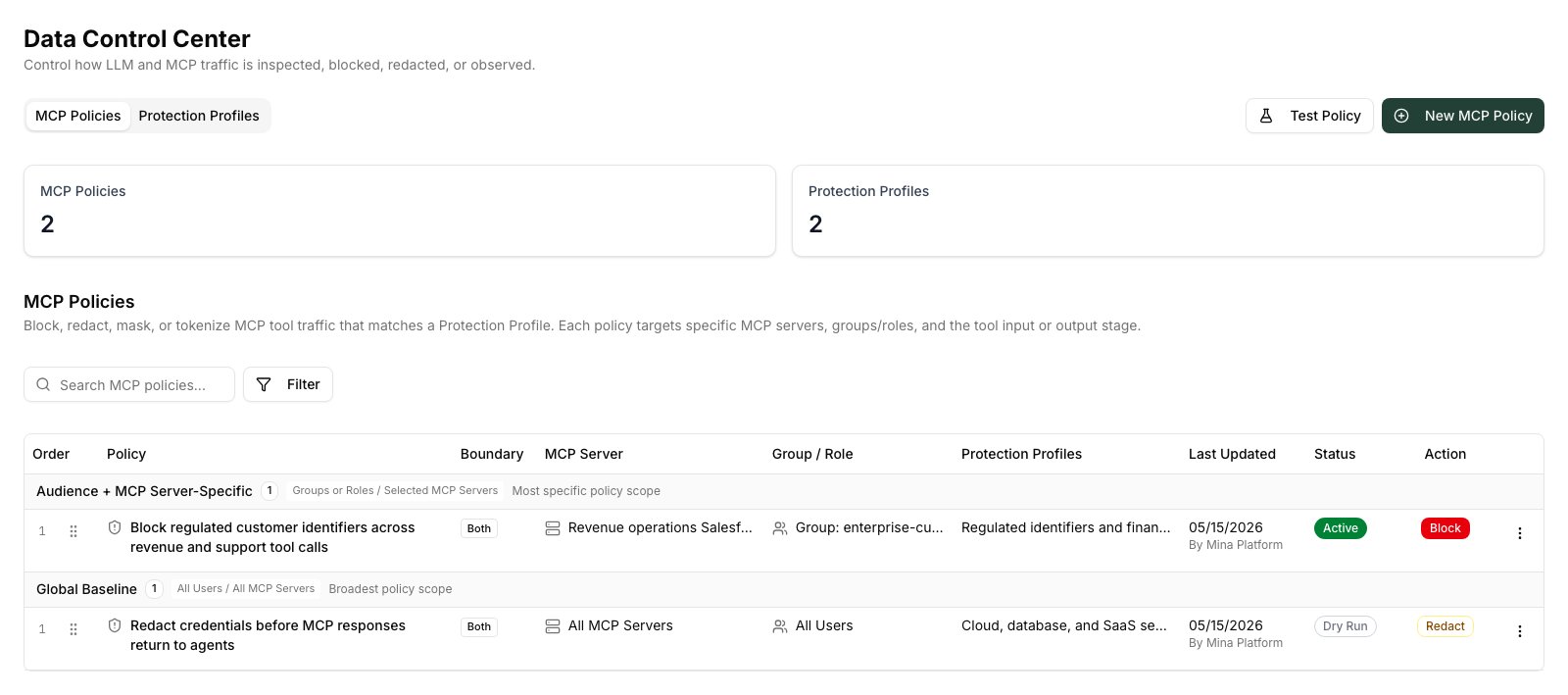
- Order / Priority — policies run in priority order; lower numbers run first
- Policy name
- MCP Server — which server(s) this policy targets
- Audience — which groups or roles it scopes to (blank = everyone)
- Protection Profiles — the detection engines attached
- Last Updated — who changed it and when
- Status — Active or Dry Run
- Action — Block, Redact, Alert Only, etc.
Create a policy
- Click New policy at the top of the MCP Policies tab.
-
Name — enter a clear, descriptive name that captures what the policy protects and why. For example:
- Block regulated customer identifiers across revenue and support tool calls
- Redact credentials before MCP responses return to agents
- MCP Server — choose the server this policy applies to. You can also select All Servers to apply the policy globally.
- Protection Profiles — select one or more profiles to run. All selected profiles run in parallel on matching traffic.
-
Action — choose what to do when any detection fires:
When you choose Mask, a Mask format panel appears under the action. Leave it on Full placeholder, or pick Keep prefix / Keep suffix and set how many characters stay readable.
- Scope (optional) — add groups or roles to restrict who this policy applies to. Leave blank to apply the policy to everyone.
- Dry run — toggle on to observe detections without enforcing the action. Useful for validating a policy before activating it.
- Click Save.
Edit a policy
- Find the policy in the list.
- Click ⋮ → Edit on the policy row.
- Update any field except the MCP Server.
- Save the changes. The updated policy takes effect within seconds.
Change policy priority
Policies run in priority order — lower numbers run first. When multiple policies match the same traffic, the first matching policy’s action is applied. To change priority, drag a policy row up or down using the ⠿ drag handle on the left. The updated order saves immediately.Delete a policy
- Click ⋮ → Delete on the policy row.
- Confirm the deletion.
Test a policy
Using dry run
Enable Dry run on the policy before activating it. In dry run mode the policy evaluates traffic and logs detection events but does not block or modify anything. After a few minutes of real traffic, check Detection Activity to see what the policy would have caught. When you are satisfied with the coverage, edit the policy and disable dry run to activate enforcement.Using the Test Workbench
For controlled testing without live traffic:- Navigate to Data Control Center → Test.
- Choose the MCP mode and select the server and tool to simulate.
- Paste a sample tool payload.
- Run the test and review which policies matched, which detection types fired, and what the redacted output would look like.
Verifying in the Audit Center
After a policy has been active for some time:- Navigate to Audit Center from the main navigation.
- Filter by Event type → Data Protection to see policy enforcement events.
- Each event shows the policy name, detection type, action taken, the tool call involved, and the principal context.
Common patterns
Global block on secrets across all MCP traffic:- Server: All Servers
- Profiles: Your secrets detection profile
- Action: Block
- Scope: (none — applies to everyone)
- Server: the new integration’s MCP server
- Profiles: your PII and secrets profiles
- Action: Alert Only
- Dry run: on (initially)
- Promote to active enforcement after reviewing activity logs
- Server: Revenue Ops Salesforce
- Profiles: Regulated identifiers profile
- Action: Block
- Scope: Group
enterprise-customer-success-managers