

This page is for developers. It assumes an admin has already configured a provider and at least one model. If Available Models is empty for you, ask your admin to work through the Quickstart Guide first.
What You Need
Every tool below needs the same three values. All of them are on the My Models page in the Barndoor portal (Settings → My Models):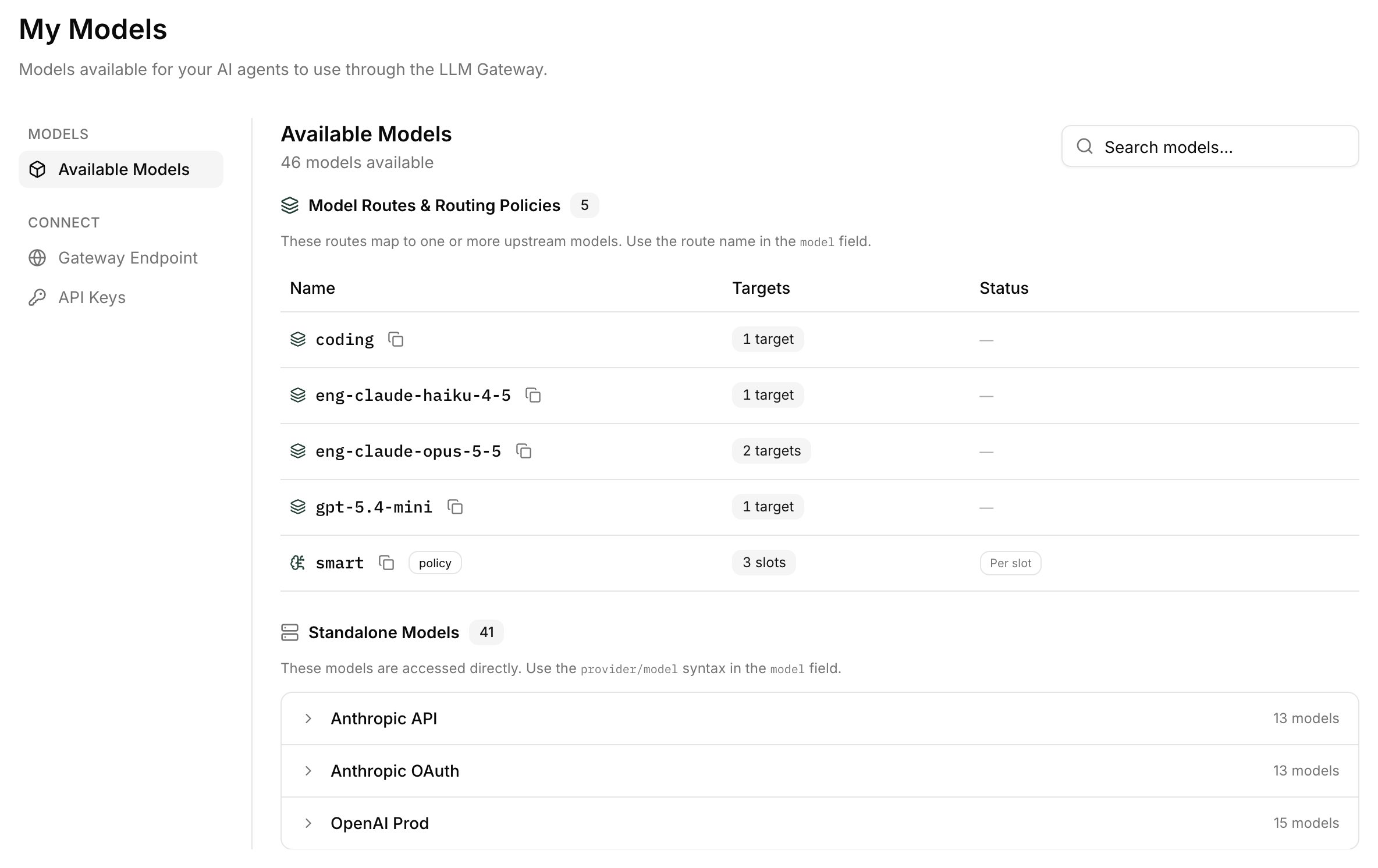
1
Create an API key
Open Settings → My Models → API Keys and click Create Key. Enter a Key Name that says where the key will live (for example 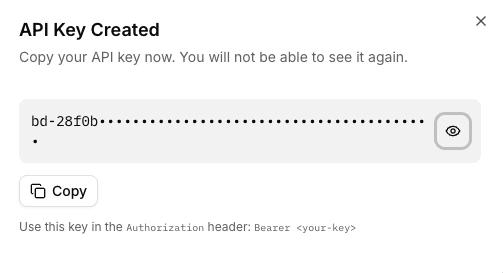
Cursor on laptop) and click Create.The API Key Created dialog shows a bd-… key. Copy it now. Barndoor stores only a one-way hash of the key, so the raw value cannot be shown again.Keys created here are linked to your account, so usage is attributed to you and your model access policies apply. From the same table you can disable a key (reversible, blocks requests until you re-enable it) or revoke it (permanent).2
Copy a model name
Available Models lists every model your admin has enabled and your access policies allow. Each row has a copy button. Use the name exactly as shown:
- Model Routes: a plain name such as
gpt-5.4-mini,claude-sonnet-5, orcoding. The gateway tries the route’s targets in order and fails over between them. Route names are chosen by your admin and don’t have to look like model IDs. - Standalone Models: a
provider/modelname such asOpenAI/gpt-5.4-mini. The part before the/is the name your admin gave the provider, not the vendor. A standalone model is served by that one provider only, with no failover to another. - Routing Policies, if your organization uses them, also appear in this list and are called by name. See Routing Policies.
3
Copy your gateway endpoint
The LLM Gateway Endpoint card shows two base URLs. Copy the one that matches your client: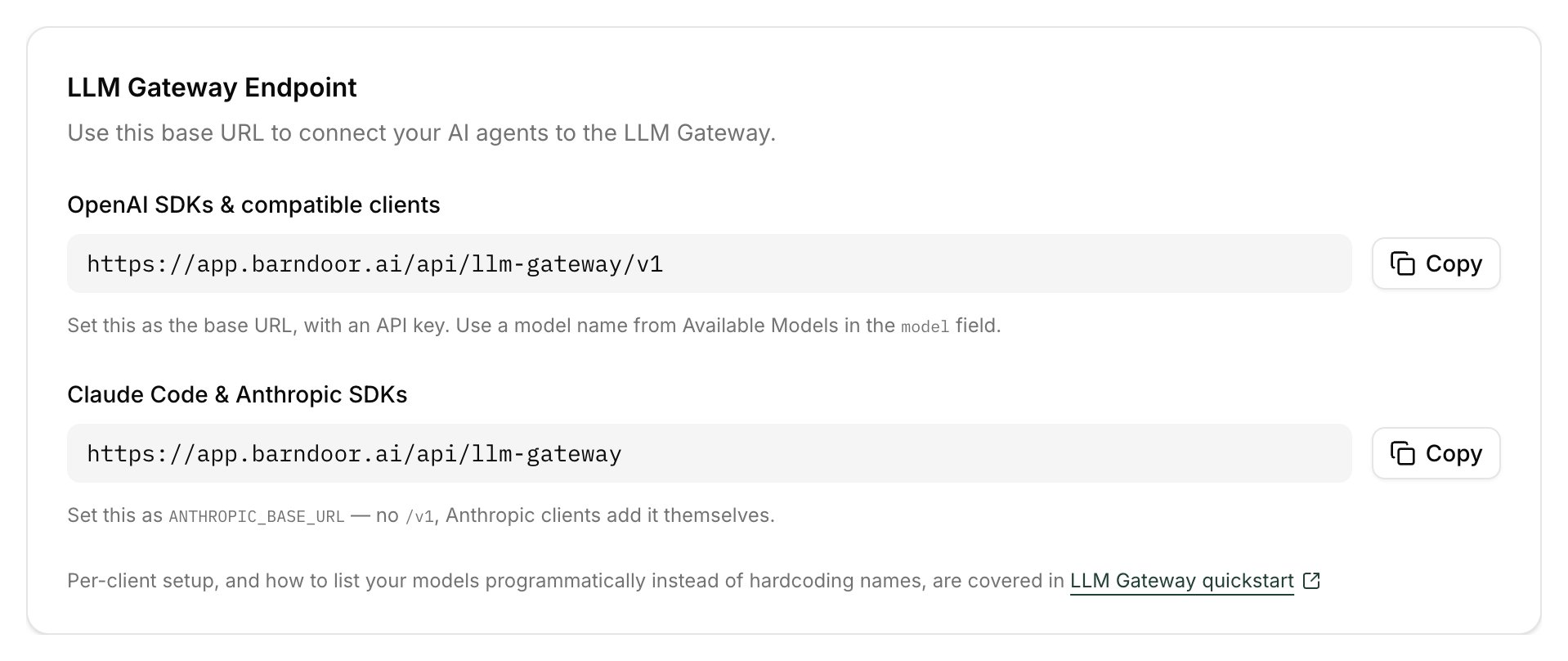
The two URLs differ only by the trailing
/v1. Anthropic clients append /v1/messages themselves, so giving them the /v1 form produces /v1/v1/messages.4
Confirm all three work
Before configuring a tool, try all three from a shell. This separates auth problems from model-name problems, which look alike once an editor is in the middle:
Self-hosted and private-cloud deployments: if Barndoor runs on your own infrastructure, swap
app.barndoor.ai for your organization’s portal hostname everywhere on this page. The path (/api/llm-gateway/v1) is the same, and the Gateway Endpoint card always shows the right URL for your deployment.What the Gateway Accepts
The gateway speaks both the OpenAI and the Anthropic wire formats. On Chat Completions and Messages, it translates between formats when the client’s format and the provider’s differ, so an OpenAI-style client can call a Claude model and Claude Code can call a GPT model.
All paths above are relative to
https://app.barndoor.ai/api/llm-gateway.
If you call an endpoint the model’s provider can’t serve, the request fails with provider '…' does not support endpoint …. Pick a model served by a different provider, or ask your admin to add a route target that supports it.
Authentication and headers
By default, a request body can be up to 32 MiB, which covers a full-context Claude Code conversation.
Successful responses carry
x-bd-request-id and routing headers that tell you which provider served the request and whether failover happened. The Quickstart Guide describes them.
How model names resolve
Themodel field decides which provider serves your request:
Some details that commonly trip people up:
- The provider prefix is the provider’s name in Barndoor, matched without regard to case. It isn’t the vendor. If your admin named a provider
OpenAI-Prod, the name isOpenAI-Prod/gpt-5.4-mini. <provider>/<route>is not accepted. A route is called by its own name. Something likeOpenAI-Prod/codingreturns404, and the error message suggests the route name.- Everything before the first
/is read as a provider name. A model whose ID contains a slash, such asQwen/Qwen3-8B, has to be called through a Model Route or as<provider name>/Qwen/Qwen3-8B. - Your organization may require Routing Policies. When that setting is on, only routing-policy names are accepted, and
GET /v1/modelslists only those.
GET /v1/models returns exactly the names you can call. Each entry also carries a barndoor object with the serving provider, the upstream_model, and whether the name is a multi-target fallback_group. When a name fans out across several providers, provider and upstream_model are left out.
Connect Your Tools
OpenAI Python SDK
OpenAI Python SDK
client.responses.create(...) works too, as long as the model is served by a provider that supports the Responses API (see What the Gateway Accepts).OpenAI Node SDK
OpenAI Node SDK
Anthropic SDK
Anthropic SDK
Use the Claude Code & Anthropic SDKs URL from the endpoint card, the one without
/v1. The SDK appends /v1/messages itself. The SDK sends your key as x-api-key, which the gateway accepts.model can be any name from Available Models, not only Claude models. The gateway translates Messages requests for non-Anthropic providers.Claude Code
Claude Code
Claude Code talks to the gateway through For an API-key provider:
ANTHROPIC_BASE_URL. Which other variables you set depends on how your admin configured the Anthropic provider behind your models. In LLM Management → Providers, an Anthropic provider’s Authentication is one of:- API key: everyone’s traffic bills against one Anthropic API key that Barndoor stores. Bedrock, Vertex, and Foundry providers work the same way from Claude Code’s side.
- Claude OAuth passthrough: each request bills against the developer’s own Claude subscription. Barndoor stores no Anthropic credential, and the gateway forwards each developer’s Claude sign-in to Anthropic.
Set
ANTHROPIC_BASE_URL to the Claude Code & Anthropic SDKs URL on the endpoint card, the one without /v1. Claude Code appends /v1/messages itself.- API-key provider
- Claude OAuth passthrough provider
Use this when the provider behind your model has a stored credential (an Anthropic API key, Bedrock, Vertex, Foundry, or a non-Anthropic provider).Claude Code sends Without
bd-… as Authorization: Bearer. The gateway authenticates you with that key, then calls the provider with the credential your admin stored.Admins can issue keys for other people under LLM Management → API Keys → Create API Key, using Assign to User, Assign to Group, or neither. A key with no assignee works for anyone in the organization who holds it.Prefer a per-user or per-group key. An unassigned key carries no user identity, so per-user spend has nothing to attribute traffic to, and user-scoped model access policies can never match it. A group-assigned key keeps group-scoped policies working while still being one key for many people.
ANTHROPIC_MODEL, Claude Code requests its own default Anthropic model IDs, which then must appear in Available Models under those exact names. Setting ANTHROPIC_MODEL to one of your Model Route names avoids that dependency. CLAUDE_CODE_ENABLE_GATEWAY_MODEL_DISCOVERY=1 fills the /model picker from the gateway’s GET /v1/models, which the gateway returns in Anthropic’s format for Claude Code. That applies to this setup only. With OAuth passthrough, Claude Code doesn’t look models up, so the picker keeps its built-in names whatever the flag says.This setup needs every model you request to resolve to a provider with a stored credential. If a request lands on a Claude OAuth passthrough provider, the gateway rejects it with
401 Anthropic provider requires an incoming Claude OAuth bearer token. Switch to the OAuth passthrough setup for those models.Claude Code in VS Code
Theexport lines above apply only to the terminal you ran them in. The VS Code extension starts its own process, so put the same variables in an env block at the root of .claude/settings.local.json in your project. Claude Code reads it at the start of every session.For a Claude OAuth passthrough provider:.claude/settings.local.json
.claude/settings.local.json
ANTHROPIC_MODEL takes the name exactly as it appears under Available Models. Route names are free-form, so a name like Developer is valid.Reload the window (Cmd/Ctrl+Shift+P → Developer: Reload Window) after editing the file. The extension reads
env when a session starts, not while one is running. To use the same gateway settings in every project, put the same block in ~/.claude/settings.json.jq: Could not open file ~/.claude/.credentials.json
jq: Could not open file ~/.claude/.credentials.json
Recent Claude Code versions don’t expose a plaintext credentials file. If you have a shell snippet that runs
jq over that path to extract an OAuth token, remove it. Claude Code handles the OAuth token itself. Your only job is to set the variables in the tabs above.Cursor IDE
Cursor IDE
Cursor lets you add custom OpenAI-compatible providers under Settings → Models → OpenAI API Key → Override OpenAI Base URL: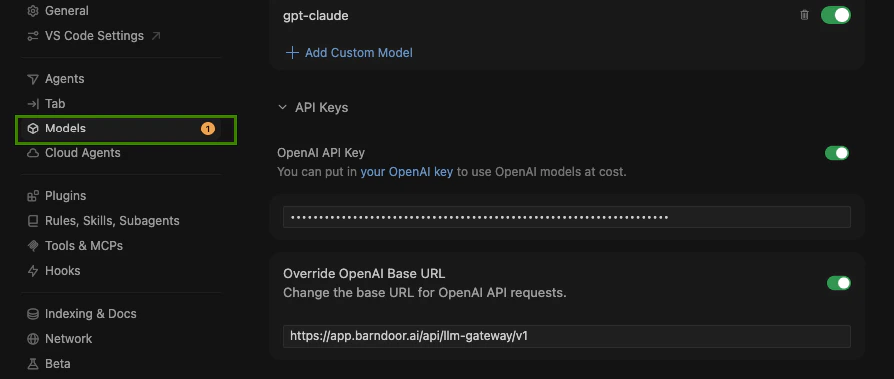
- Toggle Custom OpenAI API Key.
- Set the base URL to the OpenAI SDKs & compatible clients URL,
https://app.barndoor.ai/api/llm-gateway/v1. - Paste your
bd-…key as the API key. - Add the model names from Available Models (for example
gpt-5.4-mini,claude-sonnet-5) that you want Cursor to be able to select.
Codex CLI / Desktop
Codex CLI / Desktop
Codex uses the OpenAI Responses API (
wire_api = "responses"), not Chat Completions. Point a custom provider at the gateway and keep /v1 on the base URL. Codex appends /responses itself.env_key is the environment variable’s name. The export supplies the secret. The model must be served by a provider that supports the Responses API. A Claude route, for example, won’t work from Codex.Full steps for CLI and Desktop, plus troubleshooting: Use Codex with the LLM Gateway.LangChain
LangChain
OpenAIEmbeddings and the other OpenAI-style integrations work the same way: set base_url and api_key. For ChatAnthropic, set anthropic_api_url to the URL without /v1.cURL / scripts
cURL / scripts
For CI and shell scripts, export the URL and key once:More request shapes (streaming, embeddings, Anthropic Messages) are in the Quickstart Guide.
Launching Claude Code or Codex with Barndoor Bridge
Everything above is do-it-yourself configuration: you set the variables, and you can change them. If your organization uses Barndoor Bridge, developers don’t configure the gateway at all.barndoor run claude (or the Bridge app’s launch button) starts the client already pointed at the gateway, on a short-lived session credential that Bridge renews and revokes for you.
What that launch looks like is set by admins under LLM Management → Launch Profiles. A launch profile holds:
- Client: Claude or Codex.
- CLI id: the name used with
barndoor run --profile. It can’t be changed after the profile is created. - Model routing: the Default Model Route every request uses, or separate routes for Opus, Sonnet, Haiku, Fable, and the advisor. Profiles take Model Routes only, not standalone models. For Claude you can also offer Other models, which appear in the Claude Desktop model picker and in
/modelin Claude Code. - What the client can do: optional governance of native file, shell, network, and browser access.
Barndoor Bridge is in early access, and Launch Profiles may not be enabled for your organization yet. Contact Barndoor to turn them on.
Related
- Using the LLM Gateway: overview, architecture, and prerequisites
- Quickstart Guide: admin setup, request reference, and troubleshooting
- Use Codex with the LLM Gateway: the full Codex CLI and Desktop walkthrough
- Connecting a Self-Hosted Model: route to vLLM, Ollama, and other OpenAI-compatible servers
- Get the most out of your Claude subscription: run Claude Code on your own Claude seat and fail over when you hit the cap