

Best For: Enterprise teams that want one controlled Claude connector, centralized policy enforcement, and a simpler rollout and experience for users.
What This Achieves
With this setup:- Claude Enterprise admins add one Barndoor connector to the Claude organization
- Claude users connect to the single connector instead of needing to select individual app connectors per prompt, command, or skill
- Barndoor controls which MCP servers and tool calls are available by user, group or role
- Fine-grained access policies are enforced in Barndoor
- New MCP servers and policy changes can be rolled out via Barndoor without requiring any change in Claude
Before You Begin
Before setting this up, make sure you have:- Claude Enterprise owner or admin access with permission to manage organization connectors
- Your Barndoor ToolIQ MCP URL from the Barndoor AI Client Setup page
- At least one registered Barndoor agent
- At least one connected MCP server in Barndoor
- Production policies prepared or in draft for the users and agents you plan to roll out
This guide assumes you want Claude users to enter through one Barndoor-controlled MCP endpoint. The governance model lives in Barndoor, so Claude stays simple while Barndoor handles server access, policy enforcement, and auditability.
Step 1: Prepare Barndoor First
Before touching Claude, confirm the Barndoor side is ready. If these pieces are not in place first, Claude users may connect successfully but see the wrong tools or fail policy checks later. References:Step 2: Copy the Barndoor ToolIQ URL
Go to your Barndoor AI Client Setup page and copy the ToolIQ MCP endpoint for your organization. This will be the single connector URL you want Claude Enterprise to expose to users.Step 3: Add the Connector in Claude Enterprise
In Claude Enterprise, the organization owner adds the connector once for the whole organization.1
Open Claude Organization Settings
In Claude, go to Organization Settings > Connectors.
2
Add Custom Connector
Click Add custom connector.
3
Name the Connector
Give it a recognizable name, such as Barndoor.
4
Enter the Barndoor ToolIQ URL
Paste your Barndoor MCP URL, for example:You won’t need to configure any Claude-side OAuth credentials — only the Barndoor URL is required.
5
Save the Connector
Save the connector so it becomes available to your Claude organization.
Step 4: Expose the Connector to Claude Org Users
After the owner adds the connector, Claude users can connect to it individually.1
Have Users Open Claude Settings
Users go to Settings > Connectors in Claude.
2
Locate the Organization Connector
Users find the Barndoor connector that was added by the Claude Enterprise admin. It will appear under the organization connectors section, distinct from any personal or directory connectors.
3
Connect and Authenticate
Users click Connect and complete the authentication flow to Barndoor.
4
Begin Using Claude with Barndoor
Users start a new Claude conversation with the approved Barndoor connector enabled.
Users are connecting to one Claude-approved Barndoor entry point. They are not managing separate Salesforce, Slack, Notion, Snowflake, etc. connectors inside Claude.
Step 5: Validate the Runtime Experience
Before broad rollout, test the connector with pilot users. The pilot users should have the “User” role in Claude. References: Once pilot validation is complete:- Roll the connector out to the rest of the Claude organization
- Keep the connector URL stable
- Add or remove MCP server access in Barndoor as needed
- Update policies in Barndoor without retraining users on connector setup
- Use Barndoor logs and policy summary views to monitor adoption and enforcement
Advanced Bypass Prevention settings
Network-Level Enforcement
The most reliable way to ensure all MCP traffic routes through Barndoor is to enforce it at the network layer.- Allowlist only your Barndoor production URL at the corporate firewall or proxy
- Block outbound connections to known MCP endpoints for systems like Salesforce, Slack, Snowflake, and others that are governed by Barndoor
- This ensures that even if a user adds a direct connector in Claude, the connection will fail at the network boundary
Managed MCP Configuration (Claude Desktop & Claude Code)
Enterprise accounts only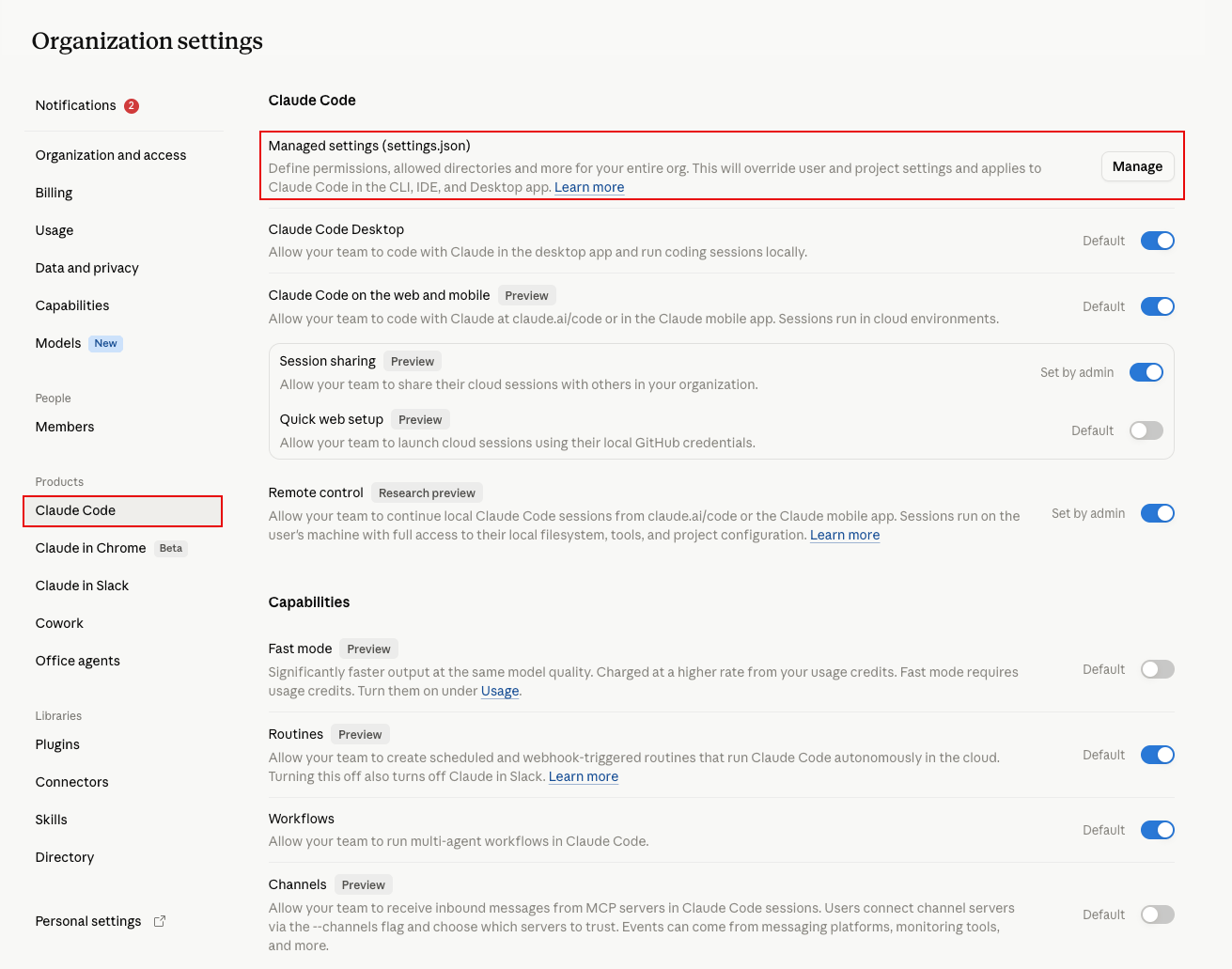
managed-mcp.json file takes exclusive control of MCP connections on the machine. This is the strongest client-side lockdown: it removes the user’s ability to define their own MCP servers, parameters, paths, or environment variables entirely — not just filter them.
Claude Desktop
Create and deploy amanaged-mcp.json file that defines only the Barndoor URL:
Claude Code (absolute lockdown)
A soft control — an allowlist or an organization instruction — can still be worked around. A determined user might point Claude at an unauthorized MCP server that happens to match a generic naming convention or allowlist string. To remove that possibility entirely on Claude Code, deploy a system-levelmanaged-mcp.json.
Drop a standalone managed-mcp.json file into the system config directory for the platform:
Define the exact Barndoor endpoint, and only that:
- Users cannot add, modify, or use any other MCP server — including plugin-provided servers.
- Any user-defined local parameters, paths, or environment variables for those connections are discarded.
- Native claude.ai connectors are suppressed by default (unless an admin explicitly sets
"allowAllClaudeAiMcps": true), which directly closes the “Claude reaches for a native connector on its own” gap.
Managed MCP configuration applies to the Claude Desktop and Claude Code clients on managed machines. It does not control connectors added through the Claude.ai web interface or mobile apps. Pair this with network controls (Option 1) for full coverage.
Steer Claude with Organization Instructions
This control targets the second bypass vector — Claude defaulting to a native connector even when Barndoor is enabled. Claude Team and Enterprise admins can set organization-wide custom instructions under Organization Settings > Organization and Access. Well-crafted instructions push Claude to route through Barndoor first and treat native connectors only as a fallback.This is a behavioral steer, not a hard control. Claude generally follows clear instructions, but model adherence is not guaranteed. Layer it on top of network or desktop enforcement (Options 1 and 2) rather than relying on it alone.
<Your Barndoor Connector Name> with the exact name of your Barndoor connector as it appears in Claude (for example, Barndoor).
Why this phrasing works:
- Say “always,” not “prefer.” Soft verbs like “prefer,” “optimize by using Barndoor,” or “use Barndoor when available” produce inconsistent results — sometimes Claude routes through Barndoor, sometimes it overrules and uses the native connector. Absolute “always” / “never” framing is far more reliable.
- Name the
execute_tooltool explicitly. Pointing Claude at the specific tool it should call removes ambiguity about how to route through Barndoor. - Broaden the scope beyond one system. Listing several services (Jira, Confluence, Slack, Salesforce, Google) rather than naming just one signals that the rule applies to all external access, not a single integration.
- Include explicit fallback language. Telling Claude to fall back to a stock connector only when Barndoor is unavailable keeps it functional for systems Barndoor doesn’t yet govern, instead of failing when a service isn’t behind Barndoor.
Acceptable Use Policy
For organizations that cannot enforce controls at the network or desktop level, pair your rollout with a clear acceptable use policy that:- Requires all Claude MCP connections to route through the approved Barndoor URL
- Prohibits adding custom MCP connectors that connect directly to governed systems
- Uses Barndoor enforcement logs to detect unexpected tool usage patterns
Summary: Layered Defense
For a complete lockdown, combine these approaches:Operational Best Practices
- Use one Claude Enterprise connector per Barndoor environment, not per downstream app
- Keep production users on the production Barndoor URL only
- Test policy changes in
DRAFTbefore activating them - Use Barndoor policies to control access instead of relying on user behavior inside Claude
- Keep the Claude connector rollout narrow at first, then expand by user group or team
- Use Barndoor enforcement logs to investigate denied or unexpected actions
- Set organization instructions (Settings > General) to steer Claude toward the Barndoor connector, and re-validate the wording after major Claude model updates
Troubleshooting
Users can see the connector but not the expected tools
Users can see the connector but not the expected tools
Check Barndoor first. The most common causes are:
- the wrong MCP servers are connected
- policies are still in
DRAFT - the user or agent is out of scope for the active policy
- the allowed tools were not enabled in the policy model
Users can connect but actions are denied
Users can connect but actions are denied
Review the active Barndoor policies and enforcement logs. Confirm whether the denial is expected and which policy caused it.
Different teams want different systems through the same Claude connector
Different teams want different systems through the same Claude connector
Keep the single connector model and separate access in Barndoor through server selection, user identity, group mapping, and policies. Do not solve this by creating many duplicate Claude connectors unless you have a strict org-level reason.
We want to add more MCP servers later
We want to add more MCP servers later
You can keep the same Claude connector and expand the governed systems behind it in Barndoor, as long as you update server connectivity and policies before rollout.
Next Steps
- Review the Go-Live Checklist before organization-wide release
- Finalize your v2 policies in Managing Policies
- Use Connect AI clients to Barndoor for the broader multi-client connection guide