

Overview
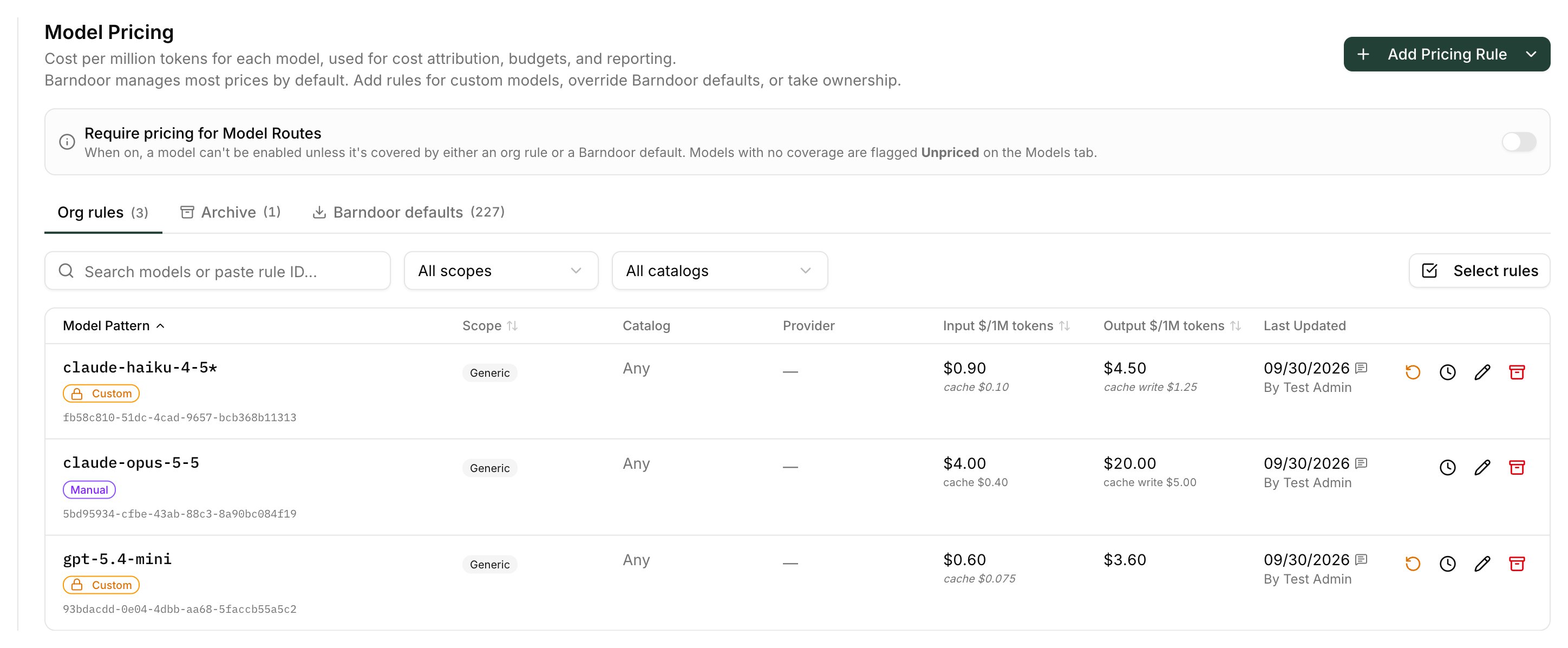
Model Pricing sets how much each model costs per million tokens. Those prices drive every cost figure on the platform:- spending budgets in LLM Controls
- the cost recorded for each request
- cost in Reporting → LLM Usage Dashboard — see Reading the LLM Usage Dashboard
Before You Begin
- A Barndoor account with admin privileges.
- An LLM Gateway with at least one provider and one model configured — see Using the LLM Gateway.
The Three Tabs
How Cost Is Computed
Cost is calculated after a successful upstream response, from the token counts the provider reports. Failed requests record no cost. All prices are USD per million tokens.- Input tokens exclude tokens served from the prompt cache, which are billed separately at the cache read price.
- Output tokens include any reasoning tokens the provider reports; reasoning isn’t billed separately.
- A rule with no cache read or cache write price bills those tokens at the rule’s input price.
- If the rule has a long-context surcharge and the request’s total prompt (input plus cache reads and writes) is at or above its threshold, the whole request — output included — is billed at the surcharge rates.
- Rules match the underlying model name the provider is called with (for example
anthropic.claude-opus-5-5on a Bedrock provider), not the route name the caller sent.
How Pricing Resolves
For each request, Barndoor looks for a matching rule in this order. The first tier with a match wins.claude-sonnet-5-5* beats claude-*, and a catch-all * loses to everything. A higher tier always wins, however specific a lower-tier pattern is.
In the portal, each model shows the price it resolves to and where it came from: Org rule (this provider), Org rule (provider type), Org rule, Barndoor default, Not metered, or Unpriced.
Importing Barndoor Defaults
Importing copies a Barndoor default into your org rules so you can edit it, pin it, or keep it in sync. You don’t need to import a default for it to apply.Open LLM Management → Model Pricing → Barndoor defaults
Import one row
Or import several
Creating a Pricing Rule
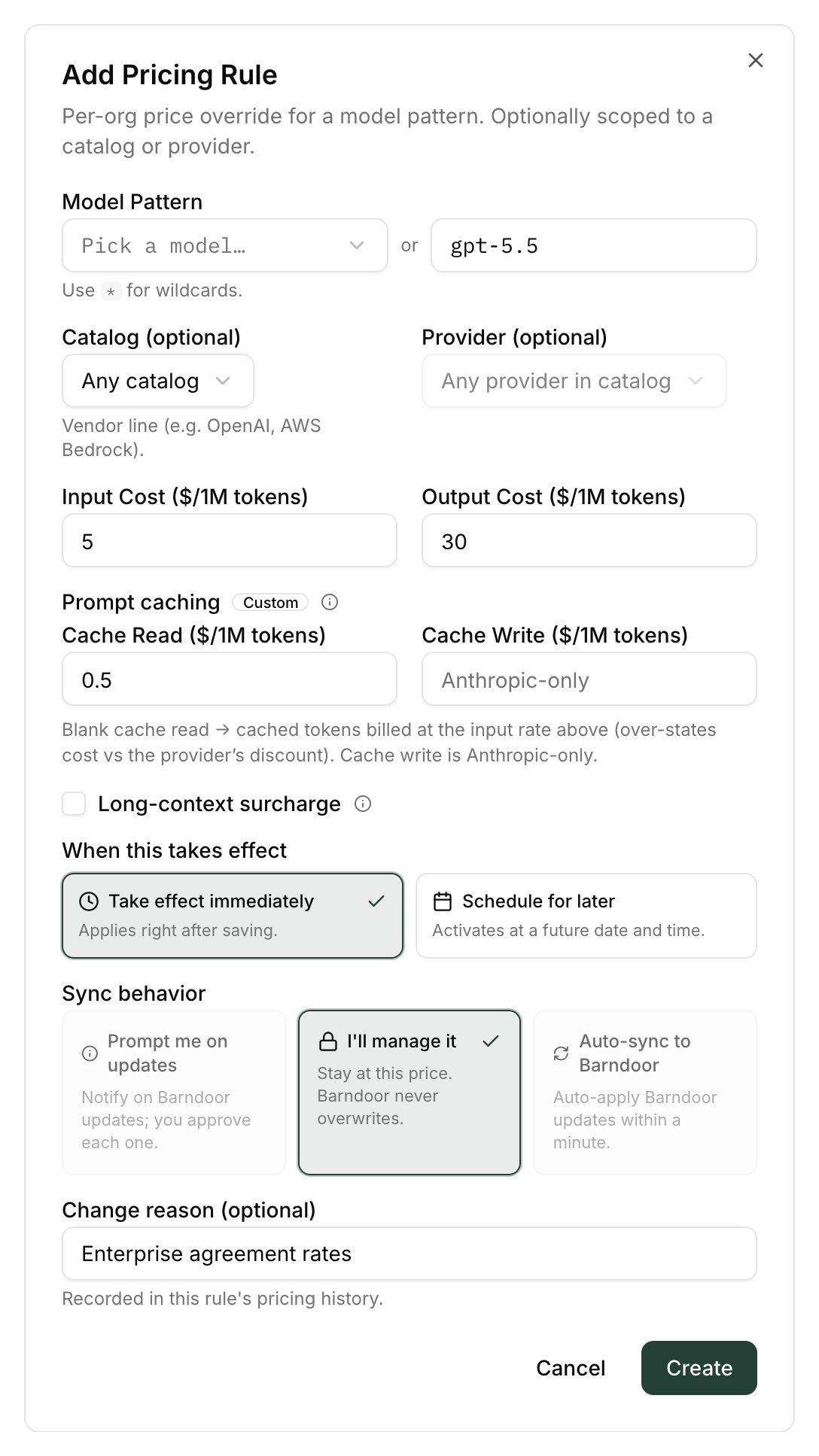
Click Add Pricing Rule → A custom rule
Model Pattern
* as a wildcard at the start, the end, or both:gpt-5.4-mini— exactly that model.gpt-5.4*— any model starting withgpt-5.4.*-mini— any model ending in-mini.*claude-sonnet-5-5*— any model containingclaude-sonnet-5-5(useful for Bedrock IDs with regional prefixes).
* in the middle of a pattern (gpt-*-mini) and regular expressions aren’t supported.Catalog and Provider (optional)
- Catalog — restrict the rule to one vendor line. Leave on Any catalog for a Generic rule.
- Provider — restrict it to one configured provider connection. Available once a catalog is picked; leave on Any provider in catalog for a Catalog rule.
Prices
- Input Cost (/1M tokens) — required.
- Prompt caching — Cache Read and Cache Write prices ($/1M tokens). Leave cache read blank and cached tokens are billed at the full input price, which overstates cost against the provider’s cache discount. Cache write applies to Anthropic models.
- Long-context surcharge (optional) — tick it for models whose price rises once a prompt is large. Set Applies at or above (prompt tokens) (pre-filled with
200000) and the input and output prices above the threshold; blank cache prices above the threshold bill at the surcharge input price.
When this takes effect
Sync behavior and reason
- Sync behavior — only I’ll manage it is available unless the pattern and catalog match a Barndoor default.
- Change reason (optional) — recorded in the rule’s Pricing History.
Save
Editing and Scheduling Price Changes
Click the pencil icon on a row to open Edit Pricing. Every save creates a new version of the rule; an existing price is never overwritten in place. That means:- Past and current versions are an audit trail and can’t be changed or removed.
- Scheduled future versions can be edited or cancelled from the rule’s Pricing History.
- Changes are forward-looking. They apply only to requests after the new version becomes active; they don’t re-cost past requests or adjust spending already counted against a budget.
Reset to default
When your price for a pattern differs from Barndoor’s, the row’s badge shows Custom and a Reset to default action appears on the row and in Edit Pricing. It creates a new version with the current default input and output prices, recorded with the reasonReset to default.
Archiving and Restoring Rules
To stop using a rule, click the archive icon on its row (or Select rules, tick several, and click Archive N). Archiving:- removes the rule from Org rules, so cost falls back to the next matching tier — typically the Barndoor default, or $0 if nothing else matches;
- cancels any scheduled changes on the rule;
- keeps the rule’s full history, visible on the Archive tab.
Pricing History
The clock icon on a row opens Pricing History — every version of that rule, newest first. Each entry shows:- the input, output, and cache prices at that version, with the change from the previous version;
- when it took effect (or will take effect);
- who made the change;
- how it was made: Created, Edited, Scheduled, Imported, Synced (manual), Auto-sync, Archived, or Restored;
- the Change reason, if one was given.
Keeping Prices in Sync with Barndoor’s Catalog
Barndoor updates its defaults as provider prices change. Each imported rule has a Sync behavior that decides what happens when a default it was imported from changes. Pick it when importing, and change it later in Edit Pricing.Reviewing updates
When tracked rules are behind Barndoor’s defaults, a banner reads N imported prices have a new Barndoor default. Click Review updates to open Review pricing updates, which lists each affected rule with its current and new prices. Tick the rules to adopt and click Sync N Prices; unticked rules keep their current price and stay flagged. To stop being prompted about a rule, set its sync behavior to I’ll manage it in Edit Pricing.Badges on Org Rules
Require Pricing for Model Routes
The Require pricing for Model Routes toggle at the top of Model Pricing stops models that would be recorded at $0 without anyone deciding so.
- A model can’t be enabled, and a route can’t be added or re-enabled, unless the model is covered by an org rule or a Barndoor default. The save is refused with a message saying the model has no pricing.
- Models on a provider whose Calculate token cost setting is off pass automatically — they’re $0 by design.
- Already-enabled models with no coverage keep serving traffic at $0 and are flagged Unpriced in the model list, with a Disable N unpriced action to switch them off in bulk.
Troubleshooting
A spending budget or report shows $0 for a model
A spending budget or report shows $0 for a model
- Unpriced — no rule matches. The model may be missing from Barndoor’s catalog (a fine-tune, a private model, a very new model), or your pattern doesn’t cover the underlying model name — remember rules match the name the provider is called with, not the route name. Add a rule.
- Not metered — the provider’s Calculate token cost setting is off. This is intentional; change the provider setting if it shouldn’t be.
- A price is shown but it’s
$0.00— one of your rules sets zero prices and outranks the default. Edit or archive it.
I changed a price but past costs didn't move
I changed a price but past costs didn't move
A new price isn't being used yet
A new price isn't being used yet
I scheduled a price change but want to cancel it
I scheduled a price change but want to cancel it
Two rules match the same model — which one wins?
Two rules match the same model — which one wins?
Cached requests look more expensive than the provider's invoice
Cached requests look more expensive than the provider's invoice
Frequently Asked Questions
Do imported defaults follow provider price changes?
Do imported defaults follow provider price changes?
What currency is supported?
What currency is supported?
Can I price the same model differently on different deployments?
Can I price the same model differently on different deployments?
What if my provider lists prices per 1,000 tokens?
What if my provider lists prices per 1,000 tokens?
$0.0025 per 1K input tokens, enter 2.50 as the input cost per million.Do I need a rule for embedding models?
Do I need a rule for embedding models?
0 — embeddings consume input tokens only.Can I delete a pricing rule?
Can I delete a pricing rule?
Need Help?
Reach out to [email protected] with:- The model name (and provider) you’re trying to price.
- The pattern and prices you’ve configured (a screenshot of the row helps).
- What you’re seeing —
$0cost, a budget not moving, an Unpriced label, and so on.