

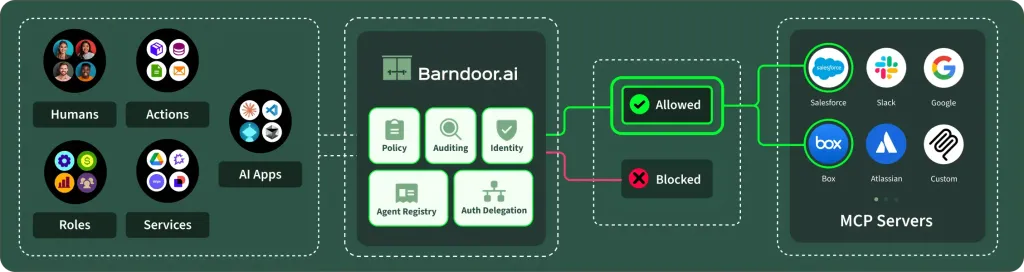
Centralize AI + MCP Connections
Control AI Actions at Runtime
Improve Execution with Context-Aware Tool Routing
Observe AI Activities from End-to-End
Prerequisites
Before you begin, ensure you have:- Admin Access to your Barndoor account. Click here if you have not signed up yet.
- Admin credentials for the MCP server you want to connect
- An AI client application or API key ready for testing
Labs
Step 1: Add and Connect an MCP Server
Step 1: Add and Connect an MCP Server
Summary
To realize full productivity potential, AI needs to take actions in real systems like Salesforce, Jira, GitHub, etc. Barndoor is the control plane for access control between AI and these systems. Once set up, Barndoor enforces fine grained access controls to the MCP servers of your connected systems.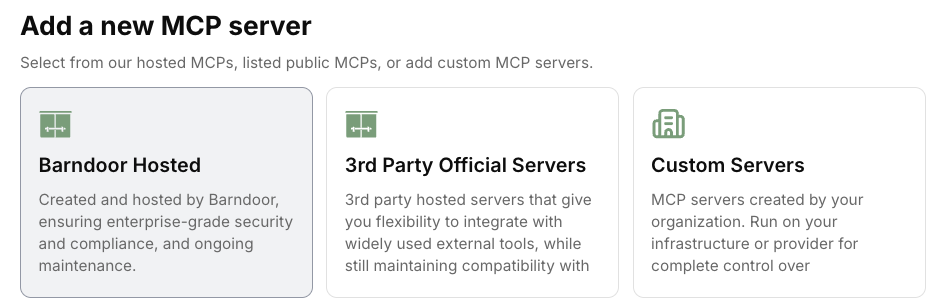
What You’ll Learn
In this lab, you’ll discover how register and connect the Barndoor Gateway to an MCP server. Once connnected that server becomes available to your agents.Let’s Get Started
To evaluate how Barndoor works, first add and connect an MCP server. Choose your path:Add an MCP Server
Register MCP Server Docs
Step 2: Define Your First Access Policy
Step 2: Define Your First Access Policy
Summary
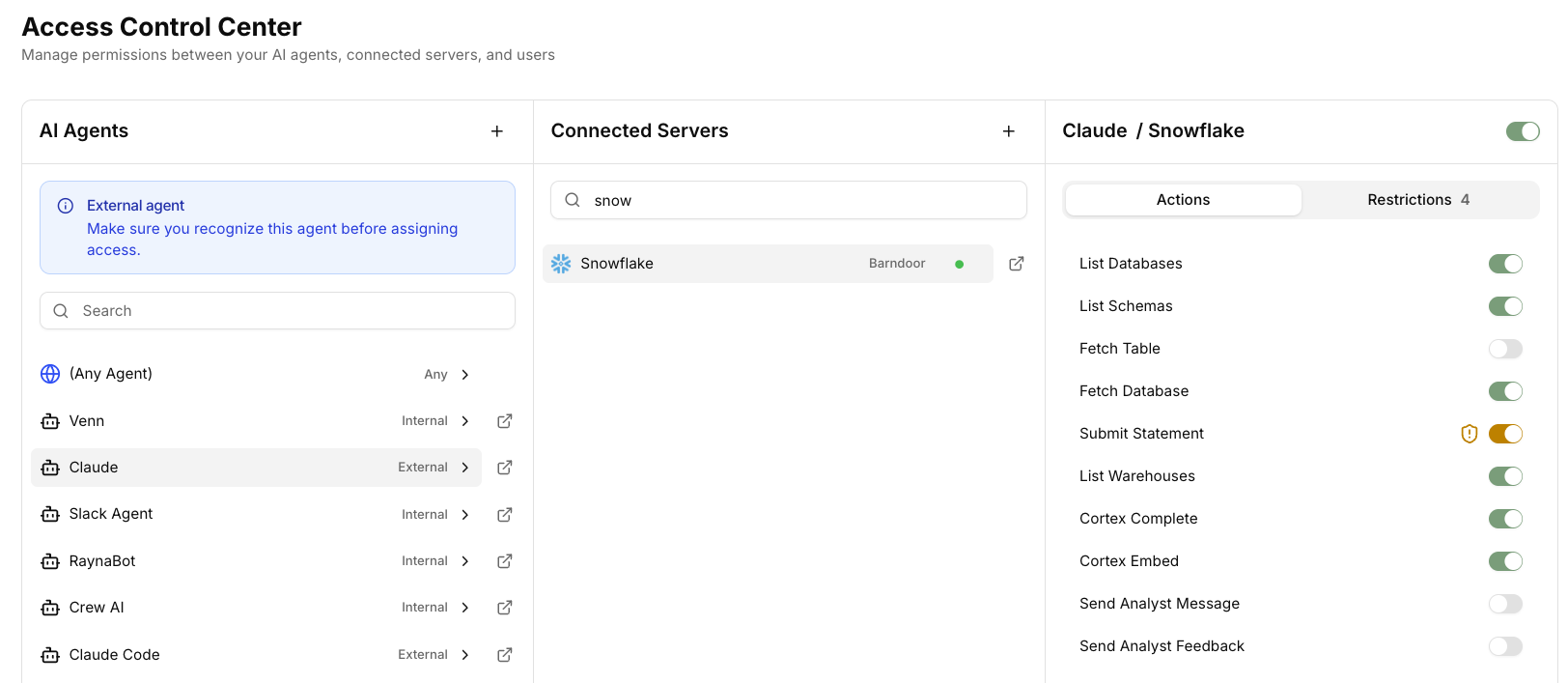
The Access Control Center is where you define policies for how AI agents and users can interact with connected systems.- Create policies that apply to specific agents, user roles and groups, or across your environment.
- Choose which MCP tools are available or add sophisticated fine-grained access controls.
- Deeper role, group, or user attribute based policies are available once you’ve integrated Barndoor with your identity provider system.
What You’ll Learn
In this lab, you’ll create your first access policy that controls what AI agents can (and cannot) do with your MCP servers. You’ll learn how to set up guardrails that keep AI secure while maintaining productivity.Let’s Get Started
Follow these steps to create your first access control policy:Open Access Control Center
Select Agent and Server
- Under the ‘AI Agents’ column, choose ‘Any Agent’
- Under the ‘Connected Servers’ middle column, select Notion or your preferred server to configure agent permissions
Enable MCP Tools
Add Access Restrictions
Create A Policy
- Name the restriction: Give it a descriptive name like “disallow_email”
- Choose Action: Select ‘All Actions’ (synonymous with all MCP tools)
- Set Match: Choose ‘Any’
- Add Condition: Select a User restriction type that checks if the Email is not equal to yours
Review JSON Configuration
Step 3: Protect Sensitive Data with the Data Control Center
Step 3: Protect Sensitive Data with the Data Control Center
Summary
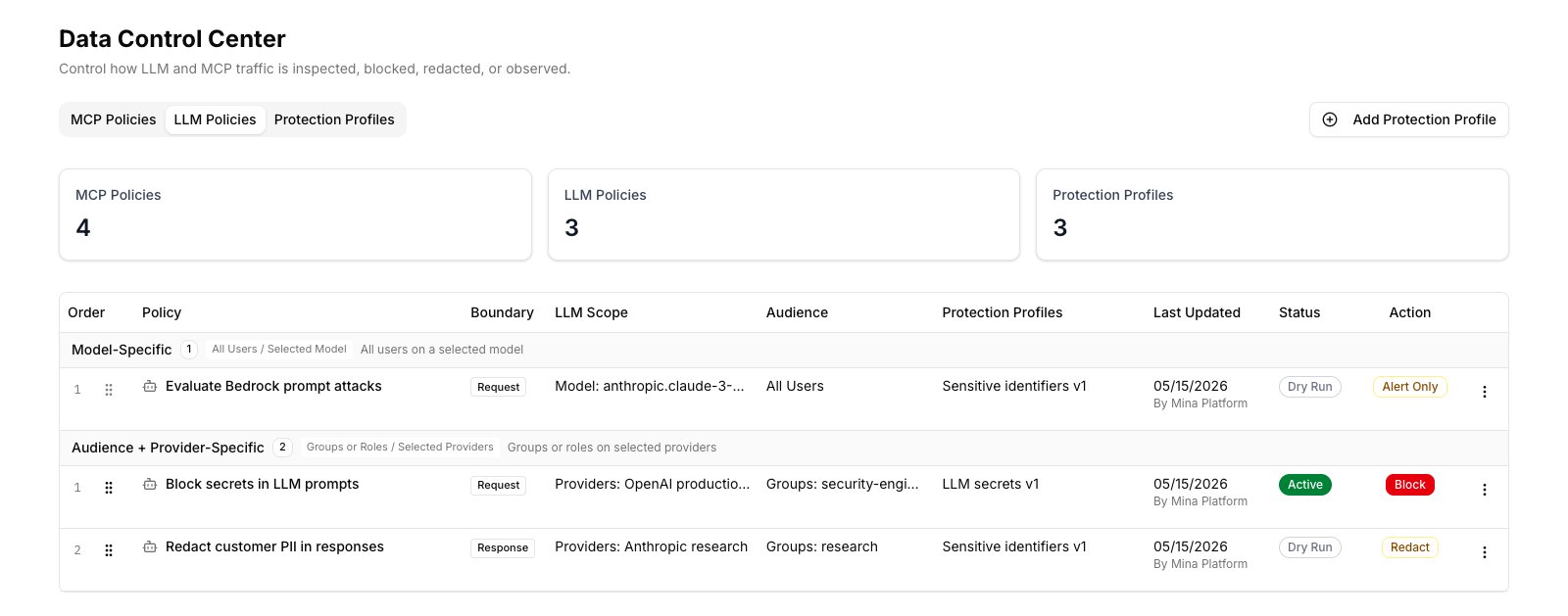
The Data Control Center goes a layer deeper: it inspects the actual data flowing through MCP tool calls and can block, redact, tokenize, or alert on sensitive content in real time.In this lab you’ll stand up the three essentials:- A Protection Profile that detects PII (SSNs, credit cards, emails, and more).
- An MCP Policy that redacts that PII in tool responses.
- A Field Control rule that deterministically strips known-sensitive fields from a specific tool.
What You’ll Learn
How to protect sensitive data two complementary ways — by content detection (Protection Profiles + MCP Policies) and by exact field path (Field Controls) — and how redaction is enforced on live MCP traffic.Let’s Get Started
Open your Barndoor dashboard and go to the Data Control Center. It has three tabs: MCP Policies, Field Controls, and Protection Profiles.Part A — Create a PII Protection Profile
Open Protection Profiles
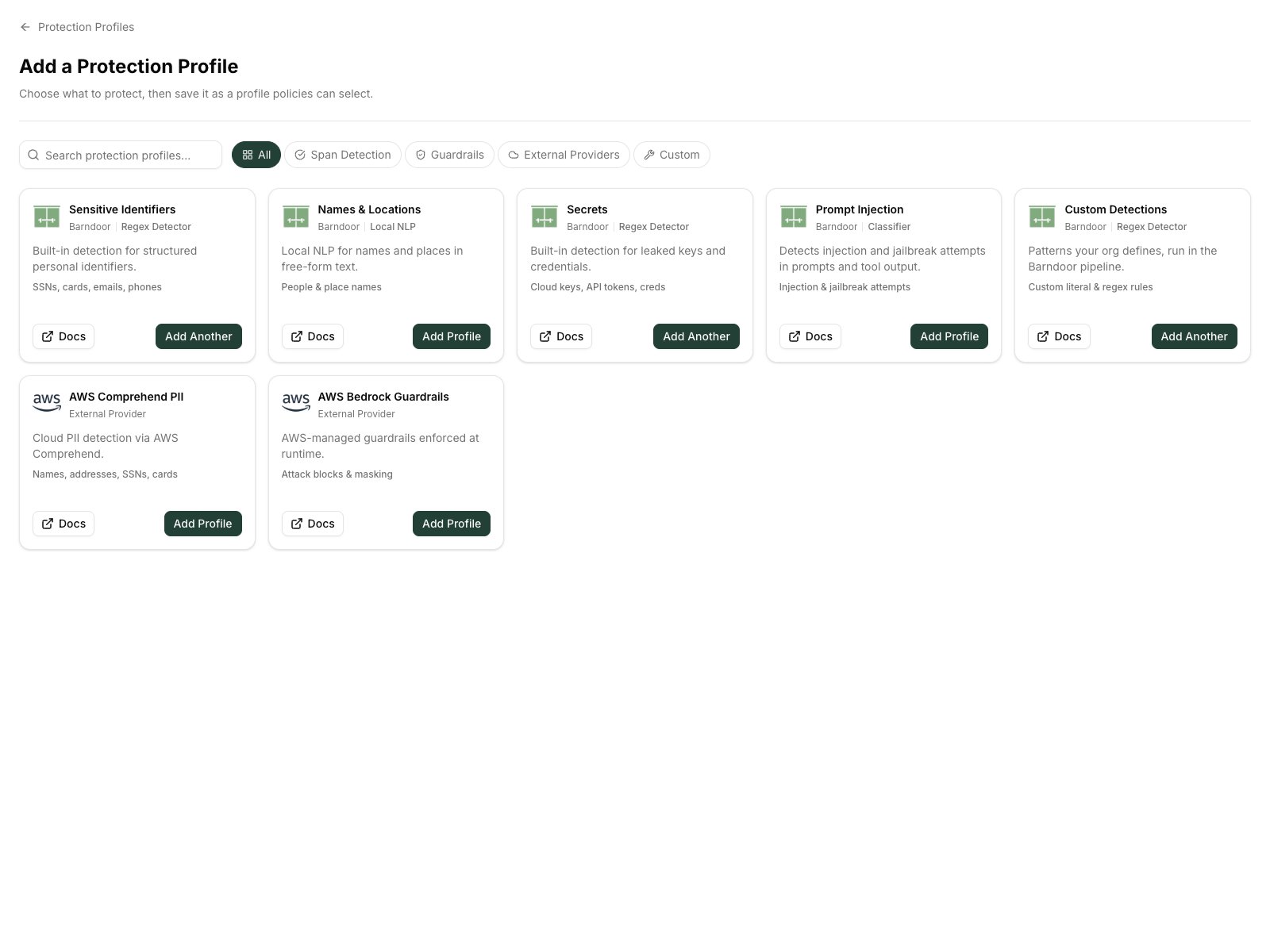
Choose Sensitive Identifiers
Name it and pick detection signals
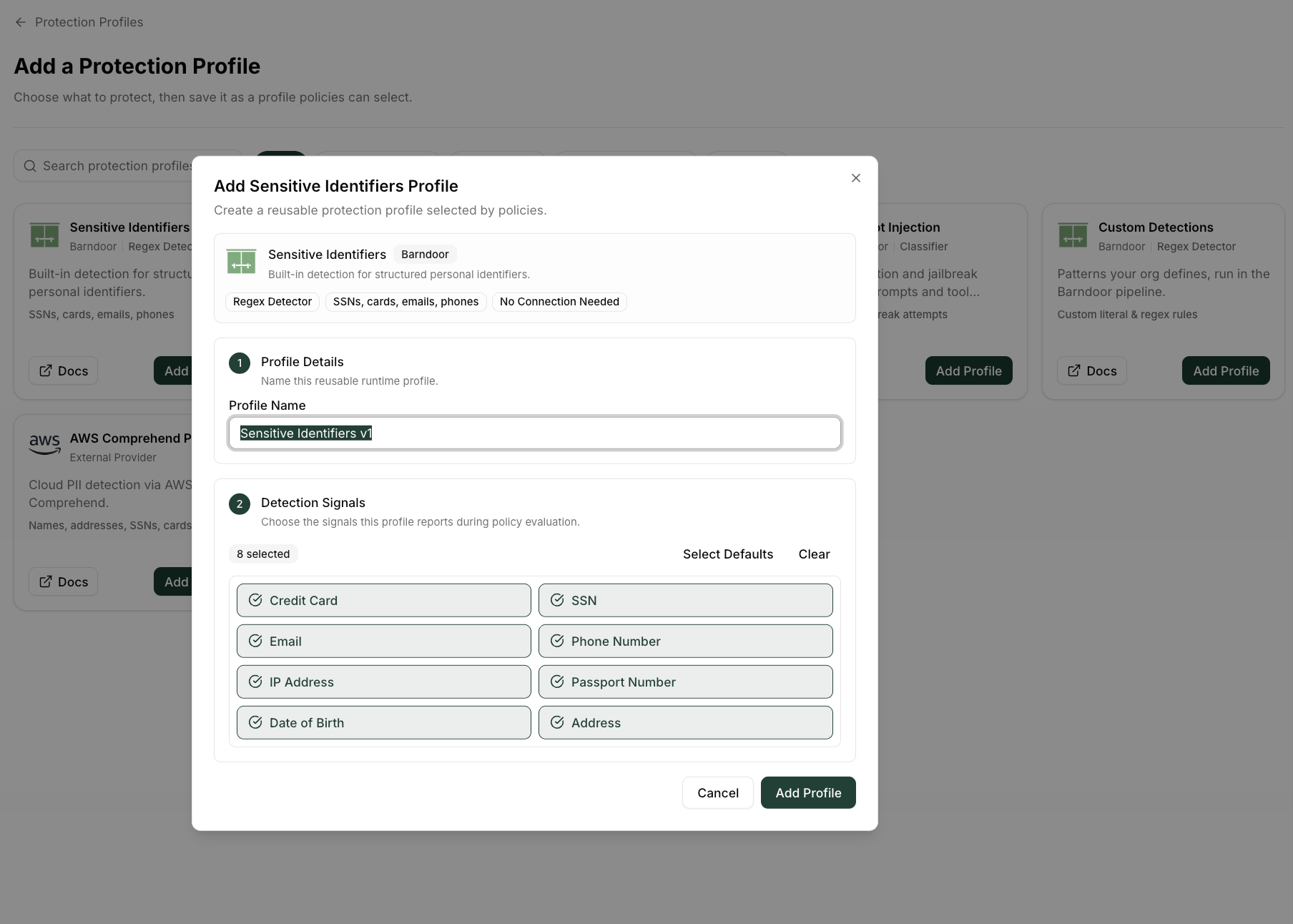
Save
Part B — Create an MCP Policy that redacts PII
Start a new policy
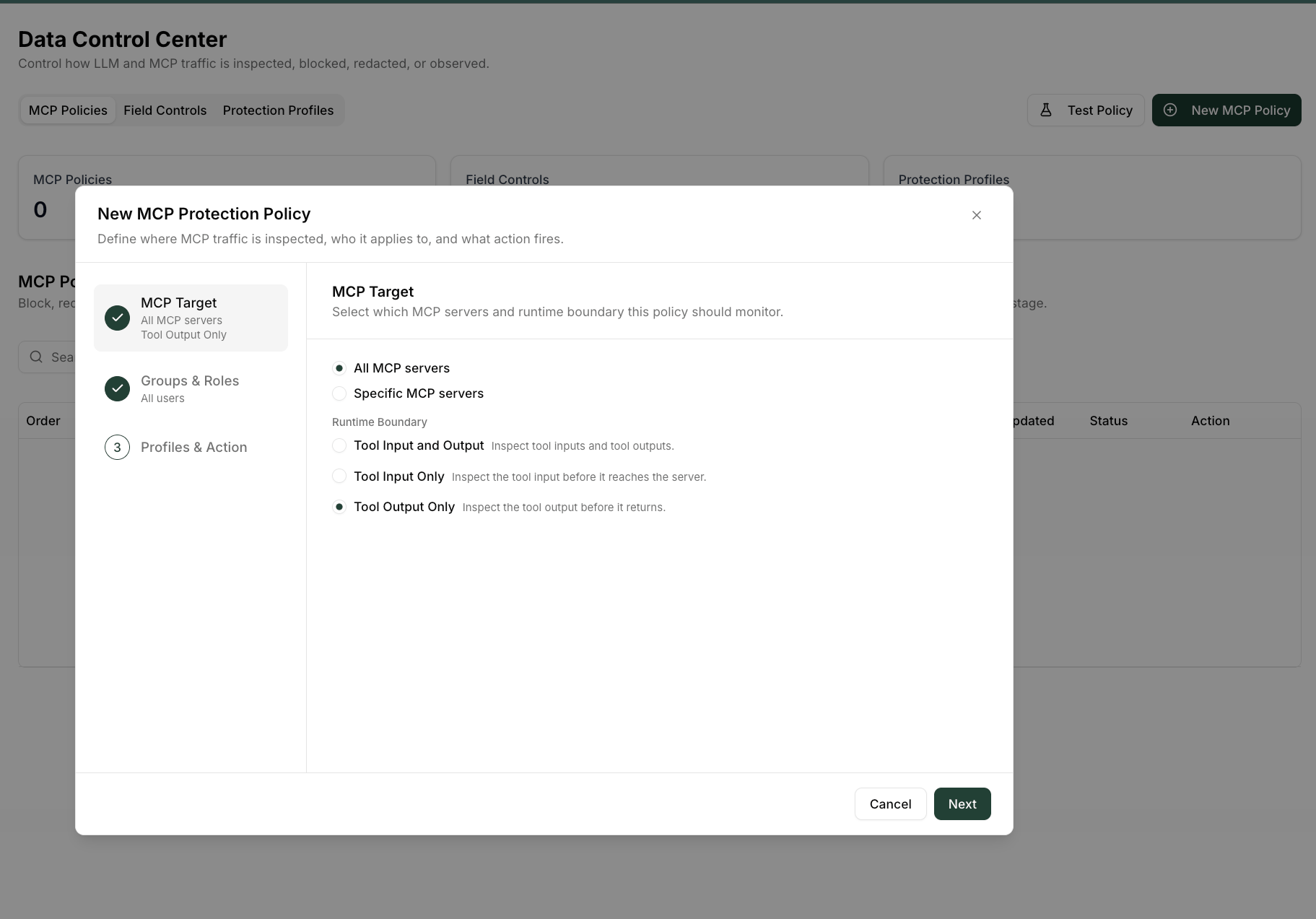
Choose the MCP target
Scope to users, groups, or roles
dept-hr) to target an audience.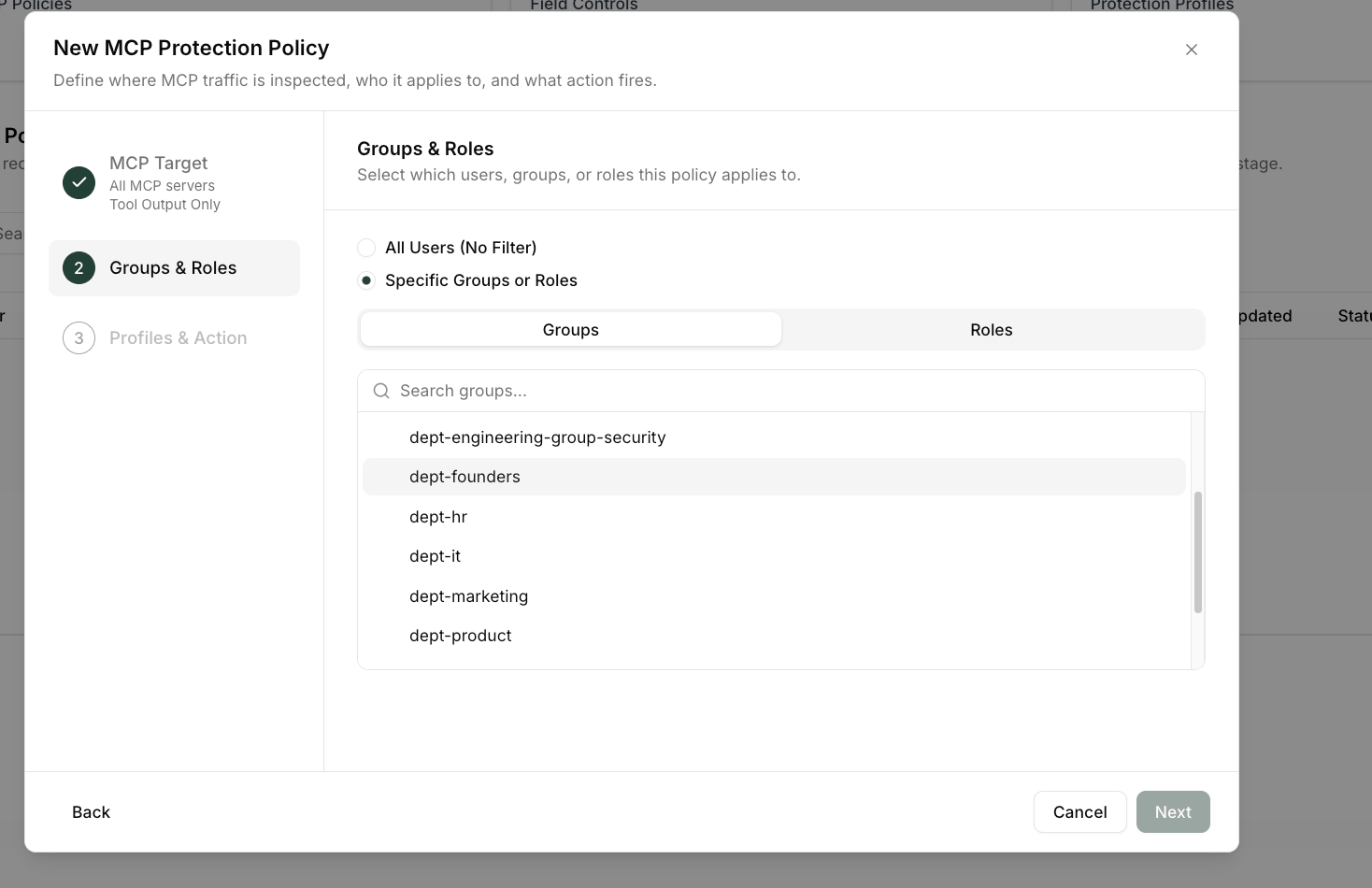
Attach the profile and set the action
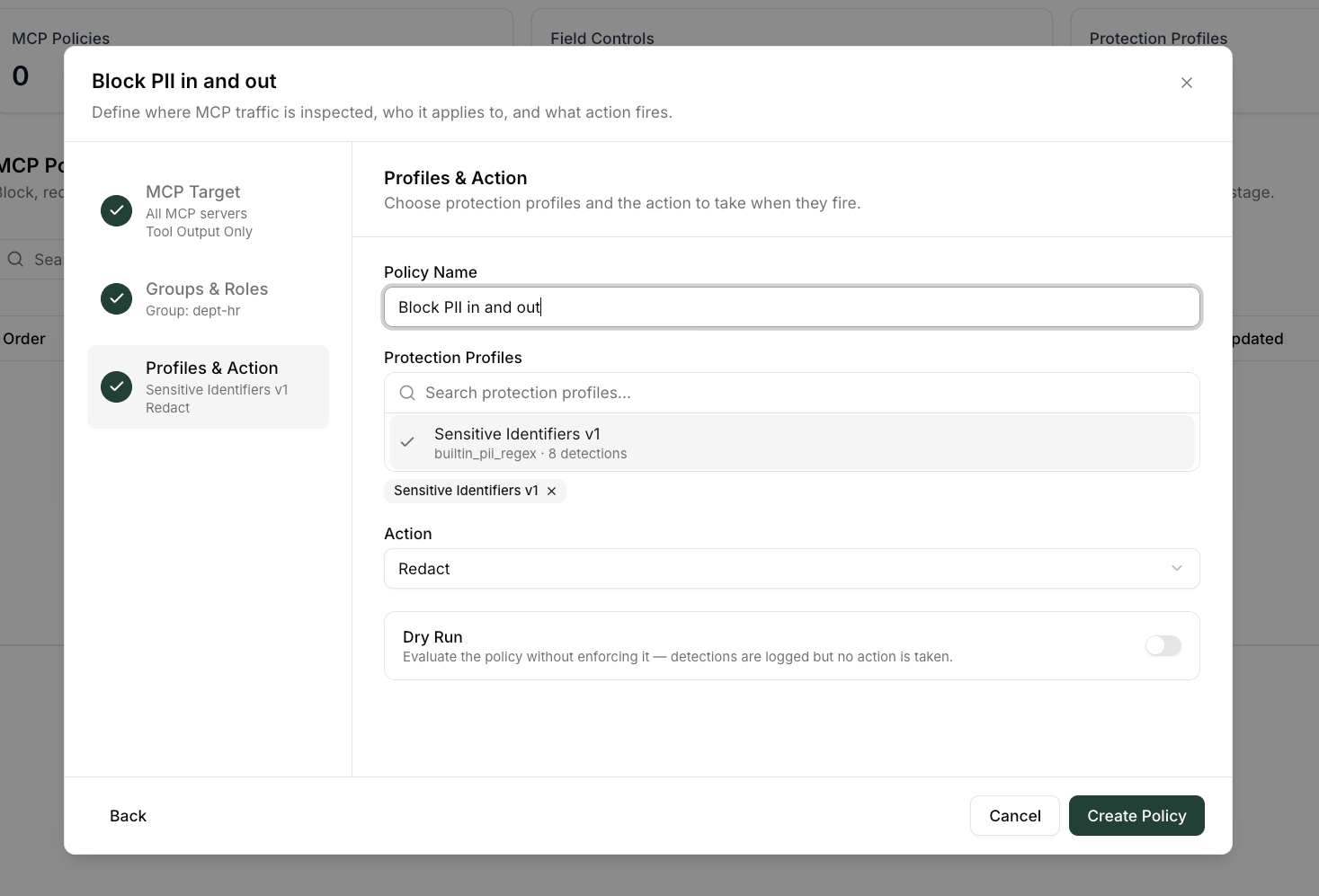
Create the policy
[EMAIL], [SSN]).Part C — Add a Field Control (deterministic response redaction)
Field Controls strip exact JSON fields from a specific tool’s response — use them when you know the precise field paths, independent of content detection.Open Field Controls
Target a server and tool
getAllProjects). Optionally scope it with a Target Group / Role — leave empty to apply to all users.Pick a behavior and select fields
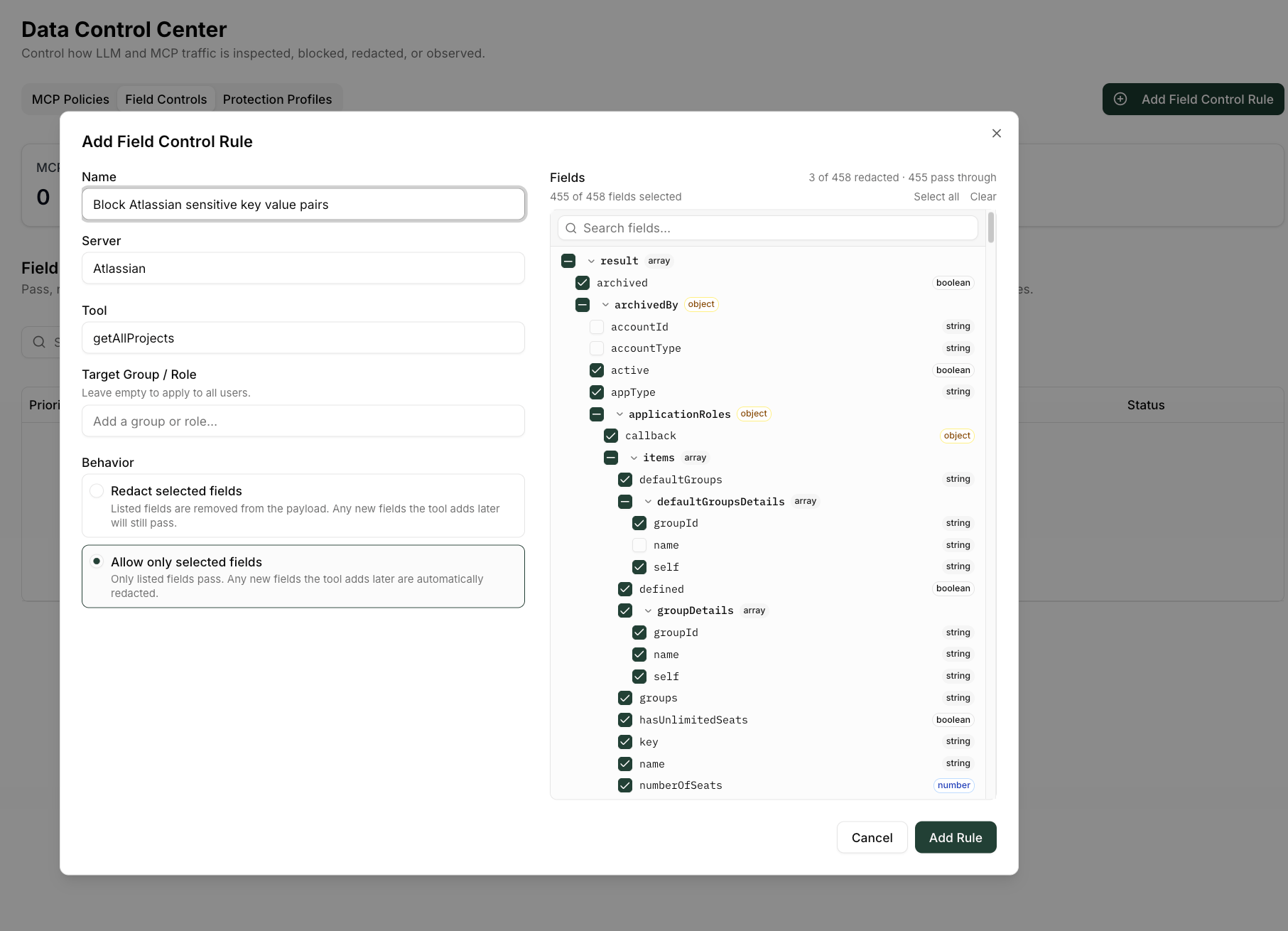
Add the rule
Step 4: Connect an Account
Step 4: Connect an Account
Summary
When you connect an account, Barndoor uses OAuth 2.0 to perform a secure handshake on behalf of the user with the provider. After you log in, the provider (e.g., Salesforce) sends Barndoor an access token. Barndoor securely stores this JWT token and uses it whenever an MCP server tool call needs to act on your behalf — for example, retrieving Salesforce data or updating records. The JWT token will live for 60 minutes and can always be refreshed. Tokens can be revoked at any time through your provider’s account settings or through our API/SDK.What You’ll Learn
In this lab, you’ll learn how to create and configure user accounts that will interact with your MCP servers through Barndoor’s access control policies.Let’s Get Started
- Follow the buttons below to access the Barndoor account management interface
- Check out our extensive documentation on account configuration
Connect an account
Connecting Account Docs
Step 5: Connect an AI Client
Step 5: Connect an AI Client
Summary
Connect your preferred AI chat client (Claude, ChatGPT, Cursor, VS Code) to Barndoor so AI agents can interact with your MCP servers through governed access controls. For a comprehensive walkthrough, see the Connecting Barndoor to Agents guide.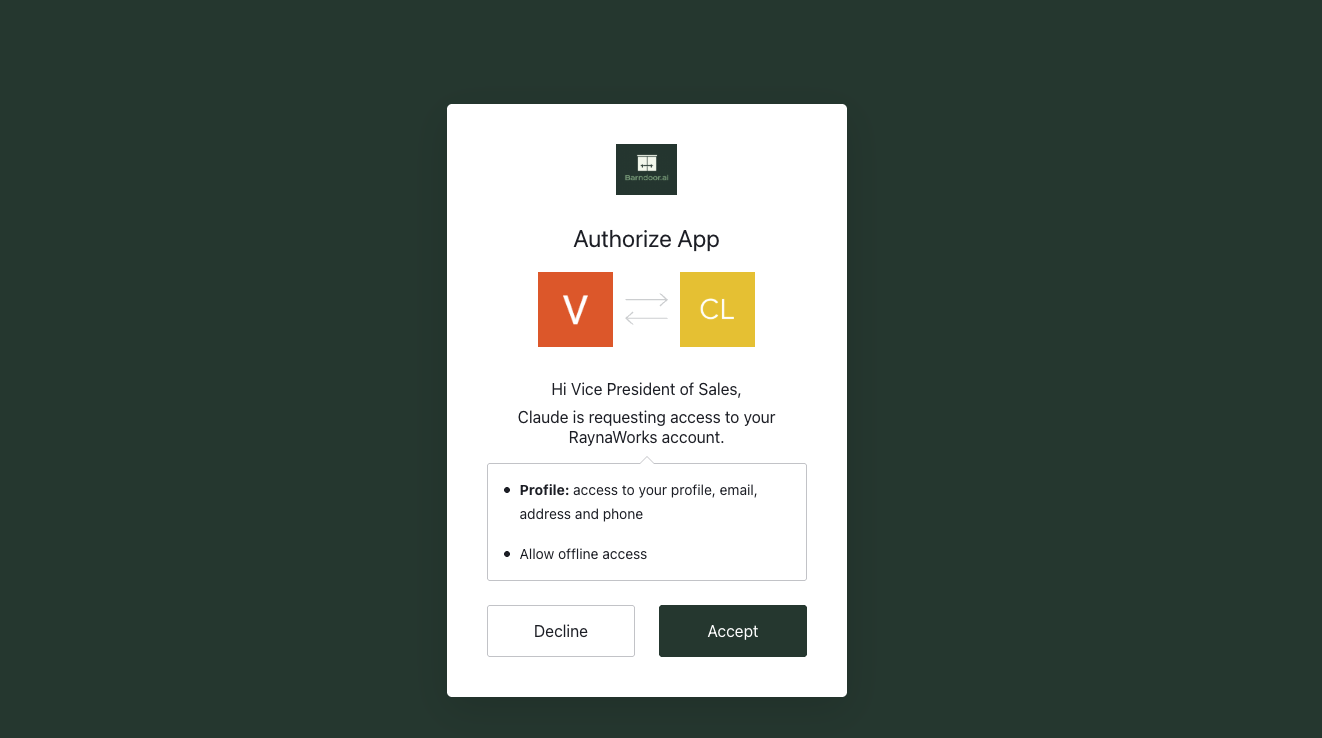
What You’ll Learn
In this lab, you’ll configure an AI client to connect to Barndoor’s MCP gateway. Once connected, the AI will be able to use your MCP tools while respecting the policies you’ve configured.Let’s Get Started
- Claude
- ChatGPT
- Cursor IDE
- VS Code
- Active Claude account (Pro or Team plan)
- Your Barndoor MCP URL:
https://{{your-org}}.platform.barndoor.ai/mcp/{{servername}}. To locate this, simply view the details for any of your configured servers here
- Open Claude → Settings → Connectors tab
- Click “Add custom connector”
- Enter your Barndoor MCP URL
- Click Connect to authorize
Step 6: Review Audit History
Step 6: Review Audit History
Summary
Use the Audit Center to monitor overall behavior and spot unusual patterns, or dive into Audit History for detailed, event-by-event records. Track who accessed what, when it happened, and whether policies allowed or blocked the action.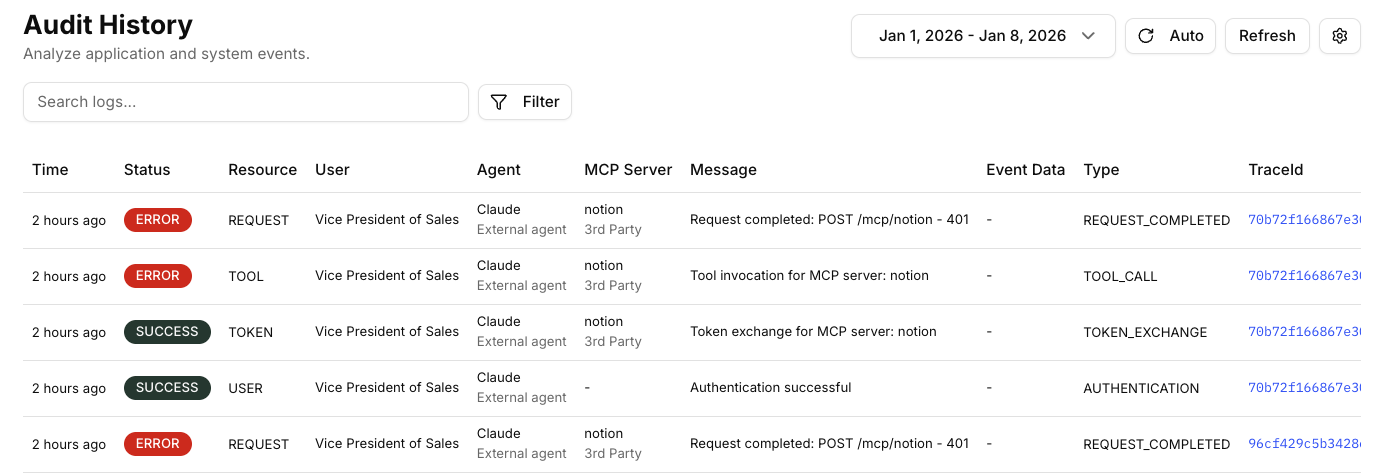
What You’ll Learn
In this lab, you’ll learn how to access Barndoor’s audit logs to review AI interactions with your MCP servers. You’ll see:- Who & what: User, agent, or service activity
- When & where: Time and affected system
- Outcome: Policy decision result and full activity trace log
Let’s Get Started
Navigate to Audit History Center
Open Filters Panel
Navigate to Server Filter
Select Your Server(s)
Apply Filters
Review Filtered Results
- View audit logs for specific servers, agents, etc.
- Investigate issues with a particular MCP server by clicking into the traceId to see a full stacktrace
- Monitor your inbound MCP calls across all users/agents/servers
Additional Filter Options
Beyond Server, you can also filter by:- Agent type: Which AI agent made the request
- Event Type: Type of action attempted
- Resource: Specific data or endpoint accessed
- Status: Allowed, denied, or blocked actions
- User: Individual user or service account
Step 7: Invite Team Members
Step 7: Invite Team Members
Summary
Collaborate with your team by inviting members to your Barndoor tenant. Team members can help manage MCP servers, configure policies, and monitor AI activity across your organization. Non-admin users will be able to login to the Barndoor dashboard and manage their connected accounts.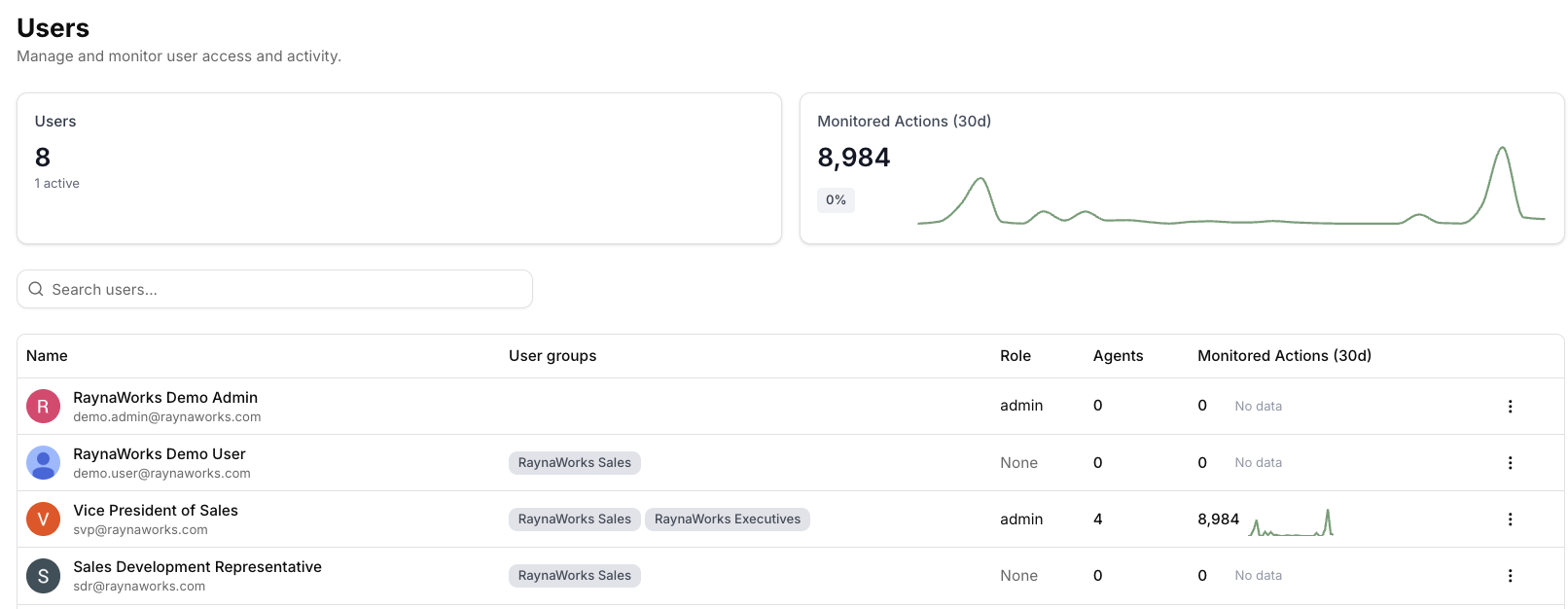
What You’ll Learn
In this lab, you’ll learn how to invite colleagues to your Barndoor workspace. Once invited, they’ll receive an email to join your tenant and can be assigned specific roles and permissions.Let’s Get Started
Navigate to Users Page
- Total number of active users in your tenant
- Monitored actions over the last 30 days
- A list of current team members
Click Invite Team Members
Fill Out Invitee Information
- First name: Their first name
- Last name: Their last name
- Email: Their work email (e.g.,
[email protected])
Add Multiple Team Members (Optional)
Remove Invitees (Optional)
Send Invitations
Monitor Invitation Status
- See pending invitations
- Track which team members have accepted
- Resend invitations if needed
- Manage user roles once they’ve joined
- Promote a team member to Admin
Next Steps
Congratulations! You’ve successfully completed the Barndoor Trial setup. Here’s what you can explore next:Our SDKs
API Reference
Building a custom Crew AI Agent
MCP Server Catalog
Troubleshooting
MCP Server Connection Failed
MCP Server Connection Failed
- Incorrect server URL or credentials
- Firewall blocking Barndoor’s IP addresses
- OAuth token expired
Policy Not Enforcing
Policy Not Enforcing
- Policy not assigned to the account
- Policy priority conflicts with another policy
- Cache delay (policies can take 30-60 seconds to propagate)
Pending Connection
Pending Connection
- Authentication process was interrupted or not completed
- Invalid or expired credentials were provided
- Service connection permissions weren’t granted
Agent Authentication Failed
Agent Authentication Failed
- Invalid or expired API key
- Incorrect API endpoint
- Missing authentication headers
Audit Logs Not Showing
Audit Logs Not Showing
- Time zone mismatch in date filter
- Requests not reaching Barndoor (direct server access)
- Log retention period expired