

Overview
Every request to the LLM Gateway carries abd-… API key. Keys can expire, and they can be rotated, extended, disabled, and revoked. Admins can also limit how long the keys users create for themselves may live.
Before You Begin
You’ll need:- A Barndoor account. Any user can manage their own keys; LLM Management needs admin privileges.
- The LLM Gateway set up for your organization — see the LLM Gateway Quickstart.
Key Status
Each key is in exactly one status. The Status column shows it, and the gateway enforces it on every request.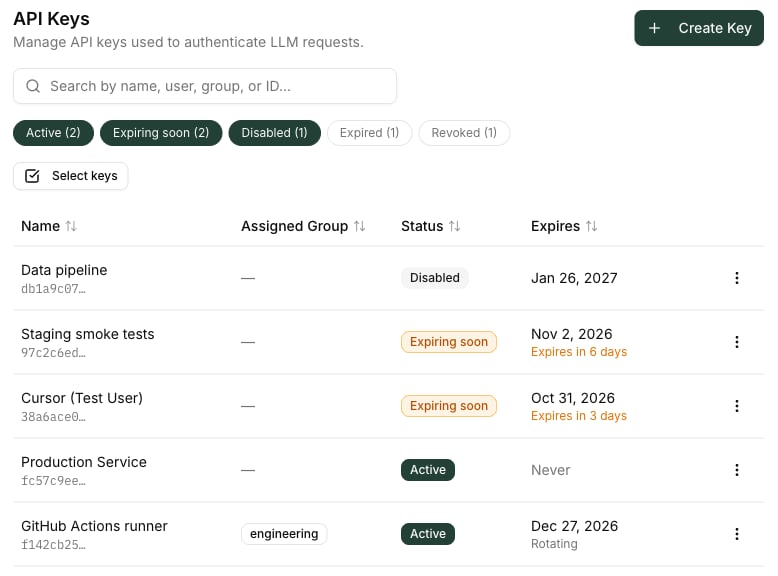
401 from the gateway. See What callers see when something is denied.
Create a Key With an Expiration
- Go to LLM Management → API Keys and click Create Key, or to Settings → My Models → API Keys for a key of your own.
- Enter a Name. On LLM Management, optionally Assign to User or Assign to Group.
-
Under Expiration, open the picker and choose when the key stops working:
- a quick pick — 1 hour, 1 day, 7 days, 30 days, 90 days, or 1 year;
- a date on the calendar, which expires at the end of that day (23:59) unless you type a time; or
- No expiry, if your organization allows it.
-
Click OK, then Create.
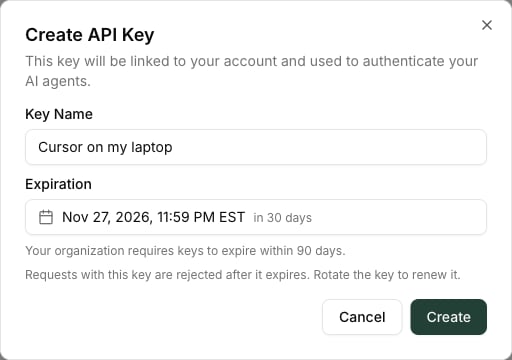
- Copy the key from the API Key Created dialog. It’s shown only once — Barndoor keeps only a hash.
If your organization has a key policy, the picker on Settings → My Models only offers expirations within your limit and says what the limit is. If your organization sets a fixed lifetime, there’s no picker: the dialog shows when the key will expire instead. Keys created on LLM Management are exempt from key policies.
Rotate a Key
Rotating replaces a key’s secret but keeps the key itself, so its ID, name, user or group binding, and usage history carry over. Rotate on a schedule, when a key is about to expire, or when a secret may have leaked.- Open the key’s ⋮ menu and choose Rotate. On Settings → My Models, click the key’s rotate icon.
-
Choose a Grace period for the old key:
-
Set the New expiration. It starts at the key’s current expiration, and leaving it unchanged keeps it. If the key has already expired, or its expiration is outside your key policy, you must pick a new one.
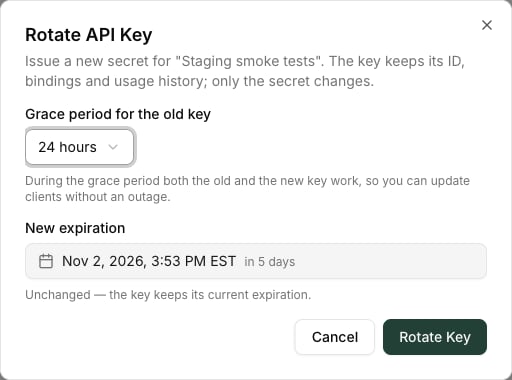
- Click Rotate Key, then copy the new secret. Like a new key, it’s shown only once.
Change a Key’s Expiration
Admins can extend, shorten, or remove a key’s expiration without issuing a new secret, so the key’s clients keep working unchanged.- On LLM Management → API Keys, open the key’s ⋮ menu and choose Change expiration.
- Pick the new expiration, or No expiry.
- Click Save.
- Extending takes effect at once.
- Shortening also takes effect at once. The new expiration must still be in the future; to stop a key now, disable or revoke it.
- An expired key becomes usable again, with the same secret, when you save an expiration in the future.
Disable or Revoke a Key
- Disable blocks the key temporarily. The secret stays issued, and Enable turns the key back on without handing out a new one.
- Revoke blocks the key permanently. Applications using it lose access immediately, and it can’t be rotated, extended, or re-enabled. To replace it, create a new key.
Find and Act on Many Keys
On LLM Management → API Keys:- Search by key name, user, group, or key ID.
- Filter by status with the chips above the table. Each chip shows how many keys have that status. By default the list shows Active, Expiring soon, and Disabled keys; turn on Expired or Revoked to see those too, or click Reset to go back to the default. The filter is kept in the page address, so you can bookmark or share a filtered view.
- Sort by any column, including Status and Expires.
- Click Select keys.
- Tick the keys you want, or click Select all to take every key that matches the current search and filter, including keys on other pages.
- Click Disable, Enable, or Revoke. Each button shows how many of the selected keys it applies to. A key that’s already disabled isn’t disabled again, for example.
- Click Cancel selection when you’re done.
Limit Key Lifetimes With Key Policies
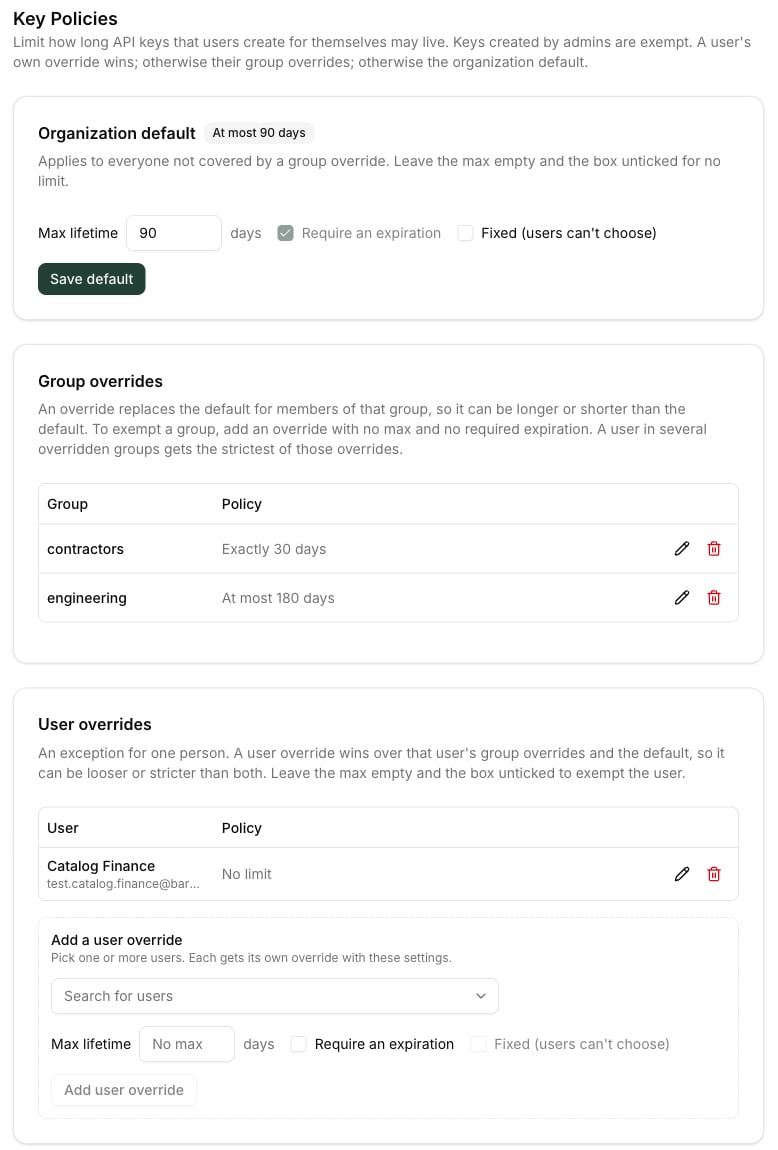
LLM Management → Key Policies controls how long the API keys that users create for themselves may live. Keys that admins create on LLM Management → API Keys are exempt.Key Policies may not be enabled for your organization yet — contact Barndoor if you don’t see Key Policies in LLM Management.
What a policy sets
Each policy — the organization default, a group override, or a user override — combines three settings:
The policy list summarizes each one as Exactly 30 days, At most 90 days, Expiry required, or No limit.
Set the organization default
- Go to LLM Management → Key Policies.
- Under Organization default, set the Max lifetime and the boxes you want. Leave the max empty and the boxes unticked for no limit.
- Click Save default.
Add group and user overrides
An override replaces the default for the people it covers, so it can be longer or shorter than the default.- Under Group overrides or User overrides, search for and pick one or more groups or users.
- Set the limit, then click Add override (or Add user override). Every group or user you picked gets its own override with the same settings, which you can then edit or remove one at a time.
Which policy applies
For a given user, the gateway uses the first of these that exists:- The user’s own override. It wins over everything else, so it can be looser or stricter than their groups and the default.
- Their group overrides. A user in several overridden groups gets the strictest of those overrides.
- The organization default.
When a policy is checked
A policy is checked when a user creates or rotates a key, on the portal and through the API alike. Changing a policy doesn’t shorten keys that already exist: they keep their expiration until they’re next rotated, and at that point the new expiration has to fit the policy.Expiration Alerts
The gateway checks for expiring keys every 15 minutes and raises these alerts:
Each alert fires once per key and stage. Rotating or extending a key to a new expiration starts its alerts over. Each alert links to the key on LLM Management → API Keys.
To receive these alerts, turn the alert types on for your inbox, email, or an organization-wide channel — see Notifications.
Manage Keys Through the API or Terraform
Everything on this page is also available through the API — see API Keys and Key Lifetime Policies in the LLM Gateway API reference. To manage keys and key policies as code, use the Barndoor Terraform provider.Troubleshooting
A client suddenly gets 401 errors
A client suddenly gets 401 errors
Check the key’s status on LLM Management → API Keys. Turn on the Expired and Revoked filter chips if you don’t see it. An Expired key can be rotated or have its expiration changed; a Disabled key can be enabled; a Revoked key must be replaced with a new one.
The expiration I want is greyed out
The expiration I want is greyed out
Your organization’s key policy limits how long your keys may live. The picker says what the limit is. Ask an admin for an override, or for an admin-created key, which isn’t subject to key policies.
Rotating asks for a new expiration
Rotating asks for a new expiration
The key has already expired, or its current expiration is outside your key policy. Keeping it would leave the new secret unusable or break the policy, so pick a new expiration.
The old secret stopped working right after rotating
The old secret stopped working right after rotating
The rotation used a grace period of None. Rotate again with a grace period to give clients time, or update them to the new secret.