

Barndoor Bridge is in Early Access. These pages are not listed in the navigation. Overview:
/how-tos/barndoor-bridge/overview · Using Bridge: /how-tos/barndoor-bridge/using-bridge · Install with MDM: /how-tos/barndoor-bridge/install-with-mdm · Bring your own local MCP: /how-tos/barndoor-bridge/publish-local-mcpHow your own local MCP server runs under Bridge
In sessions Bridge launches, there is exactly one way to run a local MCP server:- A single signed executable per Mac architecture. Bridge downloads it over HTTPS from a host you control and runs it over stdin/stdout. No
npx, nouvx, no sibling files. - A signed release description in your Barndoor catalog. It names the download URL and sha256 of each build, the command-line arguments, and the environment variables the server may see. Any edit breaks the signature.
- A publisher key pinned by your MDM. Each Mac trusts a release only if its signature verifies against a public key in the Barndoor managed-settings profile, and downloads it only from the hosts that profile allows for that key.
- Claude Desktop’s own local MCP setting is off. Bridge launches Claude Desktop with its “add a local MCP server” option disabled, so a server added in Claude Desktop’s settings never runs.
- Per-machine approval is ignored.
barndoor local-mcp trustapproves a build on one machine for ungoverned CLI sessions only. In Bridge such a server shows Local approval only and doesn’t run.
When a session starts, Bridge verifies the signature against the pinned key, downloads the build for that Mac from an allowed host (it does not follow redirects), checks its sha256, keeps a read-only copy, and re-checks the sha256 on every launch. Every tool call then goes through Barndoor policy and the audit log. If any check fails, the server is skipped and nothing runs.
Overview
Steps 7 to 10 are one-time. After that, a new release is steps 1 and 4 to 6, and all of them run from the command line, so a CI pipeline can do it.
Before you start
- Bridge 0.1.218 or later on your managed Macs, which needs macOS 15 Sequoia or later (Install with MDM). Bridge installs the
barndoorcommand used below. Check withbarndoor version; Bridge 0.1.218 printsv0.1.218 (cli release v0.1.288). - A Barndoor organization admin signed in on the publishing Mac (
barndoor auth login). - Local MCP management enabled for your organization. If MCP Servers → Add MCP Server has no Local filter, contact Barndoor.
- An HTTPS host that every Mac can download from without signing in and without a redirect to another host: a public storage bucket (Google Cloud Storage, Amazon S3, Azure Blob), a CDN, or an internal web server on your network. GitHub release downloads don’t work, because they redirect to another host.
- An MDM admin who can change your Barndoor managed-settings profile.
- For packaging: a Mac. To build the Intel version on Apple silicon, install Rosetta 2 (
softwareupdate --install-rosetta). Nothing else needs installing;barndoor local-mcp packagedownloads its own pinned build tools.
Step 1: Package the server
Bridge downloads one self-contained executable per platform:darwin/arm64 (Apple silicon) and darwin/amd64 (Intel). Most MCP servers ship as an npm or PyPI package you’d normally start with npx or uvx. barndoor local-mcp package turns one into both executables:
sign command to run next. In our run, Auth0 took about 5 seconds and Temporal about 50.
- Versions must be exact:
@1.2.3for npm,==1.2.3for PyPI. --nameis the executable’s file name. It becomes{executable}in the download URL.--entrypicks the npm bin or PyPI console script when a package has more than one.--argsand--envare for the smoke test only.packagestarts each build with onlyPATH, an emptyHOMEand your--env, and checks that it answers MCPinitializeandtools/list. Both architectures must list the same tools. Use--envfor placeholder credentials a server needs just to start. A published server gets only the variables you allow when signing, andpackagereminds you:The smoke test set AUTH0_DOMAIN, AUTH0_TOKEN. A launched server gets only --env-allowlist variables, so add them there or bind them per user with --credential-schema.- npm servers are compiled with bun, with
.envandbunfig.tomlloading turned off, so a stray.envcan’t feed the server variables you didn’t allow.packagealso fixes the two runtime loads that usually break a compiled npm server: native modules that pick their.nodefile at runtime, andpackage.jsonread throughcreateRequire. Any other load whose path is only known at runtime fails the build, naming the file and line. - PyPI servers are frozen with PyInstaller from prebuilt wheels only; the Intel build runs under Rosetta. One-file PyInstaller builds unpack themselves on each start, so the first response takes a few seconds.
- The build tools (bun, uv, PyInstaller) are pinned versions, downloaded once into
~/Library/Caches/barndoor/local-mcp-packageand checked against sha256 sums built intobarndoor. Package install scripts never run.
GOOS=darwin GOARCH=arm64, then GOARCH=amd64) into the same folder layout, with the same file name in each.
Packaging by hand, without the package command
Packaging by hand, without the package command
If Check each build before signing by starting it with an empty environment, for example
package can’t build your server, or you build in your own pipeline, these are the recipes it automates.npm, with bun:- Always pass
--no-compile-autoload-dotenv --no-compile-autoload-bunfig. Without them a compiled program reads.envandbunfig.tomlfrom whatever folder it starts in. In our run, an Auth0 build compiled without these flags started with credentials from a.envin its working folder; the build compiled with them refused. - Replace a native module’s computed
require('prebuilds/' + process.platform + …)with a literal path to the target’s.nodefile. For Auth0 that’s@github/keytar/lib/keytar.js: startloadNativeAddon()withreturn require('../prebuilds/darwin-arm64/keytar.node'), ordarwin-x64for the Intel build. - Inline
require('../../package.json')loaded throughcreateRequire. Otherwise the compiled file fails witherror: Cannot find module '../../package.json' from '/$bunfs/root/…'. For Auth0 that’sdist/utils/package.jsanddist/utils/analytics.js.
entry.py that calls the server’s main, then:- Don’t
--collect-all mcp: it importsmcp.cli, which fails the build withSystemExit: 1frommcp/cli/cli.py. - Install the Intel dependencies with
--only-binary :all:. Otherwise uv compiles packages such ascryptographyfrom source and fails witherror[E0463]: can't find crate for 'core'. - Run the Intel PyInstaller as
python -m PyInstaller;arch -x86_64 .venv-x64/bin/pyinstallerfails with “isn’t executable”.
tools.json yourself. It’s a JSON array of {name, description, input_schema}. A saved MCP tools/list result uses different field names and is refused by sign with must be a JSON array of {name, description, input_schema}. Convert it:env -i PATH=/usr/bin:/bin HOME=$HOME pkg/temporal/darwin-arm64/temporal-mcp --host localhost:7233 --namespace default.Step 2: Generate a publisher key
Run this once, signed in to the organization that will publish:- The key is bound to your organization’s ID. Pass
--org <organization ID>only to target a different organization you belong to. --allowed-hostis the host your builds download from. Repeat it for more than one. Without it, the printed entry carries a placeholder host that fails closed.--outgetsed25519.seed(the private key, mode 0600),ed25519.pubandkey_id. Hand the printed<dict>and fingerprint to IT for Step 10.
storage.googleapis.com lets this key’s releases download from any bucket on it. Each build is still pinned by its sha256 in the signed release, but a dedicated host keeps the allowed list meaningful.
Step 3: Write the credential and configuration schemas
Skip this step if the server needs neither per-user secrets nor admin settings.Per-user credentials
If each employee supplies their own secret, such as an API key, declare it in a credentials file. When a user connects the server, Barndoor asks for these fields and passes each one to the server as the environment variable you name.temporal-credentials.json
name: lowercase letters, digits and_, starting with a letter.type:"password"(masked) or leave it out.location: always"env".env_var: Barndoor refusesPATH,HOME,DYLD_*,NODE_*andPYTHON*.- A blank optional field is left out of the server’s environment.
Configuration values
Settings that are the same for everyone, such as a server address, belong in the arguments as{{config.<key>}} placeholders. The admin fills them in when installing. Declare them in a configuration schema, which you pass when you publish:
temporal-config-schema.json
- A closed object:
"additionalProperties": false. - Properties are
string,boolean,integerornumber, with onlytype,description,enum,minLength,maxLength,minimumandmaximum. Nodefault. - Property names: lowercase letters, digits and
_, starting with a letter.
Step 4: Sign the release
Start from thesign command package printed, and add your key, download URL, arguments and schemas:
sign writes envelope.json (the signed release), tools.json and manifest.json (the decoded release, for review) to --out. The download URL is part of what you sign, so moving the builds later means signing again.
Step 5: Upload the builds
Upload each file, byte for byte unchanged, to the URLsign printed. If a file differs by one byte from what you signed, Macs refuse it.
For example, with a public Google Cloud Storage bucket:
Step 6: Publish to your catalog
- The entry is visible only to your organization. Publishing installs nothing.
- Later publishes of the same
--ref-nameupdate the entry in place and refresh every installation of it:Updated "auth0" (catalog id …) from 0.1.19 to 0.1.19 (10 tools); its installations pick up the new version.The name, description and configuration schema stay as they are unless you pass them again. An older version is refused unless you pass--allow-downgrade. - You must be an admin of the organization the key belongs to. In CI, set
BARNDOOR_CLIENT_IDandBARNDOOR_CLIENT_SECRETto your organization’s Terraform provider credential (Settings → API Tokens) instead of signing in.installin the next step uses the same credentials.
envelope.json into Signed manifest envelope and tools.json into Tools, check the Decoded manifest and Key id it shows, and declare the same settings under Configuration schema.
Step 7: Install it for the organization
Installing is a one-time step. From the command line, with the same admin sign-in or CI credentials aspublish:
<catalog>is the catalog entry’s slug, id or ref.- It’s safe to run again, for example from CI on every release. A second run updates the installation and keeps anything you don’t pass. Passing
--configor--config-file <json>replaces the whole configuration. - Configuration is checked against the entry’s schema before anything is sent, and values are never printed:
Error: config key "bogus" is not declared by this catalog entry; declared keys: host, namespace. --disabled/--enabledturn the installation off or on for everyone.--availability opt_in|requiredchooses whether each user opts in (the default) or every Mac runs it. It needs a Barndoor platform release from v2.53 on; leave it out otherwise.
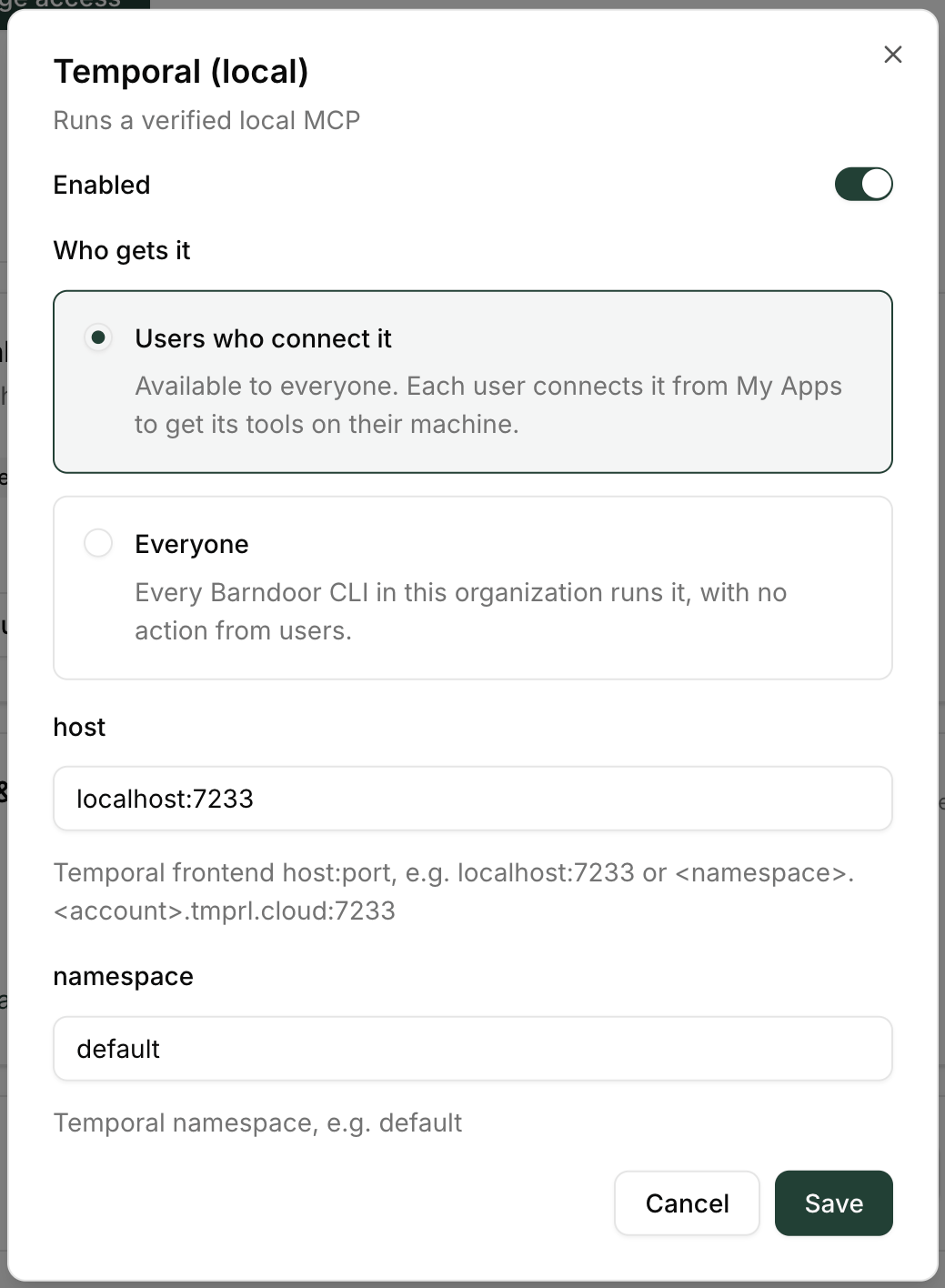
0 managed local MCP.
Step 8: Set a policy (required)
Policies are set in the admin UI. Create an access policy for the server in the Access Control Center (Managing Policies):- Create a policy. On the AI Agent step, choose the agents it covers, for example all of them.
- On the MCP Server step, choose the new server. You can’t change the server after saving.
- In the tool matrix on the same step, the All Users column is the baseline for everyone. Use Add Group/Role for narrower audiences. Set each tool to Always Allow (check), Needs Approval (shield) or Off (crossed circle). The Set all menu at the top of a column sets every tool at once; then change the exceptions one by one (Granular Tool Use Confirmations).
- Finish Policy Details and Policy Rules, then save and activate the policy. It applies on the next tool call; nobody needs to restart.
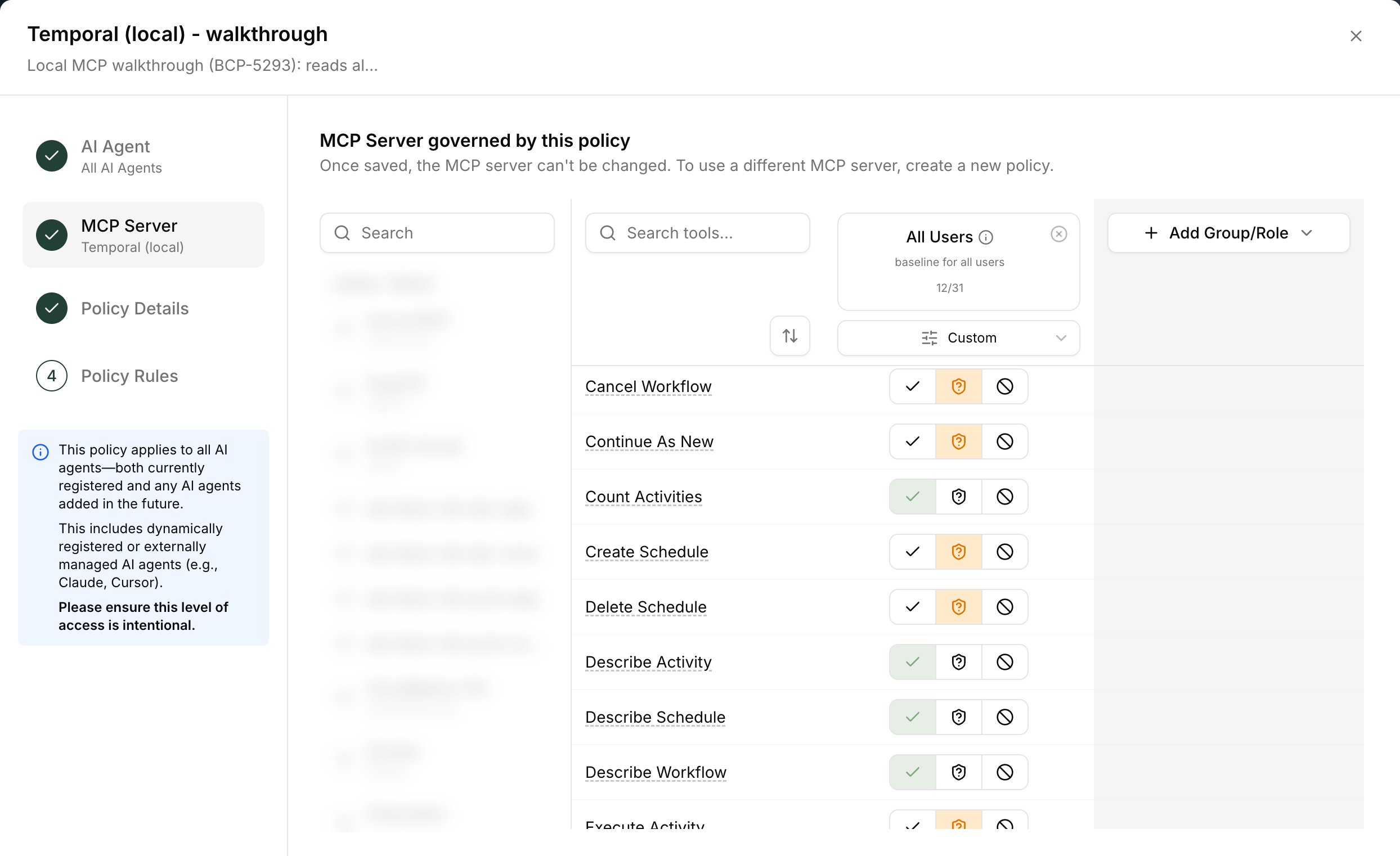
list_*, describe_*, get_*, count_* and query_workflow) and set the 19 write tools, such as start_workflow, signal_workflow and terminate_workflow, to Needs Approval. In Claude Desktop that shows an approval card before each write runs.
Step 9: Users connect it
Each employee turns the server on once:- In Barndoor, open My Apps.
- Find the server, for example Temporal (local), and select Connect.
- If the release has per-user credentials, enter them. Optional fields can stay blank.
barndoor sync. A Claude Desktop session that was already open keeps the servers it started with; launch a new one from Bridge.
Servers that need a one-time sign-in
Some servers keep their own sign-in instead of taking a credential from Barndoor. Auth0’s server, for example, has aninit command: a browser sign-in that saves a token in the macOS keychain, which the server reads on every start. Upstream you’d run npx @auth0/auth0-mcp-server init, but that needs Node and saves the keychain item for a different program.
Instead, the publisher lists the setup subcommands when signing, and each user runs them through the same signed build:
execruns only a first argument the signed release lists. It can’t start the server itself, and a release without setup commands refuses everyexecwithlists no setup commands.- It applies a governed launch’s checks (signature, pinned key, sha256) and gives the command only the allowed environment plus the user’s credentials. It runs in the build’s cache folder, so a
.envin your current folder isn’t read. - Run it in Terminal, not inside a Bridge session:
execrefuses to run inside a governed session. - Each run is recorded in your organization’s audit log as a tool call on the server, without flag values or output. If the command fails,
execexits with, for example,auth0 init exited with status 1; its output is above. - Auth0’s
initalso adds an entry for itself to one client’s MCP settings (--client, defaultclaude). Bridge ignores that entry; remove it if that client also runs outside Bridge.
Step 10: Pin the key with MDM
IT adds the<dict> that keygen printed to the publisher_keys array of the Barndoor CLI — Managed Settings profile (payload ai.barndoor.cli) you already deploy:
- Edit the profile you deploy today; keep its other keys as they are. Rendering the profile again from the MDM kit gives it new UUIDs and can add keys your current profile doesn’t have, such as
update_channel, which would move Macs to a different update channel. - Version it. This profile goes to every Mac running Bridge, so treat the change as a fleet change: name the new one ”… v4”, deploy it, and remove the old version only after the new one is installed.
- Don’t leave two copies deployed. Two profiles with the same payload leave each Mac with whichever one the MDM applied last.
- Run
plutil -lint managed-prefs.mobileconfigbefore uploading. - Employees can’t edit this profile, and neither can Barndoor.
Rippling
Rippling can’t edit an uploaded profile, so you upload the new version as a new policy:- IT → Devices → Policies. Under Library, open macOS library, then Upload ▾ → Custom configuration profile.
- Name it, for example Barndoor CLI — Managed Settings v4, add a description, and choose platform macOS.
-
Upload the
.mobileconfigfrom a Mac; Rippling silently fails uploads from other systems. The file picker hides folders whose names start with a dot, so copy the file somewhere like~/Downloadsfirst. -
In Deploy policy, choose who gets it. (For a policy that’s already deployed, open it and select Manage deployment to get the same dialog.) The default, Specific devices → Device → OS type is: macOS, is every Mac. To target teams, choose Applies to: Specific people → Membership rules, and add a rule such as Employee → Department equals your departments. Select Preview people to check the list. New hires in those departments join automatically.
If the Department options under Specific devices are greyed out with “You don’t have permission to use this field”, use Specific people as above, or ask a Rippling admin with access to Department.
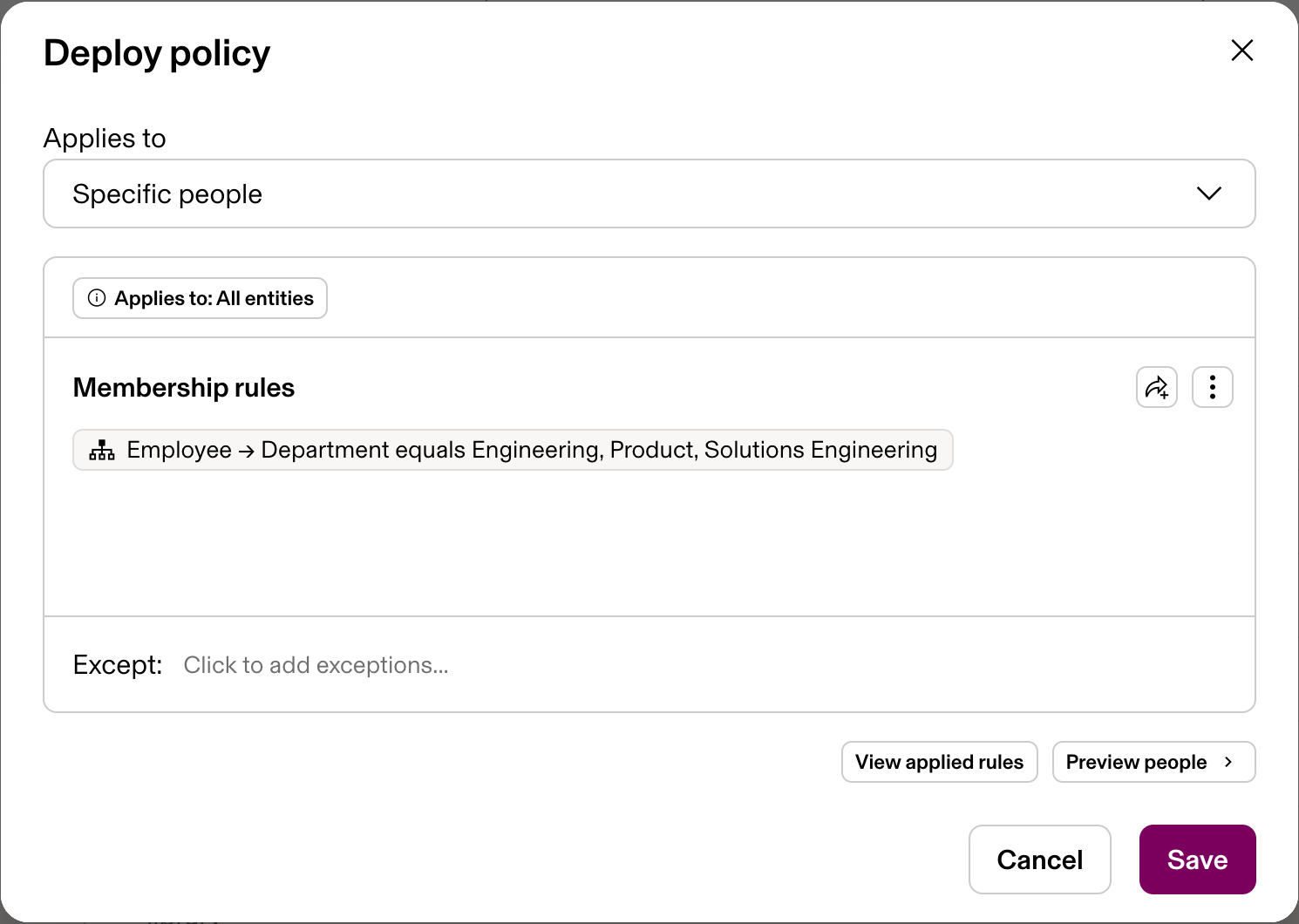
- Deploy. Wait for it to show as installed, then retire the old version under My policies → Everything else.
/Library/Managed Preferences/ai.barndoor.cli.plist to disappear for a few seconds on each Mac while Rippling swaps profiles. Macs dropped from the targeting lose the whole profile, including org_hint and updates_managed, so check that every Mac running Bridge is still covered.
Iru, Jamf Pro and Intune
The change is the same in any Apple MDM: replace the Barndoor CLI — Managed Settings custom profile with the version that haspublisher_keys, scoped to the same Macs.
- Iru (Kandji): Library → Custom Profile, assigned through the Blueprints your Bridge Macs are in.
- Jamf Pro: Computers → Configuration Profiles → Upload, scoped to your Bridge smart or static group.
- Microsoft Intune: Devices → macOS → Configuration → Create → New policy → Templates → Custom, assigned to your Bridge device group.
Step 11: Verify on a Mac
In the Bridge window, open the Servers tab. It lists every synced server with a status, blocked servers first. When something won’t run, the Status tab says how many next to the server count, for example 1 needs attention, and links to it.
In Terminal,
barndoor doctor shows whether the key is pinned. Each pinned key is listed under Tenant publisher keys (MDM), and the fingerprint must match the one keygen printed. A malformed entry is skipped, and doctor says why under the same heading.
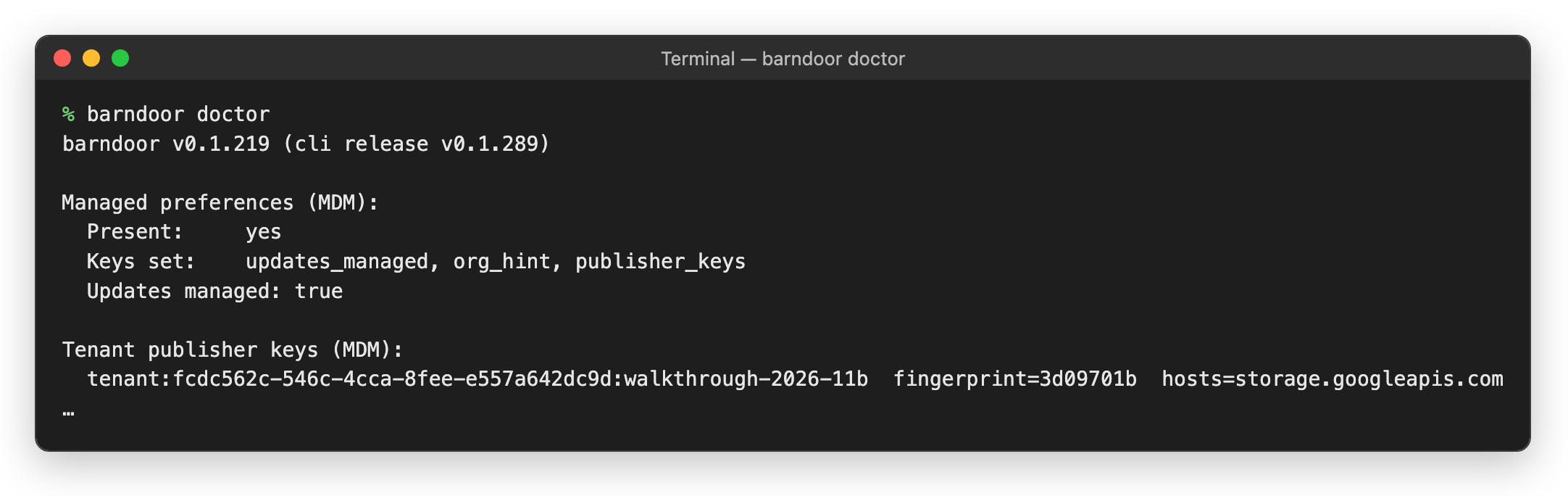
barndoor sync, then barndoor list, to see each local server’s state:
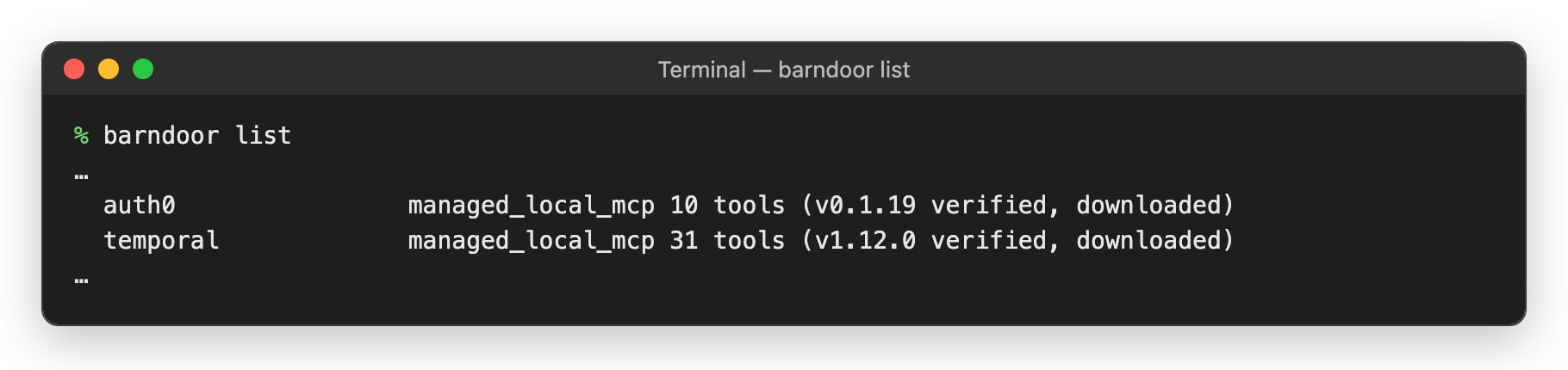
Does it work? In a new Bridge session (or
barndoor run claude), ask the agent to call one of the server’s read tools.
Troubleshooting
Worked example: Temporal end to end
This is the run we did on Barndoor’s own organization, condensed. The builds are atstorage.googleapis.com/barndoor-local-mcp-examples.
1
Package
list_workflows answered Showing all 0 workflows (skipped 0). No more results.2
Key, sign
3d09701b. Its seed went straight into a cloud secret manager.3
Upload, publish, install
Published com.barndoor.tenant.….temporal 1.12.0 as "temporal" (catalog id …, 31 tools)., then Installed (created) temporal. with availability: opt_in.4
Connect
Connected Temporal (local) from My Apps.
barndoor sync reported Synced 35 servers (16 remote, 18 embedded, 1 managed local MCP, 0 unsupported), but the key wasn’t pinned yet:5
Pin the key
Uploaded Barndoor CLI — Managed Settings v4 in Rippling with the
publisher_keys entry, targeted with Employee → Department equals Engineering, Product and Solutions Engineering (15 people in Preview people), then retired v3. barndoor doctor showed fingerprint=3d09701b hosts=storage.googleapis.com, and barndoor list changed to (v1.12.0 verified, not downloaded).6
Set the policy
Before the policy, a governed Claude Code session got
This tool is blocked by policy. on every Temporal tool. We added one policy for all users: the 12 read tools Always Allow, the 19 write tools Needs Approval. With no restart, we asked Claude Code (barndoor run claude) to list workflows and describe one. It answered Workflow count: 1 · type BarndoorSmokeWorkflow · status WORKFLOW_EXECUTION_STATUS_RUNNING in 17 seconds, including Bridge downloading and verifying the build on first use. barndoor list then showed (v1.12.0 verified, downloaded).7
Use it from every client
Codex CLI through Barndoor listed the same workflow. In Claude Desktop launched from Bridge, reads ran directly, and
start_workflow showed an approval card and ran after approval.Auth0 went through the same steps and verifies on every pinned Mac, but its tools need an Auth0 sign-in. Without one, a call fails to start the server, and the error quotes Auth0’s own message:
Authorization Error: No valid authorization token found. A user can enter their Auth0 domain and a Management API token when connecting (the credential fields we signed), but those tokens expire after 24 hours by default. The better fit is Auth0’s own sign-in: sign the release with --setup-command init, and each user runs barndoor local-mcp exec auth0 init --read-only once (see Servers that need a one-time sign-in).Ship a new version
Package, sign with a new--version (and the same --ref-name), upload to the new URLs, and publish. Installations, policies and user connections carry over, and Macs download the new build on their next session. In CI, run install after publish too if you want the pipeline to own the installation’s configuration.
Republishing the same version is allowed, for example after re-packaging or moving the builds. Remember that the download URL is signed: moving the files means signing again.
Turn it off
- Disable:
barndoor local-mcp install <slug> --disabled, or turn off Enabled on the installation in the admin UI. It stops on every Mac at the next sync. - Remove from catalog: from the entry’s card menu in the admin UI. It removes every installation of it too.
- Revoke a key: remove its entry from
publisher_keysin the MDM profile. Macs stop trusting everything signed with it as soon as the profile updates. - Rotate a key: generate a new key, pin it next to the old one, sign and publish with the new key, then remove the old key from the profile.
Current limitations
- Builds must be downloadable without signing in. Private buckets and token-protected artifact servers aren’t supported.
- Each platform’s build must be one self-contained file, started over stdio.
packagebuilds Mac executables, on a Mac. - Policies are set in the admin UI.
- Setup commands need platform v2.54.0 or later and Bridge 0.1.218 or later on every Mac.