

Barndoor Bridge is in Early Access. These pages are not listed in the navigation. Overview:
/how-tos/barndoor-bridge/overview · Using Bridge: /how-tos/barndoor-bridge/using-bridge · Install with MDM: /how-tos/barndoor-bridge/install-with-mdm · Client settings: /how-tos/barndoor-bridge/client-settings · Publish a local MCP: /how-tos/barndoor-bridge/publish-local-mcpbarndoor run, is configured by two things:
- Model Access decides which models the developer may use. It is the only thing that grants or denies a model.
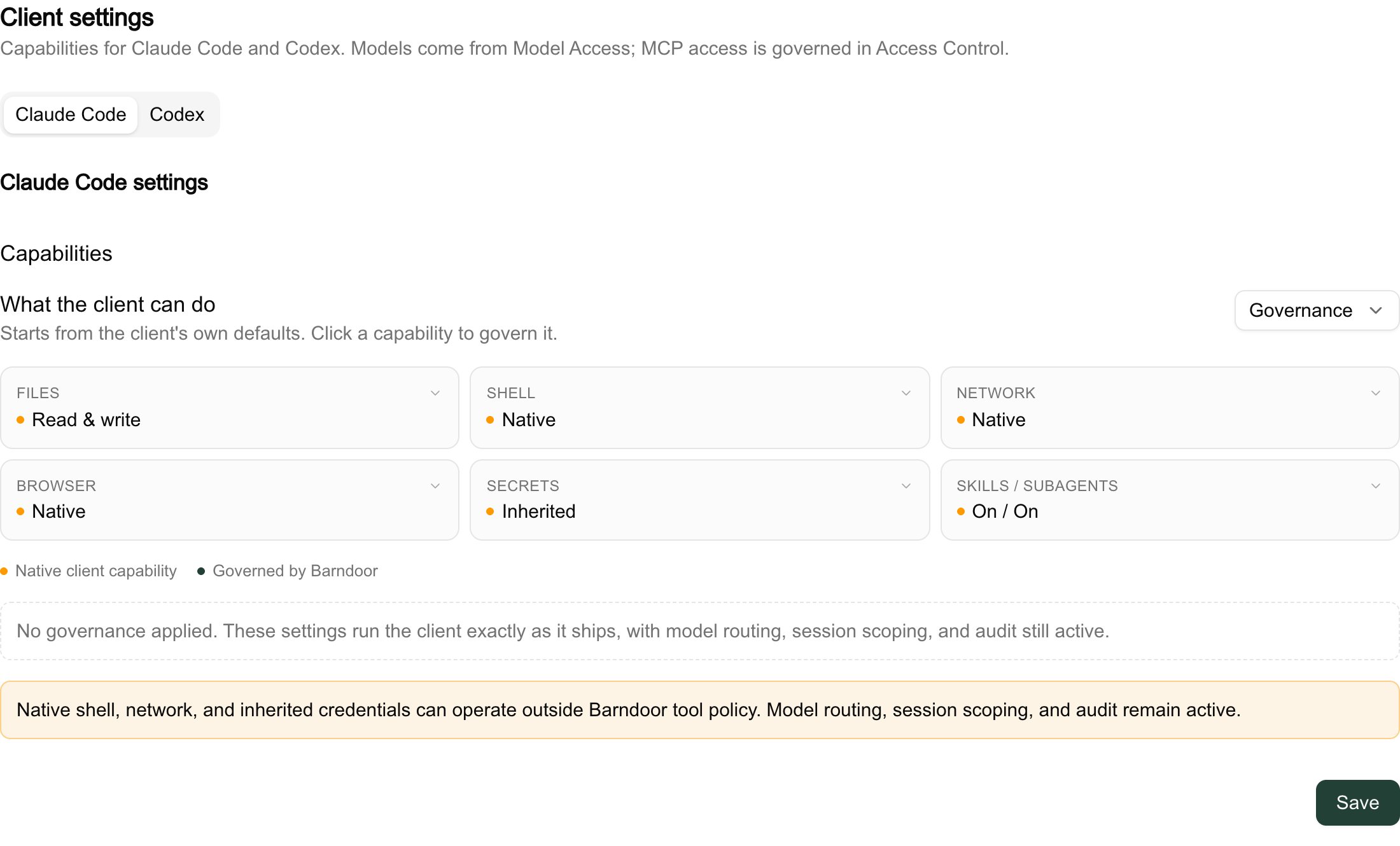
- Client settings decide which of the client’s own native capabilities stay on: files, shell, network, browser, secrets, skills, and subagents.
Client settings replace launch profiles. There is no longer a profile to pick or a CLI id to pin: see Moving from launch profiles.
Where to find them
Open LLM Management, then Client settings under Models. The page has one tab per client:
There is one set of settings per client for the whole organization. They apply to every developer in it; to treat groups or users differently, target them with Model Access policies.
Which models a session gets
A launch never picks models from a list you maintain. At launch, the gateway works out every Model Route the developer is allowed to use and fills the client’s model choices from that set. The allowed set is every enabled Model Route that:- the developer’s Model Access policies allow, and
- can serve a request right now. A route whose providers are all unhealthy is left out until the next launch or renewal.
Claude Code
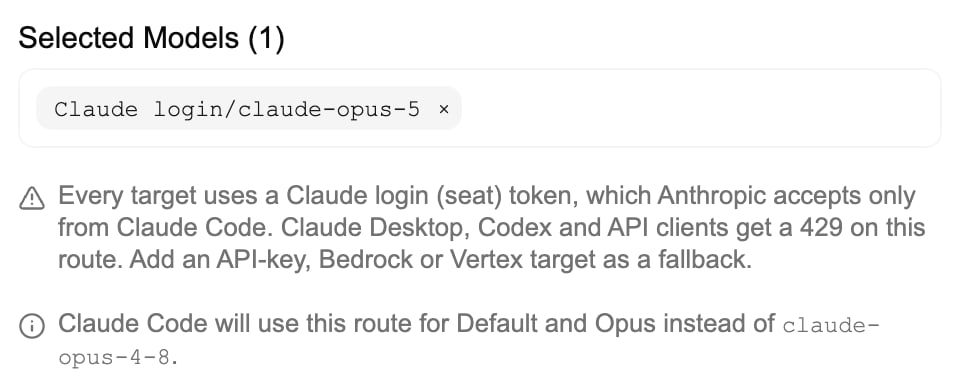
Claude Code has a model for each Claude family plus a default. Each is filled with the newest allowed route of that family, judged by the Claude model behind the route’s primary target:
When two routes carry the same model generation, the gateway prefers a route that has at least one API-key, Bedrock, or Vertex target over a route that uses only Claude logins. After that, a route whose primary is the Claude login wins.
1M context is worked out for you. When every model on a route is a known 1M-context Claude model, Claude Code is told so and compacts at 1M tokens. Otherwise it compacts at 200k.
Any other allowed route, including a non-Claude model, can be selected in Claude Code with
/model <route name>.
Claude Desktop
Claude Desktop asks the gateway for its model list. The picker shows every allowed Claude route, labelled by family, with the session’s Default first and a 1M option where the route supports it. Routes for non-Claude models are not shown in Claude Desktop.Codex
Codex starts on the newest allowed GPT route (a route whose primary model isgpt- followed by a version). With none, it uses the first allowed routing policy. When two routes carry the same generation, a route on a ChatGPT sign-in wins over one on an API key.
In Codex Desktop the developer can switch to any other allowed model that the installed Codex supports.
Seeing which route fills what
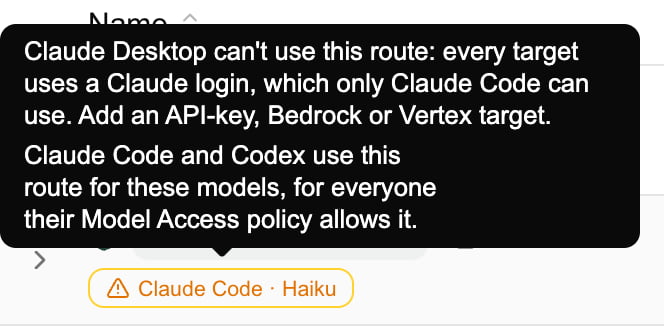
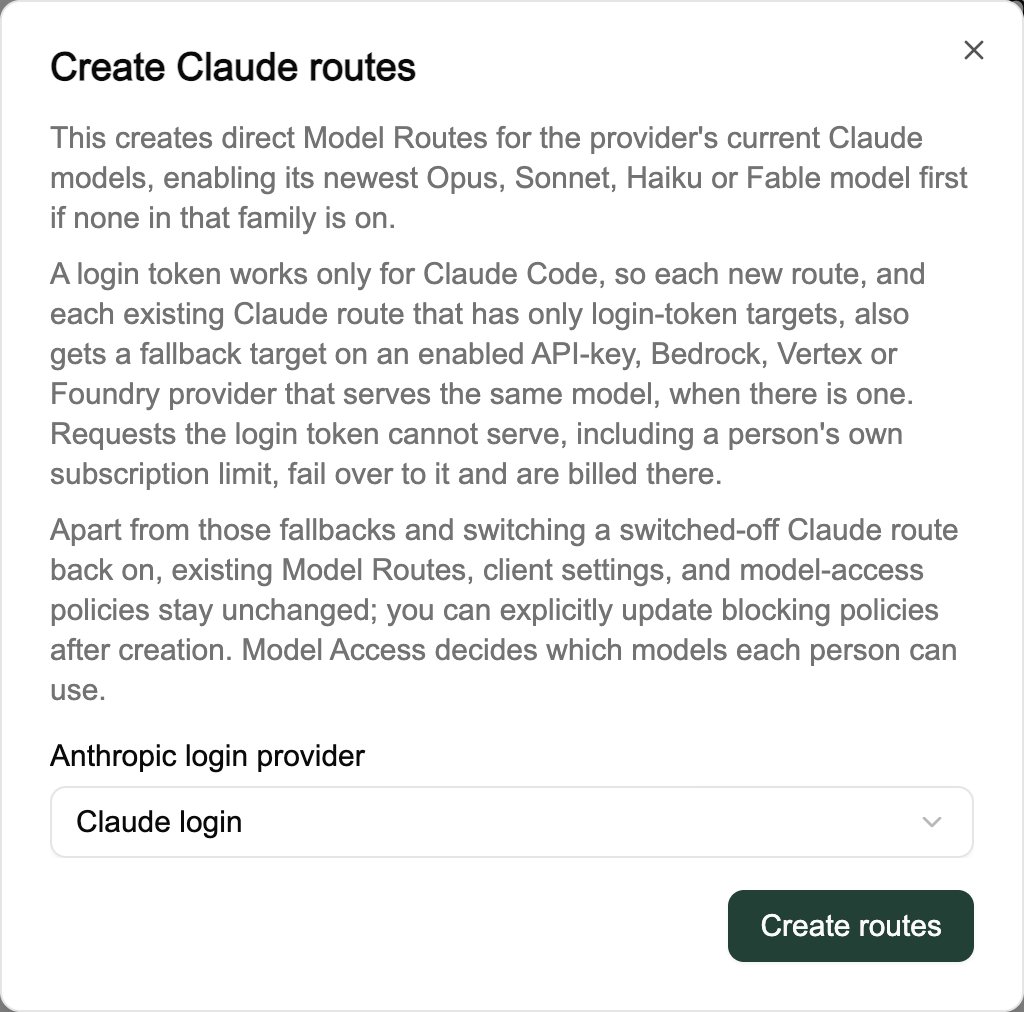
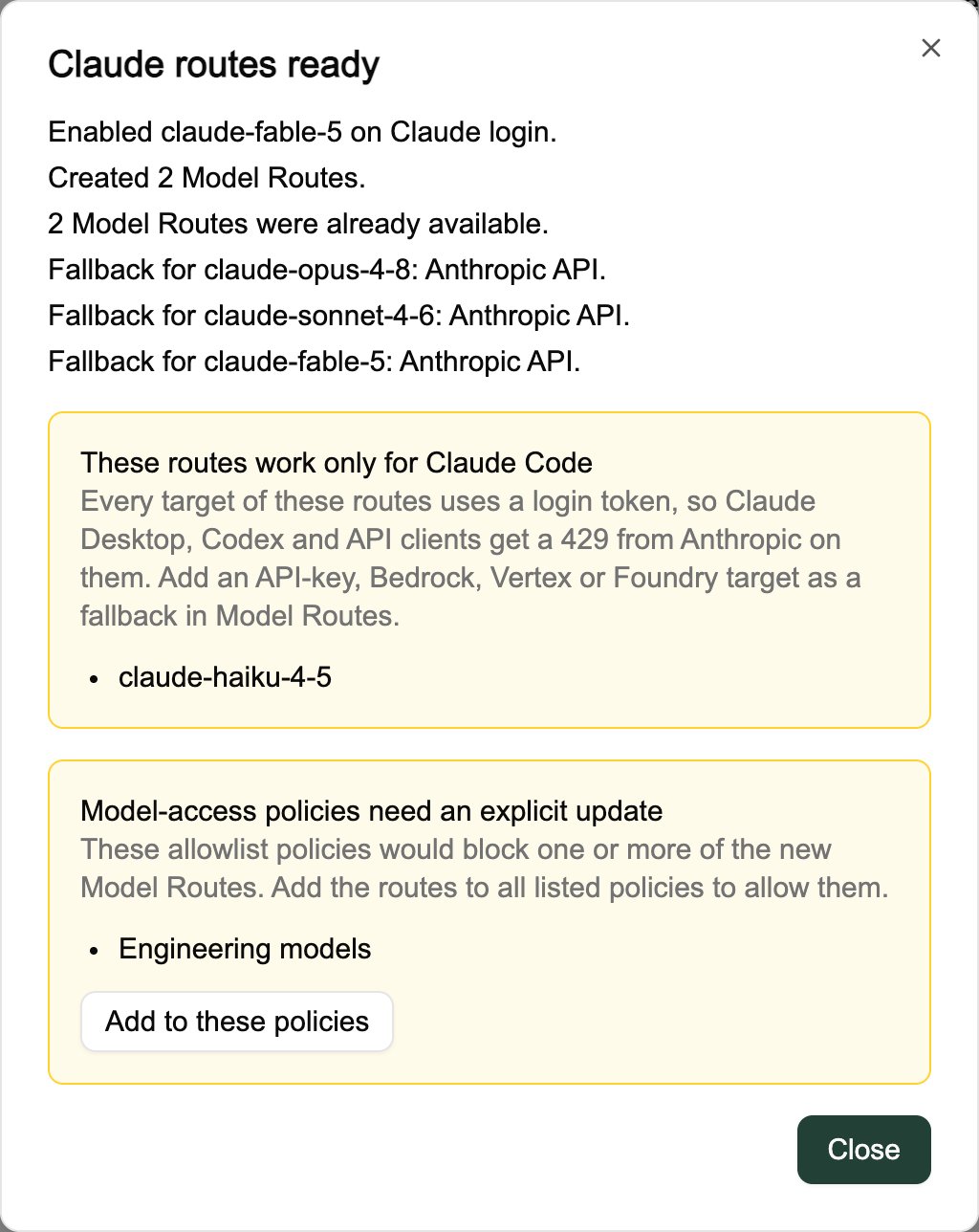
LLM Management → Model Routes shows this before anyone launches. Under each route’s name, badges such as Claude Code · Opus show which model choices the route fills. The badges describe an organization member whose Model Access allows every route; a developer allowed fewer routes may get a different one.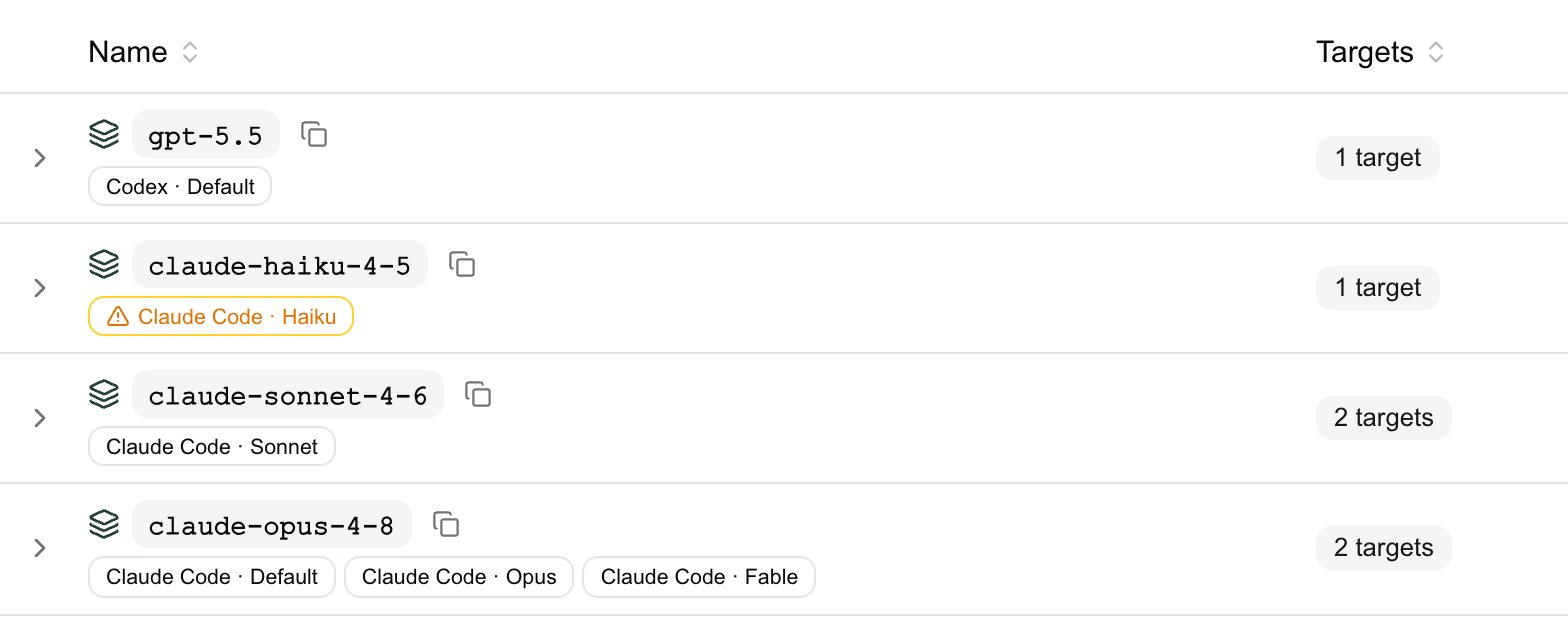
When no model fits
If the developer is allowed no route that fits the client, the launch is refused:When changes take effect
- Saving client settings creates a new version. New launches use it, and the CLI prints the version it launched with, for example
barndoor: governed claude session using Claude Code settings v3. - Running sessions keep the capabilities and model choices they started with. The developer restarts the client to pick up an edit.
- Session credentials renew about once an hour. At renewal the allowed set is worked out again, so a route you removed from someone’s Model Access stops working within the hour, and a route you added becomes usable. The model choices themselves do not move until the next launch. If nothing the developer is allowed fits the client any more, renewal fails and requests return
barndoor: governed session renewal failed — check network and retry.
What the client can do
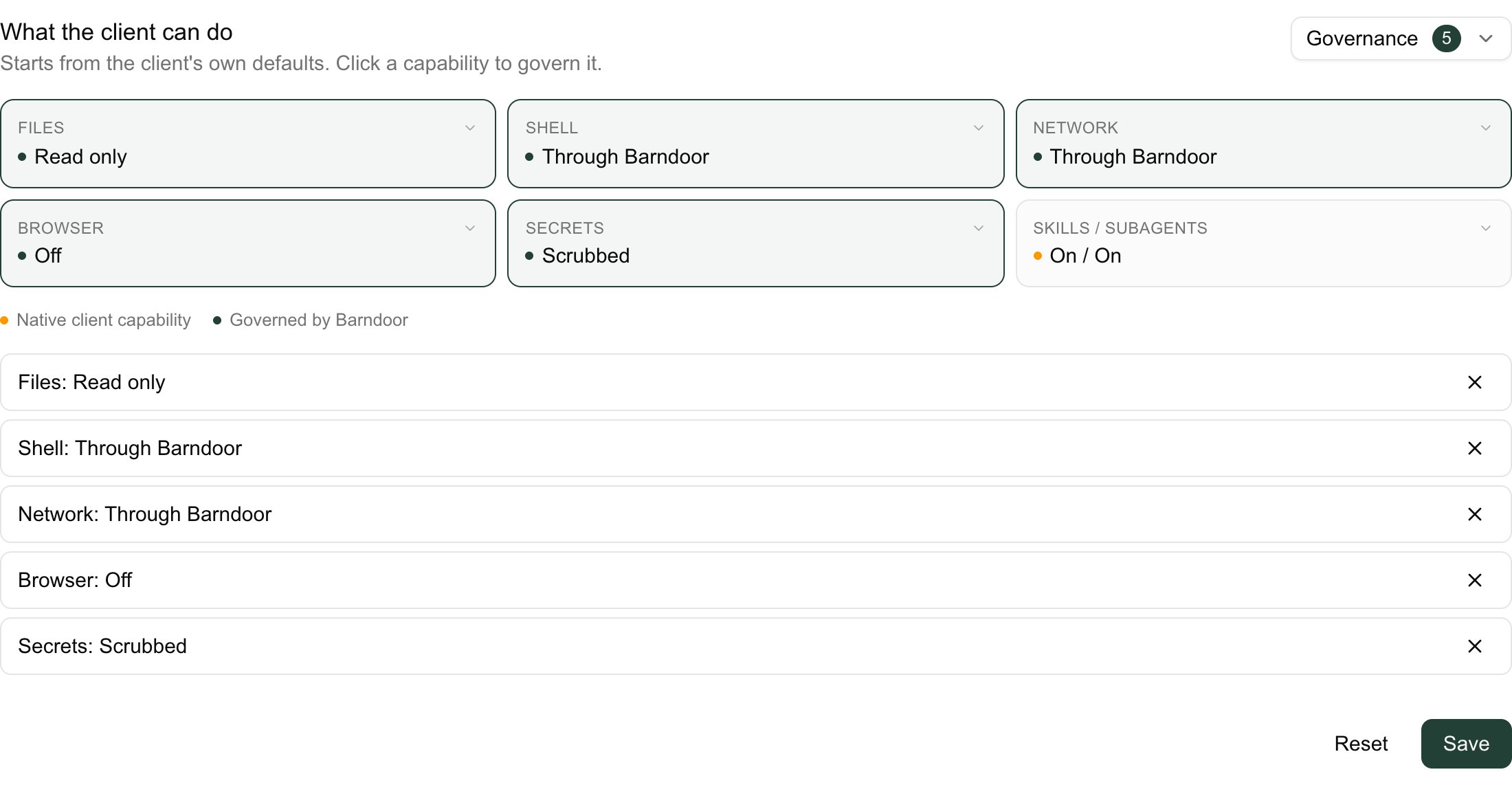
Every client starts at its own defaults: files, shell, network, browser, inherited environment, skills, and subagents all on, exactly as the client ships. Governance only takes capabilities away. Click a tile to govern one capability, or use Governance → Apply a bundle to set several at once. Each departure from the default appears as a restriction you can remove. Click Save to apply. Some things apply to every governed session, even one with no restrictions:- Model traffic goes only to your LLM Gateway, with Model Access, data protection, and audit applied to every request.
- The session runs on a short-lived Barndoor credential that is tied to the user and the client’s agent and can reach only that client’s model API.
- The developer’s own client settings files and MCP servers are not loaded. The only MCP server is Barndoor.
- Usage and audit records carry the client settings version the session launched with.
Through Barndoor means the native tool is removed and the client is told to use the Barndoor MCP server for that kind of work. Whether a Barndoor tool for it exists, and whether it needs confirmation, is decided by your policies, not by client settings.
Files
Native file tools: Read, Edit, Write, Glob, and Grep, plus NotebookEdit on Claude.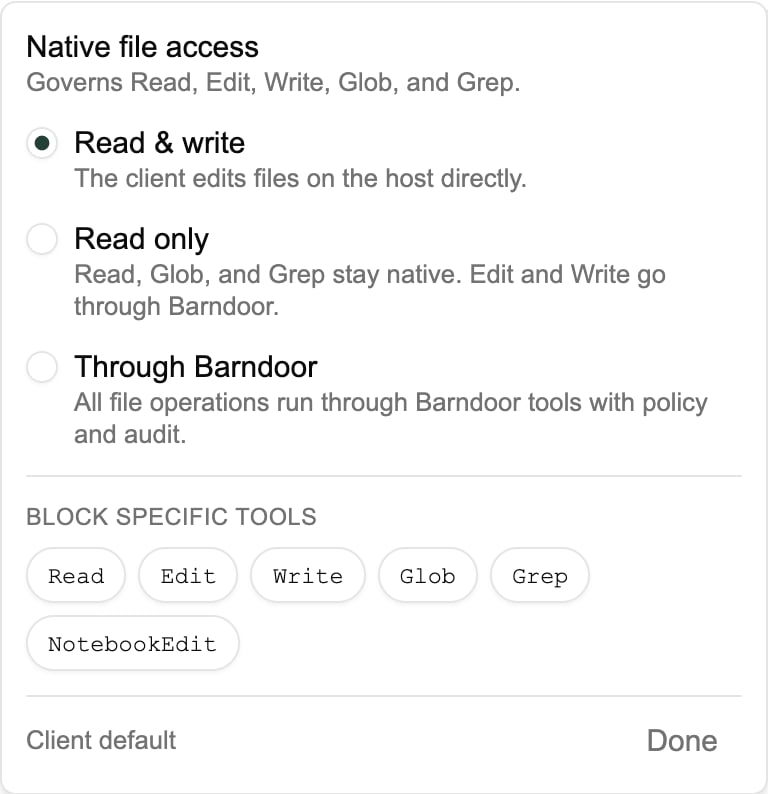
Files does not sandbox the shell. A native shell can read and write files whatever this setting says, so a native shell requires Read & write. Lowering Files moves a native shell to Through Barndoor.
barndoor run --worktree also requires Read & write.
Shell
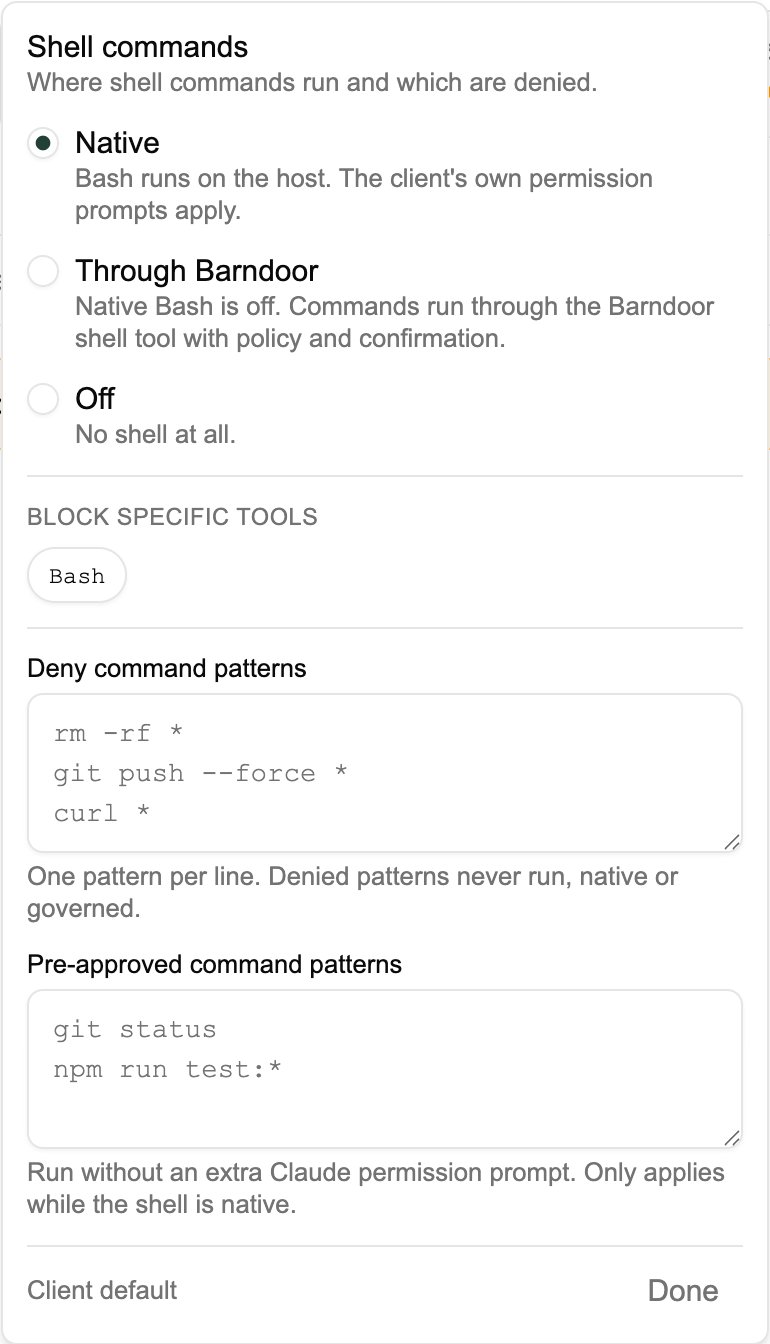
Command patterns (Claude only)
These appear in the Shell panel and apply to Claude’s native Bash tool. Write one pattern per line, in Claude Code’s permission syntax, for examplegit push --force * or npm run test:*.
- Deny command patterns. Matching Bash commands are refused. They are not applied to commands run through the Barndoor shell tool; govern those with policy.
- Pre-approved command patterns. Matching Bash commands run without a Claude permission prompt. Only available while Shell is Native.
Network
Native web tools: WebFetch and WebSearch on Claude, web search on Codex.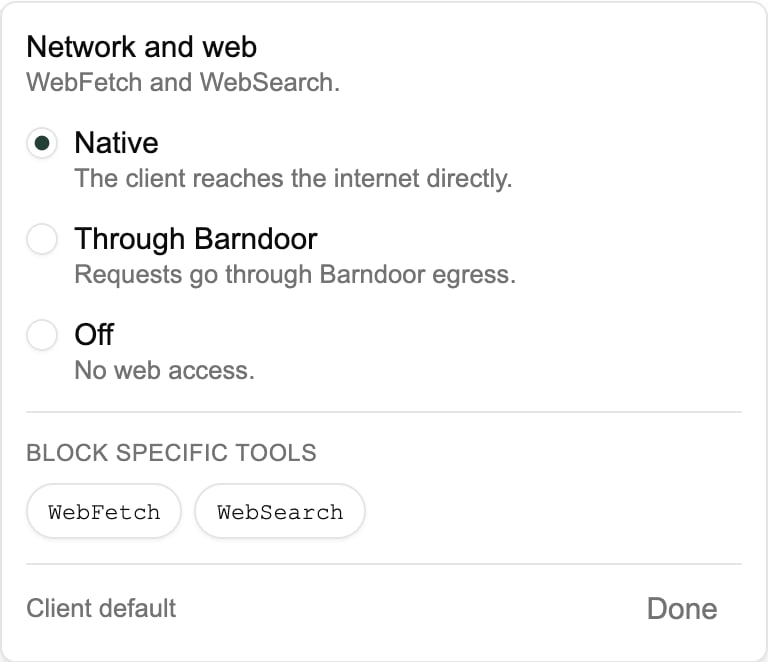
Governing Network turns a native Browser off.
Browser
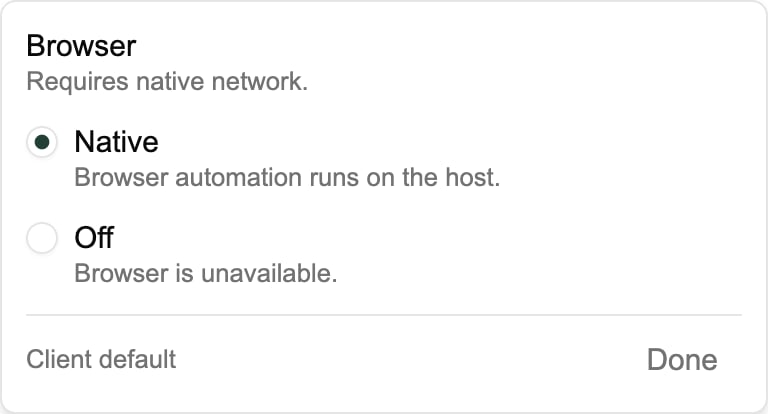
A native browser requires native network. Claude Desktop ignores this setting, and Codex Desktop always runs with its browser off; see Desktop clients.
Secrets
What the client process, and everything it starts, can see in the developer’s environment.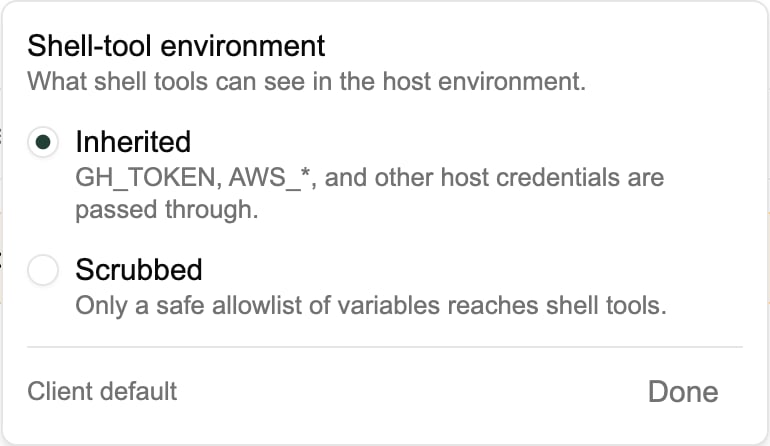
Scrubbed removes environment variables only. Credential files under the developer’s home directory, such as
~/.aws or ~/.config/gh, stay readable to anything that can read files. On Claude Code, Scrubbed also means Claude’s plan usage is not shown in the session.
Skills / Subagents
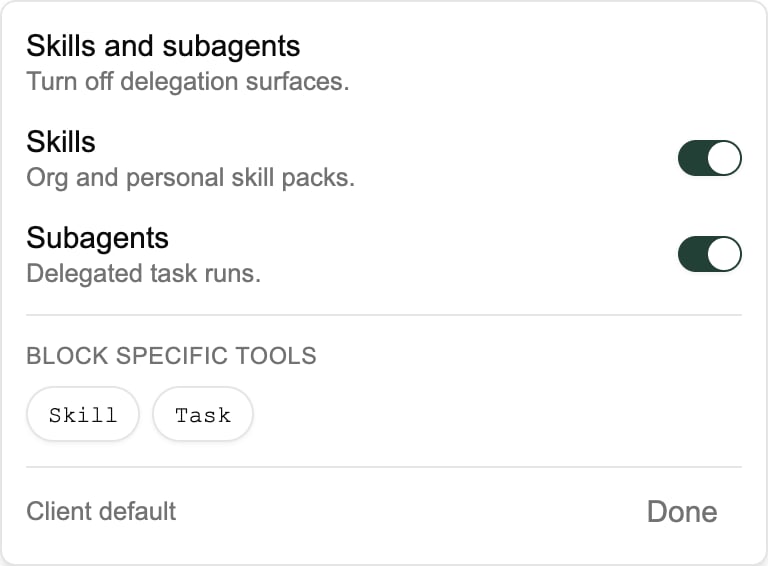
Blocking individual tools
Each panel lists the native tools in that area as chips. Click one to block that tool alone without changing the rest of the capability, for example block WebSearch but keep WebFetch.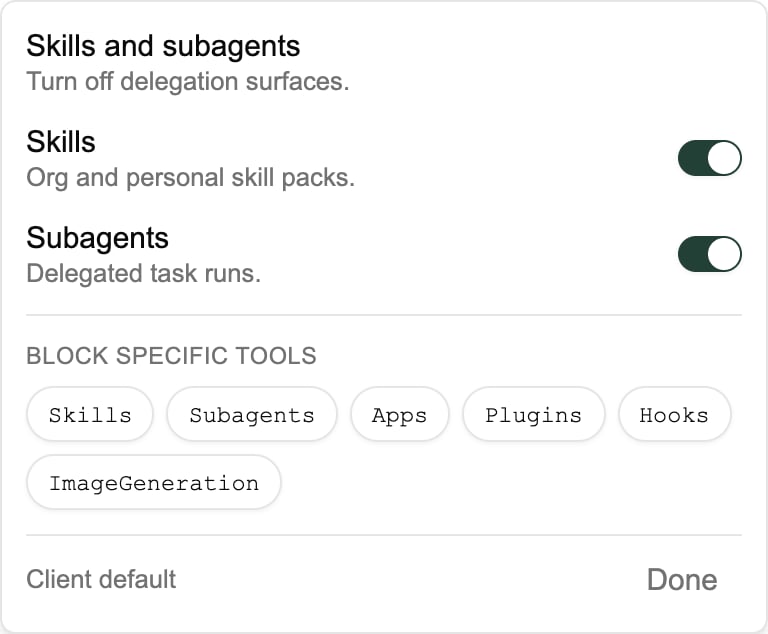
Bundles
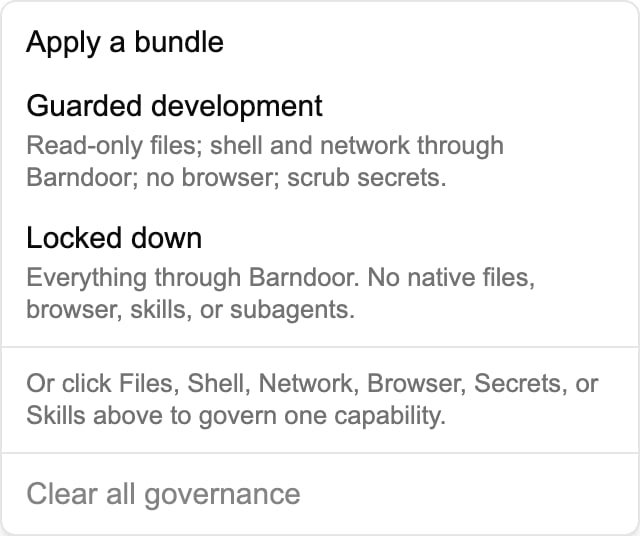
Applying a bundle sets every capability above. Blocked tools and denied command patterns are kept; pre-approved patterns are removed. Because both bundles move the shell off native, settings that keep denied command patterns cannot be saved: clear them first. Change any tile after applying a bundle and the page simply shows the resulting restrictions. Clear all governance returns the client to its default and removes every rule.
Desktop clients
Some things are always off in a governed desktop session, whatever the settings allow. Settings can only turn more off.- Claude Desktop: computer use and Cowork’s workspace shell are off, local MCP servers are off, and Barndoor is the only MCP server.
- Codex Desktop: browser use, computer use, Apps, Plugins, Hooks, and Image Generation are off, Codex’s own approval prompts are off, and Codex Desktop can only change settings Barndoor does not control.
Rules the editor enforces
Settings cannot be saved when:- Shell is Native and Files is not Read & write. The editor narrows the shell for you when you lower Files.
- Browser is Native and Network is not Native. The editor turns the browser off for you when you govern Network.
- Command patterns are set and there is no native Bash, or the client is Codex.
- A tool is both blocked and allowed.
barndoor run --posture governed routes a native shell through Barndoor, and --posture paranoid applies the Locked down settings, whatever the client settings say. No flag turns on a capability the settings turn off.
Recent failed launches
The bottom of the Client settings page lists launches that failed in the last 7 days, grouped by client. Each row shows the time, the user, the reason (for example Model access denied, Model route unavailable, or CLI out of date), how many times it repeated, and the message the developer saw. It is the first place to look when someone reports that Bridge will not launch.
Moving from launch profiles
Client settings replaced launch profiles in October 2026. For an existing organization:- Your default launch profile for each client became that client’s settings, with the same capabilities. Other profiles were archived, not deleted.
- Models now come from Model Access. The routes a profile listed are no longer read. If a developer could launch before because their profile named a route, make sure their Model Access policies allow it.
barndoor run --profileand the MDMdefault_profilekey are ignored. The CLI printsbarndoor: --profile is deprecated and ignored; your organization's Claude Code settings apply(or the same line for the MDM setting). Remove--default-profilethe next time you re-render your MDM profiles; see Install with MDM.- Usage reporting groups governed usage by Client settings, labelled with the settings name and version.
- The admin API has new
GET /admin/client-settings,GET /admin/client-settings/{client}, andPUT /admin/client-settings/{client}endpoints, where{client}isclaudeorcodex. The/admin/agent-runtime-profilesendpoints are deprecated and still served for at least 90 days.