

Overview
The Barndoor OIN app provides the easiest setup experience with built-in SCIM provisioning for automated user lifecycle management. This method offers:- Pre-configured OIDC settings
- Automated user provisioning and deprovisioning
- Automated group provisioning and group membership synchronization
- Official Okta Verified integration path
Supported features
The Barndoor OIN integration supports the following Okta features.OIDC
- SP-initiated SSO — Single Sign-On initiated from Barndoor
- IdP-initiated SSO — Single Sign-On initiated from the Okta dashboard (through Third-Party Initiated Login)
- Just-In-Time provisioning — Accounts are created and updated in Barndoor at first sign-in
SCIM provisioning
- Create users — Provision new users to Barndoor
- Update user attributes — Sync user attribute changes from Okta to Barndoor
- Deactivate users — Deprovision users in Barndoor when they are unassigned or deactivated in Okta
- Group Push — Push Okta groups and their memberships to Barndoor
- Admin access to your Barndoor account
- Admin access to your Okta org
- SCIM token from Barndoor (generated during setup)
Step 1: Add Barndoor from OIN
Navigate to Okta Applications
Browse App Catalog
Add Integration
Configure Application Settings
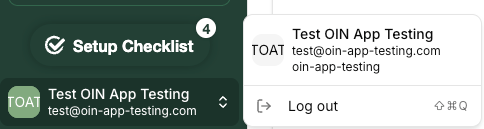
oin-app-testing is the organization alias.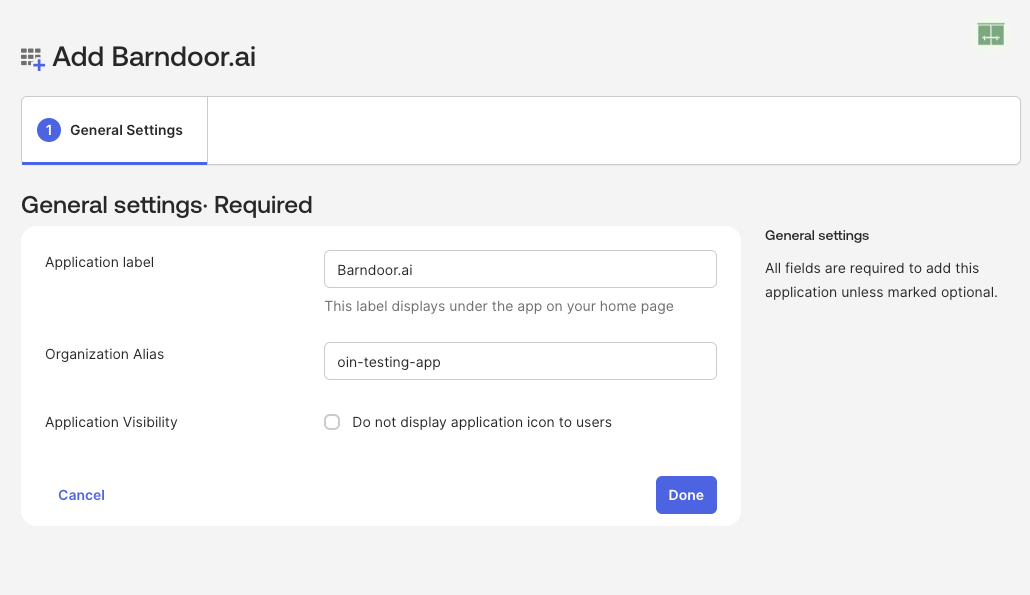
Step 2: Configure SSO Settings
Open SSO Configuration
Note OIDC Settings
- Client ID (auto-generated)
- Client Secret (auto-generated)
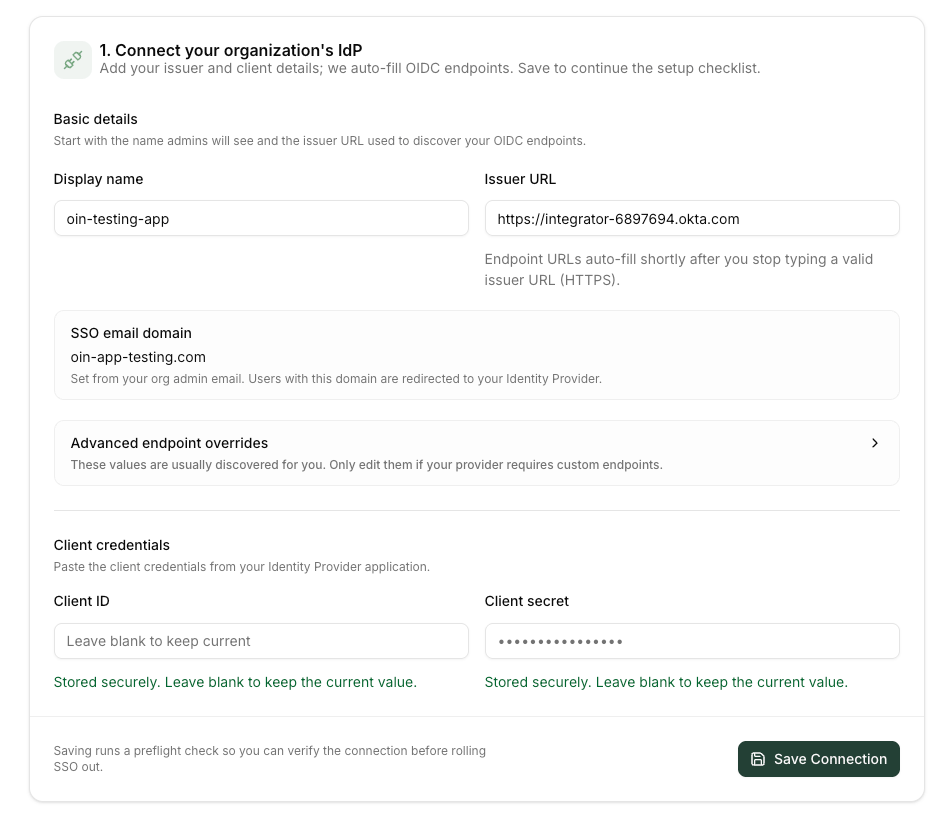
- Issuer URL (your Okta domain)
https://<your-okta-subdomain>.okta.com/.well-known/openid-configuration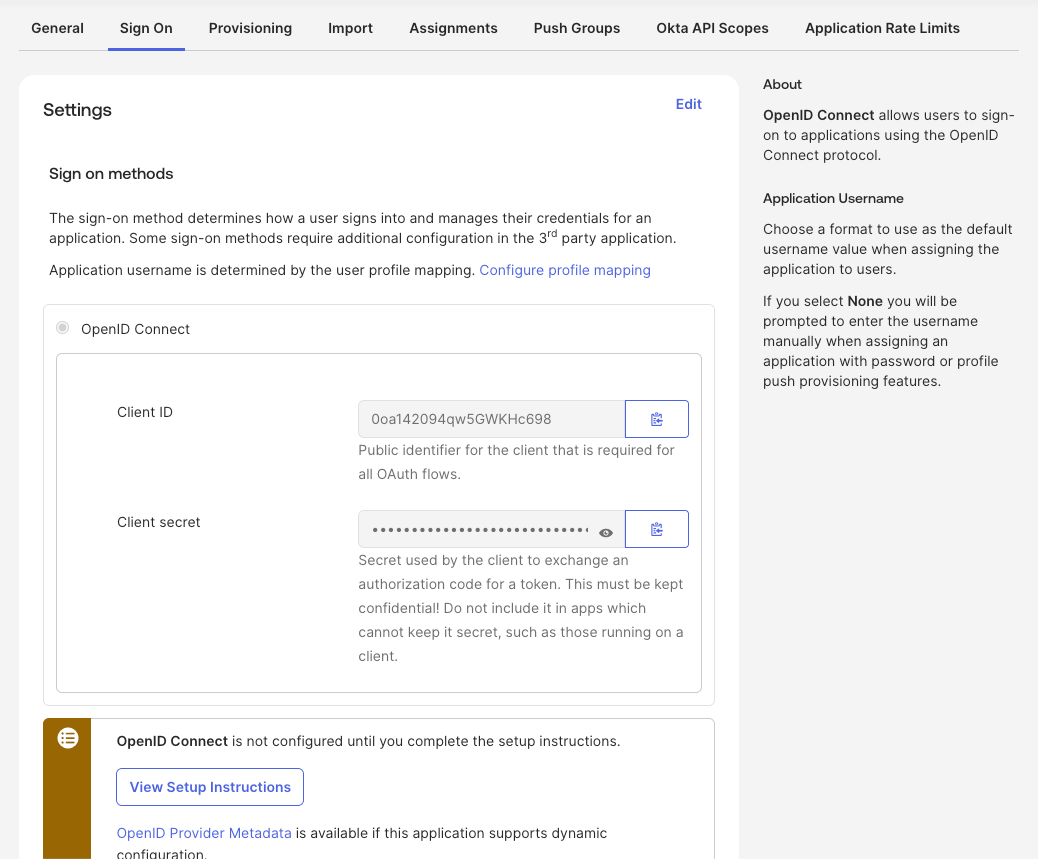
Step 3: Configure SCIM Provisioning
Enable SCIM Provisioning
Enable API Integration
- API Token: Generate this from Barndoor Settings → SCIM Provisioning -> API Token
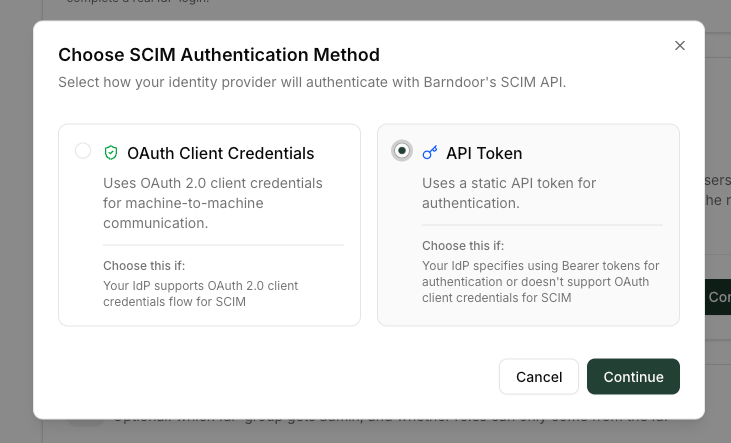
Test Connection
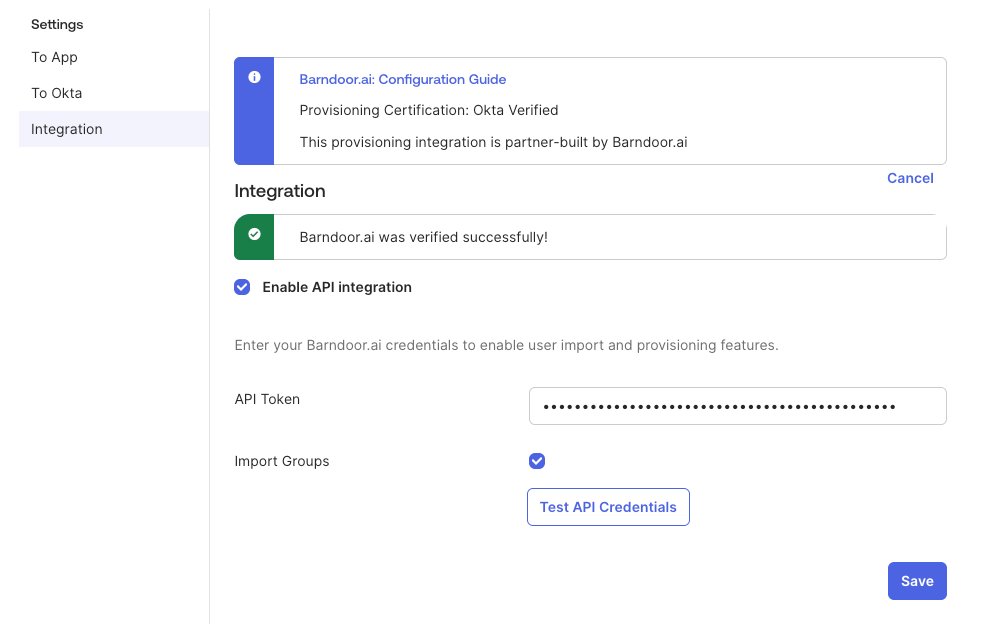
Enable User Provisioning to App
- Enable the lifecycle settings you would wish to synchronize to Barndoor. It is recommended to enable all operations.
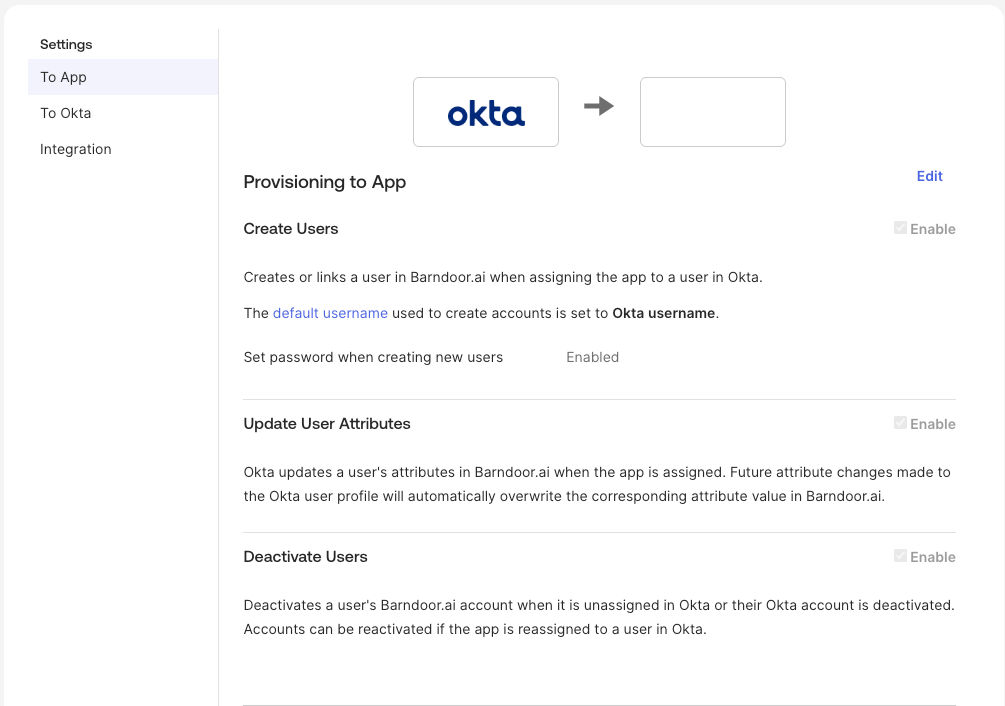
Step 4: Assign Users and Groups
Go to Assignments
Assign Users
- Assign to People: Select individual users
- Assign to Groups: Select entire Okta groups (recommended)
Configure User Attributes
Save Assignments
Assign Groups
- Click Push Groups and search for groups by name or rule.
- Search for the group you would like to sync and click ‘Save’ or ‘Save and Add Another’.
- Continue adding all groups you would like to synchronize with Barndoor.
Map admin access (optional)
SCIM group push keeps users and group membership in sync in Barndoor. To auto-assign the Admin role from an Okta group at login, use the Map groups to roles card on the Identity Provider page—the Admin Role Group Name must match the group you push in Step 4 exactly. See Connect your IdP — Step 3: Configure Role Mapping for the full flow, including the OIDCgroups claim if your OIN app does not already emit group names at sign-in.
Testing the Integration
Verify SSO Connection
Confirm SSO sign-in works
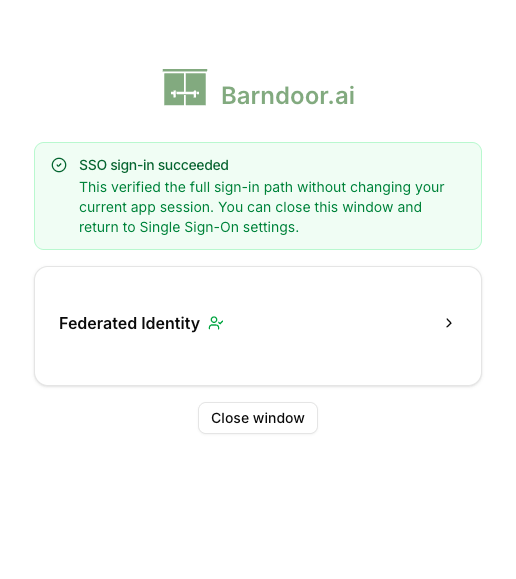
Run the enforcement preflight (recommended)
Verify SCIM Provisioning
Assign Users
Verify user provisioned in Barndoor
Push Groups
- Push groups for users that are already assigned to the application.
- In Okta, verify groups pushed have transitioned from ‘Pushing’ to ‘Activated’
Verify user groups provisioned in Barndoor

Roll out SSO enforcement
After your IdP connection is saved and SSO sign-in works, the Roll out SSO enforcement section on the Identity Provider page lets you require SSO for every member of your organization. Until you enforce SSO, users can still sign in with Barndoor passwords in addition to your IdP.What changes when you enforce SSO
When you confirm enforcement, Barndoor:- Requires all organization members to sign in through your IdP
- Permanently clears saved Barndoor passwords for every member
- Leaves password sign-in enabled only for the break-glass admin email you configure
- Terminates all active sessions, including the administrator who enabled enforcement
Prerequisites
Both items in Before you can enforce SSO must be complete before Enforce SSO is enabled:Test SSO sign-in
Configure break-glass admin email
- The address must use your organization’s IdP email domain (shown as
@your-domainin the dialog) - It must not already belong to an existing Barndoor user
- You cannot use your own administrator email as the break-glass account
Enable organization-wide SSO
Review the rollout card
Acknowledge each consequence
- Future logins will be exclusively via IdP SSO
- All Barndoor passwords will be permanently cleared
- Only your break-glass email will be able to sign in via password going forward
- All active sessions—including your current one—will be terminated
Confirm enforcement
Set up the break-glass account
When enforcement completes, Barndoor provisions a dedicated Barndoor Break Glass administrator account at the email you configured and sends a setup email to that mailbox. The recipient must:- Open the setup email and follow the link to set a password
- At first sign-in, complete the email one-time passcode (OTP) sent to that mailbox—the same second factor used during an IdP outage
Manage break-glass access after enforcement
After SSO is enforced, the rollout card shows SSO enforcement as active and lets you manage the break-glass email:- Resend invite — If the break-glass account has not finished password setup, resend the setup email from the break-glass dialog
- Change break-glass email — Opens a destructive change flow. Enter the new address, check the acknowledgement that the current account will lose password sign-in, then click Save. The new mailbox must complete password and OTP setup before it can be used
Sign in with break-glass during an IdP outage
If your IdP is unavailable and you need emergency administrator access:- On the Barndoor sign-in page, choose password sign-in (not SSO)
- Enter the break-glass email address and password
- Complete the email one-time passcode sent to that mailbox
Remove the SSO connection (optional)
To disconnect IdP integration before or after enforcement, open the actions menu (⋯) on the rollout card and choose Remove SSO. Confirm when prompted.SSO enforcement troubleshooting
Test SSO sign-in pop-up blocked or closes early
Test SSO sign-in pop-up blocked or closes early
- Browser blocked pop-ups for the Barndoor site
- The sign-in window was closed before authentication finished
Break-glass email rejected on Save
Break-glass email rejected on Save
- Address is outside your organization’s IdP email domain
- Address already belongs to an existing Barndoor user
- You entered your own administrator email
@—the domain is shown in the dialog.Break-glass setup email not received
Break-glass setup email not received
Enforcement succeeded with a warning
Enforcement succeeded with a warning
Troubleshooting
SSO Login Fails
SSO Login Fails
- Incorrect Client ID or Secret
- Incorrect organization alias
- User is not assigned to application
- Verify OIDC credentials in both systems
- Confirm organization alias is correct
- Check user logging in is assigned to the Barndoor application
SCIM Connection Fails
SCIM Connection Fails
- Invalid or expired SCIM token
- Generate a new SCIM token in Barndoor
Users Not Provisioning
Users Not Provisioning
- Provisioning not enabled in Okta
- Users not assigned to the application
- Attribute mapping conflicts
- Verify “Create Users” is enabled in Provisioning settings
- Check user assignments in the Assignments tab
- Review attribute mappings for required fields
Groups Not Syncing
Groups Not Syncing
- Group push not configured
- Group already exists with different ID
- Enable “Push Groups” in Provisioning settings
- Deactivate the group and re-add it to trigger reprovisioning