

- Prepare your Google Drive labels in the Google Admin console.
- Connect the Google Drive MCP server in Barndoor so it can read those labels.
- Create the conditional rule in Field Controls.
Prerequisites
You need:- Admin access to your Barndoor organization
- A Google Workspace edition that supports Drive labels
- At least one published, Drive-enabled label in your Google Workspace
- A Google Workspace user who can view the labels you want Barndoor to discover
1. Prepare your Google Drive labels
Barndoor discovers existing labels; it does not create or publish the label taxonomy. Set up the labels in Google first.- Open Label manager in the Google Admin console, or navigate to Security → Access and data control → Label manager. You need the Manage Classification Labels privilege.
- On Classification labels, create the labels your organization needs.
- Enable the labels for Drive and publish them. Published Drive-enabled labels show Drive under Applications and Published under Status.
If you lack that privilege, Google may send you to
/permissiondenied or a
redirect-loop error. That is an authorization failure, not a broken link.Before continuing, confirm that at least one label is published and enabled for
Drive in Label manager.
2. Connect the Google Drive MCP server
In this guide, service account means the organization-level OAuth connection
on the Barndoor server detail page. It does not mean a Google Cloud IAM service
account. Connect a Google Workspace user that can view the labels you need.
drive.labels.readonly scope, so most organizations can use them
as-is for label discovery.
- Navigate to Admin → MCP Servers.
- Add Google Drive from the Barndoor-hosted MCP server directory, or open an existing Google Drive server.
- Leave Use stored public OAuth credentials enabled unless you already use a private client.
-
Confirm Scopes includes:
New servers inherit this from the catalog. An existing server may still have an older snapshotted list. If Labels is missing, add it or click Reset to default scopes.
- Save the server configuration.
- On the server detail page, connect the service account that conditional rules will use for live label discovery.
drive.labels.readonly is the least-privilege scope for label discovery
(list_labels / list_file_labels). It does not let Barndoor apply labels or
edit files. For that, see Enable write tools on existing
files.
The service account connection should show as connected, and the completed
Google consent flow should include access to Drive labels.
Use a private OAuth client
A private client is optional for label discovery. Keep it if you already configured one. You need one to enable write tools on existing files, and you may also want one if you need scopes beyond the catalog defaults or want label traffic to run through your own Google Cloud project.- In a Google Cloud project, enable the Drive Labels API and the Google Drive API.
-
Create a Web application OAuth client and add the production redirect
URI from Redirect URI Allowlisting:
If you are connecting from a Barndoor trial hostname, allowlist that hostname’s
/callbackURI as well. -
On Google Auth Platform → Data Access, add every scope Barndoor will
request, including the default Google Drive scopes,
drive.labels.readonly, anddriveif you need write tools on existing files. Adding a scope on Data Access only makes it available to request. Barndoor must also list it on the server instance, then the user must reconnect.driveis a restricted scope. If your OAuth app’s Audience is Internal, users in your Workspace can grant it without Google verification. An External app needs Google’s restricted-scope verification first. -
On the Google Drive server in Barndoor, turn off Use stored public OAuth
credentials, paste the Client ID and Client Secret, confirm Scopes
includes
drive.labels.readonly(anddrivefor write tools on existing files), and save. - Connect or reconnect the service account.
The Drive Labels API provides the label taxonomy. The Google Drive API
provides file search and file-label access. Enabling the separate Drive MCP
API does not enable these tools.
Enable write tools on existing files
The catalog’s default write scope isdrive.file, which only covers files
the Barndoor OAuth app created or that the user opened with it. Write tools
called on any other file, which includes most of your existing Docs, Sheets,
and folders, fail with appNotAuthorizedToFile. This applies to
update_file_labels as well as update_file, rename_file, move_file, and
create_permissions.
To let these tools act on existing files, an admin must:
-
Add the full Drive scope to the Google Drive server’s Scopes:
-
Switch the server to your own OAuth client. Barndoor’s stored public OAuth
credentials do not include the
drivescope, so turn off Use stored public OAuth credentials and follow Use a private OAuth client. - Reconnect the service account and any users who already connected, and approve the new Drive access on the Google consent screen.
update_file_labels also needs the connected user to have permission to apply
that label, as configured in Label manager.
Without the drive scope, an agent can still work on a copy: copy_file
creates a file the connector owns, and write tools can change that copy.
People working on the original file won’t see those changes.
3. Create the conditional rule
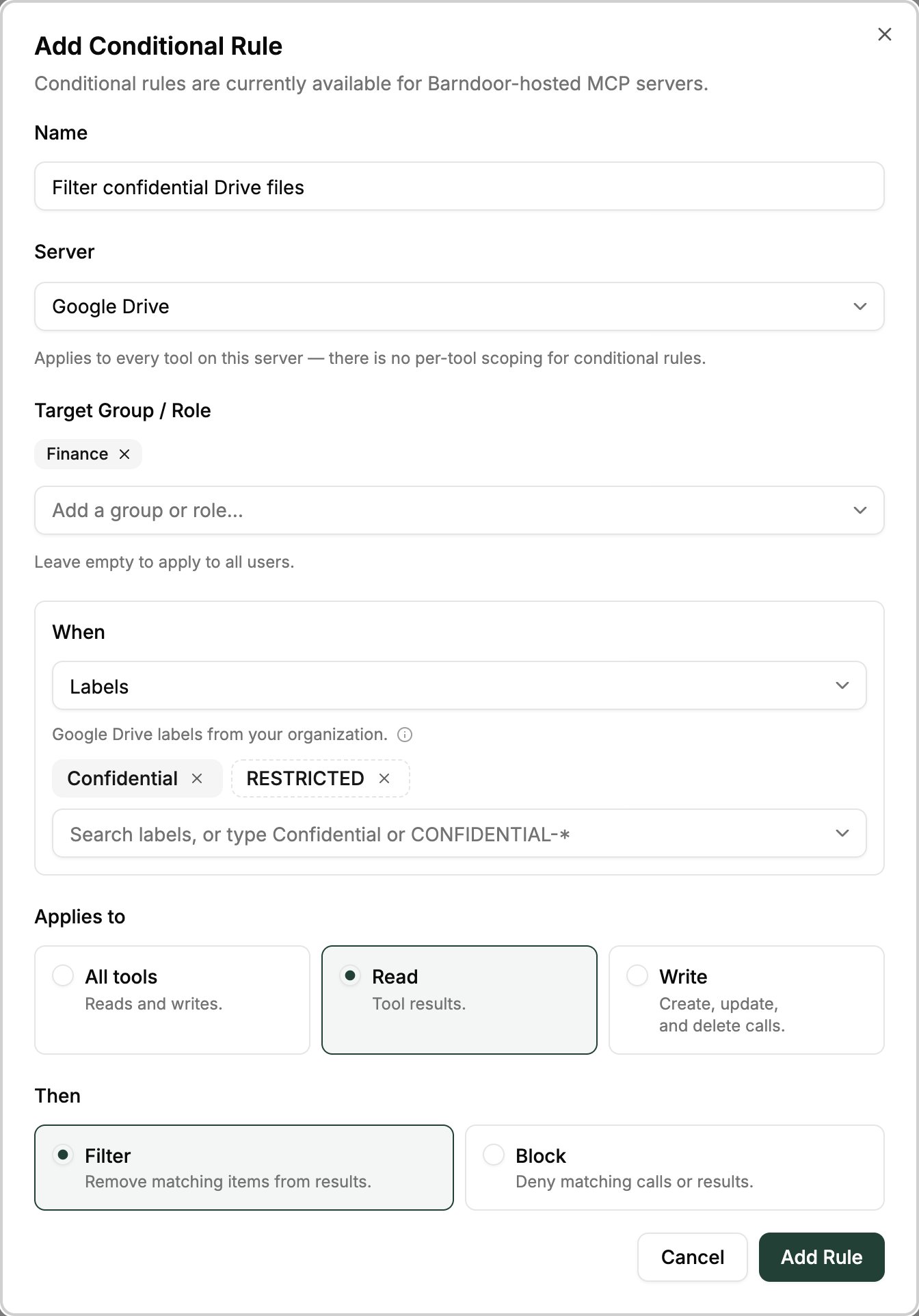
With labels published and the service account connected, you can build the rule.- Navigate to Data Control Center → Field Controls.
- Click Add Conditional Rule.
- Enter a Name and select your Google Drive server under Server.
- Optionally, add groups or roles under Target Group / Role. Leave it empty to apply the rule to all users.
- Under When, select Labels, then choose one or more labels or label options. See Choose labels and label options.
- Under Applies to, choose All tools, Read (tool results), or Write (create, update, and delete calls).
- Under Then, choose Filter to remove matching files from results, or Block to deny matching calls or results. Filter isn’t available for Write: writes are always blocked outright.
- Click Add Rule.
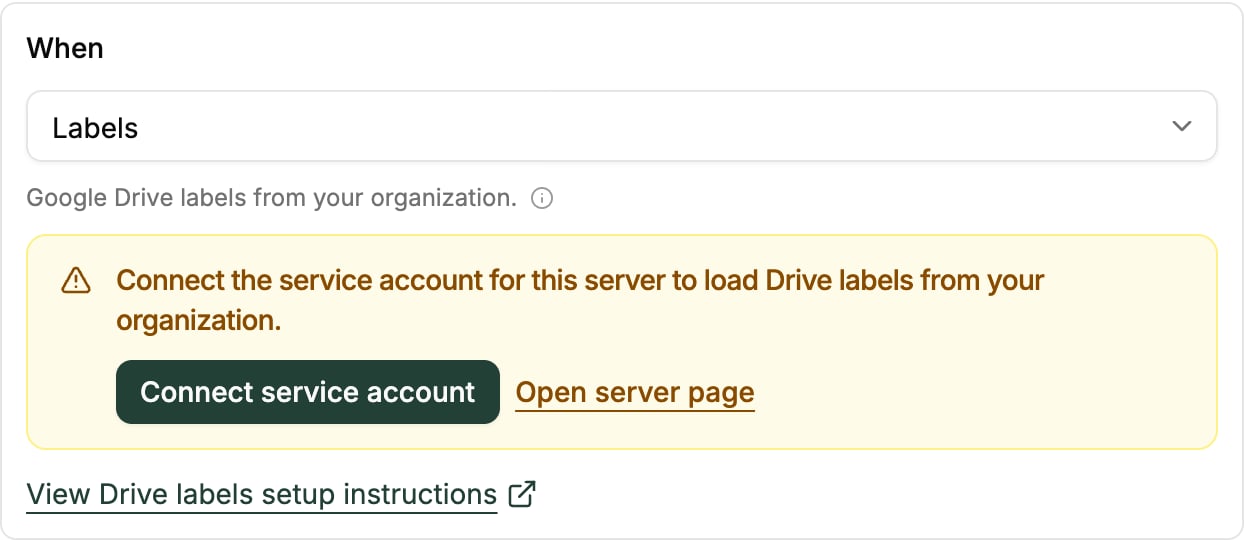
Your organization’s published labels should appear in the live results when
you search under Labels.
Choose labels and label options
The Labels list includes every published label the service account can see, plus each option of a label’s selection fields, listed by its display name. For example, a Sensitivity label with Confidential and Internal options appears as three entries.
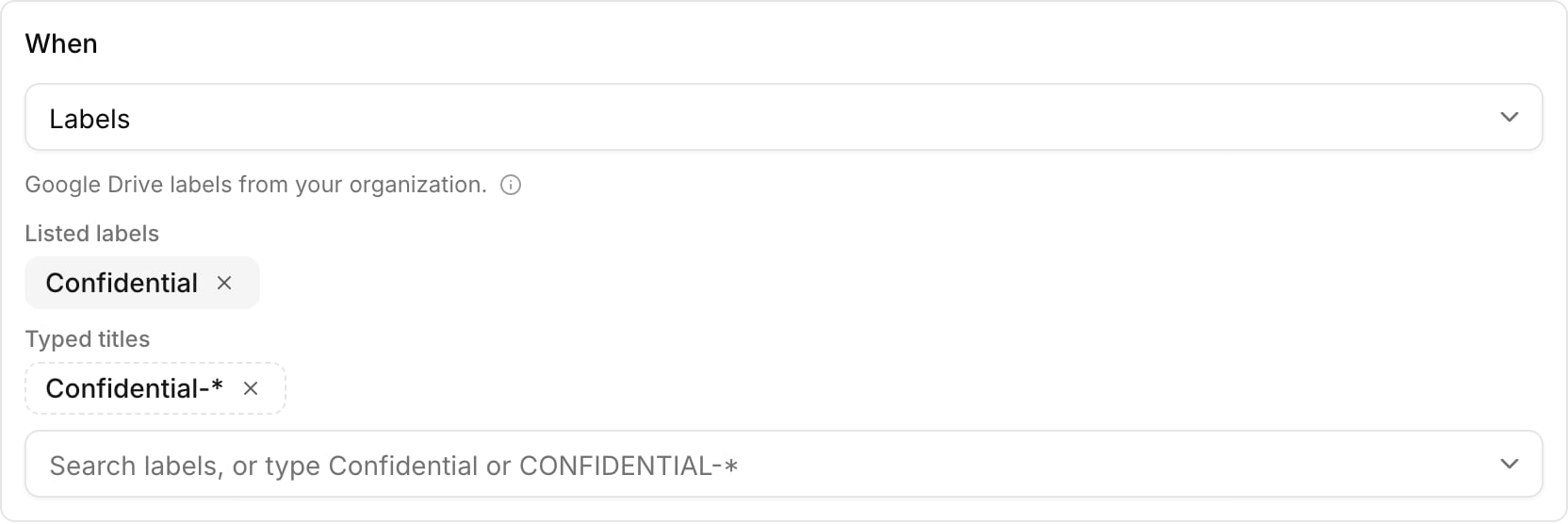
Pick from the list where you can. Listed labels and options are matched by ID,
so the rule keeps working if someone renames the label. Typed titles and
patterns are matched by title, so renaming a label can break them. Use them for
labels the service account can’t see. If you type the title of a label that is
listed, Barndoor uses the listed label instead.
Typed titles follow these rules:
- Case is ignored, but spaces,
-, and_must match exactly:Confidential-*does not match Confidential Internal. - Titles can use letters, numbers, spaces,
-, and_, with*as a wildcard. For a title with other characters, pick the label from the list. *on its own isn’t allowed, because it would match every labeled file. Pick the labels to cover, or add text around the*.
What a rule matches
- Read checks the files that Google Drive tools return, such as search, list, get, and export results. Filter removes matching files and returns the rest. Block denies the whole result if any file matches. Files without a matching label pass through.
- Write checks the file a write tool acts on, for example
update_file,rename_file,move_file,trash_file,create_permissions, orupdate_file_labels. Barndoor looks up the target file’s labels before the call runs and blocks the call if they match. - All tools applies both checks.
Verify the setup
You can verify label discovery in either place:- In Field Controls, the Labels condition of a conditional rule shows your published label titles in the live results.
- Through the Google Drive MCP server, the
list_labelstool returns the published label taxonomy.
list_file_labels with that file’s ID.
Troubleshooting
list_labels returns a 403 for drivelabels.googleapis.com
list_labels returns a 403 for drivelabels.googleapis.com
On stored public OAuth, the Drive Labels API must be enabled on Barndoor’s
managed Google Cloud project. Contact Support if the error persists after
you reconnect.On a private OAuth client, enable the Drive Labels API on the Google
Cloud project that owns that client. Wait a few minutes, then retry.
File search returns a 403 saying the Drive API is disabled
File search returns a 403 saying the Drive API is disabled
On stored public OAuth, contact Support. On a private client, enable the
Google Drive API on the same project, wait a few minutes, and retry.
The Google consent screen omits Labels or Drive file scopes
The Google consent screen omits Labels or Drive file scopes
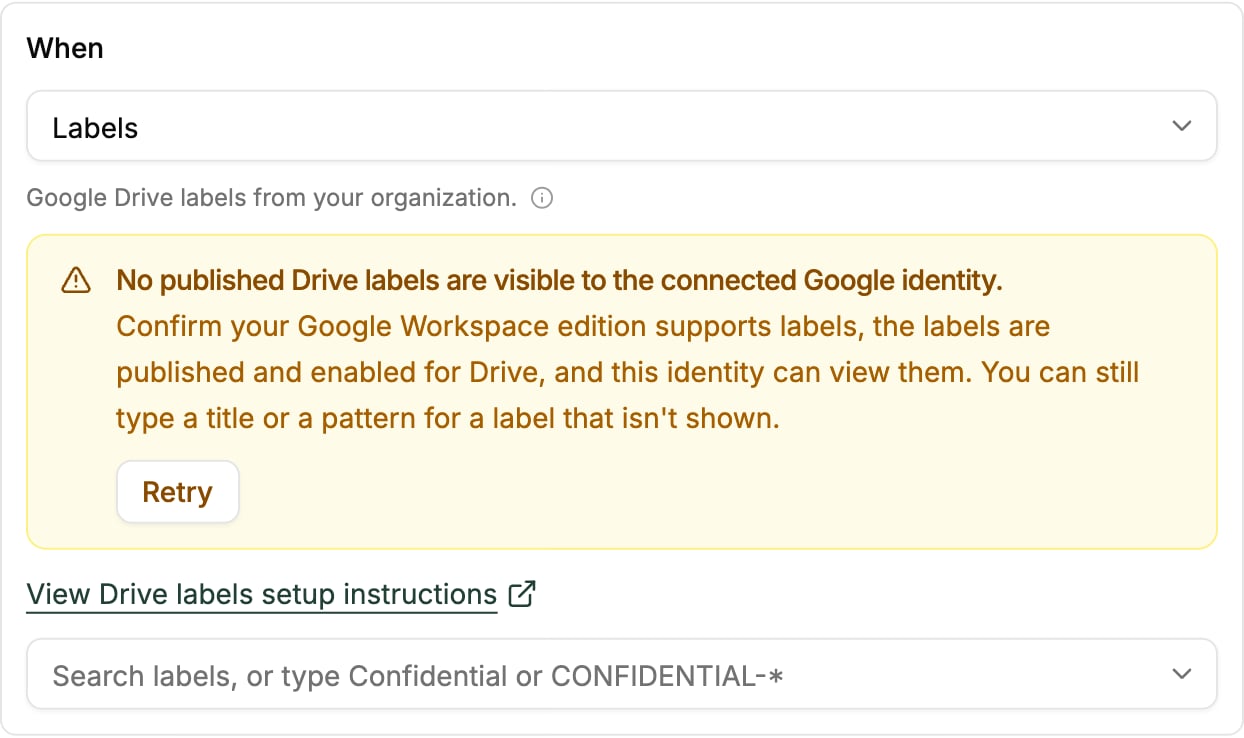
In Field Controls, the When section reports that the connected Google
identity did not grant access to read Drive labels.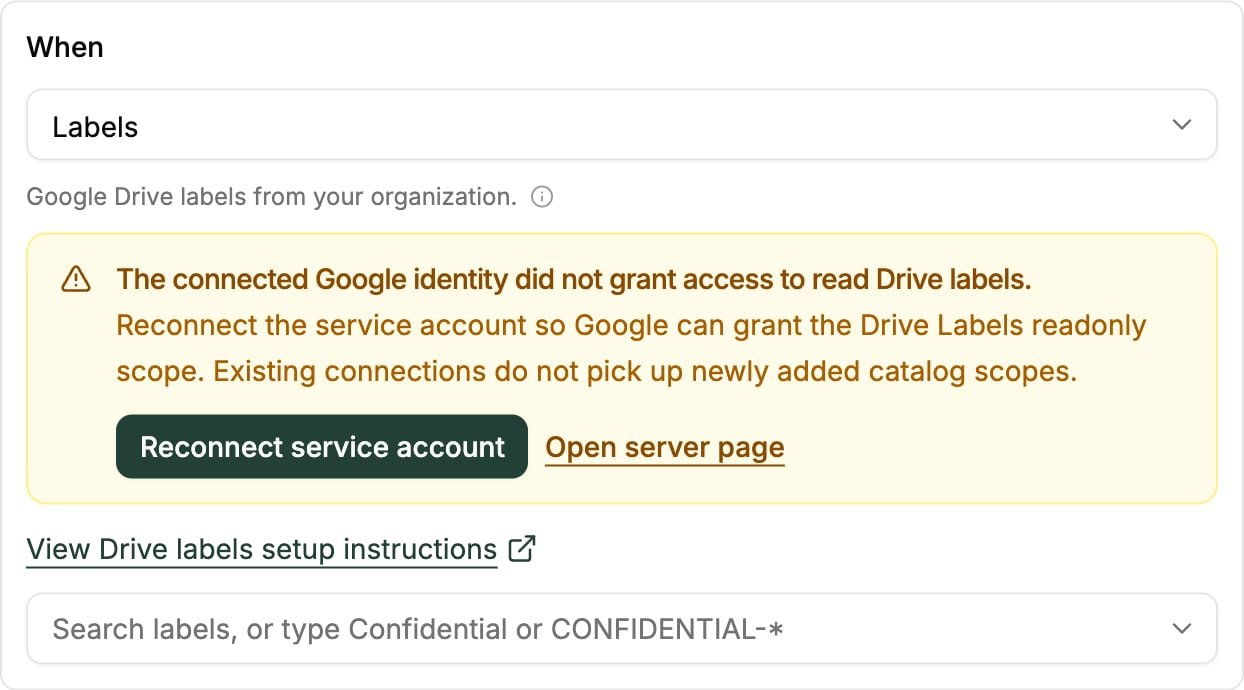
drive.labels.readonly. If the instance still has an older snapshotted
list, add the scope or click Reset to default scopes, then reconnect
the service account. Existing grants do not receive new scopes
automatically.If you use a private OAuth client, also confirm that Data Access on
that client lists every scope Barndoor will request, including the default
Drive scopes and drive.labels.readonly.Label manager shows permission denied or a redirect loop
Label manager shows permission denied or a redirect loop
You are not authorized for Label
manager. Ask a Google Workspace
super admin to grant Manage Classification Labels, then retry. The
URL is correct even when Google redirects to
/permissiondenied.No published Drive labels are visible
No published Drive labels are visible
Limitations
- Barndoor discovers existing labels but does not create or publish the label
taxonomy. There is no
create_labeltool on the Google Drive connector. - Reading labels on an existing file works with the default scopes. Applying
labels or running other write tools on files Barndoor did not create needs
the
drivescope on your own OAuth client. - Stored public OAuth is enough for label discovery. A private client is optional unless you need write tools on existing files.