> ## Documentation Index
> Fetch the complete documentation index at: https://docs.barndoor.ai/llms.txt
> Use this file to discover all available pages before exploring further.
# Configuring LLM Controls
> Set token budgets, rate limits, and model access policies on traffic flowing through the Barndoor LLM Gateway.
## Overview
Once your LLM Gateway is set up — see [Using the LLM Gateway](/how-tos/use-llm-gateway) — the **Controls** group of **LLM Management** is where admins govern how the people and services in their organization actually consume it: capping spend, throttling busy callers, and restricting which models a given role can use.
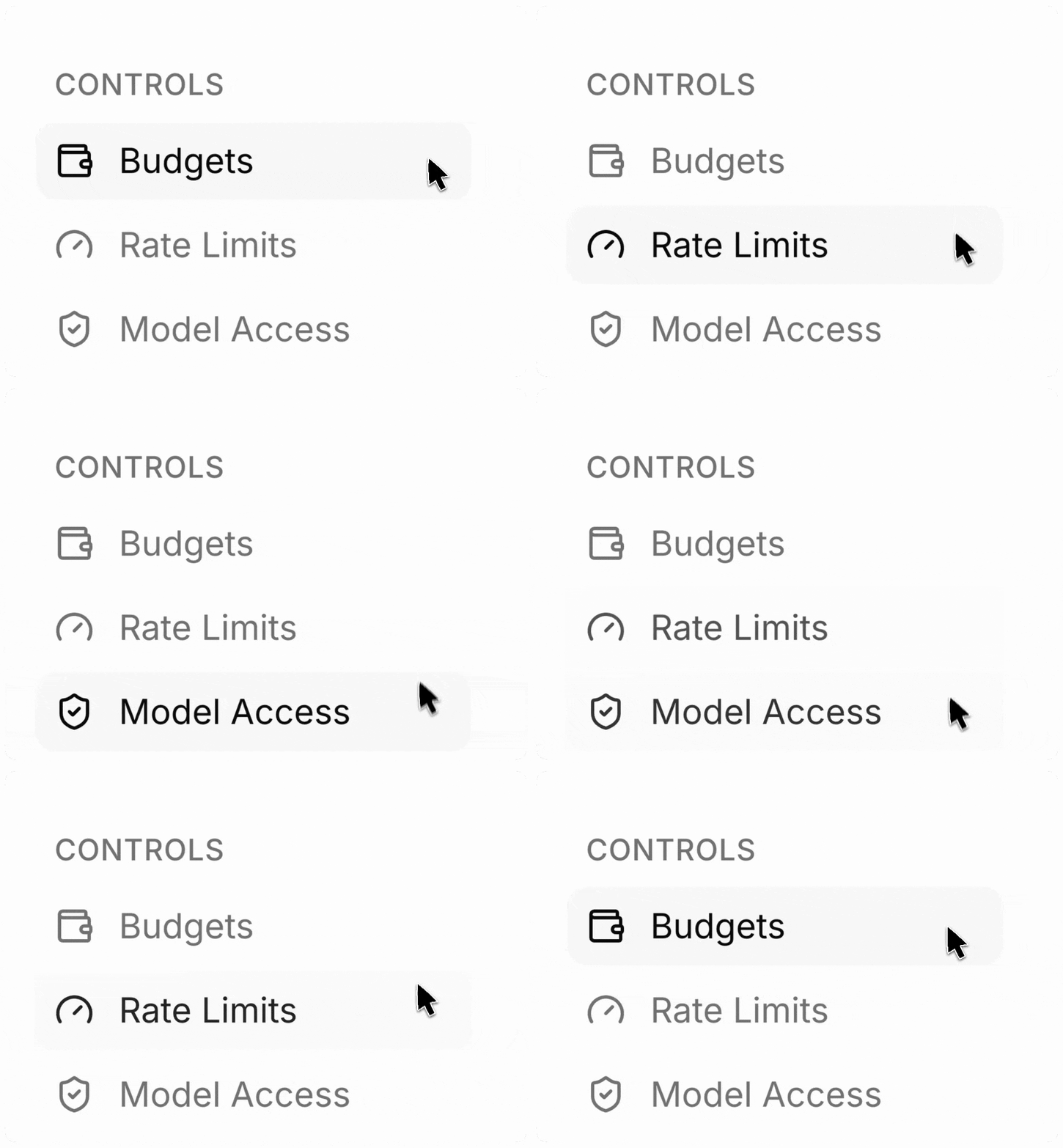 The **Controls** group of **LLM Management** has three sections:
| Section | What it does |
| ---------------- | ----------------------------------------------------------------------------------------------------------------------------------------------------------------------------------------------------------------------------------------------------------------------------- |
| **Budgets** | Cap how many tokens — and optionally how much money — a scope (org, group, role, or user) is allowed to spend in a daily, weekly, or monthly period, optionally narrowed to a specific provider, model route, or upstream model. Block requests once exhausted, or warn only. |
| **Rate Limits** | Throttle a scope with requests-per-minute and / or tokens-per-minute caps measured over a rolling 60-second window. |
| **Model Access** | Allowlist or denylist specific models, providers, or upstream model identifiers for an org, group, role, user, or API key. |
Per-request usage and cost observability lives separately, under **Reporting → LLM Usage Dashboard**.
## Before You Begin
You'll need:
* A Barndoor account with **admin** privileges.
* An LLM Gateway that's already configured with at least one provider and one route — see [Using the LLM Gateway](/how-tos/use-llm-gateway).
* **Spending budgets** work out of the box — Barndoor costs requests against its managed default pricing catalog automatically. Set your own per-model pricing under **LLM Management → Model Pricing** only when you want to override those defaults. See [Managing Model Pricing](/how-tos/manage-model-pricing) for the full guide.
## How Limits Compose
When a caller sends a request to the gateway, Barndoor evaluates policies in a fixed order. The first one that denies stops the chain and returns an HTTP error.
```mermaid theme={null}
flowchart TB
Request["Inbound request"]
Auth["API-key auth
The **Controls** group of **LLM Management** has three sections:
| Section | What it does |
| ---------------- | ----------------------------------------------------------------------------------------------------------------------------------------------------------------------------------------------------------------------------------------------------------------------------- |
| **Budgets** | Cap how many tokens — and optionally how much money — a scope (org, group, role, or user) is allowed to spend in a daily, weekly, or monthly period, optionally narrowed to a specific provider, model route, or upstream model. Block requests once exhausted, or warn only. |
| **Rate Limits** | Throttle a scope with requests-per-minute and / or tokens-per-minute caps measured over a rolling 60-second window. |
| **Model Access** | Allowlist or denylist specific models, providers, or upstream model identifiers for an org, group, role, user, or API key. |
Per-request usage and cost observability lives separately, under **Reporting → LLM Usage Dashboard**.
## Before You Begin
You'll need:
* A Barndoor account with **admin** privileges.
* An LLM Gateway that's already configured with at least one provider and one route — see [Using the LLM Gateway](/how-tos/use-llm-gateway).
* **Spending budgets** work out of the box — Barndoor costs requests against its managed default pricing catalog automatically. Set your own per-model pricing under **LLM Management → Model Pricing** only when you want to override those defaults. See [Managing Model Pricing](/how-tos/manage-model-pricing) for the full guide.
## How Limits Compose
When a caller sends a request to the gateway, Barndoor evaluates policies in a fixed order. The first one that denies stops the chain and returns an HTTP error.
```mermaid theme={null}
flowchart TB
Request["Inbound request"]
Auth["API-key auth
(401 on failure)"]
Concurrency["Concurrency admission
(429 when at capacity)"]
RateLimit["Rate limits
RPM & TPM (429)"]
Budget["Token / spending budget
(429 when exhausted)"]
Resolve["Model resolution
(404 when unknown)"]
Access["Model access policy
(403 when denied)"]
Upstream["Forward to upstream provider"]
Request --> Auth --> Concurrency --> RateLimit --> Budget --> Resolve --> Access --> Upstream
```
A few things worth knowing about this chain:
* **Counters are debited *after* the upstream call returns**, using actual prompt + completion token counts. The pre-check is what enforces the limit; the post-debit is what keeps the counter honest.
* **Warn-only budgets never deny.** They still record usage and fire alerts at their configured thresholds, but the request goes through.
* **Multiple policies can apply at once.** If a user is covered by both a user-scoped budget and an org-scoped budget, both are pre-checked and both are debited; the most restrictive one is what denies.
* **Target-bound budgets are the exception to this ordering.** A budget pinned to a [Target](#token-budgets) is evaluated *after* model resolution, per route — it can remove an exhausted target and let the request fail over rather than denying outright.
***
## Token Budgets
Budgets cap how much a scope is allowed to consume in a rolling window — daily, weekly, or monthly. They can cap **tokens**, **spending**, or both (whichever hits its limit first denies the request), and can optionally apply to just one slice of traffic via a **Target**.
 Once you have more than a handful, the list supports search, pagination, and sorting — by **usage** (percent of limit consumed, the default so near-exhausted budgets float to the top), **period**, or **name**.
### Creating a budget
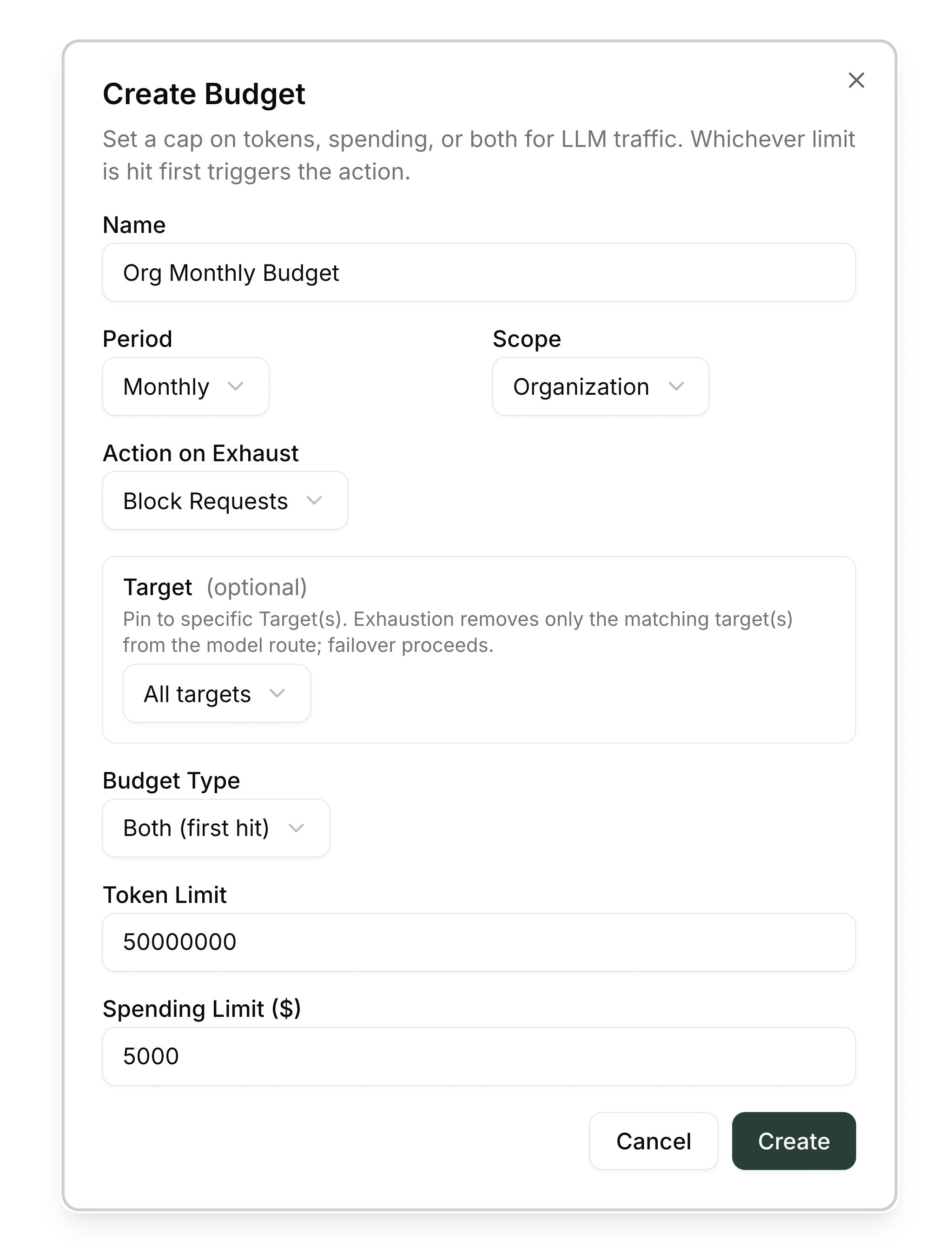
The dialog opens with sensible defaults; fill in the fields below.
* **Name** — anything short and descriptive. The name surfaces in the denial message the caller sees, so make it identifiable (for example `Engineering monthly` or `Sales-team daily cap`).
* **Scope** — pick *Org* to cover everyone, or *Group*, *Role*, or *User* to target a slice. Picking a scope without choosing a specific entity means "every entity of that type in this org".
* **Period** — `Daily`, `Weekly`, or `Monthly`. Counters reset at the start of each period.
* **Action when exhausted** — choose **Block Requests** (default) to return `429` once the limit is hit, or **Warn Only** to keep accepting requests and just fire alerts at the threshold percentages.
By default a budget counts **all** traffic that matches its scope. Set a **Target** to narrow it to a single routing dimension instead:
| Target | Counts only… |
| --------------------------- | ------------------------------------------------------------------------- |
| **All targets** *(default)* | Everything in scope — no narrowing. |
| **LLM Provider** | Requests served by one specific provider connection. |
| **Upstream Model** | One specific upstream model name (for example `gpt-4o`). |
| **Model Route** | One specific client-facing route name (the value callers put in `model`). |
**Scope and Target are independent dimensions**: Scope is *who* the budget covers (org / group / role / user); Target is *what* it counts. A target-bound budget only debits usage for requests matching **both**. Target can't be edited after creation — to retarget a budget, delete it and create a new one.
* **Token limit** — total prompt + completion tokens allowed in the period.
* **Spending limit (optional)** — a dollar cap. Costed from per-model pricing, which Barndoor's default catalog supplies automatically (override it under [Managing Model Pricing](/how-tos/manage-model-pricing)).
* **Alert thresholds** — percentages at which Barndoor emits an alert (default `80`, `90`).
The new budget appears in the tab with a progress bar. Status refreshes roughly every 30 seconds.
Once you have more than a handful, the list supports search, pagination, and sorting — by **usage** (percent of limit consumed, the default so near-exhausted budgets float to the top), **period**, or **name**.
### Creating a budget
The dialog opens with sensible defaults; fill in the fields below.
* **Name** — anything short and descriptive. The name surfaces in the denial message the caller sees, so make it identifiable (for example `Engineering monthly` or `Sales-team daily cap`).
* **Scope** — pick *Org* to cover everyone, or *Group*, *Role*, or *User* to target a slice. Picking a scope without choosing a specific entity means "every entity of that type in this org".
* **Period** — `Daily`, `Weekly`, or `Monthly`. Counters reset at the start of each period.
* **Action when exhausted** — choose **Block Requests** (default) to return `429` once the limit is hit, or **Warn Only** to keep accepting requests and just fire alerts at the threshold percentages.
By default a budget counts **all** traffic that matches its scope. Set a **Target** to narrow it to a single routing dimension instead:
| Target | Counts only… |
| --------------------------- | ------------------------------------------------------------------------- |
| **All targets** *(default)* | Everything in scope — no narrowing. |
| **LLM Provider** | Requests served by one specific provider connection. |
| **Upstream Model** | One specific upstream model name (for example `gpt-4o`). |
| **Model Route** | One specific client-facing route name (the value callers put in `model`). |
**Scope and Target are independent dimensions**: Scope is *who* the budget covers (org / group / role / user); Target is *what* it counts. A target-bound budget only debits usage for requests matching **both**. Target can't be edited after creation — to retarget a budget, delete it and create a new one.
* **Token limit** — total prompt + completion tokens allowed in the period.
* **Spending limit (optional)** — a dollar cap. Costed from per-model pricing, which Barndoor's default catalog supplies automatically (override it under [Managing Model Pricing](/how-tos/manage-model-pricing)).
* **Alert thresholds** — percentages at which Barndoor emits an alert (default `80`, `90`).
The new budget appears in the tab with a progress bar. Status refreshes roughly every 30 seconds.
 ### How budgets are counted
* **Tokens** — prompt + completion tokens reported by the upstream provider on every request, summed per (budget, period).
* **Spending** — for each request, Barndoor multiplies prompt and completion tokens by the input and output prices in **LLM Management → Model Pricing** for that model.
* **Target** — a target-bound budget only counts requests that match its Target dimension; an *All targets* budget counts every request in scope.
* **Reset** — at the start of the next period (next day at 00:00 UTC for daily, next Monday for weekly, the 1st for monthly).
### When a caller hits the limit
A blocking budget returns:
```http theme={null}
HTTP/1.1 429 Too Many Requests
content-type: application/json
```
```json theme={null}
{
"error": {
"message": "Token monthly budget exhausted (budget: Engineering monthly) (100% used: 1001234 / 1000000 tokens).",
"type": "budget_exhausted",
"code": null
}
}
```
Spending budgets use the same shape with `"Spending …"` in the message.
**Target-bound budgets fail over instead of hard-blocking.** A budget with **Target = All targets** is checked up front and returns the `429` above as soon as it's exhausted. A budget pinned to a specific Target (provider, upstream model, or route) is enforced *after* the gateway resolves the route plan: exhausting it removes only the **matching** target from that route, and the gateway fails over to any remaining healthy targets. Callers see the `429` only when **every** eligible target for the route is exhausted or otherwise unavailable.
You'll usually see `tokens_used` slightly *above* `token_limit` in the denial. That's expected: the gateway pre-checks the counter on the way in, forwards the call, and debits the actual prompt + completion tokens once the provider responds. The request that pushed the counter over the limit is allowed to finish; the next one is denied. The percentage is rounded for display, so a counter of 1,001,234 / 1,000,000 still prints as `100%`.
Use a **token** budget for predictability and a **spending** budget when you care about dollar amounts independent of model. Setting both together is the safest configuration — token caps absorb a price-list change without a sudden spike, and spending caps catch a high-priced model nobody noticed.
***
## Rate Limits
Rate limits throttle a scope on a **rolling 60-second window**. They're the right tool when you want to smooth bursts and prevent a single noisy caller from drowning out everyone else. (Budgets are the right tool when you want to control total spend over a day, week, or month.)
### How budgets are counted
* **Tokens** — prompt + completion tokens reported by the upstream provider on every request, summed per (budget, period).
* **Spending** — for each request, Barndoor multiplies prompt and completion tokens by the input and output prices in **LLM Management → Model Pricing** for that model.
* **Target** — a target-bound budget only counts requests that match its Target dimension; an *All targets* budget counts every request in scope.
* **Reset** — at the start of the next period (next day at 00:00 UTC for daily, next Monday for weekly, the 1st for monthly).
### When a caller hits the limit
A blocking budget returns:
```http theme={null}
HTTP/1.1 429 Too Many Requests
content-type: application/json
```
```json theme={null}
{
"error": {
"message": "Token monthly budget exhausted (budget: Engineering monthly) (100% used: 1001234 / 1000000 tokens).",
"type": "budget_exhausted",
"code": null
}
}
```
Spending budgets use the same shape with `"Spending …"` in the message.
**Target-bound budgets fail over instead of hard-blocking.** A budget with **Target = All targets** is checked up front and returns the `429` above as soon as it's exhausted. A budget pinned to a specific Target (provider, upstream model, or route) is enforced *after* the gateway resolves the route plan: exhausting it removes only the **matching** target from that route, and the gateway fails over to any remaining healthy targets. Callers see the `429` only when **every** eligible target for the route is exhausted or otherwise unavailable.
You'll usually see `tokens_used` slightly *above* `token_limit` in the denial. That's expected: the gateway pre-checks the counter on the way in, forwards the call, and debits the actual prompt + completion tokens once the provider responds. The request that pushed the counter over the limit is allowed to finish; the next one is denied. The percentage is rounded for display, so a counter of 1,001,234 / 1,000,000 still prints as `100%`.
Use a **token** budget for predictability and a **spending** budget when you care about dollar amounts independent of model. Setting both together is the safest configuration — token caps absorb a price-list change without a sudden spike, and spending caps catch a high-priced model nobody noticed.
***
## Rate Limits
Rate limits throttle a scope on a **rolling 60-second window**. They're the right tool when you want to smooth bursts and prevent a single noisy caller from drowning out everyone else. (Budgets are the right tool when you want to control total spend over a day, week, or month.)
 The list supports search, pagination, and sorting — by **live** usage (rolling 60-second window, the default so throttled policies surface first), **name**, **scope**, **RPM**, **TPM**, or **enabled** status.
### Creating a rate limit
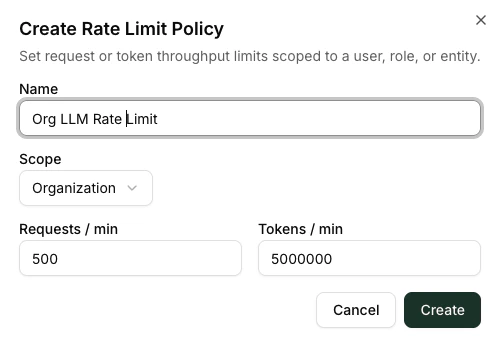
The dialog appears with the same scope picker pattern as Budgets.
* **Name** — appears in the denial message the caller sees.
* **Scope** — *Org*, *Group*, *Role*, *User*, *API Key*, or *Model*. Selecting *Model* lets you cap a particular alias across all users.
Fill in at least one of:
* **Requests per minute** — caps the number of inbound requests, regardless of size.
* **Tokens per minute** — caps the sum of prompt + completion tokens over the same window.
You can set both, or only one. The form rejects the policy if both are blank.
The new policy appears in the table with live RPM and TPM bars. Status refreshes roughly every 10 seconds.
The list supports search, pagination, and sorting — by **live** usage (rolling 60-second window, the default so throttled policies surface first), **name**, **scope**, **RPM**, **TPM**, or **enabled** status.
### Creating a rate limit
The dialog appears with the same scope picker pattern as Budgets.
* **Name** — appears in the denial message the caller sees.
* **Scope** — *Org*, *Group*, *Role*, *User*, *API Key*, or *Model*. Selecting *Model* lets you cap a particular alias across all users.
Fill in at least one of:
* **Requests per minute** — caps the number of inbound requests, regardless of size.
* **Tokens per minute** — caps the sum of prompt + completion tokens over the same window.
You can set both, or only one. The form rejects the policy if both are blank.
The new policy appears in the table with live RPM and TPM bars. Status refreshes roughly every 10 seconds.
 ### When a caller hits the limit
```http theme={null}
HTTP/1.1 429 Too Many Requests
retry-after: 60
content-type: application/json
```
```json theme={null}
{
"error": {
"message": "Rate limit exceeded (policy: Sales-team rate cap). Try again in 60 seconds.",
"type": "rate_limit_error",
"code": null
}
}
```
The `Retry-After` header and the seconds-value in the message always match the **window length** — 60 seconds, since rate limits use a rolling 60-second window. It's a conservative "wait one full window and you're guaranteed to be unblocked" hint; the caller may often succeed sooner as older events fall out of the window. Clients that respect `Retry-After` (the OpenAI / Anthropic SDKs do) will back off appropriately.
RPM and TPM live on the same policy and use the same scope, but Barndoor enforces them independently. A caller that's under the RPM cap can still get throttled by the TPM cap (and vice versa).
***
## Model Access
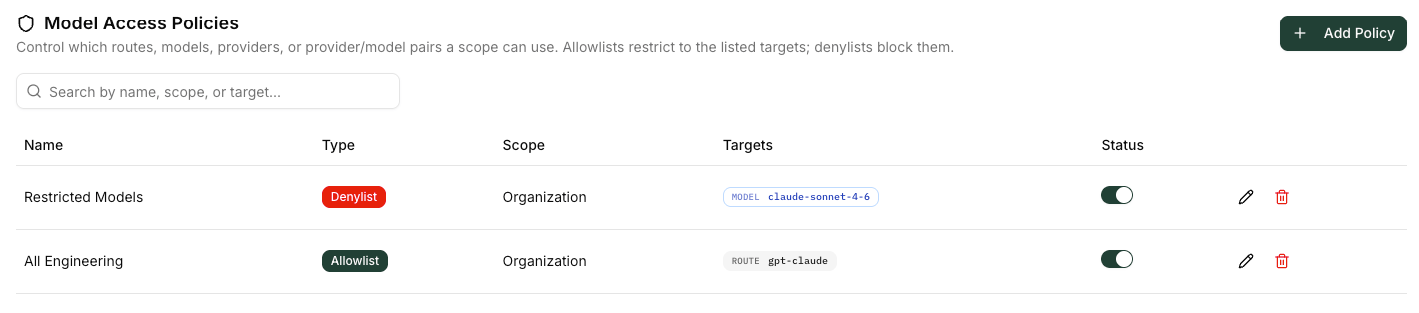
Model access policies decide whether a caller is allowed to invoke a particular model at all. They support both **allowlists** ("only let this scope call these models") and **denylists** ("this scope must not call these models").
### When a caller hits the limit
```http theme={null}
HTTP/1.1 429 Too Many Requests
retry-after: 60
content-type: application/json
```
```json theme={null}
{
"error": {
"message": "Rate limit exceeded (policy: Sales-team rate cap). Try again in 60 seconds.",
"type": "rate_limit_error",
"code": null
}
}
```
The `Retry-After` header and the seconds-value in the message always match the **window length** — 60 seconds, since rate limits use a rolling 60-second window. It's a conservative "wait one full window and you're guaranteed to be unblocked" hint; the caller may often succeed sooner as older events fall out of the window. Clients that respect `Retry-After` (the OpenAI / Anthropic SDKs do) will back off appropriately.
RPM and TPM live on the same policy and use the same scope, but Barndoor enforces them independently. A caller that's under the RPM cap can still get throttled by the TPM cap (and vice versa).
***
## Model Access
Model access policies decide whether a caller is allowed to invoke a particular model at all. They support both **allowlists** ("only let this scope call these models") and **denylists** ("this scope must not call these models").
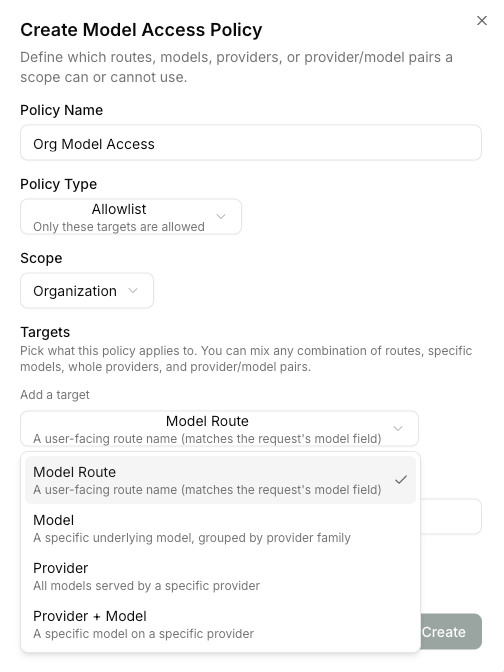
 ### Creating a policy
Pick **Allowlist** for "only these models" or **Denylist** for "everything except these models".
* **Name** — appears in the denial message.
* **Scope** — *Org*, *Group*, *Role*, *User*, or *API Key*.
Each target is one rule about *which* models the policy covers. You can mix and match any number of these:
| Target kind | Matches when… | Example |
| -------------------- | -------------------------------------------------------------------------------------------------------------- | -------------------------- |
| **Model route** | The caller's `model` field matches a route you've defined in **Model Routes**. Supports trailing `*` wildcard. | `claude-*` |
| **Upstream model** | The resolved upstream model name (the string the gateway sends to the provider). | `gpt-4o` |
| **Provider** | Any model served by the selected provider. | `openai-prod` |
| **Provider + model** | A specific provider/upstream-model pair. | `azure-east + gpt-4o-mini` |
The new policy appears in the table. Enable / disable any policy from the table without deleting it.
### Creating a policy
Pick **Allowlist** for "only these models" or **Denylist** for "everything except these models".
* **Name** — appears in the denial message.
* **Scope** — *Org*, *Group*, *Role*, *User*, or *API Key*.
Each target is one rule about *which* models the policy covers. You can mix and match any number of these:
| Target kind | Matches when… | Example |
| -------------------- | -------------------------------------------------------------------------------------------------------------- | -------------------------- |
| **Model route** | The caller's `model` field matches a route you've defined in **Model Routes**. Supports trailing `*` wildcard. | `claude-*` |
| **Upstream model** | The resolved upstream model name (the string the gateway sends to the provider). | `gpt-4o` |
| **Provider** | Any model served by the selected provider. | `openai-prod` |
| **Provider + model** | A specific provider/upstream-model pair. | `azure-east + gpt-4o-mini` |
The new policy appears in the table. Enable / disable any policy from the table without deleting it.
 ### How allowlists and denylists combine
* If **any allowlist** applies to a caller, at least one of its targets must match — otherwise the call is denied.
* If **any denylist** applies, none of its targets may match — otherwise the call is denied.
* A caller with both an allowlist and a denylist must satisfy both.
* A caller with neither has unrestricted access (subject to budgets and rate limits).
### When a caller is denied
```http theme={null}
HTTP/1.1 403 Forbidden
content-type: application/json
```
```json theme={null}
{
"error": {
"message": "Model 'claude-opus-4' is blocked by access policy: External-models-only",
"type": "permission_error",
"code": null
}
}
```
The exact wording differs slightly for allowlist denials ("not allowed by access policy …") vs denylist denials ("blocked by access policy …").
Use **denylists** to carve out a small set of exceptions to an otherwise-open posture. Use **allowlists** when you want to start closed and only open up known-good models. Allowlists are the safer default for highly regulated environments.
***
## What callers see when something is denied
| Response | Triggered by | Example message |
| ------------------------------ | ---------------------------------------------------------------------------------- | ----------------------------------------------------------------------------------------------------- |
| **401** `authentication_error` | Missing, invalid, or revoked API key | `invalid API key` |
| **403** `permission_error` | Model access policy denial | `Model 'foo' is not allowed by access policy: Production-only` |
| **404** `not_found_error` | The `model` field doesn't resolve to a configured route | `model 'foo' not found or not available` |
| **429** `rate_limit_error` | Rate-limit policy or concurrency limit | `Rate limit exceeded (policy: Sales-team rate cap). Try again in 60 seconds.` |
| **429** `budget_exhausted` | Token or spending budget exhausted (and the budget's action is **Block Requests**) | `Token monthly budget exhausted (budget: Engineering monthly) (100% used: 1001234 / 1000000 tokens).` |
Denials use a consistent JSON error shape (`{ "error": { "message", "type", "code" } }`) so callers using common LLM SDKs surface them as normal SDK errors without any special handling.
***
## Troubleshooting
Look at the `error.message` in the response — Barndoor names the policy that denied the request (`"… (policy: Sales-team rate cap)"` or `"… (budget: Engineering monthly)"`). Open that policy in the relevant tab to inspect the configuration and the live usage bars.
Confirm the budget's **period** — Daily resets at 00:00 UTC, Weekly resets on Monday at 00:00 UTC, Monthly resets on the 1st at 00:00 UTC. If the period is correct and the counter hasn't reset, contact [support@barndoor.ai](mailto:support@barndoor.ai) with the budget name and your org name.
Check the policy's **scope** — a policy scoped to a specific user only applies to that user. A policy with no entity selected applies to *every* entity of that scope type. Also confirm the policy is **enabled** (toggle on the row).
If you're using wildcards, remember the `*` must be **trailing** (`claude-*` is valid; `*-mini` is not).
The models being called are covered by neither one of your pricing rules nor a Barndoor default — so there's no price to debit. This is uncommon, usually a brand-new or custom model name. Open [Managing Model Pricing](/how-tos/manage-model-pricing) and add a rule covering those models. Spending budgets only accumulate when a price (yours or a Barndoor default) matches the request.
Set **alert thresholds** on the budget (defaults: `80`, `90`). Barndoor emits alerts when usage crosses each threshold so you can intervene before the budget actually blocks anyone. To watch consumption trends across budgets, use the **Reporting → LLM Usage Dashboard**.
## Frequently Asked Questions
Use a **budget** when you care about total consumption over a long horizon (a team's monthly spend, a project's daily token allowance). Use a **rate limit** when you care about short-term load (smoothing bursts, protecting upstream providers from a runaway loop). They compose naturally: a budget for *how much*, a rate limit for *how fast*.
Yes. You can have, for example, one org-wide monthly budget and a separate per-team daily budget. Both are pre-checked on every request and both are debited on success; the most restrictive applicable limit is what denies.
Yes. Every request that flows through `/v1/chat/completions`, `/v1/completions`, `/v1/embeddings`, `/v1/responses`, and `/v1/messages` goes through the same enforcement chain. Embedding requests consume tokens against budgets just like chat requests do.
Yes — they let you observe a team's actual consumption against a target threshold without disrupting anyone. A common pattern is to start a budget in **Warn Only** for one or two periods to calibrate the limit, then switch it to **Block Requests** once you're confident.
Create the policy with a tight scope — for example a single test User or a dedicated API Key — and call the gateway with that user / key while you verify the denial behavior. Then widen the scope to *Group* or *Org* once you're happy.
## Need Help?
Reach out to [support@barndoor.ai](mailto:support@barndoor.ai) with:
* The name of the policy you're configuring or troubleshooting.
* The exact `error.message` returned to the caller (if any).
* The scope (org / group / role / user / API key) involved.
### How allowlists and denylists combine
* If **any allowlist** applies to a caller, at least one of its targets must match — otherwise the call is denied.
* If **any denylist** applies, none of its targets may match — otherwise the call is denied.
* A caller with both an allowlist and a denylist must satisfy both.
* A caller with neither has unrestricted access (subject to budgets and rate limits).
### When a caller is denied
```http theme={null}
HTTP/1.1 403 Forbidden
content-type: application/json
```
```json theme={null}
{
"error": {
"message": "Model 'claude-opus-4' is blocked by access policy: External-models-only",
"type": "permission_error",
"code": null
}
}
```
The exact wording differs slightly for allowlist denials ("not allowed by access policy …") vs denylist denials ("blocked by access policy …").
Use **denylists** to carve out a small set of exceptions to an otherwise-open posture. Use **allowlists** when you want to start closed and only open up known-good models. Allowlists are the safer default for highly regulated environments.
***
## What callers see when something is denied
| Response | Triggered by | Example message |
| ------------------------------ | ---------------------------------------------------------------------------------- | ----------------------------------------------------------------------------------------------------- |
| **401** `authentication_error` | Missing, invalid, or revoked API key | `invalid API key` |
| **403** `permission_error` | Model access policy denial | `Model 'foo' is not allowed by access policy: Production-only` |
| **404** `not_found_error` | The `model` field doesn't resolve to a configured route | `model 'foo' not found or not available` |
| **429** `rate_limit_error` | Rate-limit policy or concurrency limit | `Rate limit exceeded (policy: Sales-team rate cap). Try again in 60 seconds.` |
| **429** `budget_exhausted` | Token or spending budget exhausted (and the budget's action is **Block Requests**) | `Token monthly budget exhausted (budget: Engineering monthly) (100% used: 1001234 / 1000000 tokens).` |
Denials use a consistent JSON error shape (`{ "error": { "message", "type", "code" } }`) so callers using common LLM SDKs surface them as normal SDK errors without any special handling.
***
## Troubleshooting
Look at the `error.message` in the response — Barndoor names the policy that denied the request (`"… (policy: Sales-team rate cap)"` or `"… (budget: Engineering monthly)"`). Open that policy in the relevant tab to inspect the configuration and the live usage bars.
Confirm the budget's **period** — Daily resets at 00:00 UTC, Weekly resets on Monday at 00:00 UTC, Monthly resets on the 1st at 00:00 UTC. If the period is correct and the counter hasn't reset, contact [support@barndoor.ai](mailto:support@barndoor.ai) with the budget name and your org name.
Check the policy's **scope** — a policy scoped to a specific user only applies to that user. A policy with no entity selected applies to *every* entity of that scope type. Also confirm the policy is **enabled** (toggle on the row).
If you're using wildcards, remember the `*` must be **trailing** (`claude-*` is valid; `*-mini` is not).
The models being called are covered by neither one of your pricing rules nor a Barndoor default — so there's no price to debit. This is uncommon, usually a brand-new or custom model name. Open [Managing Model Pricing](/how-tos/manage-model-pricing) and add a rule covering those models. Spending budgets only accumulate when a price (yours or a Barndoor default) matches the request.
Set **alert thresholds** on the budget (defaults: `80`, `90`). Barndoor emits alerts when usage crosses each threshold so you can intervene before the budget actually blocks anyone. To watch consumption trends across budgets, use the **Reporting → LLM Usage Dashboard**.
## Frequently Asked Questions
Use a **budget** when you care about total consumption over a long horizon (a team's monthly spend, a project's daily token allowance). Use a **rate limit** when you care about short-term load (smoothing bursts, protecting upstream providers from a runaway loop). They compose naturally: a budget for *how much*, a rate limit for *how fast*.
Yes. You can have, for example, one org-wide monthly budget and a separate per-team daily budget. Both are pre-checked on every request and both are debited on success; the most restrictive applicable limit is what denies.
Yes. Every request that flows through `/v1/chat/completions`, `/v1/completions`, `/v1/embeddings`, `/v1/responses`, and `/v1/messages` goes through the same enforcement chain. Embedding requests consume tokens against budgets just like chat requests do.
Yes — they let you observe a team's actual consumption against a target threshold without disrupting anyone. A common pattern is to start a budget in **Warn Only** for one or two periods to calibrate the limit, then switch it to **Block Requests** once you're confident.
Create the policy with a tight scope — for example a single test User or a dedicated API Key — and call the gateway with that user / key while you verify the denial behavior. Then widen the scope to *Group* or *Org* once you're happy.
## Need Help?
Reach out to [support@barndoor.ai](mailto:support@barndoor.ai) with:
* The name of the policy you're configuring or troubleshooting.
* The exact `error.message` returned to the caller (if any).
* The scope (org / group / role / user / API key) involved.