> ## Documentation Index
> Fetch the complete documentation index at: https://docs.barndoor.ai/llms.txt
> Use this file to discover all available pages before exploring further.
# Connect Okta through Okta Integration Network
> Configure Barndoor SSO using the official OIN app with SCIM provisioning
## Overview
The Barndoor OIN app provides the easiest setup experience with built-in SCIM provisioning for automated user lifecycle management. This method offers:
* Pre-configured OIDC settings
* Automated user provisioning and deprovisioning
* Automated group provisioning and group membership synchronization
* Official Okta Verified integration path
***
## Supported features
The Barndoor OIN integration supports the following Okta features.
### OIDC
* **SP-initiated SSO** — Single Sign-On initiated from Barndoor
* **IdP-initiated SSO** — Single Sign-On initiated from the Okta dashboard (through Third-Party Initiated Login)
* **Just-In-Time provisioning** — Accounts are created and updated in Barndoor at first sign-in
### SCIM provisioning
* **Create users** — Provision new users to Barndoor
* **Update user attributes** — Sync user attribute changes from Okta to Barndoor
* **Deactivate users** — Deprovision users in Barndoor when they are unassigned or deactivated in Okta
* **Group Push** — Push Okta groups and their memberships to Barndoor
***
**Prerequisites**:
* Admin access to your Barndoor account
* Admin access to your Okta org
* SCIM token from Barndoor (generated during setup)
For manual configuration with full control, see [Connect Okta with custom application registration](/how-tos/okta-custom-app-setup).
***
## Step 1: Add Barndoor from OIN
In the Okta Admin Console, go to **Applications** → **Applications**.
Click **Browse App Catalog** and search for **"Barndoor.ai"**.
Click on the Barndoor app and then click **Add Integration**.
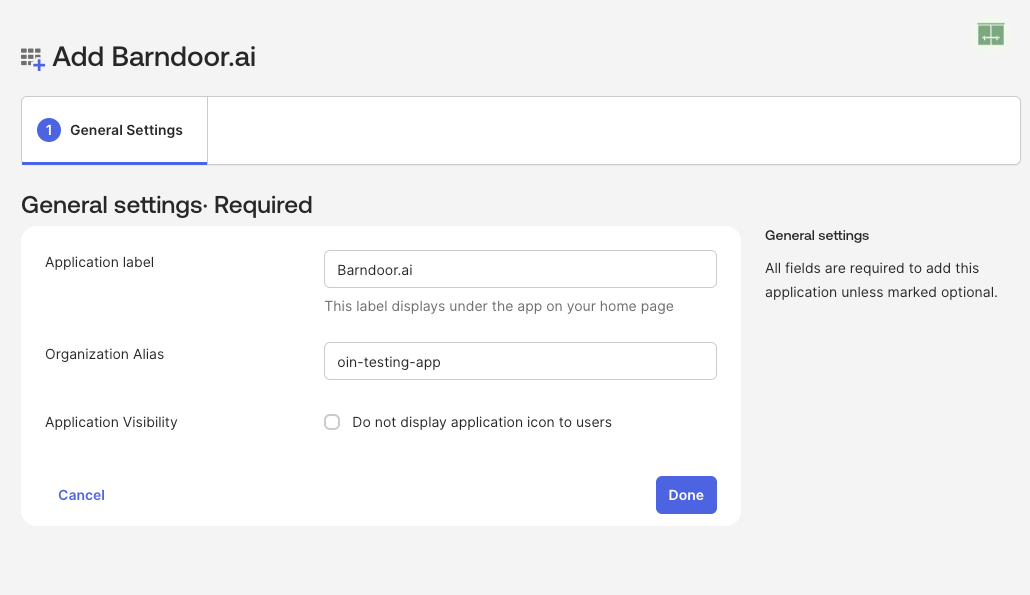
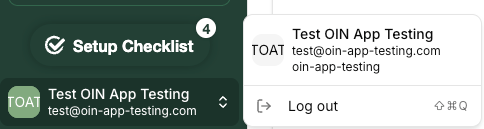
Add your Application Label and Organization alias. This can be found in the platform on your user profile information.
In the example below, `oin-app-testing` is the organization alias.
 ***
## Step 2: Configure SSO Settings
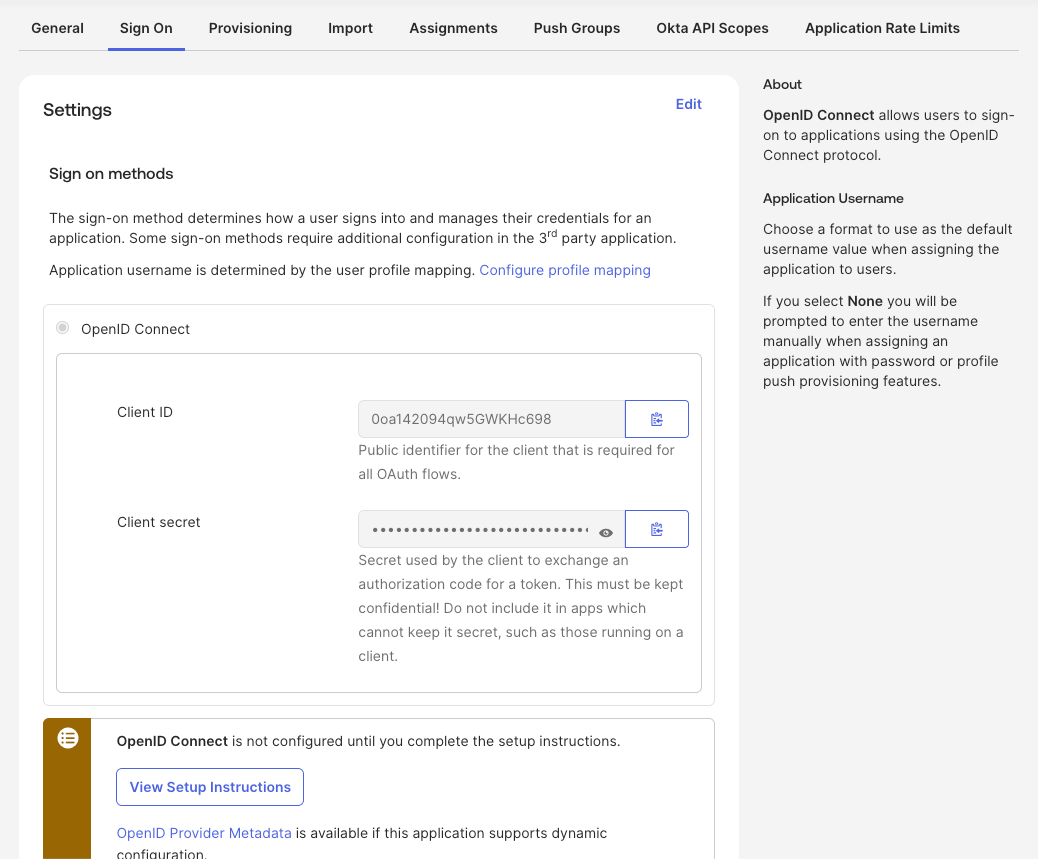
In your newly added Barndoor app, go to the **Sign On** tab.
The OIN app comes pre-configured with:
* Client ID (auto-generated)
* Client Secret (auto-generated)
* Issuer URL (your Okta domain)
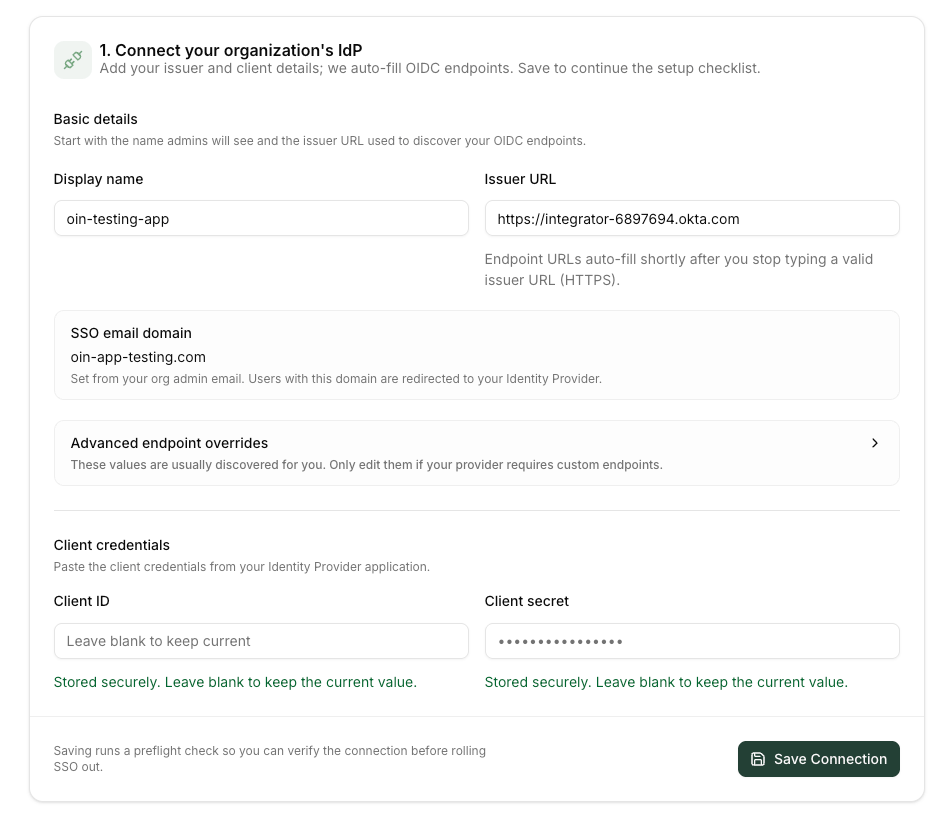
You'll need these values to configure the IDP connection within Barndoor. Copy the Issuer URL along with the
Client ID and Client Secret to the Identity Provider section within Barndoor and then save the connection details.
Your OIDC metadata can be found at `https://.okta.com/.well-known/openid-configuration`
***
## Step 2: Configure SSO Settings
In your newly added Barndoor app, go to the **Sign On** tab.
The OIN app comes pre-configured with:
* Client ID (auto-generated)
* Client Secret (auto-generated)
* Issuer URL (your Okta domain)
You'll need these values to configure the IDP connection within Barndoor. Copy the Issuer URL along with the
Client ID and Client Secret to the Identity Provider section within Barndoor and then save the connection details.
Your OIDC metadata can be found at `https://.okta.com/.well-known/openid-configuration`
 ***
## Step 3: Configure SCIM Provisioning
Go to the **Provisioning** tab and click **Integration** in the sidebar.
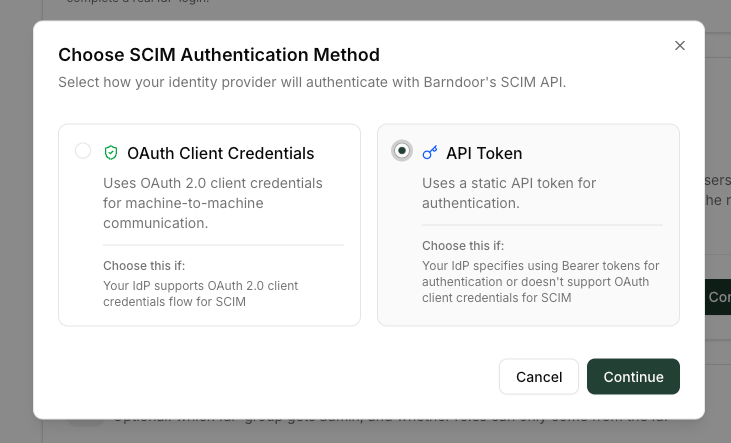
Check **Enable API integration** and enter:
* **API Token**: Generate this from Barndoor Settings → SCIM Provisioning -> API Token
***
## Step 3: Configure SCIM Provisioning
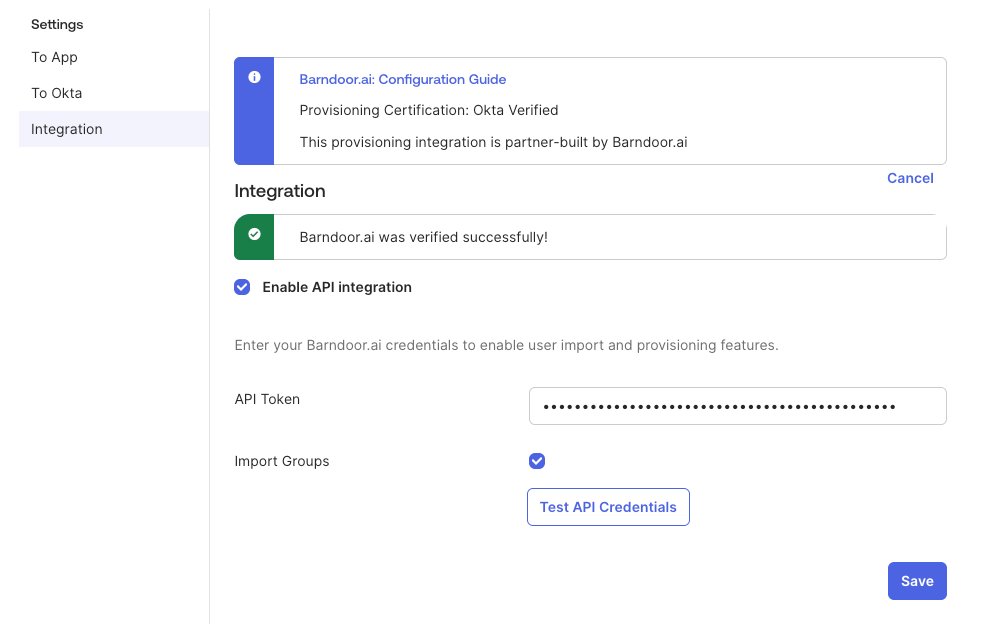
Go to the **Provisioning** tab and click **Integration** in the sidebar.
Check **Enable API integration** and enter:
* **API Token**: Generate this from Barndoor Settings → SCIM Provisioning -> API Token
 Click **Test API Credentials** to verify the connection.
✅ **Expected result**: "API credentials verified successfully"
Click **Test API Credentials** to verify the connection.
✅ **Expected result**: "API credentials verified successfully"
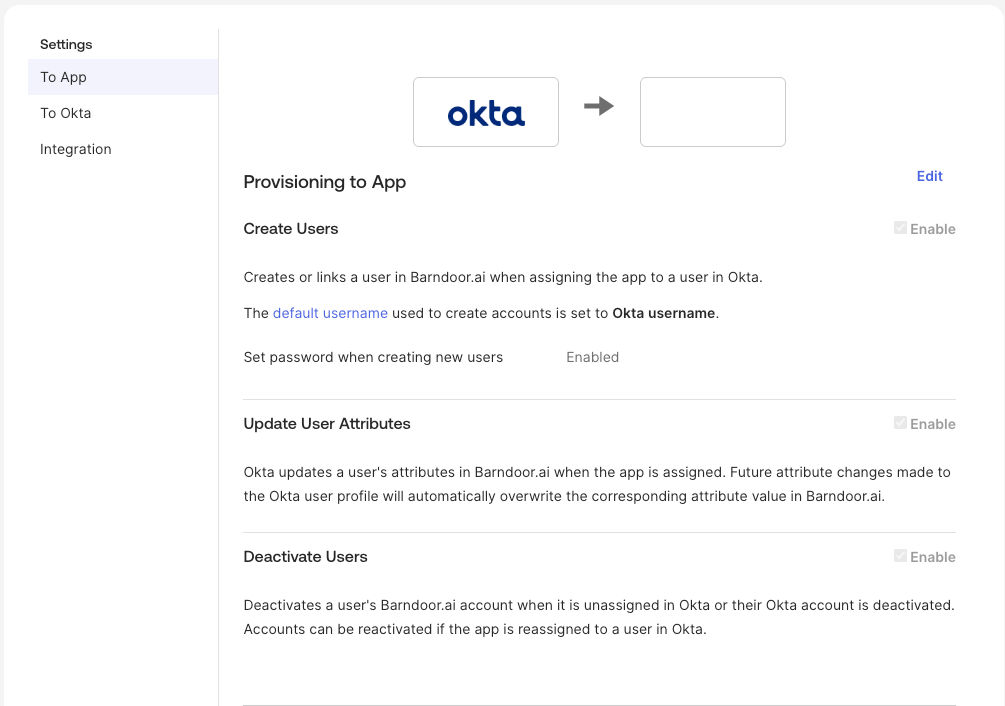
 Go to the **Provisioning** tab and click **To App** in the sidebar.
* Enable the lifecycle settings you would wish to synchronize to Barndoor. It is recommended to enable all operations.
Go to the **Provisioning** tab and click **To App** in the sidebar.
* Enable the lifecycle settings you would wish to synchronize to Barndoor. It is recommended to enable all operations.
 ***
## Step 4: Assign Users and Groups
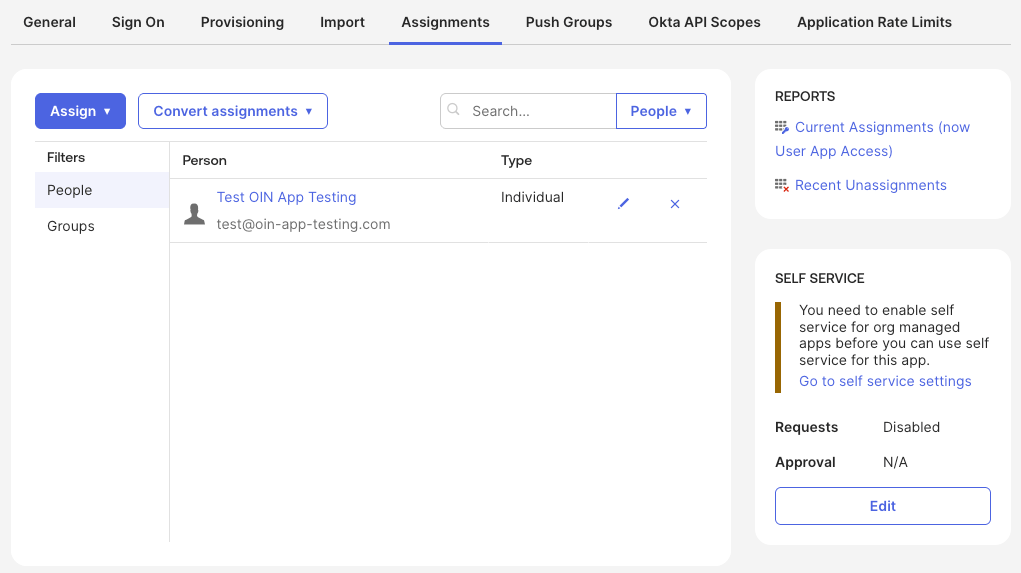
Navigate to the **Assignments** tab in your Barndoor app.
Click **Assign** and choose either:
* **Assign to People**: Select individual users
* **Assign to Groups**: Select entire Okta groups (recommended)
Review and confirm the attribute mappings for each assigned user.
Click **Save and Go Back** to complete assignments.
Users will be automatically provisioned in Barndoor within a few minutes.
***
## Step 4: Assign Users and Groups
Navigate to the **Assignments** tab in your Barndoor app.
Click **Assign** and choose either:
* **Assign to People**: Select individual users
* **Assign to Groups**: Select entire Okta groups (recommended)
Review and confirm the attribute mappings for each assigned user.
Click **Save and Go Back** to complete assignments.
Users will be automatically provisioned in Barndoor within a few minutes.
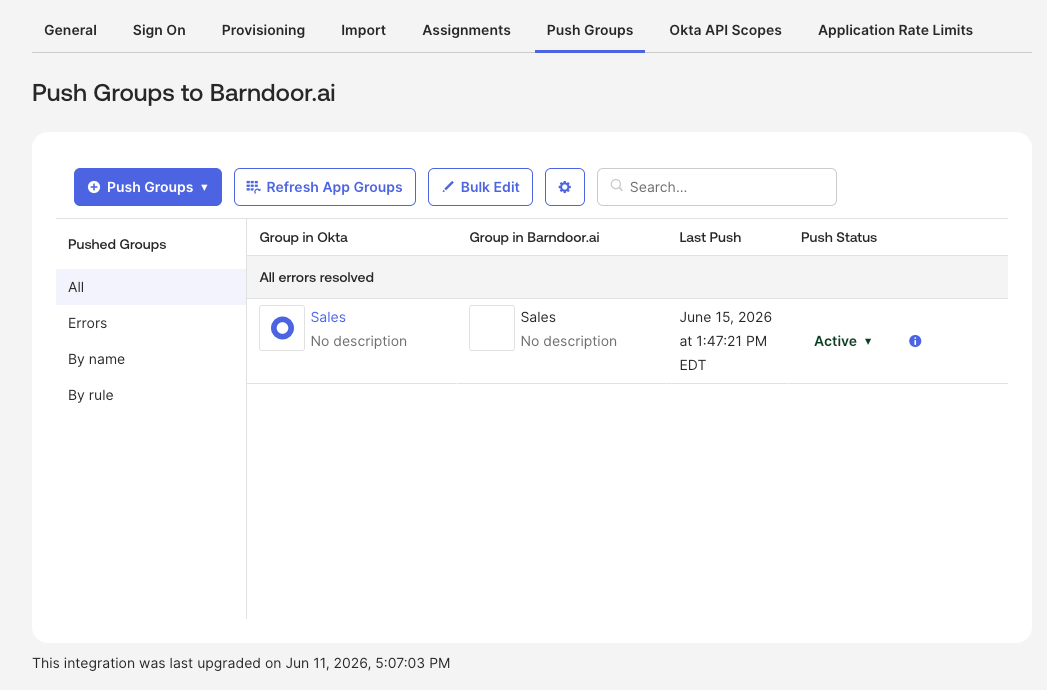
 Navigate to the **Push Groups** tab in your Barndoor app.
* Click **Push Groups** and search for groups by name or rule.
* Search for the group you would like to sync and click 'Save' or 'Save and Add Another'.
* Continue adding all groups you would like to synchronize with Barndoor.
All groups added to 'Push Groups' will synchronize with Barndoor but group membership will only synchronize to
users that have been assigned to the application.
Navigate to the **Push Groups** tab in your Barndoor app.
* Click **Push Groups** and search for groups by name or rule.
* Search for the group you would like to sync and click 'Save' or 'Save and Add Another'.
* Continue adding all groups you would like to synchronize with Barndoor.
All groups added to 'Push Groups' will synchronize with Barndoor but group membership will only synchronize to
users that have been assigned to the application.
 ***
## Map admin access (optional)
SCIM group push keeps users and group membership in sync in Barndoor. To auto-assign the **Admin** role from an Okta group at login, use the **Map groups to roles** card on the [Identity Provider](https://app.barndoor.ai/idp) page—the **Admin Role Group Name** must match the group you push in Step 4 exactly.
See [Connect your IdP — Step 3: Configure Role Mapping](/how-tos/idp-setup#step-3-configure-role-mapping-auto-provision-admins) for the full flow, including the OIDC `groups` claim if your OIN app does not already emit group names at sign-in.
***
## Testing the Integration
### Verify SSO Connection
Sign out of Barndoor and sign in with an Okta-assigned test user. You should reach Barndoor after Okta authentication.
***
## Map admin access (optional)
SCIM group push keeps users and group membership in sync in Barndoor. To auto-assign the **Admin** role from an Okta group at login, use the **Map groups to roles** card on the [Identity Provider](https://app.barndoor.ai/idp) page—the **Admin Role Group Name** must match the group you push in Step 4 exactly.
See [Connect your IdP — Step 3: Configure Role Mapping](/how-tos/idp-setup#step-3-configure-role-mapping-auto-provision-admins) for the full flow, including the OIDC `groups` claim if your OIN app does not already emit group names at sign-in.
***
## Testing the Integration
### Verify SSO Connection
Sign out of Barndoor and sign in with an Okta-assigned test user. You should reach Barndoor after Okta authentication.
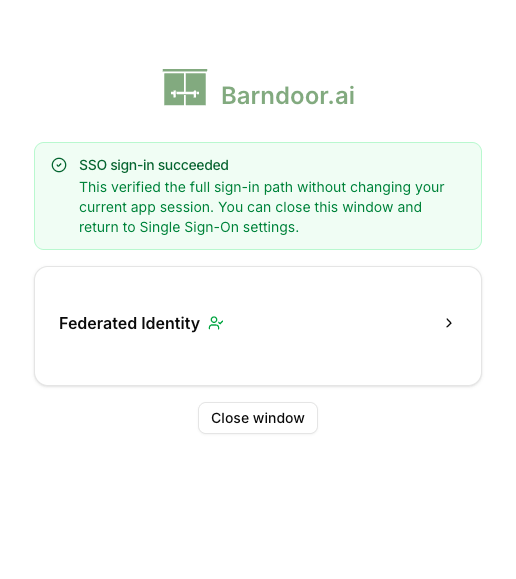 Before enforcing organization-wide SSO, run **Test SSO sign-in** from [Roll out SSO enforcement](#roll-out-sso-enforcement) below. Barndoor requires that pop-up test—not just a manual login—before **Enforce SSO** is enabled.
### Verify SCIM Provisioning
In Okta, assign user(s) to the Barndoor application by either individual users or groups.
In Barndoor, go to [**Users**](https://app.barndoor.ai/users) and verify the user appears.
In Okta, assign group(s) to the Barndoor application by pushing groups by name or rule.
* Push groups for users that are already assigned to the application.
* In Okta, verify groups pushed have transitioned from 'Pushing' to 'Activated'
In Barndoor, go to [**Users**](https://app.barndoor.ai/users) and verify the users previously provisioned now show their pushed group memberships.
Before enforcing organization-wide SSO, run **Test SSO sign-in** from [Roll out SSO enforcement](#roll-out-sso-enforcement) below. Barndoor requires that pop-up test—not just a manual login—before **Enforce SSO** is enabled.
### Verify SCIM Provisioning
In Okta, assign user(s) to the Barndoor application by either individual users or groups.
In Barndoor, go to [**Users**](https://app.barndoor.ai/users) and verify the user appears.
In Okta, assign group(s) to the Barndoor application by pushing groups by name or rule.
* Push groups for users that are already assigned to the application.
* In Okta, verify groups pushed have transitioned from 'Pushing' to 'Activated'
In Barndoor, go to [**Users**](https://app.barndoor.ai/users) and verify the users previously provisioned now show their pushed group memberships.
 ***
## Roll out SSO enforcement
After your IdP connection is saved and SSO sign-in works, the **Roll out SSO enforcement** section on the [Identity Provider](https://app.barndoor.ai/idp) page lets you require SSO for every member of your organization. Until you enforce SSO, users can still sign in with Barndoor passwords in addition to your IdP.
If you don't see **Roll out SSO enforcement** controls on the Identity Provider page, organization-wide SSO enforcement may not be enabled for your workspace yet. Contact your Barndoor account team.
**Enforcing SSO is irreversible in production.** It permanently clears Barndoor passwords for all members, terminates every active session (including yours), and requires all future logins through your IdP—except the dedicated break-glass account described below.
### What changes when you enforce SSO
When you confirm enforcement, Barndoor:
* Requires all organization members to sign in through your IdP
* Permanently clears saved Barndoor passwords for every member
* Leaves password sign-in enabled **only** for the break-glass admin email you configure
* Terminates all active sessions, including the administrator who enabled enforcement
After enforcement succeeds, sign out and sign back in through your IdP to continue working as an administrator.
### Prerequisites
Both items in **Before you can enforce SSO** must be complete before **Enforce SSO** is enabled:
Click **Test SSO sign-in**. Barndoor opens a pop-up window and runs the full IdP login path—not just a connection preflight.
Complete authentication in the pop-up. When the test succeeds, the row is marked complete. You can run the test again anytime to confirm sign-in still works.
If the pop-up is blocked, allow pop-ups for the Barndoor site and run the test again.
Click **Manage** on the **Break-glass admin email** row and set an emergency mailbox your security or platform team can use if your IdP is unavailable.
* The address must use your organization's IdP email domain (shown as `@your-domain` in the dialog)
* It must **not** already belong to an existing Barndoor user
* You **cannot** use your own administrator email as the break-glass account
Click **Save**. Barndoor stores the address as the configured break-glass email. The dedicated break-glass user account is created when you enforce SSO.
### Enable organization-wide SSO
When both prerequisites are complete, click **Enforce SSO** at the bottom of the rollout card.
In the confirmation dialog, check every acknowledgement:
* Future logins will be exclusively via IdP SSO
* All Barndoor passwords will be permanently cleared
* Only your break-glass email will be able to sign in via password going forward
* All active sessions—including your current one—will be terminated
The dialog also shows your IdP connection name and redirect URI for a final sanity check.
Click **Confirm Enforcement**. On success, Barndoor shows **SSO enforcement is active** and prompts you to **Sign out and sign in with SSO**.
If enforcement succeeds but Barndoor shows a warning that not all member passwords were cleared or sessions could not be terminated, SSO enforcement is still active. Sign out and sign in again with SSO, verify member access, and contact support if the warning persists.
SSO enforcement is active. All organization members must sign in through your Identity Provider. Password login is disabled for everyone except the break-glass account.
### Set up the break-glass account
When enforcement completes, Barndoor provisions a dedicated **Barndoor Break Glass** administrator account at the email you configured and sends a setup email to that mailbox. The recipient must:
1. Open the setup email and follow the link to set a password
2. At first sign-in, complete the email one-time passcode (OTP) sent to that mailbox—the same second factor used during an IdP outage
Store break-glass credentials in your organization's secure emergency-access process (for example, a sealed envelope or privileged-access vault)—not in shared chat or email threads.
### Manage break-glass access after enforcement
After SSO is enforced, the rollout card shows **SSO enforcement** as active and lets you manage the break-glass email:
* **Resend invite** — If the break-glass account has not finished password setup, resend the setup email from the break-glass dialog
* **Change break-glass email** — Opens a destructive change flow. Enter the new address, check the acknowledgement that the current account will lose password sign-in, then click **Save**. The new mailbox must complete password and OTP setup before it can be used
Changing the break-glass email while SSO is enforced removes the previous break-glass account's password credentials and requires the new mailbox to complete setup from scratch.
### Sign in with break-glass during an IdP outage
If your IdP is unavailable and you need emergency administrator access:
1. On the Barndoor sign-in page, choose password sign-in (not SSO)
2. Enter the break-glass email address and password
3. Complete the email one-time passcode sent to that mailbox
Password sign-in and email OTP at login are available **only** for the break-glass account once SSO is enforced. All other members must use IdP SSO.
### Remove the SSO connection (optional)
To disconnect IdP integration before or after enforcement, open the **actions menu** (⋯) on the rollout card and choose **Remove SSO**. Confirm when prompted.
Removing the SSO connection immediately revokes IdP-based access for your organization. Only users who can still authenticate with a Barndoor password—including the break-glass account, if configured—can sign in. SSO enforcement remains on for the organization; re-connecting an IdP does not restore member password login.
### SSO enforcement troubleshooting
**Common causes:**
* Browser blocked pop-ups for the Barndoor site
* The sign-in window was closed before authentication finished
**Solution:** Allow pop-ups for your Barndoor portal origin, then click **Test SSO sign-in** again. If the test times out, cancel and retry.
**Common causes:**
* Address is outside your organization's IdP email domain
* Address already belongs to an existing Barndoor user
* You entered your own administrator email
**Solution:** Use a dedicated emergency mailbox on your IdP domain that is not yet a Barndoor user. Enter only the part before `@`—the domain is shown in the dialog.
**Solution:** From the break-glass **Manage** dialog after enforcement, click **Resend invite**. Check spam filters and confirm the mailbox is monitored. The recipient must complete password setup from the link before the account can sign in.
**Cause:** SSO enforcement is active, but Barndoor could not clear every member password or terminate every session.
**Solution:** Sign out and sign back in with SSO. Verify affected members can still reach the app through your IdP. Contact Barndoor support if the warning remains or members report unexpected password login.
***
## Troubleshooting
**Common causes:**
* Incorrect Client ID or Secret
* Incorrect organization alias
* User is not assigned to application
**Solution**:
* Verify OIDC credentials in both systems
* Confirm organization alias is correct
* Check user logging in is assigned to the Barndoor application
**Common causes:**
* Invalid or expired SCIM token
**Solution**:
* Generate a new SCIM token in Barndoor
**Common causes:**
* Provisioning not enabled in Okta
* Users not assigned to the application
* Attribute mapping conflicts
**Solution**:
* Verify "Create Users" is enabled in Provisioning settings
* Check user assignments in the Assignments tab
* Review attribute mappings for required fields
**Common causes:**
* Group push not configured
* Group already exists with different ID
**Solution**:
* Enable "Push Groups" in Provisioning settings
* Deactivate the group and re-add it to trigger reprovisioning
***
## Best Practices
Assign Okta groups rather than individual users for easier management.
Always test with a small group before rolling out to all users.
Regularly check Okta's provisioning logs for any sync issues.
Rotate SCIM tokens periodically and store them securely.
***
## Summary
You've successfully configured the Okta integration with Barndoor using the Okta Integration Network!
This enables SSO and SCIM provisioning for your organization.
**Centralized authentication** - Users sign in with their Okta credentials
**Automated user lifecycle management** - Users are managed automatically
**Real-time group synchronization** - Membership changes take effect immediately
**Reduced manual work** - No need to manually provision users in Barndoor
**(Optional) Admin role mapping and organization-wide SSO enforcement** - See sections above
***
***
## Roll out SSO enforcement
After your IdP connection is saved and SSO sign-in works, the **Roll out SSO enforcement** section on the [Identity Provider](https://app.barndoor.ai/idp) page lets you require SSO for every member of your organization. Until you enforce SSO, users can still sign in with Barndoor passwords in addition to your IdP.
If you don't see **Roll out SSO enforcement** controls on the Identity Provider page, organization-wide SSO enforcement may not be enabled for your workspace yet. Contact your Barndoor account team.
**Enforcing SSO is irreversible in production.** It permanently clears Barndoor passwords for all members, terminates every active session (including yours), and requires all future logins through your IdP—except the dedicated break-glass account described below.
### What changes when you enforce SSO
When you confirm enforcement, Barndoor:
* Requires all organization members to sign in through your IdP
* Permanently clears saved Barndoor passwords for every member
* Leaves password sign-in enabled **only** for the break-glass admin email you configure
* Terminates all active sessions, including the administrator who enabled enforcement
After enforcement succeeds, sign out and sign back in through your IdP to continue working as an administrator.
### Prerequisites
Both items in **Before you can enforce SSO** must be complete before **Enforce SSO** is enabled:
Click **Test SSO sign-in**. Barndoor opens a pop-up window and runs the full IdP login path—not just a connection preflight.
Complete authentication in the pop-up. When the test succeeds, the row is marked complete. You can run the test again anytime to confirm sign-in still works.
If the pop-up is blocked, allow pop-ups for the Barndoor site and run the test again.
Click **Manage** on the **Break-glass admin email** row and set an emergency mailbox your security or platform team can use if your IdP is unavailable.
* The address must use your organization's IdP email domain (shown as `@your-domain` in the dialog)
* It must **not** already belong to an existing Barndoor user
* You **cannot** use your own administrator email as the break-glass account
Click **Save**. Barndoor stores the address as the configured break-glass email. The dedicated break-glass user account is created when you enforce SSO.
### Enable organization-wide SSO
When both prerequisites are complete, click **Enforce SSO** at the bottom of the rollout card.
In the confirmation dialog, check every acknowledgement:
* Future logins will be exclusively via IdP SSO
* All Barndoor passwords will be permanently cleared
* Only your break-glass email will be able to sign in via password going forward
* All active sessions—including your current one—will be terminated
The dialog also shows your IdP connection name and redirect URI for a final sanity check.
Click **Confirm Enforcement**. On success, Barndoor shows **SSO enforcement is active** and prompts you to **Sign out and sign in with SSO**.
If enforcement succeeds but Barndoor shows a warning that not all member passwords were cleared or sessions could not be terminated, SSO enforcement is still active. Sign out and sign in again with SSO, verify member access, and contact support if the warning persists.
SSO enforcement is active. All organization members must sign in through your Identity Provider. Password login is disabled for everyone except the break-glass account.
### Set up the break-glass account
When enforcement completes, Barndoor provisions a dedicated **Barndoor Break Glass** administrator account at the email you configured and sends a setup email to that mailbox. The recipient must:
1. Open the setup email and follow the link to set a password
2. At first sign-in, complete the email one-time passcode (OTP) sent to that mailbox—the same second factor used during an IdP outage
Store break-glass credentials in your organization's secure emergency-access process (for example, a sealed envelope or privileged-access vault)—not in shared chat or email threads.
### Manage break-glass access after enforcement
After SSO is enforced, the rollout card shows **SSO enforcement** as active and lets you manage the break-glass email:
* **Resend invite** — If the break-glass account has not finished password setup, resend the setup email from the break-glass dialog
* **Change break-glass email** — Opens a destructive change flow. Enter the new address, check the acknowledgement that the current account will lose password sign-in, then click **Save**. The new mailbox must complete password and OTP setup before it can be used
Changing the break-glass email while SSO is enforced removes the previous break-glass account's password credentials and requires the new mailbox to complete setup from scratch.
### Sign in with break-glass during an IdP outage
If your IdP is unavailable and you need emergency administrator access:
1. On the Barndoor sign-in page, choose password sign-in (not SSO)
2. Enter the break-glass email address and password
3. Complete the email one-time passcode sent to that mailbox
Password sign-in and email OTP at login are available **only** for the break-glass account once SSO is enforced. All other members must use IdP SSO.
### Remove the SSO connection (optional)
To disconnect IdP integration before or after enforcement, open the **actions menu** (⋯) on the rollout card and choose **Remove SSO**. Confirm when prompted.
Removing the SSO connection immediately revokes IdP-based access for your organization. Only users who can still authenticate with a Barndoor password—including the break-glass account, if configured—can sign in. SSO enforcement remains on for the organization; re-connecting an IdP does not restore member password login.
### SSO enforcement troubleshooting
**Common causes:**
* Browser blocked pop-ups for the Barndoor site
* The sign-in window was closed before authentication finished
**Solution:** Allow pop-ups for your Barndoor portal origin, then click **Test SSO sign-in** again. If the test times out, cancel and retry.
**Common causes:**
* Address is outside your organization's IdP email domain
* Address already belongs to an existing Barndoor user
* You entered your own administrator email
**Solution:** Use a dedicated emergency mailbox on your IdP domain that is not yet a Barndoor user. Enter only the part before `@`—the domain is shown in the dialog.
**Solution:** From the break-glass **Manage** dialog after enforcement, click **Resend invite**. Check spam filters and confirm the mailbox is monitored. The recipient must complete password setup from the link before the account can sign in.
**Cause:** SSO enforcement is active, but Barndoor could not clear every member password or terminate every session.
**Solution:** Sign out and sign back in with SSO. Verify affected members can still reach the app through your IdP. Contact Barndoor support if the warning remains or members report unexpected password login.
***
## Troubleshooting
**Common causes:**
* Incorrect Client ID or Secret
* Incorrect organization alias
* User is not assigned to application
**Solution**:
* Verify OIDC credentials in both systems
* Confirm organization alias is correct
* Check user logging in is assigned to the Barndoor application
**Common causes:**
* Invalid or expired SCIM token
**Solution**:
* Generate a new SCIM token in Barndoor
**Common causes:**
* Provisioning not enabled in Okta
* Users not assigned to the application
* Attribute mapping conflicts
**Solution**:
* Verify "Create Users" is enabled in Provisioning settings
* Check user assignments in the Assignments tab
* Review attribute mappings for required fields
**Common causes:**
* Group push not configured
* Group already exists with different ID
**Solution**:
* Enable "Push Groups" in Provisioning settings
* Deactivate the group and re-add it to trigger reprovisioning
***
## Best Practices
Assign Okta groups rather than individual users for easier management.
Always test with a small group before rolling out to all users.
Regularly check Okta's provisioning logs for any sync issues.
Rotate SCIM tokens periodically and store them securely.
***
## Summary
You've successfully configured the Okta integration with Barndoor using the Okta Integration Network!
This enables SSO and SCIM provisioning for your organization.
**Centralized authentication** - Users sign in with their Okta credentials
**Automated user lifecycle management** - Users are managed automatically
**Real-time group synchronization** - Membership changes take effect immediately
**Reduced manual work** - No need to manually provision users in Barndoor
**(Optional) Admin role mapping and organization-wide SSO enforcement** - See sections above
***