> ## Documentation Index
> Fetch the complete documentation index at: https://docs.barndoor.ai/llms.txt
> Use this file to discover all available pages before exploring further.
# Managing Model Pricing
> Set per-million-token costs for the models you serve through the Barndoor LLM Gateway so spending budgets, cost reports, and usage telemetry are accurate.
## Overview
**Model Pricing** is where you control how much each model costs per million input and output tokens. Those prices drive every cost-aware feature on the platform:
* **spending budgets** in [LLM Controls](/how-tos/use-llm-controls#token-budgets)
* per-request **`estimated_cost`** values on every audit event (input cost, output cost, total)
* **per-team / per-user / per-model cost attribution** in the Reporting area
Model Pricing lives in the Barndoor portal under **LLM Management → Model Pricing**.
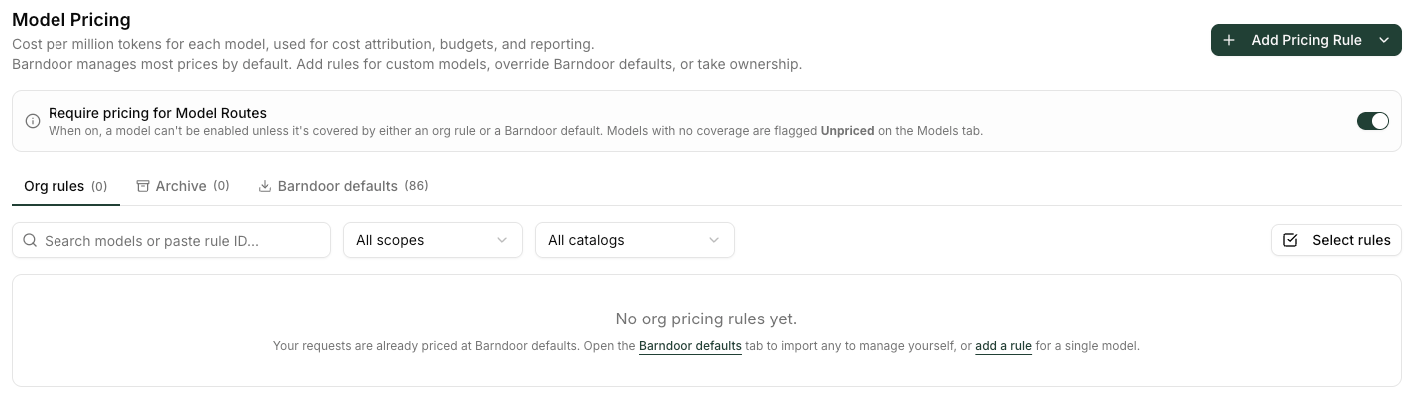 Barndoor ships a curated default catalog of market-rate prices for every common model — OpenAI, Anthropic, AWS Bedrock, Google Vertex, Azure OpenAI, and many more. **You get accurate cost data on those models out of the box, with no setup.** Importing defaults or writing your own rules is only required when you want to override Barndoor's prices (negotiated discount, a different vendor rate) or price a model Barndoor doesn't ship in its catalog (a custom fine-tune, a private deployment, or a brand-new model the catalog hasn't been refreshed for yet).
Requests for a model that doesn't match **any** rule — neither one of yours nor Barndoor's default catalog — still succeed, but the gateway records a cost of **\$0** for them. Spending budgets won't debit, and reporting will show zero. Add a rule explicitly for anything outside the curated catalog if you care about attributing its cost.
## Before You Begin
* A Barndoor account with **admin** privileges.
* An LLM Gateway with at least one provider and one model already configured — see [Using the LLM Gateway](/how-tos/use-llm-gateway).
## Quickstart: Import Default Prices
Barndoor ships a curated catalog of market-rate prices for the most-popular providers (OpenAI, Anthropic, AWS Bedrock, Google Vertex AI, Azure OpenAI, and many more), and applies it automatically — so you only need this step if you want to take ownership of specific prices. Importing copies the defaults you choose into your org as editable rules you can then adjust, pin, or keep in sync (see [Sync behavior](#keeping-prices-in-sync-with-barndoors-catalog)).
The Barndoor defaults tab lists every model Barndoor knows about, with an Imported / Not imported badge per row.
Tick rows individually, or filter by Catalog and tick the header checkbox to select all visible rows.
The action bar appears once you've selected at least one row. Choose how Barndoor should handle future changes — *Prompt me on updates*, *I'll manage it*, or *Auto-sync to Barndoor* — and click **Import**. See [Keeping prices in sync with Barndoor's catalog](#keeping-prices-in-sync-with-barndoors-catalog) for what each mode does.
## How Pricing Resolves
When a request flows through the gateway, Barndoor finds the right price by checking your rules in this order. The first match wins.
```mermaid theme={null}
flowchart TB
Request["Request to compute
Barndoor ships a curated default catalog of market-rate prices for every common model — OpenAI, Anthropic, AWS Bedrock, Google Vertex, Azure OpenAI, and many more. **You get accurate cost data on those models out of the box, with no setup.** Importing defaults or writing your own rules is only required when you want to override Barndoor's prices (negotiated discount, a different vendor rate) or price a model Barndoor doesn't ship in its catalog (a custom fine-tune, a private deployment, or a brand-new model the catalog hasn't been refreshed for yet).
Requests for a model that doesn't match **any** rule — neither one of yours nor Barndoor's default catalog — still succeed, but the gateway records a cost of **\$0** for them. Spending budgets won't debit, and reporting will show zero. Add a rule explicitly for anything outside the curated catalog if you care about attributing its cost.
## Before You Begin
* A Barndoor account with **admin** privileges.
* An LLM Gateway with at least one provider and one model already configured — see [Using the LLM Gateway](/how-tos/use-llm-gateway).
## Quickstart: Import Default Prices
Barndoor ships a curated catalog of market-rate prices for the most-popular providers (OpenAI, Anthropic, AWS Bedrock, Google Vertex AI, Azure OpenAI, and many more), and applies it automatically — so you only need this step if you want to take ownership of specific prices. Importing copies the defaults you choose into your org as editable rules you can then adjust, pin, or keep in sync (see [Sync behavior](#keeping-prices-in-sync-with-barndoors-catalog)).
The Barndoor defaults tab lists every model Barndoor knows about, with an Imported / Not imported badge per row.
Tick rows individually, or filter by Catalog and tick the header checkbox to select all visible rows.
The action bar appears once you've selected at least one row. Choose how Barndoor should handle future changes — *Prompt me on updates*, *I'll manage it*, or *Auto-sync to Barndoor* — and click **Import**. See [Keeping prices in sync with Barndoor's catalog](#keeping-prices-in-sync-with-barndoors-catalog) for what each mode does.
## How Pricing Resolves
When a request flows through the gateway, Barndoor finds the right price by checking your rules in this order. The first match wins.
```mermaid theme={null}
flowchart TB
Request["Request to compute
cost for"]
Specific["1. Provider-specific rule
(this exact provider connection)"]
Catalog["2. Catalog rule
(this vendor line — e.g. OpenAI, Bedrock)"]
Org["3. Organization-wide rule
(any provider, any catalog)"]
Defaults["4. Platform default catalog
(Barndoor's curated prices)"]
Found["Found → use price to record cost"]
Zero["No match → record cost as $0"]
Request --> Specific --> Catalog --> Org --> Defaults --> Found
Defaults -.->|none match| Zero
```
| Tier | Use when |
| ------------------------ | ----------------------------------------------------------------------------------------------------------------------------------------------- |
| **1. Provider-specific** | You've negotiated a custom rate with one specific provider connection (for example one of your Azure deployments). |
| **2. Catalog** | The price applies to a whole vendor line — every OpenAI provider, every Bedrock provider, etc. — but you don't want it to apply across vendors. |
| **3. Organization-wide** | The price applies wherever the model name matches, regardless of which provider serves it. The simplest and most common scope. |
| **4. Platform defaults** | Barndoor's curated catalog of market-rate prices. Kicks in as a safety net even if you've never imported anything. |
Stick to **organization-wide rules** for everyday pricing. Use **catalog** or **provider-specific** overrides only when you genuinely have a different price for the same model on different vendors or connections (negotiated discount, fine-tuned model variant, etc.). Fewer rules means fewer surprises.
## Creating a Pricing Rule Manually
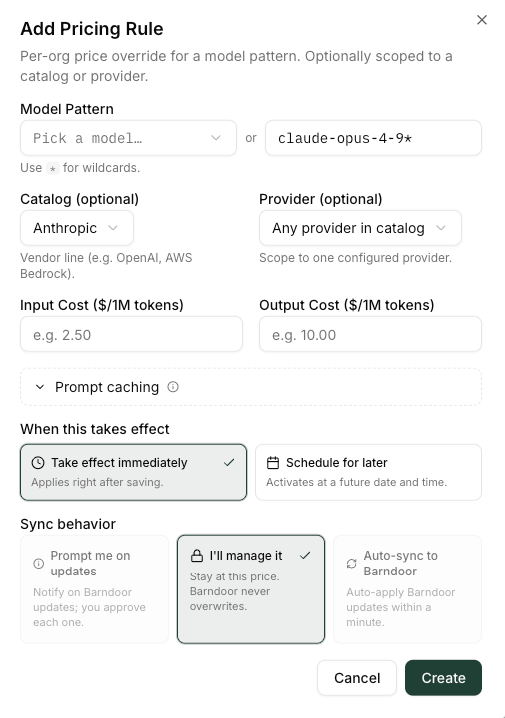
The Create dialog opens.
Either pick an enabled model from the dropdown (auto-populated from your Model Routes) or type a custom pattern. Patterns can be:
* **Exact** — `gpt-4o-mini` matches only that exact model.
* **Prefix wildcard** — `gpt-4o*` matches `gpt-4o`, `gpt-4o-mini`, `gpt-4o-2024-08-06`, and any other model whose name starts with `gpt-4o`.
Only trailing `*` is supported. Patterns like `*-mini`, `gpt-*-mini`, or regex are not.
Restrict this rule to one vendor line (OpenAI, Bedrock, etc.). Leave blank for **Any catalog**.
Restrict this rule to a single configured provider connection. Use this for negotiated discounts or pricing that differs by deployment.
Two dollar amounts, both required. Use the same per-million-token prices the provider publishes on their pricing page.
Choose **Take effect immediately** for normal price changes, or **Schedule for later** to pick a date and time the new price will switch on (with up to \~5 minutes activation precision). Until a scheduled price activates, the row shows a **Scheduled** badge.
You can also enter an optional **Change reason** that appears in the row's [Pricing history](#pricing-history) — useful for explaining why a price moved when a future admin looks back.
Immediate rules take effect on the next request through the gateway. Scheduled rules activate at the time you chose.
 Avoid overlapping rules at the same scope. If both `gpt-4o` (exact) and `gpt-4o*` (wildcard) exist at the catalog level, you'll get inconsistent results — write rules whose patterns are mutually exclusive, or use exact-model rules only.
## Editing and Scheduling Price Changes
Click the pencil icon on any row to edit. Every save creates a **new version** of the rule with an `effective_from` timestamp — Barndoor never overwrites an existing price in place. That gives you three things at once:
* **Past and active versions are an audit trail.** They can't be deleted or modified.
* **Scheduled future versions can be canceled or edited** from the listing or from the row's [Pricing history](#pricing-history).
* **Changes are forward-looking.** They apply only to requests served after the new version becomes active — they don't retroactively re-cost historical audit events or top up spending budgets that have already accumulated.
### Editing an active price
1. Click the pencil icon on the row.
2. Adjust the input or output cost.
3. Choose **Take effect immediately** for a normal change, or **Schedule for later** to pin the new price to a future date and time.
4. Optionally fill in **Change reason** — it shows up in [Pricing history](#pricing-history) so you (or whoever inherits the rule) know why.
5. Save. Immediate edits apply on the very next request; scheduled edits activate at the time you chose, with up to \~5 minutes activation precision.
### Editing or canceling a scheduled change
Rows with a pending future version display a **Scheduled** badge (`N scheduled` if more than one is queued). To change or cancel a scheduled price before it activates, open the [Pricing history](#pricing-history) dialog (clock icon on the row) and use the pencil or trash icon next to the scheduled entry. The trash icon on a scheduled version **cancels** that change — it does not affect any active or past version.
You **cannot** edit the `Model pattern`, `Catalog`, or `Provider` fields after a rule is created. To change those, create a new rule with the right scope — Barndoor's [resolution order](#how-pricing-resolves) will decide which one wins. Deleting an active rule is not supported; create a new version (or new rule) instead.
### Reset to Default
If you've drifted from Barndoor's curated default for a model, the row shows a **Custom** badge and a **Reset to default** action appears next to it (and inside the Edit dialog). Clicking it creates a new version of the rule whose input and output costs match the current default — Barndoor records `Reset to default` as the change reason automatically so it's clear in the [history](#pricing-history).
**Reset to default uses the *current* default catalog, not the one you originally imported from.** If Barndoor has raised or lowered the default since your import, Reset will move you to the new value. Edit and save your existing number explicitly if you want to keep what you had.
## Pricing History
Each row in the listing has a **clock icon** that opens its **Pricing History** dialog — a timeline of every version of that rule, newest first. Each entry shows:
* The input and output costs at that version.
* The `effective_from` timestamp.
* Who made the change (actor email, when available).
* How the change was made — manual edit, scheduled change, **Reset to default**, or an automatic sync from Barndoor's catalog.
* The optional **Change reason** you (or another admin) entered at the time.
Use the History dialog to:
* **Audit who changed what, when, and why.**
* **Cancel a pending scheduled change** before it activates — click the trash icon next to a scheduled entry. Active and past entries are immutable.
* **Edit a pending scheduled change** — click the pencil icon to re-pick the date / time or adjust the price before it goes live.
Past versions stay in the timeline indefinitely. There's no manual "delete" for them — they're what Barndoor uses to know what a historical request would have cost at the time it was made.
## Keeping Prices in Sync with Barndoor's Catalog
Barndoor refreshes its default catalog as upstream provider prices change. Each pricing row in your org carries a **Sync behavior** that decides what happens when one of those refreshes affects a model you've imported. You pick a sync behavior when you import defaults, and you can change it later from the Edit dialog.
| Sync behavior | What it does |
| --------------------------------------- | ------------------------------------------------------------------------------------------------------------------------------------------------------------------------------------------------------------------------------------------------------------------------------ |
| **Tracking** — *Prompt me on updates* | Imports the default at the moment of import. When Barndoor changes the default afterward, the row gets an **Update available** badge and the **Review updates** banner appears at the top of the tab. Apply the update from the banner (or pin the row to your current price). |
| **Pinned** — *I'll manage it* | A fixed price you maintain manually. Barndoor never prompts you about catalog changes for this row. The row shows a **Custom** badge with a lock icon. |
| **Auto-sync** — *Auto-sync to Barndoor* | Barndoor's defaults flow through automatically — typically within a minute of the catalog updating. The row shows an **Auto-sync** badge. |
### Reviewing updates
When at least one of your **tracking** rows is out of sync with Barndoor's current default, a blue **Review updates** banner appears at the top of the Model Pricing tab. Clicking it opens a dialog listing every affected row with the old vs new default price. From there you can:
* **Apply** the update to one or more rows — Barndoor creates a new version of each accepted rule with the latest default.
* **Pin** a row instead — switches its sync behavior to *I'll manage it* so you stop getting prompted.
Apply-or-pin is a per-row decision; the banner stays up until every tracking row is reconciled.
**Auto-sync vs Tracking:** *Auto-sync* keeps you on Barndoor's prices with no interaction — at the cost of having those prices change underneath you. *Tracking* surfaces every change for review first. Pick *Auto-sync* when pricing only feeds cost telemetry; pick *Tracking* when prices feed spending budgets you don't want quietly shifting.
## Badges in the Pricing Listing
Each row carries one or more badges that summarize its state at a glance.
| Badge | Meaning |
| ---------------------------------- | -------------------------------------------------------------------------------------------------------------------------------------------------------------------- |
| **Default** | A Barndoor default exists for this pattern, the row's sync behavior is *Prompt me on updates*, and your costs match the current default. |
| **Custom** | A Barndoor default exists, but you've either changed the costs or pinned the row to *I'll manage it*. A lock icon distinguishes pinned rows. |
| **Manual** | No Barndoor default exists for this pattern — you created the rule from scratch. |
| **Update available** | A *Prompt me on updates* row whose Barndoor default has changed since you imported it. Click **Review updates** at the top of the tab to apply or pin. |
| **Auto-sync** | The row's sync behavior is *Auto-sync to Barndoor* — Barndoor's defaults flow through automatically. |
| **Scheduled** (or **N scheduled**) | The row has at least one future-dated version waiting to activate. Click the clock icon to open [Pricing history](#pricing-history) and inspect, edit, or cancel it. |
## Require Pricing for Model Routes
The toggle at the top of the Model Pricing tab — **Require pricing for Model Routes** — is a safety net for organizations that want every routed model to have an **explicit org-level pricing rule**, separate from Barndoor's default catalog.
Avoid overlapping rules at the same scope. If both `gpt-4o` (exact) and `gpt-4o*` (wildcard) exist at the catalog level, you'll get inconsistent results — write rules whose patterns are mutually exclusive, or use exact-model rules only.
## Editing and Scheduling Price Changes
Click the pencil icon on any row to edit. Every save creates a **new version** of the rule with an `effective_from` timestamp — Barndoor never overwrites an existing price in place. That gives you three things at once:
* **Past and active versions are an audit trail.** They can't be deleted or modified.
* **Scheduled future versions can be canceled or edited** from the listing or from the row's [Pricing history](#pricing-history).
* **Changes are forward-looking.** They apply only to requests served after the new version becomes active — they don't retroactively re-cost historical audit events or top up spending budgets that have already accumulated.
### Editing an active price
1. Click the pencil icon on the row.
2. Adjust the input or output cost.
3. Choose **Take effect immediately** for a normal change, or **Schedule for later** to pin the new price to a future date and time.
4. Optionally fill in **Change reason** — it shows up in [Pricing history](#pricing-history) so you (or whoever inherits the rule) know why.
5. Save. Immediate edits apply on the very next request; scheduled edits activate at the time you chose, with up to \~5 minutes activation precision.
### Editing or canceling a scheduled change
Rows with a pending future version display a **Scheduled** badge (`N scheduled` if more than one is queued). To change or cancel a scheduled price before it activates, open the [Pricing history](#pricing-history) dialog (clock icon on the row) and use the pencil or trash icon next to the scheduled entry. The trash icon on a scheduled version **cancels** that change — it does not affect any active or past version.
You **cannot** edit the `Model pattern`, `Catalog`, or `Provider` fields after a rule is created. To change those, create a new rule with the right scope — Barndoor's [resolution order](#how-pricing-resolves) will decide which one wins. Deleting an active rule is not supported; create a new version (or new rule) instead.
### Reset to Default
If you've drifted from Barndoor's curated default for a model, the row shows a **Custom** badge and a **Reset to default** action appears next to it (and inside the Edit dialog). Clicking it creates a new version of the rule whose input and output costs match the current default — Barndoor records `Reset to default` as the change reason automatically so it's clear in the [history](#pricing-history).
**Reset to default uses the *current* default catalog, not the one you originally imported from.** If Barndoor has raised or lowered the default since your import, Reset will move you to the new value. Edit and save your existing number explicitly if you want to keep what you had.
## Pricing History
Each row in the listing has a **clock icon** that opens its **Pricing History** dialog — a timeline of every version of that rule, newest first. Each entry shows:
* The input and output costs at that version.
* The `effective_from` timestamp.
* Who made the change (actor email, when available).
* How the change was made — manual edit, scheduled change, **Reset to default**, or an automatic sync from Barndoor's catalog.
* The optional **Change reason** you (or another admin) entered at the time.
Use the History dialog to:
* **Audit who changed what, when, and why.**
* **Cancel a pending scheduled change** before it activates — click the trash icon next to a scheduled entry. Active and past entries are immutable.
* **Edit a pending scheduled change** — click the pencil icon to re-pick the date / time or adjust the price before it goes live.
Past versions stay in the timeline indefinitely. There's no manual "delete" for them — they're what Barndoor uses to know what a historical request would have cost at the time it was made.
## Keeping Prices in Sync with Barndoor's Catalog
Barndoor refreshes its default catalog as upstream provider prices change. Each pricing row in your org carries a **Sync behavior** that decides what happens when one of those refreshes affects a model you've imported. You pick a sync behavior when you import defaults, and you can change it later from the Edit dialog.
| Sync behavior | What it does |
| --------------------------------------- | ------------------------------------------------------------------------------------------------------------------------------------------------------------------------------------------------------------------------------------------------------------------------------ |
| **Tracking** — *Prompt me on updates* | Imports the default at the moment of import. When Barndoor changes the default afterward, the row gets an **Update available** badge and the **Review updates** banner appears at the top of the tab. Apply the update from the banner (or pin the row to your current price). |
| **Pinned** — *I'll manage it* | A fixed price you maintain manually. Barndoor never prompts you about catalog changes for this row. The row shows a **Custom** badge with a lock icon. |
| **Auto-sync** — *Auto-sync to Barndoor* | Barndoor's defaults flow through automatically — typically within a minute of the catalog updating. The row shows an **Auto-sync** badge. |
### Reviewing updates
When at least one of your **tracking** rows is out of sync with Barndoor's current default, a blue **Review updates** banner appears at the top of the Model Pricing tab. Clicking it opens a dialog listing every affected row with the old vs new default price. From there you can:
* **Apply** the update to one or more rows — Barndoor creates a new version of each accepted rule with the latest default.
* **Pin** a row instead — switches its sync behavior to *I'll manage it* so you stop getting prompted.
Apply-or-pin is a per-row decision; the banner stays up until every tracking row is reconciled.
**Auto-sync vs Tracking:** *Auto-sync* keeps you on Barndoor's prices with no interaction — at the cost of having those prices change underneath you. *Tracking* surfaces every change for review first. Pick *Auto-sync* when pricing only feeds cost telemetry; pick *Tracking* when prices feed spending budgets you don't want quietly shifting.
## Badges in the Pricing Listing
Each row carries one or more badges that summarize its state at a glance.
| Badge | Meaning |
| ---------------------------------- | -------------------------------------------------------------------------------------------------------------------------------------------------------------------- |
| **Default** | A Barndoor default exists for this pattern, the row's sync behavior is *Prompt me on updates*, and your costs match the current default. |
| **Custom** | A Barndoor default exists, but you've either changed the costs or pinned the row to *I'll manage it*. A lock icon distinguishes pinned rows. |
| **Manual** | No Barndoor default exists for this pattern — you created the rule from scratch. |
| **Update available** | A *Prompt me on updates* row whose Barndoor default has changed since you imported it. Click **Review updates** at the top of the tab to apply or pin. |
| **Auto-sync** | The row's sync behavior is *Auto-sync to Barndoor* — Barndoor's defaults flow through automatically. |
| **Scheduled** (or **N scheduled**) | The row has at least one future-dated version waiting to activate. Click the clock icon to open [Pricing history](#pricing-history) and inspect, edit, or cancel it. |
## Require Pricing for Model Routes
The toggle at the top of the Model Pricing tab — **Require pricing for Model Routes** — is a safety net for organizations that want every routed model to have an **explicit org-level pricing rule**, separate from Barndoor's default catalog.
 When **on**:
* The **Models** tab in **LLM Management** shows an **Unpriced** badge next to any enabled model that has no org-level rule — even if Barndoor's default catalog covers it. The badge also surfaces a one-click **Disable N unpriced** action so admins can clean up grandfathered rows in bulk.
* You can't add a new route, or re-enable a disabled one, that points at such a model — Barndoor blocks the save with a message explaining what's missing. (Existing enabled-without-pricing rows keep serving traffic at the Barndoor default until you disable them or add a rule.)
When **off** (default): routes can include models that have only a Barndoor default (and even models the default catalog doesn't cover — those record `$0`).
This toggle checks for **org-level** rules specifically — it does *not* count Barndoor's default catalog as "priced". Turn it on when you want every routed model to have an explicit price your team has reviewed (typically because you want to override defaults, audit who set each price, or guarantee no model slips through with an implicit fall-through price).
## How Pricing Plugs into the Rest of the Platform
| Feature | How it uses pricing |
| ------------------------------------------------------------------------------ | -------------------------------------------------------------------------------------------------------------------------------------------------------------------------------------------------------------------------------------------------------------------------------------------------------------------------------------- |
| **Token budgets** ([LLM Controls](/how-tos/use-llm-controls#token-budgets)) | **Doesn't use pricing.** Caps total tokens; independent of pricing. |
| **Spending budgets** ([LLM Controls](/how-tos/use-llm-controls#token-budgets)) | **Uses pricing.** Each successful request debits `(prompt_tokens × input_rate) + (completion_tokens × output_rate)` using whichever rule wins the [four-tier lookup](#how-pricing-resolves) — including Barndoor's curated default catalog. Spending counters stay at 0 only when no rule (yours or the platform's) matches the model. |
| **Per-request audit events** | **Uses pricing.** `estimated_cost`, `input_cost`, and `output_cost` fields are populated on the audit event for every successful LLM request. |
| **Reporting → LLM Usage Dashboard** | **Uses pricing.** Aggregates the per-request `estimated_cost` recorded on audit events. |
Cost is **computed after a successful upstream response**, using the actual prompt + completion token counts reported by the provider. Failed requests record no cost.
***
## Troubleshooting
No pricing rule is matching the requests — including Barndoor's default catalog. That usually means one of:
* The model being called isn't in Barndoor's curated default catalog (custom fine-tunes, private models, very new models). Add an org-level rule for it.
* You created an **org-level override** for the pattern with zero rates (an override beats the global default — see [How Pricing Resolves](#how-pricing-resolves)). Edit the override to set real costs, or delete it to fall back to Barndoor's default.
* A trailing-`*` wildcard pattern mismatch — for example a rule for `gpt-4o*` won't match `gpt-4`.
Spending budgets debit through the same [four-tier lookup](#how-pricing-resolves) as the audit event's `estimated_cost`, so if cost is missing from one it's missing from both.
Same root cause as the spending-budget accordion above — no pricing rule (yours or Barndoor's) matched the request.
Audit events for genuinely unpriced requests omit the cost fields entirely rather than writing `$0`, so you'll see them as missing in some report views.
Price changes are **forward-looking** — both immediate and scheduled. They affect any request that happens *after* the new version becomes active; they don't retroactively re-cost historical audit events. Spending budgets keep the running totals they already accumulated under the old price.
If you need to true up a budget after a price correction, contact [support@barndoor.ai](mailto:support@barndoor.ai).
Refresh the Model Pricing tab — it occasionally serves cached UI data right after a save. If you used **Schedule for later** rather than **Take effect immediately**, the new price won't appear in the row until the scheduled time arrives; click the clock icon on the row to confirm the **Scheduled** entry is in [Pricing history](#pricing-history). Pricing changes that have already activated apply to subsequent gateway requests immediately — if the row's costs look right in the listing, they're live.
Open [Pricing history](#pricing-history) on the affected row (clock icon) and click the trash icon next to the scheduled entry. Cancellation only affects pending future versions — past and active versions are immutable.
See [How Pricing Resolves](#how-pricing-resolves) for the four-tier lookup order. The most specific scope (provider-specific) beats less specific ones (catalog, org-wide, defaults).
If you have **two rules at the same scope tier** that both match (e.g. an exact `gpt-4o` and a wildcard `gpt-4o*` both at the org-wide scope), behavior is not guaranteed — the gateway uses the first match it finds. Remove the duplicate or tighten one of the patterns so only one matches each model.
## Frequently Asked Questions
That's your choice — set the **Sync behavior** on each imported row:
* **Prompt me on updates** *(default)* — Barndoor flags catalog changes with an **Update available** badge and a top-of-tab **Review updates** banner; you apply or pin per row.
* **I'll manage it** — Barndoor never changes your prices; you maintain them by hand.
* **Auto-sync to Barndoor** — Barndoor's defaults flow through automatically, typically within a minute of a catalog change.
See [Keeping Prices in Sync with Barndoor's Catalog](#keeping-prices-in-sync-with-barndoors-catalog) for the full story. You can change sync behavior on any row at any time from the Edit dialog. The Barndoor defaults tab's import action bar lets you pick a sync behavior up front so all the rows in a single import share one default.
Currently **USD** only. All input and output costs are entered and recorded in US dollars. Reporting also surfaces USD.
Not directly — pricing is keyed on model name + scope, not request type. The simplest workaround is to expose distinct **route names** in [Model Routes](/how-tos/llm-gateway-quickstart#step-5-define-model-routes) (for example `gpt-4o-realtime` vs `gpt-4o-batch`) and price each one independently.
Multiply by 1,000. Barndoor stores costs as USD per million tokens; if your provider quotes `$0.0025 per 1K input tokens`, enter `2.50` as the input cost per million.
Only if the embedding model isn't already in Barndoor's curated default catalog. Common embedding models from major providers (e.g. `text-embedding-3-large`) are typically shipped, in which case spending budgets and cost reports work without any setup. For custom or self-hosted embedding models, add an org-level rule — embedding requests consume input tokens only, so set the input rate and leave output at `0`.
You can pick. On the **Barndoor defaults** tab, tick individual rows or filter by Catalog and use the header checkbox to select an entire vendor's catalog. The action bar at the top shows the live count of selected rows.
## Need Help?
Reach out to [support@barndoor.ai](mailto:support@barndoor.ai) with:
* The model name (and provider) you're trying to price.
* The pattern + costs you've configured (a screenshot of the row helps).
* The behavior you're seeing — `$0` cost in reports, budget not debiting, unpriced-model warning, etc.
When **on**:
* The **Models** tab in **LLM Management** shows an **Unpriced** badge next to any enabled model that has no org-level rule — even if Barndoor's default catalog covers it. The badge also surfaces a one-click **Disable N unpriced** action so admins can clean up grandfathered rows in bulk.
* You can't add a new route, or re-enable a disabled one, that points at such a model — Barndoor blocks the save with a message explaining what's missing. (Existing enabled-without-pricing rows keep serving traffic at the Barndoor default until you disable them or add a rule.)
When **off** (default): routes can include models that have only a Barndoor default (and even models the default catalog doesn't cover — those record `$0`).
This toggle checks for **org-level** rules specifically — it does *not* count Barndoor's default catalog as "priced". Turn it on when you want every routed model to have an explicit price your team has reviewed (typically because you want to override defaults, audit who set each price, or guarantee no model slips through with an implicit fall-through price).
## How Pricing Plugs into the Rest of the Platform
| Feature | How it uses pricing |
| ------------------------------------------------------------------------------ | -------------------------------------------------------------------------------------------------------------------------------------------------------------------------------------------------------------------------------------------------------------------------------------------------------------------------------------- |
| **Token budgets** ([LLM Controls](/how-tos/use-llm-controls#token-budgets)) | **Doesn't use pricing.** Caps total tokens; independent of pricing. |
| **Spending budgets** ([LLM Controls](/how-tos/use-llm-controls#token-budgets)) | **Uses pricing.** Each successful request debits `(prompt_tokens × input_rate) + (completion_tokens × output_rate)` using whichever rule wins the [four-tier lookup](#how-pricing-resolves) — including Barndoor's curated default catalog. Spending counters stay at 0 only when no rule (yours or the platform's) matches the model. |
| **Per-request audit events** | **Uses pricing.** `estimated_cost`, `input_cost`, and `output_cost` fields are populated on the audit event for every successful LLM request. |
| **Reporting → LLM Usage Dashboard** | **Uses pricing.** Aggregates the per-request `estimated_cost` recorded on audit events. |
Cost is **computed after a successful upstream response**, using the actual prompt + completion token counts reported by the provider. Failed requests record no cost.
***
## Troubleshooting
No pricing rule is matching the requests — including Barndoor's default catalog. That usually means one of:
* The model being called isn't in Barndoor's curated default catalog (custom fine-tunes, private models, very new models). Add an org-level rule for it.
* You created an **org-level override** for the pattern with zero rates (an override beats the global default — see [How Pricing Resolves](#how-pricing-resolves)). Edit the override to set real costs, or delete it to fall back to Barndoor's default.
* A trailing-`*` wildcard pattern mismatch — for example a rule for `gpt-4o*` won't match `gpt-4`.
Spending budgets debit through the same [four-tier lookup](#how-pricing-resolves) as the audit event's `estimated_cost`, so if cost is missing from one it's missing from both.
Same root cause as the spending-budget accordion above — no pricing rule (yours or Barndoor's) matched the request.
Audit events for genuinely unpriced requests omit the cost fields entirely rather than writing `$0`, so you'll see them as missing in some report views.
Price changes are **forward-looking** — both immediate and scheduled. They affect any request that happens *after* the new version becomes active; they don't retroactively re-cost historical audit events. Spending budgets keep the running totals they already accumulated under the old price.
If you need to true up a budget after a price correction, contact [support@barndoor.ai](mailto:support@barndoor.ai).
Refresh the Model Pricing tab — it occasionally serves cached UI data right after a save. If you used **Schedule for later** rather than **Take effect immediately**, the new price won't appear in the row until the scheduled time arrives; click the clock icon on the row to confirm the **Scheduled** entry is in [Pricing history](#pricing-history). Pricing changes that have already activated apply to subsequent gateway requests immediately — if the row's costs look right in the listing, they're live.
Open [Pricing history](#pricing-history) on the affected row (clock icon) and click the trash icon next to the scheduled entry. Cancellation only affects pending future versions — past and active versions are immutable.
See [How Pricing Resolves](#how-pricing-resolves) for the four-tier lookup order. The most specific scope (provider-specific) beats less specific ones (catalog, org-wide, defaults).
If you have **two rules at the same scope tier** that both match (e.g. an exact `gpt-4o` and a wildcard `gpt-4o*` both at the org-wide scope), behavior is not guaranteed — the gateway uses the first match it finds. Remove the duplicate or tighten one of the patterns so only one matches each model.
## Frequently Asked Questions
That's your choice — set the **Sync behavior** on each imported row:
* **Prompt me on updates** *(default)* — Barndoor flags catalog changes with an **Update available** badge and a top-of-tab **Review updates** banner; you apply or pin per row.
* **I'll manage it** — Barndoor never changes your prices; you maintain them by hand.
* **Auto-sync to Barndoor** — Barndoor's defaults flow through automatically, typically within a minute of a catalog change.
See [Keeping Prices in Sync with Barndoor's Catalog](#keeping-prices-in-sync-with-barndoors-catalog) for the full story. You can change sync behavior on any row at any time from the Edit dialog. The Barndoor defaults tab's import action bar lets you pick a sync behavior up front so all the rows in a single import share one default.
Currently **USD** only. All input and output costs are entered and recorded in US dollars. Reporting also surfaces USD.
Not directly — pricing is keyed on model name + scope, not request type. The simplest workaround is to expose distinct **route names** in [Model Routes](/how-tos/llm-gateway-quickstart#step-5-define-model-routes) (for example `gpt-4o-realtime` vs `gpt-4o-batch`) and price each one independently.
Multiply by 1,000. Barndoor stores costs as USD per million tokens; if your provider quotes `$0.0025 per 1K input tokens`, enter `2.50` as the input cost per million.
Only if the embedding model isn't already in Barndoor's curated default catalog. Common embedding models from major providers (e.g. `text-embedding-3-large`) are typically shipped, in which case spending budgets and cost reports work without any setup. For custom or self-hosted embedding models, add an org-level rule — embedding requests consume input tokens only, so set the input rate and leave output at `0`.
You can pick. On the **Barndoor defaults** tab, tick individual rows or filter by Catalog and use the header checkbox to select an entire vendor's catalog. The action bar at the top shows the live count of selected rows.
## Need Help?
Reach out to [support@barndoor.ai](mailto:support@barndoor.ai) with:
* The model name (and provider) you're trying to price.
* The pattern + costs you've configured (a screenshot of the row helps).
* The behavior you're seeing — `$0` cost in reports, budget not debiting, unpriced-model warning, etc.