> ## Documentation Index
> Fetch the complete documentation index at: https://docs.barndoor.ai/llms.txt
> Use this file to discover all available pages before exploring further.
# Quickstart Guide
> Configure the Barndoor LLM Gateway, connect your tools (Cursor, Claude Code, the OpenAI/Anthropic SDKs), send requests, and troubleshoot.
New to the gateway? Start with [Using the LLM Gateway](/how-tos/use-llm-gateway) for an overview, architecture, and prerequisites, then come back here to set it up and send your first request.
## Quickstart
If your admin has already configured a provider and at least one model, you can be sending requests in two minutes.
Open **Settings → My Models** in the Barndoor portal and click **Create Key**. Copy the `bd-…` token immediately — you won't be able to see it again.
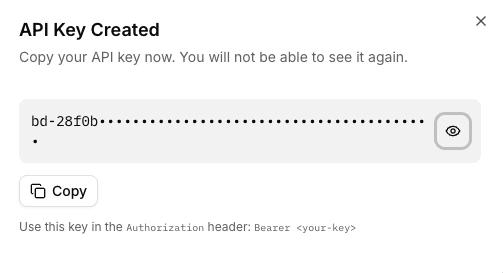 On the same page, the **LLM Gateway Endpoint** card shows your base URL — it looks like `https://app.barndoor.ai/api/llm-gateway/v1`.
 ```bash theme={null}
curl https://app.barndoor.ai/api/llm-gateway/v1/chat/completions \
-H "Authorization: Bearer bd-…" \
-H "Content-Type: application/json" \
-d '{
"model": "gpt-4o-mini",
"messages": [{"role": "user", "content": "Say hello"}]
}'
```
Use a `model` name from the **Available Models** list — either a plain alias (`gpt-4o-mini`) or a provider-qualified name (`openai/gpt-4o-mini`).
The rest of this guide expands on each piece — admin setup, client integrations, advanced features, and troubleshooting.
***
## Admin: Configure the Gateway
Skip this section if your admin has already set up providers and models. Jump to [Get Your Endpoint and API Key](#user-get-your-endpoint-and-api-key).
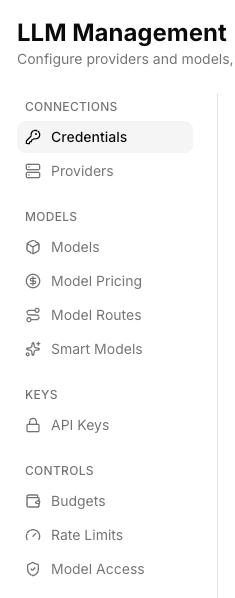
All admin configuration happens in **LLM Management** in the Barndoor portal — a single hub whose left-hand nav groups every piece of the gateway. Work top to bottom: provision your connections and models, mint keys, then layer on governance.
| Group | Section | What it configures |
| --------------- | ---------------------------------------------- | ------------------------------------------------------------------------------------------------------------------------------------------------------------- |
| **Connections** | **Credentials** | The actual upstream credentials (API key, AWS role, Vertex service account, etc.). |
| **Connections** | **Providers** | A named upstream that references one set of credentials and a model family. |
| **Models** | **Models** | The catalog of upstream models exposed via this provider. |
| **Models** | **Model Pricing** | Per-million-token input/output costs used for usage and budget reporting. |
| **Models** | **Model Routes** | The client-facing model name (for example `gpt-4o-mini`) and the ordered list of providers / upstream models it resolves to. |
| **Keys** | **API Keys** | Org-wide `bd-…` keys (per-user keys live under **Settings → My Models**). |
| **Controls** | **Budgets**, **Rate Limits**, **Model Access** | Governance policies — token/spending budgets, RPM/TPM throttles, and model allow/denylists. Covered in [Configuring LLM Controls](/how-tos/use-llm-controls). |
Per-request usage and cost reporting lives separately, under **Reporting → LLM Usage Dashboard**.
```bash theme={null}
curl https://app.barndoor.ai/api/llm-gateway/v1/chat/completions \
-H "Authorization: Bearer bd-…" \
-H "Content-Type: application/json" \
-d '{
"model": "gpt-4o-mini",
"messages": [{"role": "user", "content": "Say hello"}]
}'
```
Use a `model` name from the **Available Models** list — either a plain alias (`gpt-4o-mini`) or a provider-qualified name (`openai/gpt-4o-mini`).
The rest of this guide expands on each piece — admin setup, client integrations, advanced features, and troubleshooting.
***
## Admin: Configure the Gateway
Skip this section if your admin has already set up providers and models. Jump to [Get Your Endpoint and API Key](#user-get-your-endpoint-and-api-key).
All admin configuration happens in **LLM Management** in the Barndoor portal — a single hub whose left-hand nav groups every piece of the gateway. Work top to bottom: provision your connections and models, mint keys, then layer on governance.
| Group | Section | What it configures |
| --------------- | ---------------------------------------------- | ------------------------------------------------------------------------------------------------------------------------------------------------------------- |
| **Connections** | **Credentials** | The actual upstream credentials (API key, AWS role, Vertex service account, etc.). |
| **Connections** | **Providers** | A named upstream that references one set of credentials and a model family. |
| **Models** | **Models** | The catalog of upstream models exposed via this provider. |
| **Models** | **Model Pricing** | Per-million-token input/output costs used for usage and budget reporting. |
| **Models** | **Model Routes** | The client-facing model name (for example `gpt-4o-mini`) and the ordered list of providers / upstream models it resolves to. |
| **Keys** | **API Keys** | Org-wide `bd-…` keys (per-user keys live under **Settings → My Models**). |
| **Controls** | **Budgets**, **Rate Limits**, **Model Access** | Governance policies — token/spending budgets, RPM/TPM throttles, and model allow/denylists. Covered in [Configuring LLM Controls](/how-tos/use-llm-controls). |
Per-request usage and cost reporting lives separately, under **Reporting → LLM Usage Dashboard**.
 ### Step 1: Add Provider Credentials
Most credentials live in **LLM Management → Credentials**, where you save reusable secrets that one or more providers can share. A few setups have their own flow:
* **Anthropic OAuth passthrough** is configured exclusively on the **Providers** tab (there are no Credentials to save) — see [Anthropic OAuth passthrough](#anthropic-oauth-passthrough-claude-code-subscribers) below.
* **AWS Bedrock** and **Google Vertex AI** can be set up from either tab — pre-create reusable Credentials and attach them on the Providers tab, or configure them inline when you create the Provider. The Providers-tab flow walks you through a guided checklist and is the easiest first-time path.
### Step 1: Add Provider Credentials
Most credentials live in **LLM Management → Credentials**, where you save reusable secrets that one or more providers can share. A few setups have their own flow:
* **Anthropic OAuth passthrough** is configured exclusively on the **Providers** tab (there are no Credentials to save) — see [Anthropic OAuth passthrough](#anthropic-oauth-passthrough-claude-code-subscribers) below.
* **AWS Bedrock** and **Google Vertex AI** can be set up from either tab — pre-create reusable Credentials and attach them on the Providers tab, or configure them inline when you create the Provider. The Providers-tab flow walks you through a guided checklist and is the easiest first-time path.
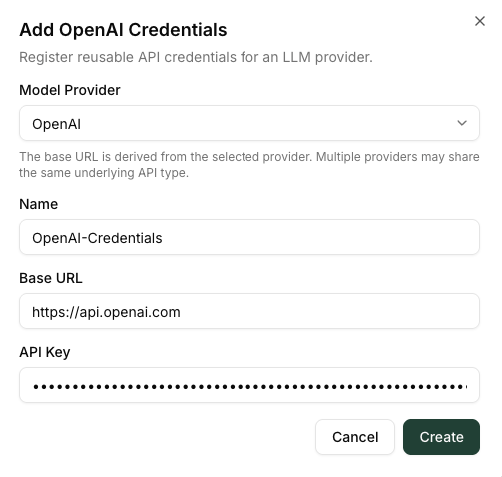 The simplest case — pick the provider and paste a key.
1. Click **Add Credentials**. The dialog opens with a **Model Provider** searchable picker at the top; everything else is disabled until you make a selection.
2. Pick the provider (OpenAI, Anthropic, Azure OpenAI, etc.). The **Name** field auto-fills with a sensible default (you can edit it), the **Base URL** populates with the catalog default, and provider-specific fields appear (for example Azure's `endpoint_mode` and `api_version`).
3. Paste the API key.
4. Save. The key is stored in Barndoor's encrypted secret store and is never returned to the browser.
Multiple providers can reference the same saved credential — useful for sharing one OpenAI key across several routes, or pinning a specific provider per team via [Model Routes](#step-5-define-model-routes).
Bedrock supports three authentication methods. **IAM role federation is the recommended production setup**; the others are useful for pilots or environments that can't grant cross-account roles.
| Method | When to use |
| ------------------- | ------------------------------------------------------------------------------------------------------- |
| **AWS IAM Role** | Production. Barndoor assumes a role in your AWS account at request time — no long-lived secrets stored. |
| **Static AWS Keys** | Pilot or fallback. Access key + secret key (+ optional session token). |
| **Bedrock API Key** | If your team prefers AWS's first-party Bedrock API key feature. |
Fields common to every method:
* **AWS Region** — where Barndoor sends Bedrock Runtime requests (free text, e.g. `us-east-1`). Make sure the models you want are enabled in that region in AWS.
* **Bedrock API Family** — pick **Claude / Anthropic Messages** for Claude models on Bedrock, or **Bedrock Converse** for the broader Converse-API model set (Llama, Titan, etc.).
#### Setting up IAM Role federation
The Providers tab walks you through this end-to-end with a **Bedrock setup checklist** — recommended for first-time setup.
1. Open **Providers → Add Provider → AWS Bedrock → Connect**.
2. Fill in **AWS Region**, **Customer IAM Role ARN**, and **Bedrock API Family**. Barndoor auto-generates an **External ID** and shows you its own **Barndoor Principal ARN** for this environment in the same dialog.
3. Click **Copy trust policy** — Barndoor builds the JSON template for you, pre-filled with its principal ARN and your external ID.
4. In **AWS IAM**, create (or update) the role you named in step 2 and paste the copied trust policy into its trust relationship.
5. Grant the role permission to invoke Bedrock — at minimum `bedrock:InvokeModel` and `bedrock:InvokeModelWithResponseStream`. (The AWS-managed `AmazonBedrockReadOnly`-style policies do **not** include these actions.) For a POC, `Resource: "*"` is fine; **for production, narrow `Resource` to the specific Bedrock model ARNs / inference profiles and regions your team actually routes to.**
6. Back in Barndoor, click **Validate role access**. The portal attempts the exact STS assume-role chain it uses at runtime and surfaces the AWS error verbatim if something's off — iterate on the trust policy / role permissions until it validates.
7. Click **Save**. The credentials are stored and the **AWS Trust Info** dialog opens; you can reopen it anytime from the credential's row menu to recheck the principal or external ID.
#### Setting up Static AWS Keys
Paste the **AWS Access Key ID**, **AWS Secret Access Key**, and an optional **AWS Session Token** (if you're using temporary credentials). Region and Bedrock API Family work the same as the role flow. There's no Validate button for this mode — failures show up on the first real request.
#### Setting up a Bedrock API Key
Paste the **Bedrock API Key** issued by the AWS Bedrock console. Region and Bedrock API Family work the same as above.
If you want to expose Bedrock from multiple regions or model families, create one Provider per (region, family) combination and let [Model Routes](#step-5-define-model-routes) decide which alias points where.
Vertex supports three authentication methods. Pick the one that matches your GCP posture:
| Method | When to use |
| --------------------------------- | --------------------------------------------------------------------------------------------------------------------------------------------------------------------------------------------------------------------------------------------------- |
| **Workload Identity / ADC** | The easiest path. Barndoor uses its platform-managed Google identity to authenticate; you grant that identity Vertex access on your project. No keys to paste. |
| **Service Account Impersonation** | Recommended for production. Create a service account in your GCP project with Vertex permissions, then grant Barndoor's runtime principal `roles/iam.serviceAccountTokenCreator` on it. Barndoor impersonates your service account at request time. |
| **Service Account Key** | Pilot or fallback. Paste a service-account email + private key (the contents of a downloaded JSON key file). |
Fields common to every method:
* **GCP Project ID** — your project.
* **Vertex AI Location** — region (default `us-central1`).
* **Vertex API Family** — **Gemini Generate Content** for Gemini models, or **Claude / Anthropic Messages** for Claude on Vertex.
#### Setup steps
1. In the portal, pick the auth method and fill in the fields.
2. In your GCP project, enable the **Vertex AI API** and any partner-model access (e.g. Claude on Vertex requires explicit model enablement).
3. Grant **`roles/aiplatform.user`** (or a more specific Vertex role) on the project to whichever principal will actually call Vertex — Barndoor's runtime identity (Workload Identity / ADC), your target service account (impersonation), or the key's service account.
4. For Service Account Impersonation only: grant **`roles/iam.serviceAccountTokenCreator`** on your target service account to Barndoor's runtime principal.
5. Click **Validate Vertex Access**. Barndoor fetches a token via your chosen auth method and asks Vertex about a model in your chosen API family — confirming end-to-end that both auth and model access work.
The **Service Account Key** dialog asks for the **email** and **private key** as separate fields (the two values inside a downloaded JSON key file), plus an optional **Token URI**. Paste them into the form fields — raw JSON file upload is not supported.
**Streaming on Vertex Gemini is not yet supported by the gateway** — Gemini Generate Content responses come back non-streaming. Streaming on Claude on Vertex (`Claude / Anthropic Messages` family) works normally.
Use this mode when your developers use **Claude Code** with personal or subscription Claude accounts and you want each request to bill against that user's Anthropic subscription rather than a shared API key.
Instead of storing a Claude API key, Barndoor authenticates *itself* with the standard `bd-…` gateway API key and **forwards each caller's Claude OAuth token** (`sk-ant-oat…`) to Anthropic on the upstream request.
Anthropic OAuth passthrough is configured on the **Providers** tab, not Credentials — there's nothing to save in Credentials.
#### Setup
1. **Providers → Add Provider** and pick the **Anthropic OAuth** card (the second of the two Anthropic catalog cards).
2. Name the provider (e.g. `Anthropic via Claude OAuth`) and click **Save** — no API key field appears.
3. Add this provider to a [Model Route](#step-5-define-model-routes) alongside the Claude models you want to expose (typically `claude-sonnet-5`, `claude-opus-4-8`, etc.).
#### What callers send
Every request carries **two** headers:
| Header | Value | Purpose |
| --------------- | -------------------- | ----------------------------------------------------------------- |
| `x-api-key` | `bd-…` | Authenticates the caller to the Barndoor Gateway. |
| `Authorization` | `Bearer sk-ant-oat…` | The caller's Claude OAuth token, forwarded to Anthropic verbatim. |
Claude Code emits both automatically — see the [Claude Code accordion](#connect-your-tools) under Connect Your Tools for the exact env-var setup.
#### Smoke-test with curl
To verify the dual-header path end-to-end without Claude Code:
```bash theme={null}
export BARNDOOR_LLM_GATEWAY_ENDPOINT="https://app.barndoor.ai/api/llm-gateway/v1"
export BD_API_KEY="bd-…"
export CLAUDE_OAUTH="sk-ant-oat…" # from your local Claude login
curl -i "$BARNDOOR_LLM_GATEWAY_ENDPOINT/messages" \
-H "content-type: application/json" \
-H "x-api-key: $BD_API_KEY" \
-H "authorization: Bearer $CLAUDE_OAUTH" \
-d '{
"model": "claude-opus-4-8",
"max_tokens": 32,
"messages": [{"role": "user", "content": "Say pong."}]
}'
```
A `200` with a normal Anthropic response body confirms both headers flowed correctly. A `401` typically means one of the two headers is missing or malformed.
#### Limitations to know about
* **Endpoint scope:** OAuth tokens are forwarded only on **`POST /v1/messages`** (and Claude Code's pre-flight `/v1/messages/count_tokens`). Hitting `/v1/chat/completions` against an Anthropic OAuth provider returns `401` with a message asking the caller to use the Messages endpoint.
* **Token management:** Barndoor never stores or refreshes Claude OAuth tokens. Token expiry and refresh are handled entirely by Claude Code on the caller's machine.
* **Failover:** Missing-OAuth-token errors are treated as caller errors (`401`), not upstream failures, so they don't trigger failover to other routes for the same alias.
#### Pairing OAuth with a fallback (worked example)
A common production setup is to put OAuth passthrough first and an AWS Bedrock provider second on the same alias, so Claude OAuth absorbs everyday traffic and Bedrock takes over if Anthropic is degraded.
1. Create the **Anthropic Claude OAuth** provider as described above.
2. Create an **AWS Bedrock** provider — see the [Bedrock accordion](#step-1-add-provider-credentials).
3. In [Model Routes](#step-5-define-model-routes), make a single alias (e.g. `claude-opus-4-8`) with two entries:
* Entry 1 — provider: **Anthropic Claude OAuth**, upstream model: the Anthropic public API model id (e.g. `claude-opus-4-8`).
* Entry 2 — provider: **AWS Bedrock**, upstream model: the Bedrock model id (e.g. `us.anthropic.claude-opus-4-8`).
4. Callers send requests for `claude-opus-4-8`. The gateway tries OAuth first, and falls over to Bedrock on a failover-eligible upstream error. The [response's `model` field](#connect-your-tools) tells you which route served any given request without inspecting headers.
Keep a direct Bedrock-only alias around for testing (e.g. an alias literally named `us.anthropic.claude-opus-4-8` whose only route is the Bedrock provider). That gives you a smoke-test that's independent of the OAuth path when you're troubleshooting.
Provider credentials are encrypted at rest and never leave Barndoor in the clear once saved. When you rotate a credential, update it in Barndoor so the gateway picks up the new value on the next request.
### Step 2: Create a Provider
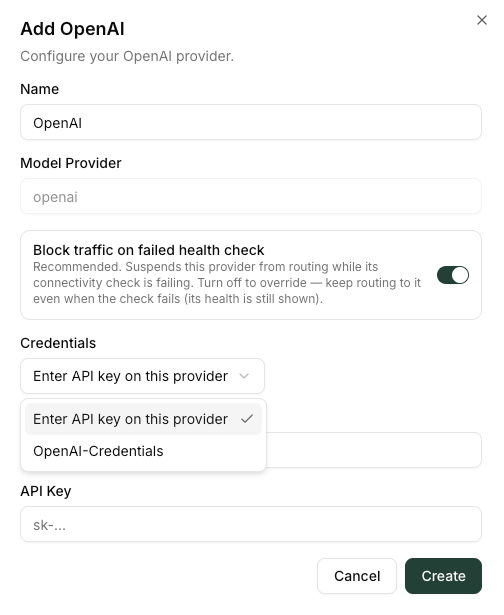
A **Provider** is the named upstream that uses one credential. From the **Providers** tab, click **Add Provider** to open the **Add a Provider** card grid:
1. Filter the catalog with **All / Official / Custom** at the top. **Official** is Barndoor's vetted catalog (OpenAI, Anthropic, AWS Bedrock, Google Vertex, Azure OpenAI, and many more — each card carries an **Official** pill). **Custom** is for OpenAI-compatible providers you wire up yourself (covered by the **Custom Provider** card, which is pinned to the grid).
2. Click the card for the upstream you want to add — Anthropic shows two cards (the standard API-key path and the **Anthropic OAuth** path), most others show one. A dialog opens with the catalog defaults pre-filled.
3. Pick the **Credentials** to use — either an existing saved credential from the dropdown, or **Enter API key on this provider** to set up an inline credential as part of the save.
4. Give the provider a friendly **Name** (this is what shows up in audit logs, the providers listing, and the response observability headers).
5. Optionally override the **Base URL** (for self-hosted or proxy deployments).
You can create multiple providers backed by the same vendor — for example one for production OpenAI and one for an Azure deployment in a different region. The providers listing shows an avatar, the credential's auth method, an Enabled/Disabled toggle, a **Source** column (Official or Custom) you can filter on, and a **health status** pill (see below).
#### Provider health
Barndoor continuously tracks whether each provider is actually reachable and serving, and surfaces it as a status pill on the provider's row:
| Pill | Meaning |
| ----------------------------------------------- | ------------------------------------------------------------------------------------------------------------------------------ |
| **Enabled** (green) | Healthy and serving traffic. |
| **Enabled · not serving** (red) | The health check is failing and the provider is suspended from routing — the gateway skips it and fails over to other targets. |
| **Enabled · health failing (override)** (amber) | The health check is failing, but health enforcement is turned off for this provider, so it still receives traffic. |
| **Disabled** (grey) | You've turned the provider off; it serves nothing. |
When a provider is failing, hover the pill to see the underlying error, and use **Re-check health** from the row's menu to force an immediate revalidation (handy right after you fix a credential or trust policy). Unhealthy targets are automatically skipped during [failover](#failover-retries-and-streaming) so a single degraded provider doesn't take down a route that has healthy fallbacks.
**Switching a provider from a shared credential to an inline one.** If you edit a provider and change the **Credentials** dropdown from a saved credential to **Enter API key on this provider**, you must paste a new API key (or fill in the Bedrock / Vertex inline fields) before the save will succeed. Barndoor enforces this so the provider always has working auth — there is no implicit fallthrough to the previously-attached credential.
The simplest case — pick the provider and paste a key.
1. Click **Add Credentials**. The dialog opens with a **Model Provider** searchable picker at the top; everything else is disabled until you make a selection.
2. Pick the provider (OpenAI, Anthropic, Azure OpenAI, etc.). The **Name** field auto-fills with a sensible default (you can edit it), the **Base URL** populates with the catalog default, and provider-specific fields appear (for example Azure's `endpoint_mode` and `api_version`).
3. Paste the API key.
4. Save. The key is stored in Barndoor's encrypted secret store and is never returned to the browser.
Multiple providers can reference the same saved credential — useful for sharing one OpenAI key across several routes, or pinning a specific provider per team via [Model Routes](#step-5-define-model-routes).
Bedrock supports three authentication methods. **IAM role federation is the recommended production setup**; the others are useful for pilots or environments that can't grant cross-account roles.
| Method | When to use |
| ------------------- | ------------------------------------------------------------------------------------------------------- |
| **AWS IAM Role** | Production. Barndoor assumes a role in your AWS account at request time — no long-lived secrets stored. |
| **Static AWS Keys** | Pilot or fallback. Access key + secret key (+ optional session token). |
| **Bedrock API Key** | If your team prefers AWS's first-party Bedrock API key feature. |
Fields common to every method:
* **AWS Region** — where Barndoor sends Bedrock Runtime requests (free text, e.g. `us-east-1`). Make sure the models you want are enabled in that region in AWS.
* **Bedrock API Family** — pick **Claude / Anthropic Messages** for Claude models on Bedrock, or **Bedrock Converse** for the broader Converse-API model set (Llama, Titan, etc.).
#### Setting up IAM Role federation
The Providers tab walks you through this end-to-end with a **Bedrock setup checklist** — recommended for first-time setup.
1. Open **Providers → Add Provider → AWS Bedrock → Connect**.
2. Fill in **AWS Region**, **Customer IAM Role ARN**, and **Bedrock API Family**. Barndoor auto-generates an **External ID** and shows you its own **Barndoor Principal ARN** for this environment in the same dialog.
3. Click **Copy trust policy** — Barndoor builds the JSON template for you, pre-filled with its principal ARN and your external ID.
4. In **AWS IAM**, create (or update) the role you named in step 2 and paste the copied trust policy into its trust relationship.
5. Grant the role permission to invoke Bedrock — at minimum `bedrock:InvokeModel` and `bedrock:InvokeModelWithResponseStream`. (The AWS-managed `AmazonBedrockReadOnly`-style policies do **not** include these actions.) For a POC, `Resource: "*"` is fine; **for production, narrow `Resource` to the specific Bedrock model ARNs / inference profiles and regions your team actually routes to.**
6. Back in Barndoor, click **Validate role access**. The portal attempts the exact STS assume-role chain it uses at runtime and surfaces the AWS error verbatim if something's off — iterate on the trust policy / role permissions until it validates.
7. Click **Save**. The credentials are stored and the **AWS Trust Info** dialog opens; you can reopen it anytime from the credential's row menu to recheck the principal or external ID.
#### Setting up Static AWS Keys
Paste the **AWS Access Key ID**, **AWS Secret Access Key**, and an optional **AWS Session Token** (if you're using temporary credentials). Region and Bedrock API Family work the same as the role flow. There's no Validate button for this mode — failures show up on the first real request.
#### Setting up a Bedrock API Key
Paste the **Bedrock API Key** issued by the AWS Bedrock console. Region and Bedrock API Family work the same as above.
If you want to expose Bedrock from multiple regions or model families, create one Provider per (region, family) combination and let [Model Routes](#step-5-define-model-routes) decide which alias points where.
Vertex supports three authentication methods. Pick the one that matches your GCP posture:
| Method | When to use |
| --------------------------------- | --------------------------------------------------------------------------------------------------------------------------------------------------------------------------------------------------------------------------------------------------- |
| **Workload Identity / ADC** | The easiest path. Barndoor uses its platform-managed Google identity to authenticate; you grant that identity Vertex access on your project. No keys to paste. |
| **Service Account Impersonation** | Recommended for production. Create a service account in your GCP project with Vertex permissions, then grant Barndoor's runtime principal `roles/iam.serviceAccountTokenCreator` on it. Barndoor impersonates your service account at request time. |
| **Service Account Key** | Pilot or fallback. Paste a service-account email + private key (the contents of a downloaded JSON key file). |
Fields common to every method:
* **GCP Project ID** — your project.
* **Vertex AI Location** — region (default `us-central1`).
* **Vertex API Family** — **Gemini Generate Content** for Gemini models, or **Claude / Anthropic Messages** for Claude on Vertex.
#### Setup steps
1. In the portal, pick the auth method and fill in the fields.
2. In your GCP project, enable the **Vertex AI API** and any partner-model access (e.g. Claude on Vertex requires explicit model enablement).
3. Grant **`roles/aiplatform.user`** (or a more specific Vertex role) on the project to whichever principal will actually call Vertex — Barndoor's runtime identity (Workload Identity / ADC), your target service account (impersonation), or the key's service account.
4. For Service Account Impersonation only: grant **`roles/iam.serviceAccountTokenCreator`** on your target service account to Barndoor's runtime principal.
5. Click **Validate Vertex Access**. Barndoor fetches a token via your chosen auth method and asks Vertex about a model in your chosen API family — confirming end-to-end that both auth and model access work.
The **Service Account Key** dialog asks for the **email** and **private key** as separate fields (the two values inside a downloaded JSON key file), plus an optional **Token URI**. Paste them into the form fields — raw JSON file upload is not supported.
**Streaming on Vertex Gemini is not yet supported by the gateway** — Gemini Generate Content responses come back non-streaming. Streaming on Claude on Vertex (`Claude / Anthropic Messages` family) works normally.
Use this mode when your developers use **Claude Code** with personal or subscription Claude accounts and you want each request to bill against that user's Anthropic subscription rather than a shared API key.
Instead of storing a Claude API key, Barndoor authenticates *itself* with the standard `bd-…` gateway API key and **forwards each caller's Claude OAuth token** (`sk-ant-oat…`) to Anthropic on the upstream request.
Anthropic OAuth passthrough is configured on the **Providers** tab, not Credentials — there's nothing to save in Credentials.
#### Setup
1. **Providers → Add Provider** and pick the **Anthropic OAuth** card (the second of the two Anthropic catalog cards).
2. Name the provider (e.g. `Anthropic via Claude OAuth`) and click **Save** — no API key field appears.
3. Add this provider to a [Model Route](#step-5-define-model-routes) alongside the Claude models you want to expose (typically `claude-sonnet-5`, `claude-opus-4-8`, etc.).
#### What callers send
Every request carries **two** headers:
| Header | Value | Purpose |
| --------------- | -------------------- | ----------------------------------------------------------------- |
| `x-api-key` | `bd-…` | Authenticates the caller to the Barndoor Gateway. |
| `Authorization` | `Bearer sk-ant-oat…` | The caller's Claude OAuth token, forwarded to Anthropic verbatim. |
Claude Code emits both automatically — see the [Claude Code accordion](#connect-your-tools) under Connect Your Tools for the exact env-var setup.
#### Smoke-test with curl
To verify the dual-header path end-to-end without Claude Code:
```bash theme={null}
export BARNDOOR_LLM_GATEWAY_ENDPOINT="https://app.barndoor.ai/api/llm-gateway/v1"
export BD_API_KEY="bd-…"
export CLAUDE_OAUTH="sk-ant-oat…" # from your local Claude login
curl -i "$BARNDOOR_LLM_GATEWAY_ENDPOINT/messages" \
-H "content-type: application/json" \
-H "x-api-key: $BD_API_KEY" \
-H "authorization: Bearer $CLAUDE_OAUTH" \
-d '{
"model": "claude-opus-4-8",
"max_tokens": 32,
"messages": [{"role": "user", "content": "Say pong."}]
}'
```
A `200` with a normal Anthropic response body confirms both headers flowed correctly. A `401` typically means one of the two headers is missing or malformed.
#### Limitations to know about
* **Endpoint scope:** OAuth tokens are forwarded only on **`POST /v1/messages`** (and Claude Code's pre-flight `/v1/messages/count_tokens`). Hitting `/v1/chat/completions` against an Anthropic OAuth provider returns `401` with a message asking the caller to use the Messages endpoint.
* **Token management:** Barndoor never stores or refreshes Claude OAuth tokens. Token expiry and refresh are handled entirely by Claude Code on the caller's machine.
* **Failover:** Missing-OAuth-token errors are treated as caller errors (`401`), not upstream failures, so they don't trigger failover to other routes for the same alias.
#### Pairing OAuth with a fallback (worked example)
A common production setup is to put OAuth passthrough first and an AWS Bedrock provider second on the same alias, so Claude OAuth absorbs everyday traffic and Bedrock takes over if Anthropic is degraded.
1. Create the **Anthropic Claude OAuth** provider as described above.
2. Create an **AWS Bedrock** provider — see the [Bedrock accordion](#step-1-add-provider-credentials).
3. In [Model Routes](#step-5-define-model-routes), make a single alias (e.g. `claude-opus-4-8`) with two entries:
* Entry 1 — provider: **Anthropic Claude OAuth**, upstream model: the Anthropic public API model id (e.g. `claude-opus-4-8`).
* Entry 2 — provider: **AWS Bedrock**, upstream model: the Bedrock model id (e.g. `us.anthropic.claude-opus-4-8`).
4. Callers send requests for `claude-opus-4-8`. The gateway tries OAuth first, and falls over to Bedrock on a failover-eligible upstream error. The [response's `model` field](#connect-your-tools) tells you which route served any given request without inspecting headers.
Keep a direct Bedrock-only alias around for testing (e.g. an alias literally named `us.anthropic.claude-opus-4-8` whose only route is the Bedrock provider). That gives you a smoke-test that's independent of the OAuth path when you're troubleshooting.
Provider credentials are encrypted at rest and never leave Barndoor in the clear once saved. When you rotate a credential, update it in Barndoor so the gateway picks up the new value on the next request.
### Step 2: Create a Provider
A **Provider** is the named upstream that uses one credential. From the **Providers** tab, click **Add Provider** to open the **Add a Provider** card grid:
1. Filter the catalog with **All / Official / Custom** at the top. **Official** is Barndoor's vetted catalog (OpenAI, Anthropic, AWS Bedrock, Google Vertex, Azure OpenAI, and many more — each card carries an **Official** pill). **Custom** is for OpenAI-compatible providers you wire up yourself (covered by the **Custom Provider** card, which is pinned to the grid).
2. Click the card for the upstream you want to add — Anthropic shows two cards (the standard API-key path and the **Anthropic OAuth** path), most others show one. A dialog opens with the catalog defaults pre-filled.
3. Pick the **Credentials** to use — either an existing saved credential from the dropdown, or **Enter API key on this provider** to set up an inline credential as part of the save.
4. Give the provider a friendly **Name** (this is what shows up in audit logs, the providers listing, and the response observability headers).
5. Optionally override the **Base URL** (for self-hosted or proxy deployments).
You can create multiple providers backed by the same vendor — for example one for production OpenAI and one for an Azure deployment in a different region. The providers listing shows an avatar, the credential's auth method, an Enabled/Disabled toggle, a **Source** column (Official or Custom) you can filter on, and a **health status** pill (see below).
#### Provider health
Barndoor continuously tracks whether each provider is actually reachable and serving, and surfaces it as a status pill on the provider's row:
| Pill | Meaning |
| ----------------------------------------------- | ------------------------------------------------------------------------------------------------------------------------------ |
| **Enabled** (green) | Healthy and serving traffic. |
| **Enabled · not serving** (red) | The health check is failing and the provider is suspended from routing — the gateway skips it and fails over to other targets. |
| **Enabled · health failing (override)** (amber) | The health check is failing, but health enforcement is turned off for this provider, so it still receives traffic. |
| **Disabled** (grey) | You've turned the provider off; it serves nothing. |
When a provider is failing, hover the pill to see the underlying error, and use **Re-check health** from the row's menu to force an immediate revalidation (handy right after you fix a credential or trust policy). Unhealthy targets are automatically skipped during [failover](#failover-retries-and-streaming) so a single degraded provider doesn't take down a route that has healthy fallbacks.
**Switching a provider from a shared credential to an inline one.** If you edit a provider and change the **Credentials** dropdown from a saved credential to **Enter API key on this provider**, you must paste a new API key (or fill in the Bedrock / Vertex inline fields) before the save will succeed. Barndoor enforces this so the provider always has working auth — there is no implicit fallthrough to the previously-attached credential.
 ### Step 3: Enable Models
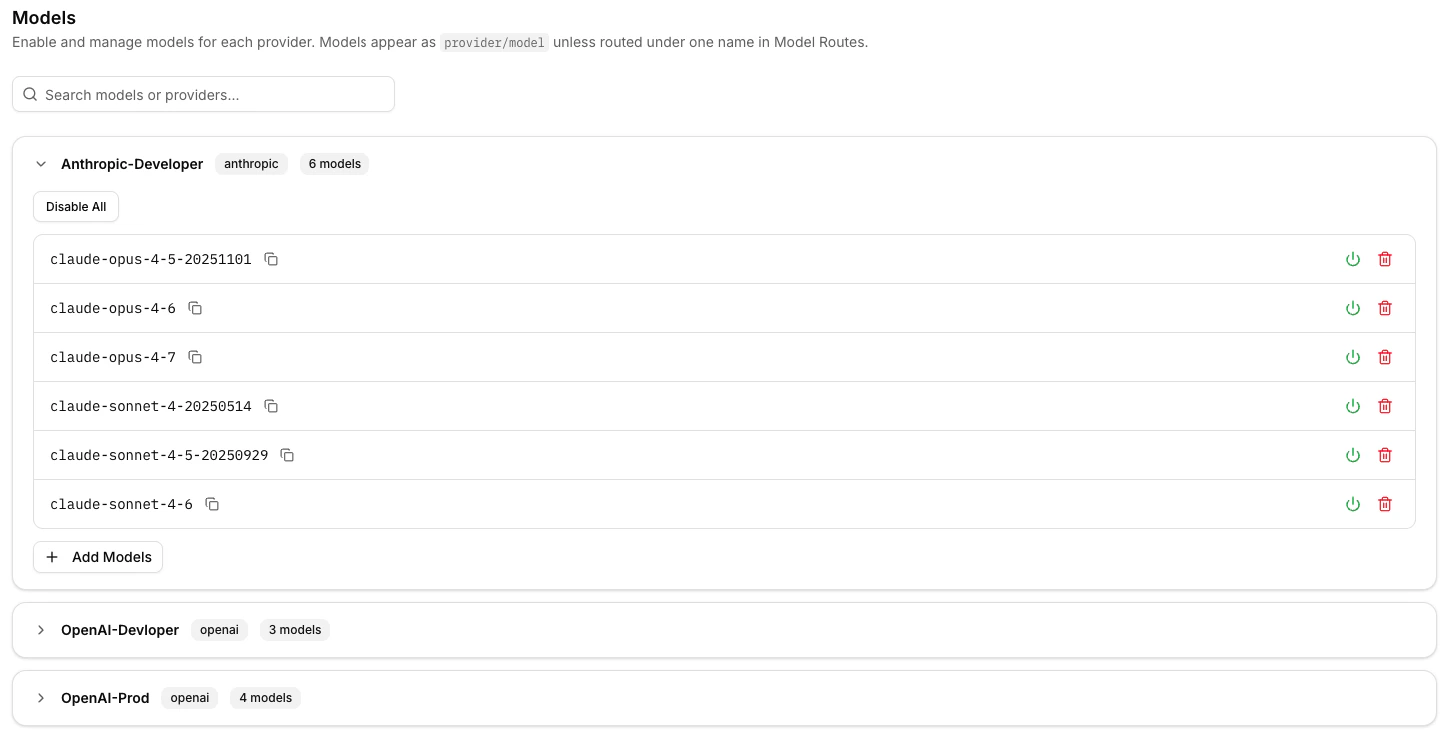
Open the **Models** tab and toggle on every upstream model your org should be able to call (for example `gpt-4o-mini`, `claude-sonnet-5`, `text-embedding-3-large`).
These are the *upstream* model identifiers. They're the names that go on the wire to the provider, not necessarily the names your clients will use.
### Step 3: Enable Models
Open the **Models** tab and toggle on every upstream model your org should be able to call (for example `gpt-4o-mini`, `claude-sonnet-5`, `text-embedding-3-large`).
These are the *upstream* model identifiers. They're the names that go on the wire to the provider, not necessarily the names your clients will use.
 ### Step 4: Configure Model Pricing (optional)
Barndoor already costs every request against its **managed default catalog** of market-rate prices, so the cost-aware features below work without any setup:
* **Spending budgets** in [LLM Controls](/how-tos/use-llm-controls)
* **`estimated_cost`** values recorded on every per-request audit event
* **Per-team / per-user / per-model attribution** in the **Reporting → LLM Usage Dashboard**
Use the **Model Pricing** tab only when you want to **override** those defaults — negotiated rates, custom models, or prices you'd rather manage yourself. Its **Barndoor defaults** tab lists the curated catalog of market-rate prices ready to import into your org as editable rules to start from.
See [Managing Model Pricing](/how-tos/manage-model-pricing) for the full guide — scopes (provider, catalog, organization-wide), wildcards, the four-tier resolution order, per-row [sync behavior](/how-tos/manage-model-pricing#keeping-prices-in-sync-with-barndoors-catalog), [scheduling price changes](/how-tos/manage-model-pricing#editing-and-scheduling-price-changes) for upcoming vendor price updates, the per-row [pricing history](/how-tos/manage-model-pricing#pricing-history) timeline, and the **Require pricing for Model Routes** safety toggle.
### Step 5: Define Model Routes
This is the most important step. A **Model Route** maps a *client-facing* model name to one or more (provider, upstream model) targets in priority order. It's where you turn a logical name like `gpt-4o-mini` into a routing decision.
1. Open **Model Routes** and click **Create Route**.
2. Set the **Route Name** clients will use, for example `gpt-4o-mini` or `team-coding-model`. This is the name callers put in the `model` field.
3. Pick a **Provider** and check one or more of its **Provider Models** to use as targets. The first target is the primary; the rest are failover targets used if the primary returns a 5xx, network error, or exhausted-429. Targets are tried top-to-bottom and you can reorder them by priority after creating the route.
4. Configure per-target **429 retry** behavior (optional).
Any route you create here is **bare-callable** — clients can use the plain name (`gpt-4o-mini`) directly. (Models you merely toggle on in the **Models** tab without giving them a route are only reachable via the provider-prefixed form, `openai/gpt-4o-mini`.)
### Step 4: Configure Model Pricing (optional)
Barndoor already costs every request against its **managed default catalog** of market-rate prices, so the cost-aware features below work without any setup:
* **Spending budgets** in [LLM Controls](/how-tos/use-llm-controls)
* **`estimated_cost`** values recorded on every per-request audit event
* **Per-team / per-user / per-model attribution** in the **Reporting → LLM Usage Dashboard**
Use the **Model Pricing** tab only when you want to **override** those defaults — negotiated rates, custom models, or prices you'd rather manage yourself. Its **Barndoor defaults** tab lists the curated catalog of market-rate prices ready to import into your org as editable rules to start from.
See [Managing Model Pricing](/how-tos/manage-model-pricing) for the full guide — scopes (provider, catalog, organization-wide), wildcards, the four-tier resolution order, per-row [sync behavior](/how-tos/manage-model-pricing#keeping-prices-in-sync-with-barndoors-catalog), [scheduling price changes](/how-tos/manage-model-pricing#editing-and-scheduling-price-changes) for upcoming vendor price updates, the per-row [pricing history](/how-tos/manage-model-pricing#pricing-history) timeline, and the **Require pricing for Model Routes** safety toggle.
### Step 5: Define Model Routes
This is the most important step. A **Model Route** maps a *client-facing* model name to one or more (provider, upstream model) targets in priority order. It's where you turn a logical name like `gpt-4o-mini` into a routing decision.
1. Open **Model Routes** and click **Create Route**.
2. Set the **Route Name** clients will use, for example `gpt-4o-mini` or `team-coding-model`. This is the name callers put in the `model` field.
3. Pick a **Provider** and check one or more of its **Provider Models** to use as targets. The first target is the primary; the rest are failover targets used if the primary returns a 5xx, network error, or exhausted-429. Targets are tried top-to-bottom and you can reorder them by priority after creating the route.
4. Configure per-target **429 retry** behavior (optional).
Any route you create here is **bare-callable** — clients can use the plain name (`gpt-4o-mini`) directly. (Models you merely toggle on in the **Models** tab without giving them a route are only reachable via the provider-prefixed form, `openai/gpt-4o-mini`.)
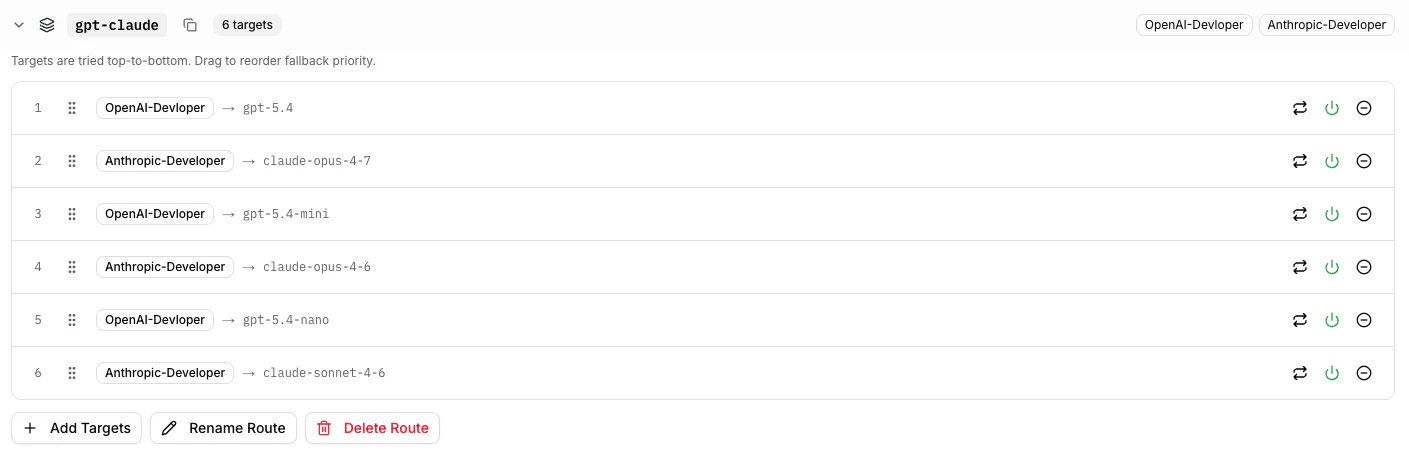 **Backing one route with more than one provider.** A single route can point at the same upstream model on more than one provider — just add each provider as a separate **target**. For example, a `gpt-4o-mini` route with one target on an OpenAI provider and a second target on an Azure OpenAI provider. The string the caller puts in the request's `model` field then decides *how* the gateway picks among those targets:
* **`gpt-4o-mini`** (bare name) → the gateway tries the targets in your configured priority order and fails over to the next one if it errors.
* **`openai/gpt-4o-mini`** or **`azure/gpt-4o-mini`** (provider-prefixed) → the gateway pins the request to the target on that specific provider, with no failover.
`GET /v1/models` is a discovery endpoint: it tells callers which model identifiers are valid for them to use. When a route is served by more than one provider, the listing includes both the bare name and the prefixed names so callers know which forms they can send.
### Step 6: Add Governance (optional)
Once routes are live, you'll likely want to layer on usage policies — token budgets, rate limits, and model access. All of these live under the **Controls** group of **LLM Management** (Budgets, Rate Limits, Model Access) and are enforced inside the gateway on every request, so they apply uniformly to every client and SDK.
* **Token Budgets** — daily / weekly / monthly token (and optional spending) caps with alert thresholds, scoped to org, group, role, or user.
* **Rate Limits** — RPM / TPM caps scoped to org, group, role, user, API key, or model.
* **Model Access Policies** — allowlist or denylist specific models, providers, or upstream-model combinations for an org, group, role, user, or API key.
See [Configuring LLM Controls](/how-tos/use-llm-controls) for the full guide, including the order Barndoor evaluates policies and what callers see when a request is denied.
### Step 7: Create an Org API Key (optional)
If you need a service-account-style key not tied to a single user, use **LLM Management → API Keys → Create Key**. Org keys can be scoped, named, and revoked, and they appear in the same usage reports as user keys.
***
## User: Get Your Endpoint and API Key
If you're a developer who just wants to call the gateway from your app or editor:
**Backing one route with more than one provider.** A single route can point at the same upstream model on more than one provider — just add each provider as a separate **target**. For example, a `gpt-4o-mini` route with one target on an OpenAI provider and a second target on an Azure OpenAI provider. The string the caller puts in the request's `model` field then decides *how* the gateway picks among those targets:
* **`gpt-4o-mini`** (bare name) → the gateway tries the targets in your configured priority order and fails over to the next one if it errors.
* **`openai/gpt-4o-mini`** or **`azure/gpt-4o-mini`** (provider-prefixed) → the gateway pins the request to the target on that specific provider, with no failover.
`GET /v1/models` is a discovery endpoint: it tells callers which model identifiers are valid for them to use. When a route is served by more than one provider, the listing includes both the bare name and the prefixed names so callers know which forms they can send.
### Step 6: Add Governance (optional)
Once routes are live, you'll likely want to layer on usage policies — token budgets, rate limits, and model access. All of these live under the **Controls** group of **LLM Management** (Budgets, Rate Limits, Model Access) and are enforced inside the gateway on every request, so they apply uniformly to every client and SDK.
* **Token Budgets** — daily / weekly / monthly token (and optional spending) caps with alert thresholds, scoped to org, group, role, or user.
* **Rate Limits** — RPM / TPM caps scoped to org, group, role, user, API key, or model.
* **Model Access Policies** — allowlist or denylist specific models, providers, or upstream-model combinations for an org, group, role, user, or API key.
See [Configuring LLM Controls](/how-tos/use-llm-controls) for the full guide, including the order Barndoor evaluates policies and what callers see when a request is denied.
### Step 7: Create an Org API Key (optional)
If you need a service-account-style key not tied to a single user, use **LLM Management → API Keys → Create Key**. Org keys can be scoped, named, and revoked, and they appear in the same usage reports as user keys.
***
## User: Get Your Endpoint and API Key
If you're a developer who just wants to call the gateway from your app or editor:
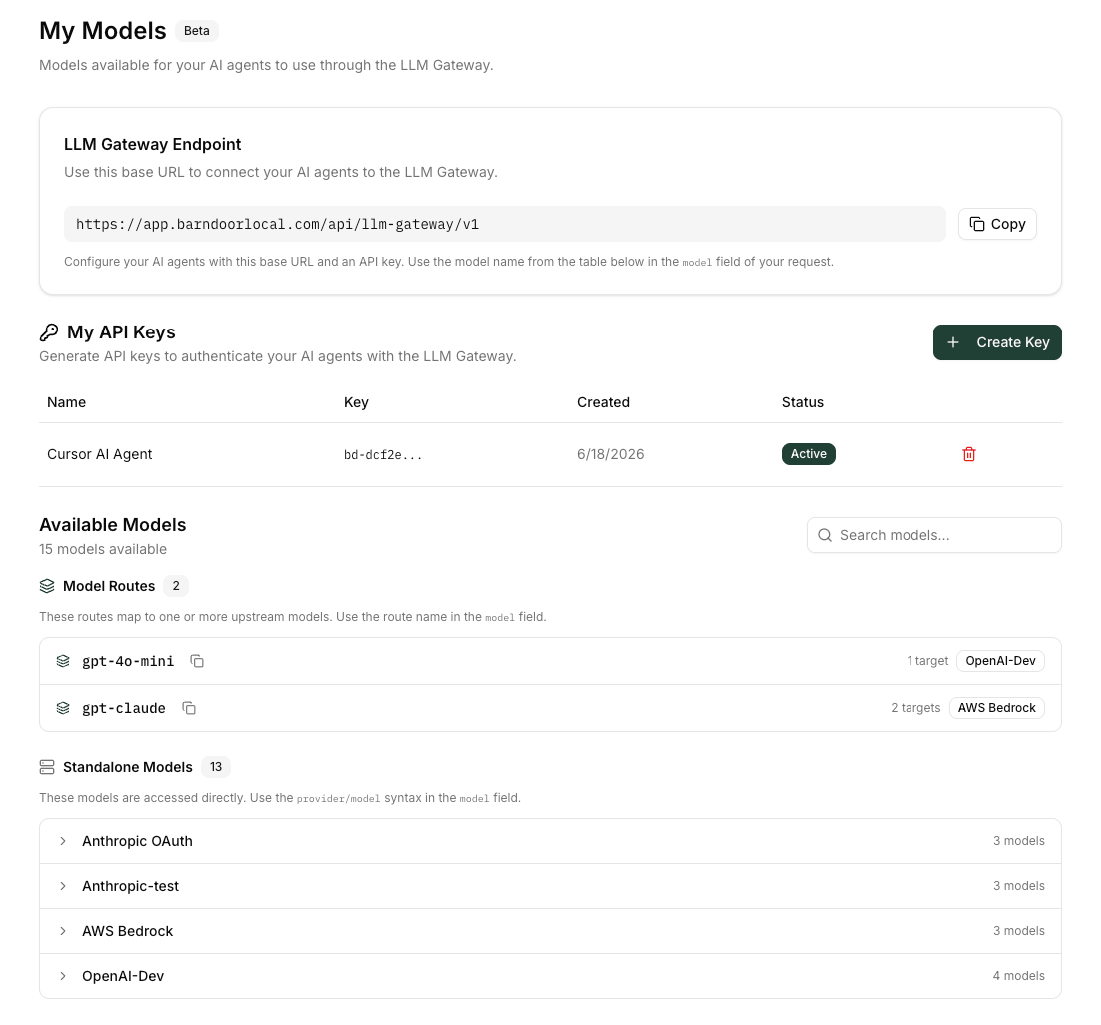 In the Barndoor portal, navigate to **Settings → My Models**. The top of the page shows your **LLM Gateway Endpoint** — copy this base URL.
Under **My API Keys**, click **Create Key**, give it a descriptive name (for example `Cursor on laptop`), and click **Create**. The dialog shows a `bd-…` token — **copy it now**. Barndoor only stores a one-way hash of the key, so the raw value cannot be shown again.
The **Available Models** section lists every model your admin has enabled and that your access policies allow.
* **Model routes** (`gpt-4o-mini`, `claude-sonnet-5`, …) — use the plain name in the `model` field of your request.
* **Standalone models** — use the `provider/model` form (for example `openai/gpt-4o-mini`).
Treat `bd-…` keys like passwords. Use environment variables (not source control) to store them in your apps and editor configs.
***
## Sending Requests
The gateway speaks two API dialects on the same port:
| Endpoint | Use it from |
| -------------------------------- | ------------------------------------------------------- |
| `POST /v1/chat/completions` | OpenAI SDKs, LangChain, LlamaIndex, most chatbots |
| `POST /v1/completions` | Legacy OpenAI text-completion clients |
| `POST /v1/embeddings` | OpenAI / LangChain embeddings clients |
| `POST /v1/responses` | OpenAI Responses API clients |
| `POST /v1/messages` | Anthropic Messages clients (Claude Code, Anthropic SDK) |
| `POST /v1/messages/count_tokens` | Anthropic clients that pre-flight token counts |
| `GET /v1/models` | Any client that lists models on startup |
Both `Authorization: Bearer ` and `x-api-key: ` headers are accepted; the gateway prefers `x-api-key` so Anthropic-compatible clients can still forward provider-side OAuth in `Authorization`.
### List Available Models
```bash theme={null}
curl https://app.barndoor.ai/api/llm-gateway/v1/models \
-H "Authorization: Bearer bd-…"
```
The response is OpenAI-shaped (`{"object": "list", "data": [...]}`), filtered by the policies that apply to your key.
### Non-Streaming Chat Completion
```bash theme={null}
curl https://app.barndoor.ai/api/llm-gateway/v1/chat/completions \
-H "Authorization: Bearer bd-…" \
-H "Content-Type: application/json" \
-d '{
"model": "gpt-4o-mini",
"messages": [
{"role": "system", "content": "You are a terse assistant."},
{"role": "user", "content": "Summarize Barndoor in one sentence."}
]
}'
```
### Streaming Chat Completion
Set `"stream": true` and the gateway forwards SSE chunks back exactly as the upstream emits them.
```bash theme={null}
curl -N https://app.barndoor.ai/api/llm-gateway/v1/chat/completions \
-H "Authorization: Bearer bd-…" \
-H "Content-Type: application/json" \
-d '{
"model": "claude-sonnet-5",
"stream": true,
"messages": [{"role": "user", "content": "Stream a haiku about gateways."}]
}'
```
### Embeddings
```bash theme={null}
curl https://app.barndoor.ai/api/llm-gateway/v1/embeddings \
-H "Authorization: Bearer bd-…" \
-H "Content-Type: application/json" \
-d '{
"model": "text-embedding-3-large",
"input": ["Hello", "World"]
}'
```
### Anthropic Messages (Claude Code)
The gateway also accepts native Anthropic-style requests:
```bash theme={null}
curl https://app.barndoor.ai/api/llm-gateway/v1/messages \
-H "x-api-key: bd-…" \
-H "anthropic-version: 2023-06-01" \
-H "Content-Type: application/json" \
-d '{
"model": "claude-sonnet-5",
"max_tokens": 256,
"messages": [{"role": "user", "content": "Hello"}]
}'
```
***
## Connect Your Tools
```python theme={null}
from openai import OpenAI
client = OpenAI(
base_url="https://app.barndoor.ai/api/llm-gateway/v1",
api_key="bd-…",
)
response = client.chat.completions.create(
model="gpt-4o-mini",
messages=[{"role": "user", "content": "Hello, gateway!"}],
)
print(response.choices[0].message.content)
```
Streaming, function calling, embeddings, and the Responses API all work the same way as against OpenAI directly.
```ts theme={null}
import OpenAI from "openai";
const client = new OpenAI({
baseURL: "https://app.barndoor.ai/api/llm-gateway/v1",
apiKey: process.env.BARNDOOR_API_KEY,
});
const response = await client.chat.completions.create({
model: "gpt-4o-mini",
messages: [{ role: "user", content: "Hello, gateway!" }],
});
console.log(response.choices[0]?.message?.content);
```
```python theme={null}
import anthropic
client = anthropic.Anthropic(
base_url="https://app.barndoor.ai/api/llm-gateway",
api_key="bd-…",
)
message = client.messages.create(
model="claude-sonnet-5",
max_tokens=256,
messages=[{"role": "user", "content": "Hello"}],
)
print(message.content[0].text)
```
The Anthropic SDK appends `/v1/messages` to `base_url` itself, so the base URL should *not* include `/v1`.
Claude Code talks to the gateway via `ANTHROPIC_BASE_URL`. The exact env-var setup depends on which kind of Anthropic provider your admin configured — a **shared API key** provider (everyone bills against one Anthropic key) or an **OAuth passthrough** provider (each developer bills against their personal Claude subscription). See [Step 1 → Anthropic OAuth passthrough](#anthropic-oauth-passthrough-claude-code-subscribers) for the admin side.
Claude Code appends `/v1/messages` to `ANTHROPIC_BASE_URL` itself, so the base URL must **not** include `/v1`. If you copied the URL from **Settings → My Models**, strip the trailing `/v1`.
Use when the admin set up an Anthropic provider that authenticates upstream with a centralized API key.
```bash theme={null}
export ANTHROPIC_BASE_URL="https://app.barndoor.ai/api/llm-gateway"
export ANTHROPIC_AUTH_TOKEN="bd-…"
export ANTHROPIC_MODEL="claude-sonnet-5" # a model or route alias enabled in My Models
export CLAUDE_CODE_ENABLE_GATEWAY_MODEL_DISCOVERY=1
claude
```
Claude Code sends `bd-…` as `Authorization: Bearer`. The gateway authenticates the request with that key, then uses the admin-stored Anthropic API key to call Anthropic.
`ANTHROPIC_AUTH_TOKEN` takes the **bare key** — `bd-…`, not `x-api-key: bd-…`. The `x-api-key:` prefix belongs only in `ANTHROPIC_CUSTOM_HEADERS`, and only in the OAuth passthrough setup. Mixing the two produces a `401` because the gateway hashes the whole string as if it were a key.
Without `ANTHROPIC_MODEL`, Claude Code requests its default Anthropic model IDs (for example `claude-opus-4-8`, `claude-haiku-4-5`), which then must be enabled in **Settings → My Models** under those exact names. Setting `ANTHROPIC_MODEL` to one of your [Model Routes](#step-5-define-model-routes) aliases avoids that dependency, and `CLAUDE_CODE_ENABLE_GATEWAY_MODEL_DISCOVERY=1` populates the `/model` picker from the gateway's `/v1/models`.
This mode requires every model you request to resolve to a provider with a **stored credential** (shared Anthropic API key, Bedrock, …). If a request lands on an **OAuth passthrough** provider, the gateway rejects it with `401 — Anthropic provider requires an incoming Claude OAuth bearer token`; switch to the OAuth passthrough setup for those routes.
Use when the admin set up an **Anthropic OAuth passthrough** provider — every request bills against the user's personal Claude subscription. Claude Code already attaches your logged-in OAuth bearer in `Authorization`, so Barndoor's gateway key has to go in a separate `x-api-key` header so the two don't collide:
```bash theme={null}
export ANTHROPIC_BASE_URL="https://app.barndoor.ai/api/llm-gateway"
unset ANTHROPIC_API_KEY
unset ANTHROPIC_AUTH_TOKEN
export ANTHROPIC_CUSTOM_HEADERS="x-api-key: bd-…"
export ANTHROPIC_MODEL="claude-opus-4-8"
export CLAUDE_CODE_ENABLE_GATEWAY_MODEL_DISCOVERY=1
claude
```
Make sure you're logged into Claude (`claude /login` if not). Claude Code refreshes the `sk-ant-oat…` OAuth bearer for you and the gateway forwards it verbatim to Anthropic. Set `ANTHROPIC_MODEL` to whichever alias you've configured in [Model Routes](#step-5-define-model-routes) — the `ANTHROPIC_DEFAULT_*_MODEL` variables only apply to provider configs (Bedrock, Vertex, …), not `ANTHROPIC_BASE_URL` gateways. Don't set `CLAUDE_CODE_DISABLE_NONESSENTIAL_TRAFFIC` alongside model discovery — it disables the startup `/v1/models` call that `CLAUDE_CODE_ENABLE_GATEWAY_MODEL_DISCOVERY` turns on.
**Verify your env before launching `claude`.** A wrong combination is the most common setup pitfall, and the failure mode is often a silent retry rather than a useful error.
```bash theme={null}
env | grep -E '^ANTHROPIC_|^CLAUDE_CODE_'
```
| Setup | Expect to see | Expect to be absent |
| ----------------- | -------------------------------------------------------------- | --------------------------------------------------------------------------------------- |
| Shared API key | `ANTHROPIC_BASE_URL`, `ANTHROPIC_AUTH_TOKEN` (bare `bd-…` key) | `ANTHROPIC_CUSTOM_HEADERS`, `ANTHROPIC_API_KEY` |
| OAuth passthrough | `ANTHROPIC_BASE_URL`, `ANTHROPIC_CUSTOM_HEADERS` | `ANTHROPIC_AUTH_TOKEN`, `ANTHROPIC_API_KEY`, `CLAUDE_CODE_DISABLE_NONESSENTIAL_TRAFFIC` |
Then confirm the key and base URL work before launching `claude` — this isolates auth problems from model-name problems:
```bash theme={null}
curl "$ANTHROPIC_BASE_URL/v1/models" -H "Authorization: Bearer bd-…"
```
A model list means auth is good (any remaining failure is model naming); a `401` means the key or URL is wrong.
**Spot-check which route served the request.** The `model` field in the Anthropic response always echoes back the model that actually answered — so if you've configured a failover alias like `claude-opus-4-8` with an Anthropic OAuth primary and a Bedrock fallback, an Anthropic-style ID confirms the primary served it, and a Bedrock-style ID (e.g. `us.anthropic.claude-opus-4-8`) means failover engaged. This works on every response, success or not — the [observability headers](#observability-headers) carry the same info on successful chat / messages responses.
Recent Claude Code versions don't expose a plaintext credentials file. If you have a shell snippet that pipes `jq` over that path to extract an OAuth token, remove it — Claude Code handles the OAuth token internally and your only job is to set the env vars in the tabs above.
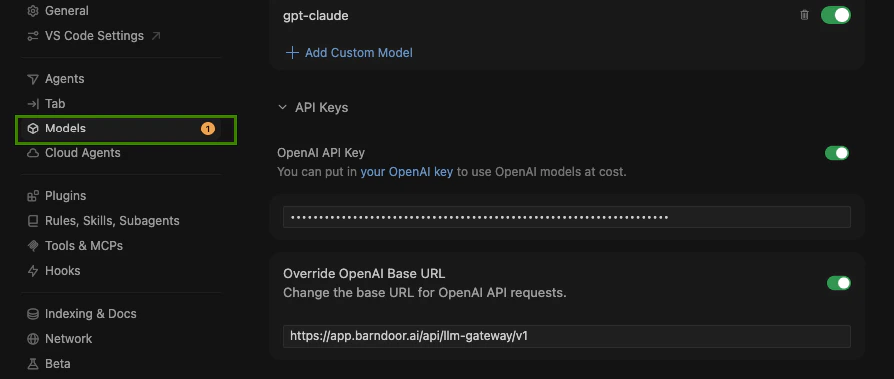
Cursor lets you add custom OpenAI-compatible providers under **Settings → Models → OpenAI API Key → Override OpenAI Base URL**:
1. Toggle **Custom OpenAI API Key**.
2. Set the base URL to `https://app.barndoor.ai/api/llm-gateway/v1`.
3. Paste your `bd-…` key as the API key.
4. Add the model names (for example `gpt-4o-mini`, `claude-sonnet-5`) that you want Cursor to be able to select.
In the Barndoor portal, navigate to **Settings → My Models**. The top of the page shows your **LLM Gateway Endpoint** — copy this base URL.
Under **My API Keys**, click **Create Key**, give it a descriptive name (for example `Cursor on laptop`), and click **Create**. The dialog shows a `bd-…` token — **copy it now**. Barndoor only stores a one-way hash of the key, so the raw value cannot be shown again.
The **Available Models** section lists every model your admin has enabled and that your access policies allow.
* **Model routes** (`gpt-4o-mini`, `claude-sonnet-5`, …) — use the plain name in the `model` field of your request.
* **Standalone models** — use the `provider/model` form (for example `openai/gpt-4o-mini`).
Treat `bd-…` keys like passwords. Use environment variables (not source control) to store them in your apps and editor configs.
***
## Sending Requests
The gateway speaks two API dialects on the same port:
| Endpoint | Use it from |
| -------------------------------- | ------------------------------------------------------- |
| `POST /v1/chat/completions` | OpenAI SDKs, LangChain, LlamaIndex, most chatbots |
| `POST /v1/completions` | Legacy OpenAI text-completion clients |
| `POST /v1/embeddings` | OpenAI / LangChain embeddings clients |
| `POST /v1/responses` | OpenAI Responses API clients |
| `POST /v1/messages` | Anthropic Messages clients (Claude Code, Anthropic SDK) |
| `POST /v1/messages/count_tokens` | Anthropic clients that pre-flight token counts |
| `GET /v1/models` | Any client that lists models on startup |
Both `Authorization: Bearer ` and `x-api-key: ` headers are accepted; the gateway prefers `x-api-key` so Anthropic-compatible clients can still forward provider-side OAuth in `Authorization`.
### List Available Models
```bash theme={null}
curl https://app.barndoor.ai/api/llm-gateway/v1/models \
-H "Authorization: Bearer bd-…"
```
The response is OpenAI-shaped (`{"object": "list", "data": [...]}`), filtered by the policies that apply to your key.
### Non-Streaming Chat Completion
```bash theme={null}
curl https://app.barndoor.ai/api/llm-gateway/v1/chat/completions \
-H "Authorization: Bearer bd-…" \
-H "Content-Type: application/json" \
-d '{
"model": "gpt-4o-mini",
"messages": [
{"role": "system", "content": "You are a terse assistant."},
{"role": "user", "content": "Summarize Barndoor in one sentence."}
]
}'
```
### Streaming Chat Completion
Set `"stream": true` and the gateway forwards SSE chunks back exactly as the upstream emits them.
```bash theme={null}
curl -N https://app.barndoor.ai/api/llm-gateway/v1/chat/completions \
-H "Authorization: Bearer bd-…" \
-H "Content-Type: application/json" \
-d '{
"model": "claude-sonnet-5",
"stream": true,
"messages": [{"role": "user", "content": "Stream a haiku about gateways."}]
}'
```
### Embeddings
```bash theme={null}
curl https://app.barndoor.ai/api/llm-gateway/v1/embeddings \
-H "Authorization: Bearer bd-…" \
-H "Content-Type: application/json" \
-d '{
"model": "text-embedding-3-large",
"input": ["Hello", "World"]
}'
```
### Anthropic Messages (Claude Code)
The gateway also accepts native Anthropic-style requests:
```bash theme={null}
curl https://app.barndoor.ai/api/llm-gateway/v1/messages \
-H "x-api-key: bd-…" \
-H "anthropic-version: 2023-06-01" \
-H "Content-Type: application/json" \
-d '{
"model": "claude-sonnet-5",
"max_tokens": 256,
"messages": [{"role": "user", "content": "Hello"}]
}'
```
***
## Connect Your Tools
```python theme={null}
from openai import OpenAI
client = OpenAI(
base_url="https://app.barndoor.ai/api/llm-gateway/v1",
api_key="bd-…",
)
response = client.chat.completions.create(
model="gpt-4o-mini",
messages=[{"role": "user", "content": "Hello, gateway!"}],
)
print(response.choices[0].message.content)
```
Streaming, function calling, embeddings, and the Responses API all work the same way as against OpenAI directly.
```ts theme={null}
import OpenAI from "openai";
const client = new OpenAI({
baseURL: "https://app.barndoor.ai/api/llm-gateway/v1",
apiKey: process.env.BARNDOOR_API_KEY,
});
const response = await client.chat.completions.create({
model: "gpt-4o-mini",
messages: [{ role: "user", content: "Hello, gateway!" }],
});
console.log(response.choices[0]?.message?.content);
```
```python theme={null}
import anthropic
client = anthropic.Anthropic(
base_url="https://app.barndoor.ai/api/llm-gateway",
api_key="bd-…",
)
message = client.messages.create(
model="claude-sonnet-5",
max_tokens=256,
messages=[{"role": "user", "content": "Hello"}],
)
print(message.content[0].text)
```
The Anthropic SDK appends `/v1/messages` to `base_url` itself, so the base URL should *not* include `/v1`.
Claude Code talks to the gateway via `ANTHROPIC_BASE_URL`. The exact env-var setup depends on which kind of Anthropic provider your admin configured — a **shared API key** provider (everyone bills against one Anthropic key) or an **OAuth passthrough** provider (each developer bills against their personal Claude subscription). See [Step 1 → Anthropic OAuth passthrough](#anthropic-oauth-passthrough-claude-code-subscribers) for the admin side.
Claude Code appends `/v1/messages` to `ANTHROPIC_BASE_URL` itself, so the base URL must **not** include `/v1`. If you copied the URL from **Settings → My Models**, strip the trailing `/v1`.
Use when the admin set up an Anthropic provider that authenticates upstream with a centralized API key.
```bash theme={null}
export ANTHROPIC_BASE_URL="https://app.barndoor.ai/api/llm-gateway"
export ANTHROPIC_AUTH_TOKEN="bd-…"
export ANTHROPIC_MODEL="claude-sonnet-5" # a model or route alias enabled in My Models
export CLAUDE_CODE_ENABLE_GATEWAY_MODEL_DISCOVERY=1
claude
```
Claude Code sends `bd-…` as `Authorization: Bearer`. The gateway authenticates the request with that key, then uses the admin-stored Anthropic API key to call Anthropic.
`ANTHROPIC_AUTH_TOKEN` takes the **bare key** — `bd-…`, not `x-api-key: bd-…`. The `x-api-key:` prefix belongs only in `ANTHROPIC_CUSTOM_HEADERS`, and only in the OAuth passthrough setup. Mixing the two produces a `401` because the gateway hashes the whole string as if it were a key.
Without `ANTHROPIC_MODEL`, Claude Code requests its default Anthropic model IDs (for example `claude-opus-4-8`, `claude-haiku-4-5`), which then must be enabled in **Settings → My Models** under those exact names. Setting `ANTHROPIC_MODEL` to one of your [Model Routes](#step-5-define-model-routes) aliases avoids that dependency, and `CLAUDE_CODE_ENABLE_GATEWAY_MODEL_DISCOVERY=1` populates the `/model` picker from the gateway's `/v1/models`.
This mode requires every model you request to resolve to a provider with a **stored credential** (shared Anthropic API key, Bedrock, …). If a request lands on an **OAuth passthrough** provider, the gateway rejects it with `401 — Anthropic provider requires an incoming Claude OAuth bearer token`; switch to the OAuth passthrough setup for those routes.
Use when the admin set up an **Anthropic OAuth passthrough** provider — every request bills against the user's personal Claude subscription. Claude Code already attaches your logged-in OAuth bearer in `Authorization`, so Barndoor's gateway key has to go in a separate `x-api-key` header so the two don't collide:
```bash theme={null}
export ANTHROPIC_BASE_URL="https://app.barndoor.ai/api/llm-gateway"
unset ANTHROPIC_API_KEY
unset ANTHROPIC_AUTH_TOKEN
export ANTHROPIC_CUSTOM_HEADERS="x-api-key: bd-…"
export ANTHROPIC_MODEL="claude-opus-4-8"
export CLAUDE_CODE_ENABLE_GATEWAY_MODEL_DISCOVERY=1
claude
```
Make sure you're logged into Claude (`claude /login` if not). Claude Code refreshes the `sk-ant-oat…` OAuth bearer for you and the gateway forwards it verbatim to Anthropic. Set `ANTHROPIC_MODEL` to whichever alias you've configured in [Model Routes](#step-5-define-model-routes) — the `ANTHROPIC_DEFAULT_*_MODEL` variables only apply to provider configs (Bedrock, Vertex, …), not `ANTHROPIC_BASE_URL` gateways. Don't set `CLAUDE_CODE_DISABLE_NONESSENTIAL_TRAFFIC` alongside model discovery — it disables the startup `/v1/models` call that `CLAUDE_CODE_ENABLE_GATEWAY_MODEL_DISCOVERY` turns on.
**Verify your env before launching `claude`.** A wrong combination is the most common setup pitfall, and the failure mode is often a silent retry rather than a useful error.
```bash theme={null}
env | grep -E '^ANTHROPIC_|^CLAUDE_CODE_'
```
| Setup | Expect to see | Expect to be absent |
| ----------------- | -------------------------------------------------------------- | --------------------------------------------------------------------------------------- |
| Shared API key | `ANTHROPIC_BASE_URL`, `ANTHROPIC_AUTH_TOKEN` (bare `bd-…` key) | `ANTHROPIC_CUSTOM_HEADERS`, `ANTHROPIC_API_KEY` |
| OAuth passthrough | `ANTHROPIC_BASE_URL`, `ANTHROPIC_CUSTOM_HEADERS` | `ANTHROPIC_AUTH_TOKEN`, `ANTHROPIC_API_KEY`, `CLAUDE_CODE_DISABLE_NONESSENTIAL_TRAFFIC` |
Then confirm the key and base URL work before launching `claude` — this isolates auth problems from model-name problems:
```bash theme={null}
curl "$ANTHROPIC_BASE_URL/v1/models" -H "Authorization: Bearer bd-…"
```
A model list means auth is good (any remaining failure is model naming); a `401` means the key or URL is wrong.
**Spot-check which route served the request.** The `model` field in the Anthropic response always echoes back the model that actually answered — so if you've configured a failover alias like `claude-opus-4-8` with an Anthropic OAuth primary and a Bedrock fallback, an Anthropic-style ID confirms the primary served it, and a Bedrock-style ID (e.g. `us.anthropic.claude-opus-4-8`) means failover engaged. This works on every response, success or not — the [observability headers](#observability-headers) carry the same info on successful chat / messages responses.
Recent Claude Code versions don't expose a plaintext credentials file. If you have a shell snippet that pipes `jq` over that path to extract an OAuth token, remove it — Claude Code handles the OAuth token internally and your only job is to set the env vars in the tabs above.
Cursor lets you add custom OpenAI-compatible providers under **Settings → Models → OpenAI API Key → Override OpenAI Base URL**:
1. Toggle **Custom OpenAI API Key**.
2. Set the base URL to `https://app.barndoor.ai/api/llm-gateway/v1`.
3. Paste your `bd-…` key as the API key.
4. Add the model names (for example `gpt-4o-mini`, `claude-sonnet-5`) that you want Cursor to be able to select.
 ```python theme={null}
from langchain_openai import ChatOpenAI
llm = ChatOpenAI(
model="gpt-4o-mini",
base_url="https://app.barndoor.ai/api/llm-gateway/v1",
api_key="bd-…",
)
print(llm.invoke("Hello, gateway!").content)
```
`ChatAnthropic`, `OpenAIEmbeddings`, and the rest of the OpenAI-style integrations behave the same way — set `base_url`/`anthropic_api_url` and `api_key`.
Use any of the examples in [Sending Requests](#sending-requests). For CI and shell scripts, export the URL and key once:
```bash theme={null}
export BARNDOOR_BASE_URL="https://app.barndoor.ai/api/llm-gateway/v1"
export BARNDOOR_API_KEY="bd-…"
curl "$BARNDOOR_BASE_URL/models" -H "Authorization: Bearer $BARNDOOR_API_KEY"
```
***
## Model Naming
The string you put in the `model` field is what the gateway uses to choose a route. Two forms are valid:
| Form | Example | What the gateway does |
| -------------------------- | -------------------- | ------------------------------------------------------------------------------------------------------------------------------------------------------ |
| **Bare name** | `gpt-4o-mini` | Resolves the name against your org's configured routes, picks one in priority order, and fails over if the first choice errors. |
| **Provider-prefixed name** | `openai/gpt-4o-mini` | Pins the request to the named provider, with no failover. Useful when more than one provider backs the same name and you want to force a specific one. |
The prefix is the provider's **configured name** (matched case-insensitively), not a fixed vendor slug — so `openai/gpt-4o-mini` works only if a provider is named `openai`. A provider named `Azure OpenAI Prod` would be pinned as `Azure OpenAI Prod/gpt-4o-mini`. Don't guess the exact prefix — read it from `GET /v1/models`.
`GET /v1/models` is a discovery endpoint that returns every identifier valid for the calling key — the bare names, plus the provider-prefixed forms for any name that has more than one provider behind it. Call it once on startup to see your options; you don't need to call it on every request.
## Observability Headers
Successful responses on `POST /v1/chat/completions` and `POST /v1/messages` include a small set of headers you can log to understand routing — useful for client-side monitoring, A/B comparisons across providers, and post-incident analysis.
| Header | Meaning |
| ------------------------------ | ------------------------------------------------------------------------------------------ |
| `x-bd-provider-route-attempt` | 1-indexed position of the route that succeeded (e.g. `1` = primary, `2` = first failover). |
| `x-bd-provider-route-count` | Total number of routes configured for this alias. |
| `x-bd-provider-failover-count` | Number of routes that failed before one succeeded. |
| `x-bd-provider-retry-count` | Same-route 429 retries the gateway performed. |
| `x-bd-provider-retry-sleep-ms` | Time spent waiting between 429 retries. |
These headers are emitted on successful responses only — they're not present on error responses or on `/v1/completions`, `/v1/embeddings`, or `/v1/responses`. For full per-request usage and cost reporting, head to the **Reporting → LLM Usage Dashboard** in the Barndoor portal, where you can break traffic down by model, upstream model, provider, user, group, role, API key, or **status code**.
## Failover, Retries, and Streaming
* If the primary target returns a 5xx, network error, or exhausts its 429-retry budget, the gateway transparently retries the next target in the route's priority list and surfaces the chosen target via the response headers above.
* Same-target 429 handling is configured per target (count + max wait). The gateway retries with exponential backoff, then either succeeds or fails over.
* Targets that are repeatedly failing are placed in a short cooldown and **skipped** while unhealthy (reflected by the provider's [health status](#provider-health)), then probed for recovery — so failover prefers targets that are actually up. A provider with health enforcement overridden stays in the rotation regardless.
* Streaming responses (`stream: true`) preserve provider SSE framing and pass through token usage where the provider emits it.
***
## Troubleshooting
* Confirm the header is `Authorization: Bearer bd-…` (with a space after `Bearer`) or `x-api-key: bd-…`.
* Make sure the key has not been revoked (check **Settings → My Models** or **LLM Management → API Keys**).
* The gateway only accepts keys created in *your* organization. Keys from a trial environment will not work against your production environment and vice versa.
* Call `GET /v1/models` to see exactly which aliases your key can use.
* If you expected to see an alias, verify with an admin that it has at least one **enabled** route in **Model Routes** and that the model is toggled on in the **Models** tab.
* If you're using a bare name and two providers back it, try the prefixed form (`provider/model`) instead.
* Model-access denials look like `model 'foo' is not allowed for this caller`. Check **LLM Management → Model Access** for the policy that applies to your role/group.
* Barndoor's rate-limit and token-budget checks can return 429 before the request reaches the upstream provider. The response body explains which limit fired.
* Upstream provider 429s are retried in-place per the route's retry policy and may eventually fail over. Check the `x-bd-provider-retry-count` and `x-bd-provider-failover-count` headers to see what happened.
* Make sure your HTTP client supports SSE and doesn't buffer (`curl -N`, `requests.post(..., stream=True)`, `fetch(..., { ... })` with manual reader, etc.).
* The gateway will close the stream cleanly with a final `[DONE]` chunk. A premature close usually means the upstream provider closed first — check the response headers and audit logs for the failover trail.
* The Anthropic SDK appends `/v1/messages` itself; set the base URL to `https://app.barndoor.ai/api/llm-gateway` (without `/v1`).
* Use `x-api-key` for the Barndoor token. If your client only knows `ANTHROPIC_API_KEY`, the gateway still accepts it through the same header.
## Frequently Asked Questions
No. Any HTTP client that can speak OpenAI's request/response shape — or Anthropic's Messages shape on `/v1/messages` — will work. SDKs are a convenience, not a requirement.
In Barndoor's encrypted secret store. The gateway loads them at request time; they're never exposed to the browser or returned via any API.
Yes. The **Reporting → LLM Usage Dashboard** shows per-user, per-team, per-model, and per-route usage. Combine with **Model Pricing** to attribute costs.
* **User keys** (Settings → My Models) are tied to the calling user. Usage and audit events attribute back to that user.
* **Org keys** (LLM Management → API Keys) are typically used for service accounts and CI. They have an org scope but no individual user.
If you've configured more than one route for an alias, the gateway fails over automatically and the response headers indicate which route succeeded. If every route fails, the client sees a `502` with details for each attempt.
## Need Help?
Reach out to [support@barndoor.ai](mailto:support@barndoor.ai) with:
* The endpoint you hit, the HTTP status code, and any `error.message` content.
* The approximate time of the request and the model name you sent in the `model` field.
* A redacted request body if the issue reproduces consistently.
```python theme={null}
from langchain_openai import ChatOpenAI
llm = ChatOpenAI(
model="gpt-4o-mini",
base_url="https://app.barndoor.ai/api/llm-gateway/v1",
api_key="bd-…",
)
print(llm.invoke("Hello, gateway!").content)
```
`ChatAnthropic`, `OpenAIEmbeddings`, and the rest of the OpenAI-style integrations behave the same way — set `base_url`/`anthropic_api_url` and `api_key`.
Use any of the examples in [Sending Requests](#sending-requests). For CI and shell scripts, export the URL and key once:
```bash theme={null}
export BARNDOOR_BASE_URL="https://app.barndoor.ai/api/llm-gateway/v1"
export BARNDOOR_API_KEY="bd-…"
curl "$BARNDOOR_BASE_URL/models" -H "Authorization: Bearer $BARNDOOR_API_KEY"
```
***
## Model Naming
The string you put in the `model` field is what the gateway uses to choose a route. Two forms are valid:
| Form | Example | What the gateway does |
| -------------------------- | -------------------- | ------------------------------------------------------------------------------------------------------------------------------------------------------ |
| **Bare name** | `gpt-4o-mini` | Resolves the name against your org's configured routes, picks one in priority order, and fails over if the first choice errors. |
| **Provider-prefixed name** | `openai/gpt-4o-mini` | Pins the request to the named provider, with no failover. Useful when more than one provider backs the same name and you want to force a specific one. |
The prefix is the provider's **configured name** (matched case-insensitively), not a fixed vendor slug — so `openai/gpt-4o-mini` works only if a provider is named `openai`. A provider named `Azure OpenAI Prod` would be pinned as `Azure OpenAI Prod/gpt-4o-mini`. Don't guess the exact prefix — read it from `GET /v1/models`.
`GET /v1/models` is a discovery endpoint that returns every identifier valid for the calling key — the bare names, plus the provider-prefixed forms for any name that has more than one provider behind it. Call it once on startup to see your options; you don't need to call it on every request.
## Observability Headers
Successful responses on `POST /v1/chat/completions` and `POST /v1/messages` include a small set of headers you can log to understand routing — useful for client-side monitoring, A/B comparisons across providers, and post-incident analysis.
| Header | Meaning |
| ------------------------------ | ------------------------------------------------------------------------------------------ |
| `x-bd-provider-route-attempt` | 1-indexed position of the route that succeeded (e.g. `1` = primary, `2` = first failover). |
| `x-bd-provider-route-count` | Total number of routes configured for this alias. |
| `x-bd-provider-failover-count` | Number of routes that failed before one succeeded. |
| `x-bd-provider-retry-count` | Same-route 429 retries the gateway performed. |
| `x-bd-provider-retry-sleep-ms` | Time spent waiting between 429 retries. |
These headers are emitted on successful responses only — they're not present on error responses or on `/v1/completions`, `/v1/embeddings`, or `/v1/responses`. For full per-request usage and cost reporting, head to the **Reporting → LLM Usage Dashboard** in the Barndoor portal, where you can break traffic down by model, upstream model, provider, user, group, role, API key, or **status code**.
## Failover, Retries, and Streaming
* If the primary target returns a 5xx, network error, or exhausts its 429-retry budget, the gateway transparently retries the next target in the route's priority list and surfaces the chosen target via the response headers above.
* Same-target 429 handling is configured per target (count + max wait). The gateway retries with exponential backoff, then either succeeds or fails over.
* Targets that are repeatedly failing are placed in a short cooldown and **skipped** while unhealthy (reflected by the provider's [health status](#provider-health)), then probed for recovery — so failover prefers targets that are actually up. A provider with health enforcement overridden stays in the rotation regardless.
* Streaming responses (`stream: true`) preserve provider SSE framing and pass through token usage where the provider emits it.
***
## Troubleshooting
* Confirm the header is `Authorization: Bearer bd-…` (with a space after `Bearer`) or `x-api-key: bd-…`.
* Make sure the key has not been revoked (check **Settings → My Models** or **LLM Management → API Keys**).
* The gateway only accepts keys created in *your* organization. Keys from a trial environment will not work against your production environment and vice versa.
* Call `GET /v1/models` to see exactly which aliases your key can use.
* If you expected to see an alias, verify with an admin that it has at least one **enabled** route in **Model Routes** and that the model is toggled on in the **Models** tab.
* If you're using a bare name and two providers back it, try the prefixed form (`provider/model`) instead.
* Model-access denials look like `model 'foo' is not allowed for this caller`. Check **LLM Management → Model Access** for the policy that applies to your role/group.
* Barndoor's rate-limit and token-budget checks can return 429 before the request reaches the upstream provider. The response body explains which limit fired.
* Upstream provider 429s are retried in-place per the route's retry policy and may eventually fail over. Check the `x-bd-provider-retry-count` and `x-bd-provider-failover-count` headers to see what happened.
* Make sure your HTTP client supports SSE and doesn't buffer (`curl -N`, `requests.post(..., stream=True)`, `fetch(..., { ... })` with manual reader, etc.).
* The gateway will close the stream cleanly with a final `[DONE]` chunk. A premature close usually means the upstream provider closed first — check the response headers and audit logs for the failover trail.
* The Anthropic SDK appends `/v1/messages` itself; set the base URL to `https://app.barndoor.ai/api/llm-gateway` (without `/v1`).
* Use `x-api-key` for the Barndoor token. If your client only knows `ANTHROPIC_API_KEY`, the gateway still accepts it through the same header.
## Frequently Asked Questions
No. Any HTTP client that can speak OpenAI's request/response shape — or Anthropic's Messages shape on `/v1/messages` — will work. SDKs are a convenience, not a requirement.
In Barndoor's encrypted secret store. The gateway loads them at request time; they're never exposed to the browser or returned via any API.
Yes. The **Reporting → LLM Usage Dashboard** shows per-user, per-team, per-model, and per-route usage. Combine with **Model Pricing** to attribute costs.
* **User keys** (Settings → My Models) are tied to the calling user. Usage and audit events attribute back to that user.
* **Org keys** (LLM Management → API Keys) are typically used for service accounts and CI. They have an org scope but no individual user.
If you've configured more than one route for an alias, the gateway fails over automatically and the response headers indicate which route succeeded. If every route fails, the client sees a `502` with details for each attempt.
## Need Help?
Reach out to [support@barndoor.ai](mailto:support@barndoor.ai) with:
* The endpoint you hit, the HTTP status code, and any `error.message` content.
* The approximate time of the request and the model name you sent in the `model` field.
* A redacted request body if the issue reproduces consistently.