> ## Documentation Index
> Fetch the complete documentation index at: https://docs.barndoor.ai/llms.txt
> Use this file to discover all available pages before exploring further.
# Slack conditional rules
> Filter or block Slack messages by channel or channel type on the Barndoor-hosted Slack (User) MCP server.
A Slack [conditional rule](/how-tos/data-control-center/field-controls/conditional-rules)
matches Slack activity by the channel it happens in. For example, you can
remove messages from `#finance` when the Support group reads Slack, or stop
agents from posting to externally shared channels.
Setup has two steps:
1. [Connect the Slack (User) MCP server](#1-connect-the-slack-user-mcp-server)
in Barndoor so it can list your workspace's channels.
2. [Create the conditional rule](#2-create-the-conditional-rule) in Field
Controls.
This guide applies to the Barndoor-hosted **Slack (User)** [MCP
server](/mcp-servers/slack) from the MCP server directory. Conditional rules
are not available for Slack Bot or other Slack servers.
## Prerequisites
You need:
* Admin access to your Barndoor organization
* A Slack user who can see the channels you want to govern
## 1. Connect the Slack (User) MCP server
In this guide, **service account** means the organization-level OAuth
connection on the Barndoor server detail page. Barndoor uses it to list your
workspace's channels when you build a rule.
1. Navigate to **Admin → MCP Servers**.
2. Add **Slack (User)** from the Barndoor-hosted MCP server directory, or open
an existing **Slack (User)** server.
3. On the server detail page, connect the service account with a Slack user
who can see the channels you want to govern. The channel list includes the
public and private channels that user can see, including archived channels.
If the service account isn't connected when you create a rule, the **When**
section prompts you to connect it. Click **Connect service account**, complete
the Slack OAuth flow, and continue.
## 2. Create the conditional rule
With the service account connected, you can build the rule.
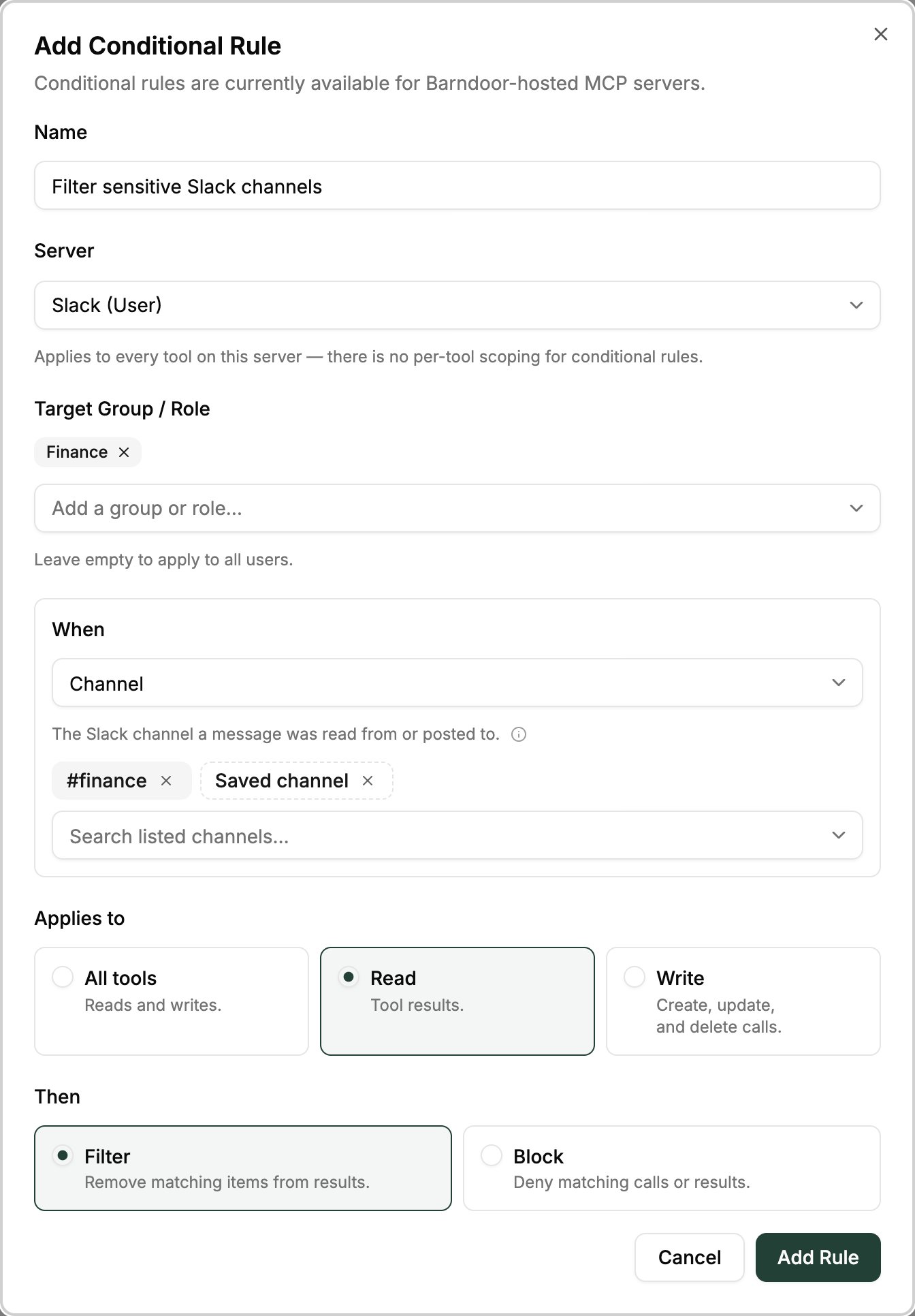
1. Navigate to **Data Control Center → Field Controls**.
2. Click **Add Conditional Rule**.
3. Enter a **Name** and select your **Slack (User)** server under **Server**.
The rule applies to every tool on the server.
4. Optionally, add groups or roles under **Target Group / Role**. Leave it
empty to apply the rule to all users.
5. Under **When**, choose a condition:
* **Channel**: specific channels. See [Choose channels](#choose-channels).
* **Channel type**: every channel of a kind. See [Choose channel
types](#choose-channel-types).
6. Under **Applies to**, choose **All tools**, **Read** (tool results), or
**Write** (create, update, and delete calls).
7. Under **Then**, choose **Filter** to remove matching items from results, or
**Block** to deny matching calls or results. **Filter** isn't available for
**Write**: writes are always blocked outright.
8. Click **Add Rule**.
 ### Choose channels
Search the list of channels from your workspace and select one or more. You can
also type a channel name, or a wildcard pattern such as `proj-*` or `*-prod`,
for channels that aren't listed.
### Choose channels
Search the list of channels from your workspace and select one or more. You can
also type a channel name, or a wildcard pattern such as `proj-*` or `*-prod`,
for channels that aren't listed.
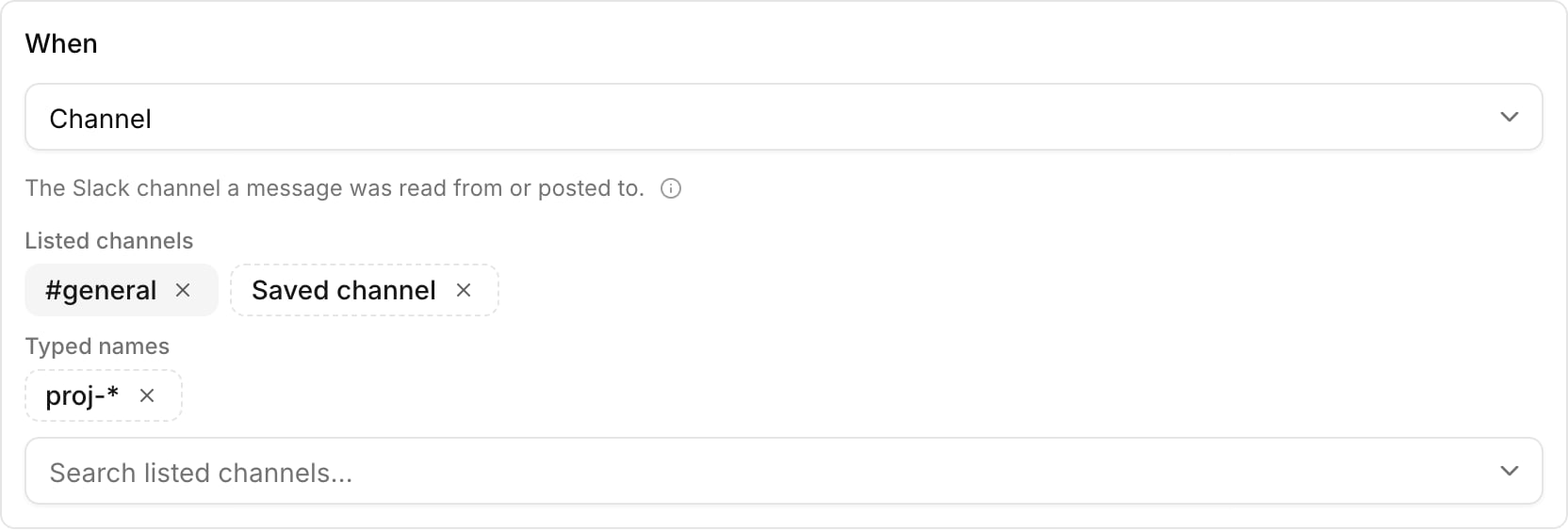 | You add | Stored as | After a channel is renamed |
| - | - | - |
| A channel from the list | The channel's ID | The rule still matches |
| A typed name or wildcard | The text you typed | The rule may stop matching |
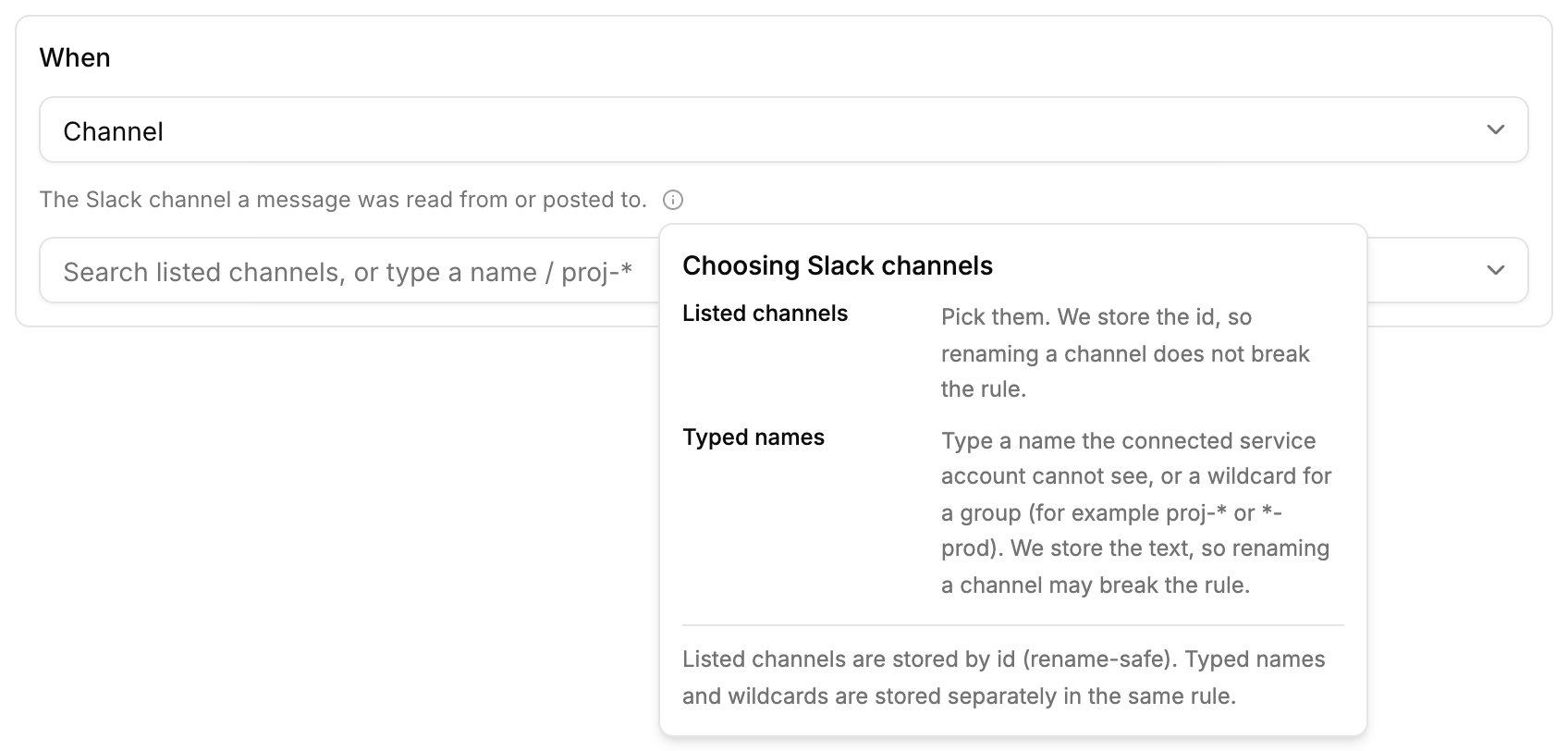
Pick from the list where you can. If you type the name of a channel that is
listed, Barndoor uses the listed channel's ID instead. Typed names are for
channels the service account can't see. Hover the info icon next to the
condition description for a reminder:
| You add | Stored as | After a channel is renamed |
| - | - | - |
| A channel from the list | The channel's ID | The rule still matches |
| A typed name or wildcard | The text you typed | The rule may stop matching |
Pick from the list where you can. If you type the name of a channel that is
listed, Barndoor uses the listed channel's ID instead. Typed names are for
channels the service account can't see. Hover the info icon next to the
condition description for a reminder:
 A few entries aren't accepted:
* **Pasted Slack IDs or channel links.** Pick the channel from the list, or
type its name.
* **A wildcard on its own**, such as `*`. To cover every channel of a kind, use
a **Channel type** rule instead.
Large workspaces can take a moment to load. Barndoor loads up to 2,000
channels. If the list isn't complete, the **When** section says so. Search
it, or type the name of a channel that isn't shown.
### Choose channel types
**Channel type** matches every conversation of the kinds you select:
| Option | Matches |
| - | - |
| **Public channel** | Public channels |
| **Private channel** | Private channels |
| **Direct message** | One-to-one direct messages |
| **Group DM** | Group direct messages |
| **Externally shared** | Channels shared with another organization through Slack Connect, including pending shares |
Each conversation has exactly one type. When more than one applies, the first
match in this order wins: **Externally shared**, then **Direct message** or
**Group DM**, then **Private channel**, then **Public channel**. For example, a
private channel shared with a partner organization is **Externally shared**,
so a **Private channel** rule doesn't match it. Select both types to cover it.
### What a rule matches
* **Read** checks the channels, messages, and files that Slack tools return.
**Filter** removes matching items and returns the rest. **Block** denies the
whole result if any item matches.
* **Write** checks where a message is posted. Before the message is sent,
Barndoor looks up the target channel and blocks the post if it matches.
* **All tools** applies both checks.
## Examples
**Hide finance channels from the Support group:**
* When: **Channel** is `#finance`, `#finance-ops`
* Applies to: **Read**
* Then: **Filter**
* Target Group / Role: `customer-support`
**Stop agents from posting to externally shared channels:**
* When: **Channel type** is **Externally shared**
* Applies to: **Write**
* Then: **Block**
**Keep project channels out of agent reads and writes:**
* When: **Channel** is `proj-*` (typed wildcard)
* Applies to: **All tools**
* Then: **Block**
## Troubleshooting
The list only shows channels the connected service account can see, up to
2,000 channels. Type the channel name instead, or reconnect the service
account with a Slack user who is a member of that channel.
Barndoor doesn't save channel IDs or links that you paste. Pick the channel
from the list, or type its name.
The value you typed looks like a Slack channel ID. Type a lowercase channel
name such as `proj-*`, or pick the channel from the list.
A wildcard on its own, such as `*` or `#*`, isn't accepted. Create a rule
with **When** set to **Channel type** and select the kinds of channel to
cover.
This documentation is built and hosted on [Mintlify](https://mintlify.com), a developer documentation platform.
A few entries aren't accepted:
* **Pasted Slack IDs or channel links.** Pick the channel from the list, or
type its name.
* **A wildcard on its own**, such as `*`. To cover every channel of a kind, use
a **Channel type** rule instead.
Large workspaces can take a moment to load. Barndoor loads up to 2,000
channels. If the list isn't complete, the **When** section says so. Search
it, or type the name of a channel that isn't shown.
### Choose channel types
**Channel type** matches every conversation of the kinds you select:
| Option | Matches |
| - | - |
| **Public channel** | Public channels |
| **Private channel** | Private channels |
| **Direct message** | One-to-one direct messages |
| **Group DM** | Group direct messages |
| **Externally shared** | Channels shared with another organization through Slack Connect, including pending shares |
Each conversation has exactly one type. When more than one applies, the first
match in this order wins: **Externally shared**, then **Direct message** or
**Group DM**, then **Private channel**, then **Public channel**. For example, a
private channel shared with a partner organization is **Externally shared**,
so a **Private channel** rule doesn't match it. Select both types to cover it.
### What a rule matches
* **Read** checks the channels, messages, and files that Slack tools return.
**Filter** removes matching items and returns the rest. **Block** denies the
whole result if any item matches.
* **Write** checks where a message is posted. Before the message is sent,
Barndoor looks up the target channel and blocks the post if it matches.
* **All tools** applies both checks.
## Examples
**Hide finance channels from the Support group:**
* When: **Channel** is `#finance`, `#finance-ops`
* Applies to: **Read**
* Then: **Filter**
* Target Group / Role: `customer-support`
**Stop agents from posting to externally shared channels:**
* When: **Channel type** is **Externally shared**
* Applies to: **Write**
* Then: **Block**
**Keep project channels out of agent reads and writes:**
* When: **Channel** is `proj-*` (typed wildcard)
* Applies to: **All tools**
* Then: **Block**
## Troubleshooting
The list only shows channels the connected service account can see, up to
2,000 channels. Type the channel name instead, or reconnect the service
account with a Slack user who is a member of that channel.
Barndoor doesn't save channel IDs or links that you paste. Pick the channel
from the list, or type its name.
The value you typed looks like a Slack channel ID. Type a lowercase channel
name such as `proj-*`, or pick the channel from the list.
A wildcard on its own, such as `*` or `#*`, isn't accepted. Create a rule
with **When** set to **Channel type** and select the kinds of channel to
cover.
This documentation is built and hosted on [Mintlify](https://mintlify.com), a developer documentation platform.