> ## Documentation Index
> Fetch the complete documentation index at: https://docs.barndoor.ai/llms.txt
> Use this file to discover all available pages before exploring further.
# Conditional Rules
> Filter or block MCP tool activity based on values in the data, such as a Google Drive label or a Slack channel.
A **conditional rule** is a field control that matches on a value in the data
rather than on a field path. For example, it can remove Google Drive files
labeled **Confidential** from search results, or block agents from posting to
an externally shared Slack channel.
Unlike a field-path rule, a conditional rule applies to every tool on the
server you select — there is no per-tool scoping.
## Supported servers
Conditional rules are available for these Barndoor-hosted MCP servers from the
MCP server directory:
Match files by their Google Drive labels and label options.
Match messages and posts by channel or channel type.
**Add Conditional Rule** is unavailable until your organization has a
**Slack (User)** or **Google Drive** server.
## Before you start
Connect the server's **service account** — the organization-level OAuth
connection on the server detail page. Barndoor uses it to list live values,
such as your Drive labels or Slack channels, while you build a rule. If it
isn't connected, the rule dialog prompts you to connect it.
## Rule settings
| Setting | What it does |
| - | - |
| **Name** | A descriptive name for the rule |
| **Server** | The Slack (User) or Google Drive server the rule applies to |
| **Target Group / Role** | Groups or roles the rule applies to. Leave empty to apply to all users |
| **When** | The condition and values to match, such as **Labels** or **Channel** |
| **Applies to** | **All tools** (reads and writes), **Read** (tool results), or **Write** (create, update, and delete calls) |
| **Then** | **Filter** removes matching items from results. **Block** denies matching calls or results |
## How Applies to and Then combine
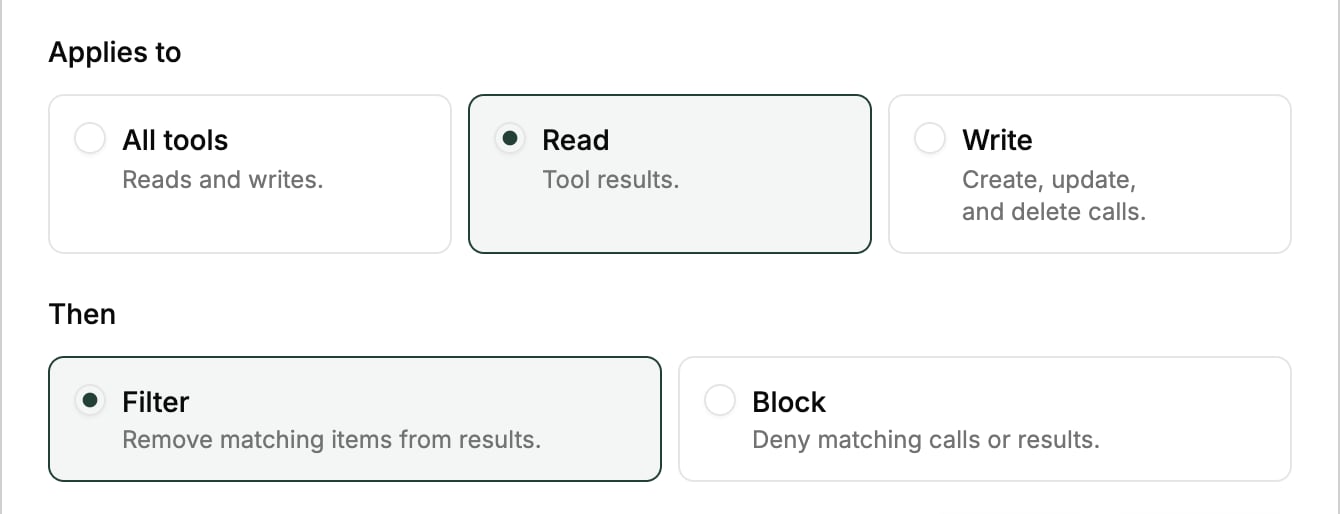 | Applies to | Filter | Block |
| - | - | - |
| **Read** | Returns the result with matching items removed | Denies the tool result if any item matches |
| **Write** | Not available — writes are always blocked outright | Denies the tool call if any item matches |
| **All tools** | Returns results with matching items removed, and denies matching tool calls | Denies matching tool calls and tool results |
## Create a conditional rule
1. Navigate to **Data Control Center → Field Controls**.
2. Click **Add Conditional Rule**.
3. Fill in the [rule settings](#rule-settings), then click **Add Rule**.
For the conditions and values each server supports, see
[Google Drive](/how-tos/data-control-center/field-controls/conditional-rules/google-drive)
and [Slack](/how-tos/data-control-center/field-controls/conditional-rules/slack).
This documentation is built and hosted on [Mintlify](https://mintlify.com), a developer documentation platform.
| Applies to | Filter | Block |
| - | - | - |
| **Read** | Returns the result with matching items removed | Denies the tool result if any item matches |
| **Write** | Not available — writes are always blocked outright | Denies the tool call if any item matches |
| **All tools** | Returns results with matching items removed, and denies matching tool calls | Denies matching tool calls and tool results |
## Create a conditional rule
1. Navigate to **Data Control Center → Field Controls**.
2. Click **Add Conditional Rule**.
3. Fill in the [rule settings](#rule-settings), then click **Add Rule**.
For the conditions and values each server supports, see
[Google Drive](/how-tos/data-control-center/field-controls/conditional-rules/google-drive)
and [Slack](/how-tos/data-control-center/field-controls/conditional-rules/slack).
This documentation is built and hosted on [Mintlify](https://mintlify.com), a developer documentation platform.