> ## Documentation Index
> Fetch the complete documentation index at: https://docs.barndoor.ai/llms.txt
> Use this file to discover all available pages before exploring further.
# Connecting Your Tools to the LLM Gateway
> Grab your API key, model route name, and gateway endpoint from the Barndoor portal, then point Cursor, Claude Code, Codex, or the OpenAI / Anthropic SDKs at the gateway.
This page is for developers. It assumes an admin has already configured a provider and at least one model — if **Available Models** is empty for you, ask your admin to work through the [Quickstart Guide](/how-tos/llm-gateway-quickstart) first.
## What You Need
Every tool below needs the same three values, all of which live in **Settings → My Models** in the Barndoor portal:
| Value | Looks like | Where to get it |
| ------------------------ | -------------------------------------------- | ------------------------------------------------------------------------------------------------------------------------------- |
| **API key** | `bd-…` | [app.barndoor.ai/settings/models?section=api-keys](https://app.barndoor.ai/settings/models?section=api-keys) → **Create Key** |
| **Model route name** | `gpt-4o-mini`, `claude-sonnet-5` | [app.barndoor.ai/settings/models?section=models](https://app.barndoor.ai/settings/models?section=models) → **Available Models** |
| **LLM Gateway endpoint** | `https://app.barndoor.ai/api/llm-gateway/v1` | [app.barndoor.ai/settings/models?section=endpoint](https://app.barndoor.ai/settings/models?section=endpoint) |
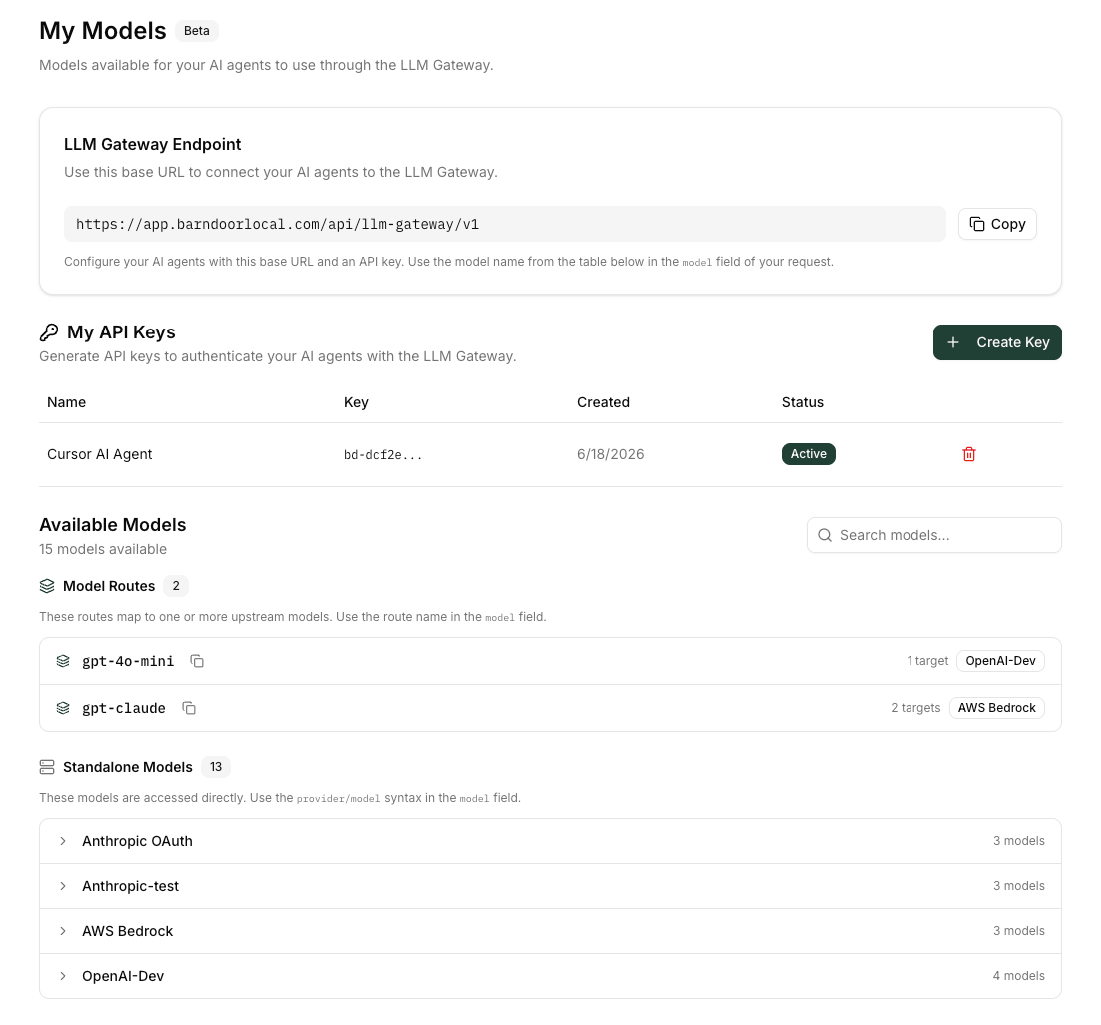 Open [**Settings → My Models → My API Keys**](https://app.barndoor.ai/settings/models?section=api-keys) and click **Create Key**. Give it a descriptive name (for example `Cursor on laptop`) and click **Create**.
The dialog shows a `bd-…` token — **copy it now**. Barndoor only stores a one-way hash of the key, so the raw value cannot be shown again.
Open [**Settings → My Models → My API Keys**](https://app.barndoor.ai/settings/models?section=api-keys) and click **Create Key**. Give it a descriptive name (for example `Cursor on laptop`) and click **Create**.
The dialog shows a `bd-…` token — **copy it now**. Barndoor only stores a one-way hash of the key, so the raw value cannot be shown again.
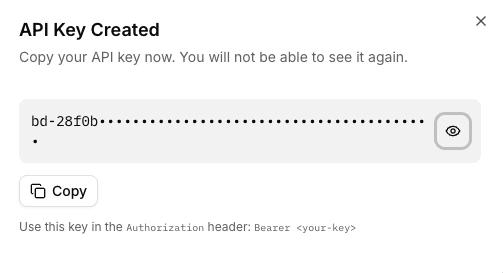 Under [**Available Models**](https://app.barndoor.ai/settings/models?section=models), the portal lists every model your admin has enabled and that your access policies allow. Use the name exactly as shown:
* **Model routes** (`gpt-4o-mini`, `claude-sonnet-5`, …) — use the plain name in the `model` field of your request.
* **Standalone models** — use the `provider/model` form (for example `openai/gpt-4o-mini`).
See [Model Naming](/how-tos/llm-gateway-quickstart#model-naming) for how the gateway resolves each form.
The [**LLM Gateway Endpoint**](https://app.barndoor.ai/settings/models?section=endpoint) card shows your base URL — it looks like `https://app.barndoor.ai/api/llm-gateway/v1`.
Under [**Available Models**](https://app.barndoor.ai/settings/models?section=models), the portal lists every model your admin has enabled and that your access policies allow. Use the name exactly as shown:
* **Model routes** (`gpt-4o-mini`, `claude-sonnet-5`, …) — use the plain name in the `model` field of your request.
* **Standalone models** — use the `provider/model` form (for example `openai/gpt-4o-mini`).
See [Model Naming](/how-tos/llm-gateway-quickstart#model-naming) for how the gateway resolves each form.
The [**LLM Gateway Endpoint**](https://app.barndoor.ai/settings/models?section=endpoint) card shows your base URL — it looks like `https://app.barndoor.ai/api/llm-gateway/v1`.
 OpenAI-style clients take the `/v1` form. Anthropic-style clients (the Anthropic SDK, Claude Code) append `/v1` themselves — give those the bare `https://app.barndoor.ai/api/llm-gateway` form.
Before configuring a tool, try all three from a shell. This separates auth problems from model-name problems, which look alike once an editor is in the middle:
```bash theme={null}
curl https://app.barndoor.ai/api/llm-gateway/v1/chat/completions \
-H "Authorization: Bearer bd-…" \
-H "Content-Type: application/json" \
-d '{
"model": "gpt-4o-mini",
"messages": [{"role": "user", "content": "Say hello"}]
}'
```
A `401` means the key or URL is wrong; a `404` means the model route name is wrong. More request shapes — streaming, embeddings, Anthropic Messages — are in [Sending Requests](/how-tos/llm-gateway-quickstart#sending-requests).
Treat `bd-…` keys like passwords. Use environment variables (not source control) to store them in your apps and editor configs.
**Self-hosted and private-cloud deployments:** if Barndoor is running on your own infrastructure, swap `app.barndoor.ai` for your organization's portal hostname everywhere on this page. The path (`/api/llm-gateway/v1`) is the same.
***
## Connect Your Tools
```python theme={null}
from openai import OpenAI
client = OpenAI(
base_url="https://app.barndoor.ai/api/llm-gateway/v1",
api_key="bd-…",
)
response = client.chat.completions.create(
model="gpt-4o-mini",
messages=[{"role": "user", "content": "Hello, gateway!"}],
)
print(response.choices[0].message.content)
```
Streaming, function calling, embeddings, and the Responses API all work the same way as against OpenAI directly.
```ts theme={null}
import OpenAI from "openai";
const client = new OpenAI({
baseURL: "https://app.barndoor.ai/api/llm-gateway/v1",
apiKey: process.env.BARNDOOR_API_KEY,
});
const response = await client.chat.completions.create({
model: "gpt-4o-mini",
messages: [{ role: "user", content: "Hello, gateway!" }],
});
console.log(response.choices[0]?.message?.content);
```
```python theme={null}
import anthropic
client = anthropic.Anthropic(
base_url="https://app.barndoor.ai/api/llm-gateway",
api_key="bd-…",
)
message = client.messages.create(
model="claude-sonnet-5",
max_tokens=256,
messages=[{"role": "user", "content": "Hello"}],
)
print(message.content[0].text)
```
The Anthropic SDK appends `/v1/messages` to `base_url` itself, so the base URL should *not* include `/v1`.
Claude Code talks to the gateway via `ANTHROPIC_BASE_URL`. The exact env-var setup depends on which kind of Anthropic provider your admin configured — a **shared API key** provider (everyone bills against one Anthropic key) or an **OAuth passthrough** provider (each developer bills against their personal Claude subscription). See [Step 1 → Anthropic OAuth passthrough](/how-tos/llm-gateway-quickstart#anthropic-oauth-passthrough-claude-code-subscribers) for the admin side.
Claude Code appends `/v1/messages` to `ANTHROPIC_BASE_URL` itself, so the base URL must **not** include `/v1`. If you copied the URL from **Settings → My Models**, strip the trailing `/v1`.
Use when the admin set up an Anthropic provider that authenticates upstream with a centralized API key.
```bash theme={null}
export ANTHROPIC_BASE_URL="https://app.barndoor.ai/api/llm-gateway"
export ANTHROPIC_AUTH_TOKEN="bd-…" # your LLM Gateway key from Settings → My Models
export ANTHROPIC_MODEL="claude-sonnet-5" # a model or route alias enabled in My Models
export CLAUDE_CODE_ENABLE_GATEWAY_MODEL_DISCOVERY=1
claude
```
Claude Code sends `bd-…` as `Authorization: Bearer`. The gateway authenticates the request with that key, then uses the admin-stored Anthropic API key to call Anthropic.
**Admins can issue keys on someone's behalf** from **LLM Management → API Keys**, assigned to a specific user, to a group, or to neither — a key with no assignee works for anyone in the organization who holds it.
Prefer a per-user or per-group key. An unassigned key carries no user identity, so per-user spend drill-down has nothing to attribute traffic to, and `user`-scoped model access policies can never match it. A group-assigned key keeps group-scoped policies working while still being one key for many people.
`ANTHROPIC_AUTH_TOKEN` takes the **bare key** — `bd-…`, not `x-api-key: bd-…`. The `x-api-key:` prefix belongs only in `ANTHROPIC_CUSTOM_HEADERS`, and only in the OAuth passthrough setup. Mixing the two produces a `401` because the gateway hashes the whole string as if it were a key.
Without `ANTHROPIC_MODEL`, Claude Code requests its default Anthropic model IDs (for example `claude-opus-4-8`, `claude-haiku-4-5`), which then must be enabled in **Settings → My Models** under those exact names. Setting `ANTHROPIC_MODEL` to one of your [Model Routes](/how-tos/llm-gateway-quickstart#step-5-define-model-routes) aliases avoids that dependency, and `CLAUDE_CODE_ENABLE_GATEWAY_MODEL_DISCOVERY=1` populates the `/model` picker from the gateway's `/v1/models`. That applies to **this** mode only — in OAuth passthrough Claude Code doesn't look models up, so the picker stays on its built-in names no matter what the flag is set to.
This mode requires every model you request to resolve to a provider with a **stored credential** (shared Anthropic API key, Bedrock, …). If a request lands on an **OAuth passthrough** provider, the gateway rejects it with `401 — Anthropic provider requires an incoming Claude OAuth bearer token`; switch to the OAuth passthrough setup for those routes.
Use when the admin set up an **Anthropic OAuth passthrough** provider — every request bills against the user's personal Claude subscription. Claude Code already attaches your logged-in OAuth bearer in `Authorization`, so Barndoor's gateway key has to go in a separate `x-api-key` header so the two don't collide:
```bash theme={null}
export ANTHROPIC_BASE_URL="https://app.barndoor.ai/api/llm-gateway"
unset ANTHROPIC_API_KEY
unset ANTHROPIC_AUTH_TOKEN
export ANTHROPIC_CUSTOM_HEADERS="x-api-key: bd-…" # your LLM Gateway key from Settings → My Models
export ANTHROPIC_MODEL="claude-opus-4-8" # a model or route alias enabled in My Models
claude
```
Make sure you're logged into Claude (`claude /login` if not). Claude Code refreshes the `sk-ant-oat…` OAuth bearer for you and the gateway forwards it verbatim to Anthropic. Set `ANTHROPIC_MODEL` to whichever alias you've configured in [Model Routes](/how-tos/llm-gateway-quickstart#step-5-define-model-routes) — the `ANTHROPIC_DEFAULT_*_MODEL` variables only apply to provider configs (Bedrock, Vertex, …), not `ANTHROPIC_BASE_URL` gateways. `CLAUDE_CODE_ENABLE_GATEWAY_MODEL_DISCOVERY` has no effect in this mode — Claude Code makes no startup `/v1/models` call when it authenticates by OAuth passthrough, so the `/model` picker stays on its built-in names and `ANTHROPIC_MODEL` is what actually decides the route.
**Verify your env before launching `claude`.** A wrong combination is the most common setup pitfall, and the failure mode is often a silent retry rather than a useful error.
```bash theme={null}
env | grep -E '^ANTHROPIC_|^CLAUDE_CODE_'
```
| Setup | Expect to see | Expect to be absent |
| ----------------- | -------------------------------------------------------------- | --------------------------------------------------------------------------------------- |
| Shared API key | `ANTHROPIC_BASE_URL`, `ANTHROPIC_AUTH_TOKEN` (bare `bd-…` key) | `ANTHROPIC_CUSTOM_HEADERS`, `ANTHROPIC_API_KEY` |
| OAuth passthrough | `ANTHROPIC_BASE_URL`, `ANTHROPIC_CUSTOM_HEADERS` | `ANTHROPIC_AUTH_TOKEN`, `ANTHROPIC_API_KEY`, `CLAUDE_CODE_DISABLE_NONESSENTIAL_TRAFFIC` |
Then confirm the key and base URL work before launching `claude` — this isolates auth problems from model-name problems:
```bash theme={null}
curl "$ANTHROPIC_BASE_URL/v1/models" -H "Authorization: Bearer bd-…"
```
A model list means auth is good (any remaining failure is model naming); a `401` means the key or URL is wrong.
**Spot-check which route served the request.** The `model` field in the Anthropic response always echoes back the model that actually answered — so if you've configured a failover alias like `claude-opus-4-8` with an Anthropic OAuth primary and a Bedrock fallback, an Anthropic-style ID confirms the primary served it, and a Bedrock-style ID (e.g. `us.anthropic.claude-opus-4-8`) means failover engaged. This works on every response, success or not — the [observability headers](/how-tos/llm-gateway-quickstart#observability-headers) carry the same info on successful chat / messages responses.
Recent Claude Code versions don't expose a plaintext credentials file. If you have a shell snippet that pipes `jq` over that path to extract an OAuth token, remove it — Claude Code handles the OAuth token internally and your only job is to set the env vars in the tabs above.
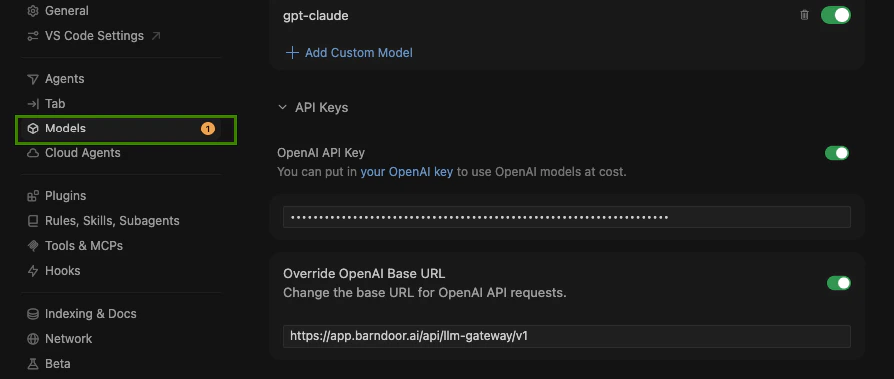
Cursor lets you add custom OpenAI-compatible providers under **Settings → Models → OpenAI API Key → Override OpenAI Base URL**:
1. Toggle **Custom OpenAI API Key**.
2. Set the base URL to `https://app.barndoor.ai/api/llm-gateway/v1`.
3. Paste your `bd-…` key as the API key.
4. Add the model names (for example `gpt-4o-mini`, `claude-sonnet-5`) that you want Cursor to be able to select.
OpenAI-style clients take the `/v1` form. Anthropic-style clients (the Anthropic SDK, Claude Code) append `/v1` themselves — give those the bare `https://app.barndoor.ai/api/llm-gateway` form.
Before configuring a tool, try all three from a shell. This separates auth problems from model-name problems, which look alike once an editor is in the middle:
```bash theme={null}
curl https://app.barndoor.ai/api/llm-gateway/v1/chat/completions \
-H "Authorization: Bearer bd-…" \
-H "Content-Type: application/json" \
-d '{
"model": "gpt-4o-mini",
"messages": [{"role": "user", "content": "Say hello"}]
}'
```
A `401` means the key or URL is wrong; a `404` means the model route name is wrong. More request shapes — streaming, embeddings, Anthropic Messages — are in [Sending Requests](/how-tos/llm-gateway-quickstart#sending-requests).
Treat `bd-…` keys like passwords. Use environment variables (not source control) to store them in your apps and editor configs.
**Self-hosted and private-cloud deployments:** if Barndoor is running on your own infrastructure, swap `app.barndoor.ai` for your organization's portal hostname everywhere on this page. The path (`/api/llm-gateway/v1`) is the same.
***
## Connect Your Tools
```python theme={null}
from openai import OpenAI
client = OpenAI(
base_url="https://app.barndoor.ai/api/llm-gateway/v1",
api_key="bd-…",
)
response = client.chat.completions.create(
model="gpt-4o-mini",
messages=[{"role": "user", "content": "Hello, gateway!"}],
)
print(response.choices[0].message.content)
```
Streaming, function calling, embeddings, and the Responses API all work the same way as against OpenAI directly.
```ts theme={null}
import OpenAI from "openai";
const client = new OpenAI({
baseURL: "https://app.barndoor.ai/api/llm-gateway/v1",
apiKey: process.env.BARNDOOR_API_KEY,
});
const response = await client.chat.completions.create({
model: "gpt-4o-mini",
messages: [{ role: "user", content: "Hello, gateway!" }],
});
console.log(response.choices[0]?.message?.content);
```
```python theme={null}
import anthropic
client = anthropic.Anthropic(
base_url="https://app.barndoor.ai/api/llm-gateway",
api_key="bd-…",
)
message = client.messages.create(
model="claude-sonnet-5",
max_tokens=256,
messages=[{"role": "user", "content": "Hello"}],
)
print(message.content[0].text)
```
The Anthropic SDK appends `/v1/messages` to `base_url` itself, so the base URL should *not* include `/v1`.
Claude Code talks to the gateway via `ANTHROPIC_BASE_URL`. The exact env-var setup depends on which kind of Anthropic provider your admin configured — a **shared API key** provider (everyone bills against one Anthropic key) or an **OAuth passthrough** provider (each developer bills against their personal Claude subscription). See [Step 1 → Anthropic OAuth passthrough](/how-tos/llm-gateway-quickstart#anthropic-oauth-passthrough-claude-code-subscribers) for the admin side.
Claude Code appends `/v1/messages` to `ANTHROPIC_BASE_URL` itself, so the base URL must **not** include `/v1`. If you copied the URL from **Settings → My Models**, strip the trailing `/v1`.
Use when the admin set up an Anthropic provider that authenticates upstream with a centralized API key.
```bash theme={null}
export ANTHROPIC_BASE_URL="https://app.barndoor.ai/api/llm-gateway"
export ANTHROPIC_AUTH_TOKEN="bd-…" # your LLM Gateway key from Settings → My Models
export ANTHROPIC_MODEL="claude-sonnet-5" # a model or route alias enabled in My Models
export CLAUDE_CODE_ENABLE_GATEWAY_MODEL_DISCOVERY=1
claude
```
Claude Code sends `bd-…` as `Authorization: Bearer`. The gateway authenticates the request with that key, then uses the admin-stored Anthropic API key to call Anthropic.
**Admins can issue keys on someone's behalf** from **LLM Management → API Keys**, assigned to a specific user, to a group, or to neither — a key with no assignee works for anyone in the organization who holds it.
Prefer a per-user or per-group key. An unassigned key carries no user identity, so per-user spend drill-down has nothing to attribute traffic to, and `user`-scoped model access policies can never match it. A group-assigned key keeps group-scoped policies working while still being one key for many people.
`ANTHROPIC_AUTH_TOKEN` takes the **bare key** — `bd-…`, not `x-api-key: bd-…`. The `x-api-key:` prefix belongs only in `ANTHROPIC_CUSTOM_HEADERS`, and only in the OAuth passthrough setup. Mixing the two produces a `401` because the gateway hashes the whole string as if it were a key.
Without `ANTHROPIC_MODEL`, Claude Code requests its default Anthropic model IDs (for example `claude-opus-4-8`, `claude-haiku-4-5`), which then must be enabled in **Settings → My Models** under those exact names. Setting `ANTHROPIC_MODEL` to one of your [Model Routes](/how-tos/llm-gateway-quickstart#step-5-define-model-routes) aliases avoids that dependency, and `CLAUDE_CODE_ENABLE_GATEWAY_MODEL_DISCOVERY=1` populates the `/model` picker from the gateway's `/v1/models`. That applies to **this** mode only — in OAuth passthrough Claude Code doesn't look models up, so the picker stays on its built-in names no matter what the flag is set to.
This mode requires every model you request to resolve to a provider with a **stored credential** (shared Anthropic API key, Bedrock, …). If a request lands on an **OAuth passthrough** provider, the gateway rejects it with `401 — Anthropic provider requires an incoming Claude OAuth bearer token`; switch to the OAuth passthrough setup for those routes.
Use when the admin set up an **Anthropic OAuth passthrough** provider — every request bills against the user's personal Claude subscription. Claude Code already attaches your logged-in OAuth bearer in `Authorization`, so Barndoor's gateway key has to go in a separate `x-api-key` header so the two don't collide:
```bash theme={null}
export ANTHROPIC_BASE_URL="https://app.barndoor.ai/api/llm-gateway"
unset ANTHROPIC_API_KEY
unset ANTHROPIC_AUTH_TOKEN
export ANTHROPIC_CUSTOM_HEADERS="x-api-key: bd-…" # your LLM Gateway key from Settings → My Models
export ANTHROPIC_MODEL="claude-opus-4-8" # a model or route alias enabled in My Models
claude
```
Make sure you're logged into Claude (`claude /login` if not). Claude Code refreshes the `sk-ant-oat…` OAuth bearer for you and the gateway forwards it verbatim to Anthropic. Set `ANTHROPIC_MODEL` to whichever alias you've configured in [Model Routes](/how-tos/llm-gateway-quickstart#step-5-define-model-routes) — the `ANTHROPIC_DEFAULT_*_MODEL` variables only apply to provider configs (Bedrock, Vertex, …), not `ANTHROPIC_BASE_URL` gateways. `CLAUDE_CODE_ENABLE_GATEWAY_MODEL_DISCOVERY` has no effect in this mode — Claude Code makes no startup `/v1/models` call when it authenticates by OAuth passthrough, so the `/model` picker stays on its built-in names and `ANTHROPIC_MODEL` is what actually decides the route.
**Verify your env before launching `claude`.** A wrong combination is the most common setup pitfall, and the failure mode is often a silent retry rather than a useful error.
```bash theme={null}
env | grep -E '^ANTHROPIC_|^CLAUDE_CODE_'
```
| Setup | Expect to see | Expect to be absent |
| ----------------- | -------------------------------------------------------------- | --------------------------------------------------------------------------------------- |
| Shared API key | `ANTHROPIC_BASE_URL`, `ANTHROPIC_AUTH_TOKEN` (bare `bd-…` key) | `ANTHROPIC_CUSTOM_HEADERS`, `ANTHROPIC_API_KEY` |
| OAuth passthrough | `ANTHROPIC_BASE_URL`, `ANTHROPIC_CUSTOM_HEADERS` | `ANTHROPIC_AUTH_TOKEN`, `ANTHROPIC_API_KEY`, `CLAUDE_CODE_DISABLE_NONESSENTIAL_TRAFFIC` |
Then confirm the key and base URL work before launching `claude` — this isolates auth problems from model-name problems:
```bash theme={null}
curl "$ANTHROPIC_BASE_URL/v1/models" -H "Authorization: Bearer bd-…"
```
A model list means auth is good (any remaining failure is model naming); a `401` means the key or URL is wrong.
**Spot-check which route served the request.** The `model` field in the Anthropic response always echoes back the model that actually answered — so if you've configured a failover alias like `claude-opus-4-8` with an Anthropic OAuth primary and a Bedrock fallback, an Anthropic-style ID confirms the primary served it, and a Bedrock-style ID (e.g. `us.anthropic.claude-opus-4-8`) means failover engaged. This works on every response, success or not — the [observability headers](/how-tos/llm-gateway-quickstart#observability-headers) carry the same info on successful chat / messages responses.
Recent Claude Code versions don't expose a plaintext credentials file. If you have a shell snippet that pipes `jq` over that path to extract an OAuth token, remove it — Claude Code handles the OAuth token internally and your only job is to set the env vars in the tabs above.
Cursor lets you add custom OpenAI-compatible providers under **Settings → Models → OpenAI API Key → Override OpenAI Base URL**:
1. Toggle **Custom OpenAI API Key**.
2. Set the base URL to `https://app.barndoor.ai/api/llm-gateway/v1`.
3. Paste your `bd-…` key as the API key.
4. Add the model names (for example `gpt-4o-mini`, `claude-sonnet-5`) that you want Cursor to be able to select.
 Codex uses the OpenAI **Responses** API (`wire_api = "responses"`), not Chat Completions. Point a custom provider at the gateway and keep `/v1` on the base URL — Codex appends `/responses` itself.
```toml theme={null}
model_provider = "barndoor"
model = "gpt-4o-mini"
[model_providers.barndoor]
name = "Barndoor"
base_url = "https://app.barndoor.ai/api/llm-gateway/v1"
wire_api = "responses"
env_key = "BARNDOOR_API_KEY"
```
```bash theme={null}
export BARNDOOR_API_KEY="bd-…"
codex
```
`env_key` is the environment variable *name*; the `export` is the secret value. A missing `/v1` produces `401 invalid JWT header: InvalidToken`.
Full steps for CLI and Desktop, plus troubleshooting: **[Use Codex with the LLM Gateway](/how-tos/use-codex-with-llm-gateway)**.
```python theme={null}
from langchain_openai import ChatOpenAI
llm = ChatOpenAI(
model="gpt-4o-mini",
base_url="https://app.barndoor.ai/api/llm-gateway/v1",
api_key="bd-…",
)
print(llm.invoke("Hello, gateway!").content)
```
`ChatAnthropic`, `OpenAIEmbeddings`, and the rest of the OpenAI-style integrations behave the same way — set `base_url`/`anthropic_api_url` and `api_key`.
Use any of the examples in [Sending Requests](/how-tos/llm-gateway-quickstart#sending-requests). For CI and shell scripts, export the URL and key once:
```bash theme={null}
export BARNDOOR_BASE_URL="https://app.barndoor.ai/api/llm-gateway/v1"
export BARNDOOR_API_KEY="bd-…"
curl "$BARNDOOR_BASE_URL/models" -H "Authorization: Bearer $BARNDOOR_API_KEY"
```
***
## Related
* [Using the LLM Gateway](/how-tos/use-llm-gateway) — overview, architecture, and prerequisites
* [Quickstart Guide](/how-tos/llm-gateway-quickstart) — admin setup, request reference, and [troubleshooting](/how-tos/llm-gateway-quickstart#troubleshooting)
* [Use Codex with the LLM Gateway](/how-tos/use-codex-with-llm-gateway) — the full Codex CLI and Desktop walkthrough
* [Get the most out of your Claude subscription](/how-tos/llm-gateway-failover) — run Claude Code on your own Claude seat and fail over when you hit the cap
Codex uses the OpenAI **Responses** API (`wire_api = "responses"`), not Chat Completions. Point a custom provider at the gateway and keep `/v1` on the base URL — Codex appends `/responses` itself.
```toml theme={null}
model_provider = "barndoor"
model = "gpt-4o-mini"
[model_providers.barndoor]
name = "Barndoor"
base_url = "https://app.barndoor.ai/api/llm-gateway/v1"
wire_api = "responses"
env_key = "BARNDOOR_API_KEY"
```
```bash theme={null}
export BARNDOOR_API_KEY="bd-…"
codex
```
`env_key` is the environment variable *name*; the `export` is the secret value. A missing `/v1` produces `401 invalid JWT header: InvalidToken`.
Full steps for CLI and Desktop, plus troubleshooting: **[Use Codex with the LLM Gateway](/how-tos/use-codex-with-llm-gateway)**.
```python theme={null}
from langchain_openai import ChatOpenAI
llm = ChatOpenAI(
model="gpt-4o-mini",
base_url="https://app.barndoor.ai/api/llm-gateway/v1",
api_key="bd-…",
)
print(llm.invoke("Hello, gateway!").content)
```
`ChatAnthropic`, `OpenAIEmbeddings`, and the rest of the OpenAI-style integrations behave the same way — set `base_url`/`anthropic_api_url` and `api_key`.
Use any of the examples in [Sending Requests](/how-tos/llm-gateway-quickstart#sending-requests). For CI and shell scripts, export the URL and key once:
```bash theme={null}
export BARNDOOR_BASE_URL="https://app.barndoor.ai/api/llm-gateway/v1"
export BARNDOOR_API_KEY="bd-…"
curl "$BARNDOOR_BASE_URL/models" -H "Authorization: Bearer $BARNDOOR_API_KEY"
```
***
## Related
* [Using the LLM Gateway](/how-tos/use-llm-gateway) — overview, architecture, and prerequisites
* [Quickstart Guide](/how-tos/llm-gateway-quickstart) — admin setup, request reference, and [troubleshooting](/how-tos/llm-gateway-quickstart#troubleshooting)
* [Use Codex with the LLM Gateway](/how-tos/use-codex-with-llm-gateway) — the full Codex CLI and Desktop walkthrough
* [Get the most out of your Claude subscription](/how-tos/llm-gateway-failover) — run Claude Code on your own Claude seat and fail over when you hit the cap