> ## Documentation Index
> Fetch the complete documentation index at: https://docs.barndoor.ai/llms.txt
> Use this file to discover all available pages before exploring further.
# Lock Down Claude Enterprise to One Barndoor URL
> How to configure Claude with Barndoor to manage the MCP access of your organization's users.
If you are a Claude Team or Enterprise admin, the Barndoor ToolIQ MCP simplifies your users' experience accessing your organization's business systems while giving IT the access-control and governance tooling to ensure AI is adopted safely.
Instead of configuring, exposing, and managing a separate connector MCP for every system your organization uses — and training users on when to enable or disable each one — you configure a single Barndoor ToolIQ URL and let the Barndoor platform handle all the downstream access control and interactions. Your users then connect through that single entry point, while Barndoor decides which MCP servers, tools, and policies apply to them at runtime.
**Best For**: Enterprise teams that want one controlled Claude connector, centralized policy enforcement, and a simpler rollout and experience for users.
## What This Achieves
With this setup:
* Claude Enterprise admins add one Barndoor connector to the Claude organization
* Claude users connect to the single connector instead of needing to select individual app connectors per prompt, command, or skill
* Barndoor controls which MCP servers and tool calls are available by user, group or role
* Fine-grained access policies are enforced in Barndoor
* New MCP servers and policy changes can be rolled out via Barndoor without requiring any change in Claude
## Before You Begin
Before setting this up, make sure you have:
* Claude Enterprise owner or admin access with permission to manage organization connectors
* Your Barndoor ToolIQ MCP URL from the [Barndoor AI Client Setup](https://app.barndoor.ai/settings/ai-client-setup) page
* At least one registered Barndoor agent
* At least one connected MCP server in Barndoor
* Production policies prepared or in draft for the users and agents you plan to roll out
This guide assumes you want Claude users to enter through one Barndoor-controlled MCP endpoint. The governance model lives in Barndoor, so Claude stays simple while Barndoor handles server access, policy enforcement, and auditability.
## Step 1: Prepare Barndoor First
Before touching Claude, confirm the Barndoor side is ready.
* Your production MCP servers are registered and connected
* The Barndoor ToolIQ URL is available in your setup page
* The correct Barndoor agent is registered
* Policies are created in `DRAFT` or `ACTIVE` as appropriate
* Tool access has been reviewed for the MCP servers included in launch
* Test users or pilot users are identified
If these pieces are not in place first, Claude users may connect successfully but see the wrong tools or fail policy checks later.
References:
* [Registering MCP Servers](/how-tos/add-an-mcp-server)
* [Adding Your Agents](/how-tos/add-an-agent)
* [Managing Policies](/how-tos/manage-policies)
## Step 2: Copy the Barndoor ToolIQ URL
Go to your Barndoor AI Client Setup page and copy the ToolIQ MCP endpoint for your organization.
This will be the single connector URL you want Claude Enterprise to expose to users.
Do not create one Claude connector per downstream system unless you have a special exception. The point of this pattern is to centralize Claude access behind one Barndoor-controlled MCP.
## Step 3: Add the Connector in Claude Enterprise
In Claude Enterprise, the organization owner adds the connector once for the whole organization.
In Claude, go to **Organization Settings > Connectors**.
Click **Add custom connector**.
Give it a recognizable name, such as **Barndoor**.
Paste your Barndoor MCP URL, for example:
```text theme={null}
https://your-org.platform.barndoor.ai/mcp
```
You won't need to configure any Claude-side OAuth credentials — only the Barndoor URL is required.
Save the connector so it becomes available to your Claude organization.
At this point, Claude has one approved enterprise connector, and that connector points to Barndoor rather than directly to a single downstream MCP server.
## Step 4: Expose the Connector to Claude Org Users
After the owner adds the connector, Claude users can connect to it individually.
Users go to **Settings > Connectors** in Claude.
Users find the Barndoor connector that was added by the Claude Enterprise admin. It will appear under the organization connectors section, distinct from any personal or directory connectors.
Users click **Connect** and complete the authentication flow to Barndoor.
Users start a new Claude conversation with the approved Barndoor connector enabled.
Users are connecting to one Claude-approved Barndoor entry point. They are not managing separate Salesforce, Slack, Notion, Snowflake, etc. connectors inside Claude.
## Step 5: Validate the Runtime Experience
Before broad rollout, test the connector with pilot users. The pilot users should have the "User" role in Claude.
* Confirm the Claude org sees only the approved Barndoor connector
* Confirm users cannot add custom connectors in their customization settings
* Confirm users can connect successfully
* Confirm the expected Barndoor-managed tools are exposed in Claude
* Confirm that for a system with both a Barndoor route and a native connector, Claude chooses the Barndoor route
* Confirm tools not allowed by policy do not appear or are denied correctly
* Confirm at least one allowed workflow succeeds end to end
* Confirm at least one denied workflow is blocked correctly
* Confirm the enforcement result is visible in Barndoor logs
References:
* [Go-Live Checklist](/how-tos/go-live-checklist)
* [Managing Policies](/how-tos/manage-policies)
Once pilot validation is complete:
* Roll the connector out to the rest of the Claude organization
* Keep the connector URL stable
* Add or remove MCP server access in Barndoor as needed
* Update policies in Barndoor without retraining users on connector setup
* Use Barndoor logs and policy summary views to monitor adoption and enforcement
This gives you a clean enterprise model: one Claude connector, one Barndoor ToolIQ URL, many governed downstream systems.
## Advanced Bypass Prevention settings
### Network-Level Enforcement
The most reliable way to ensure all MCP traffic routes through Barndoor is to enforce it at the network layer.
* Allowlist only your Barndoor production URL at the corporate firewall or proxy
* Block outbound connections to known MCP endpoints for systems like Salesforce, Slack, Snowflake, and others that are governed by Barndoor
* This ensures that even if a user adds a direct connector in Claude, the connection will fail at the network boundary
This approach does not require changes inside Claude and applies uniformly across Claude.ai, Claude Desktop, and Claude Code.
### Managed MCP Configuration (Claude Desktop & Claude Code)
***Enterprise accounts only***
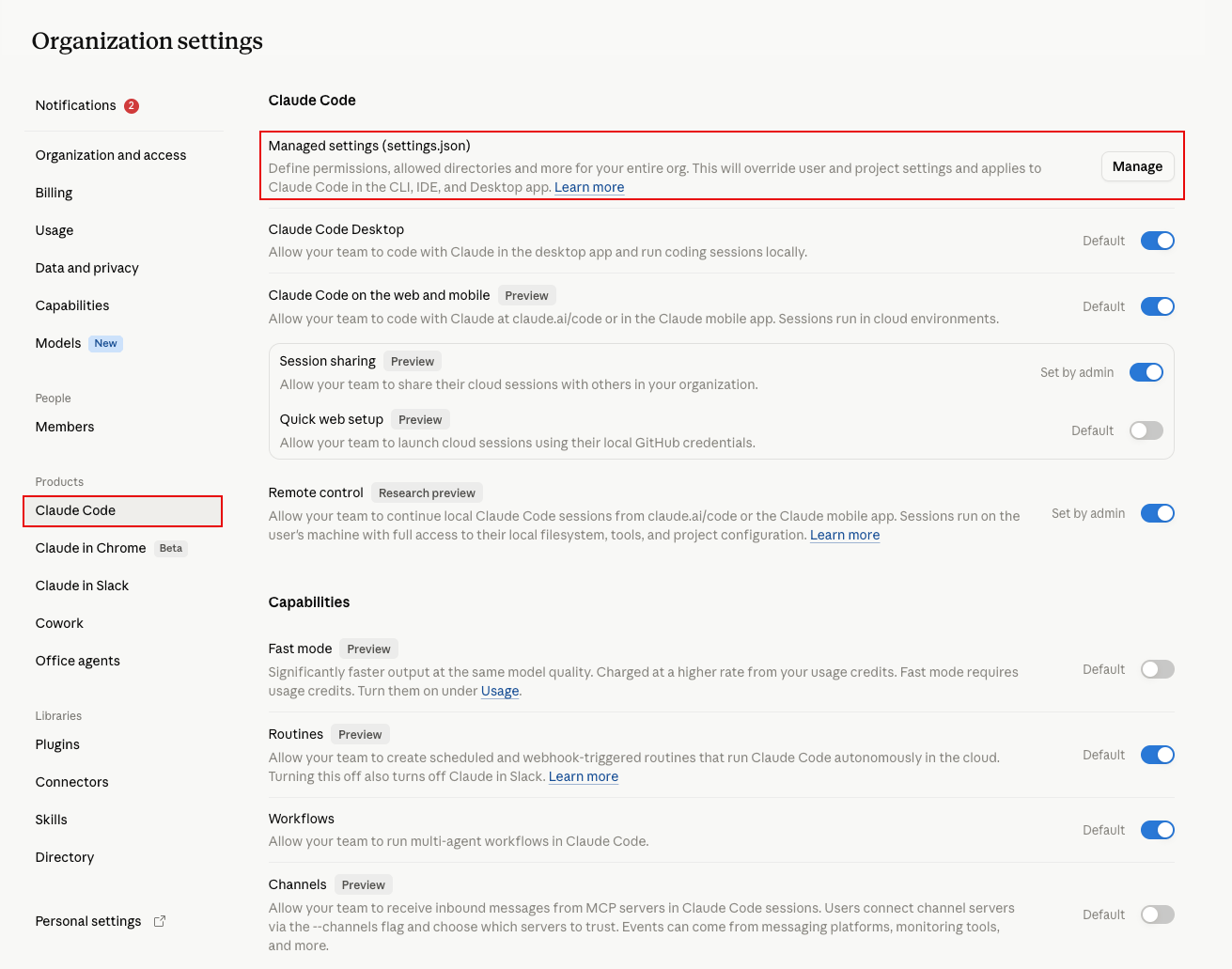 For organizations using **Claude Desktop** or **Claude Code**, a managed `managed-mcp.json` file takes *exclusive* control of MCP connections on the machine. This is the strongest client-side lockdown: it removes the user's ability to define their own MCP servers, parameters, paths, or environment variables entirely — not just filter them.
#### Claude Desktop
Create and deploy a `managed-mcp.json` file that defines only the Barndoor URL:
```json theme={null}
{
"mcpServers": {
"barndoor": {
"type": "http",
"url": "https://your-org.platform.barndoor.ai/mcp",
"description": "All MCP access through Barndoor"
}
}
}
```
When this file is deployed, users cannot add, modify, or remove MCP servers through Claude Desktop. Only the servers defined in the managed config are available.
#### Claude Code (absolute lockdown)
A soft control — an allowlist or an organization instruction — can still be worked around. A determined user might point Claude at an unauthorized MCP server that happens to match a generic naming convention or allowlist string. To remove that possibility entirely on Claude Code, deploy a system-level `managed-mcp.json`.
Drop a standalone `managed-mcp.json` file into the system config directory for the platform:
| OS | Path |
| ----------- | ------------------------------------------ |
| macOS | `/Library/Application Support/ClaudeCode/` |
| Linux / WSL | `/etc/claude-code/` |
| Windows | `C:\Program Files\ClaudeCode\` |
Define the exact Barndoor endpoint, and only that:
```json theme={null}
{
"mcpServers": {
"barndoor": {
"type": "http",
"url": "https://your-org.platform.barndoor.ai/mcp"
}
}
}
```
Once this file is present, Claude Code switches to a strict "only load what is explicitly defined here" state:
* Users cannot add, modify, or use any other MCP server — including plugin-provided servers.
* Any user-defined local parameters, paths, or environment variables for those connections are discarded.
* Native claude.ai connectors are **suppressed by default** (unless an admin explicitly sets `"allowAllClaudeAiMcps": true`), which directly closes the "Claude reaches for a native connector on its own" gap.
Verify the deployment on a managed machine:
```bash theme={null}
# Should list only the Barndoor server
claude mcp list
# Should fail with an enterprise-config error
claude mcp add --transport http test https://example.com/mcp
```
Roll `managed-mcp.json` out at fleet scale with your device management tooling — Jamf or a configuration profile on macOS, Group Policy or Intune on Windows. Anthropic publishes starter MDM templates at [github.com/anthropics/claude-code/tree/main/examples/mdm](https://github.com/anthropics/claude-code/tree/main/examples/mdm). Pair the rollout with spend-limit controls to cap API token consumption.
Managed MCP configuration applies to the Claude Desktop and Claude Code clients on managed machines. It does not control connectors added through the Claude.ai web interface or mobile apps. Pair this with network controls (Option 1) for full coverage.
### Steer Claude with Organization Instructions
This control targets the second bypass vector — Claude defaulting to a native connector even when Barndoor is enabled. Claude Team and Enterprise admins can set organization-wide custom instructions under **Organization Settings > Organization and Access**. Well-crafted instructions push Claude to route through Barndoor first and treat native connectors only as a fallback.
**This is a behavioral steer, not a hard control.** Claude generally follows clear instructions, but model adherence is not guaranteed. Layer it on top of network or desktop enforcement (Options 1 and 2) rather than relying on it alone.
In the Organization Instructions box, add language such as the below:
```text theme={null}
When accessing any external service (Jira, Confluence, Slack, Salesforce,
Google, etc.), always route calls through the
connector using its execute_tool tool. Never call stock/native Claude
connectors (e.g., Atlassian Rovo, Gmail, etc.) directly. Only fall back to a
stock connector if is explicitly unavailable
or returns a connection error.
```
Replace `` with the exact name of your Barndoor connector as it appears in Claude (for example, `Barndoor`).
**Why this phrasing works:**
* **Say "always," not "prefer."** Soft verbs like "prefer," "optimize by using Barndoor," or "use Barndoor when available" produce inconsistent results — sometimes Claude routes through Barndoor, sometimes it overrules and uses the native connector. Absolute "always" / "never" framing is far more reliable.
* **Name the `execute_tool` tool explicitly.** Pointing Claude at the specific tool it should call removes ambiguity about *how* to route through Barndoor.
* **Broaden the scope beyond one system.** Listing several services (Jira, Confluence, Slack, Salesforce, Google) rather than naming just one signals that the rule applies to all external access, not a single integration.
* **Include explicit fallback language.** Telling Claude to fall back to a stock connector only when Barndoor is unavailable keeps it functional for systems Barndoor doesn't yet govern, instead of failing when a service isn't behind Barndoor.
Validate this in your environment as many organizations have additional text for Organization Instructions. Run a few prompts that target systems with both a Barndoor route and a native connector, and confirm Claude chooses Barndoor. Re-test after any major Claude model update, since steering behavior can shift between versions.
### Acceptable Use Policy
For organizations that cannot enforce controls at the network or desktop level, pair your rollout with a clear acceptable use policy that:
* Requires all Claude MCP connections to route through the approved Barndoor URL
* Prohibits adding custom MCP connectors that connect directly to governed systems
* Uses Barndoor enforcement logs to detect unexpected tool usage patterns
### Summary: Layered Defense
For a complete lockdown, combine these approaches:
| Layer | Control | Coverage | Strength |
| ------------- | ------------------------------------------------- | -------------------------------- | ------------------ |
| Network | Firewall allowlist for Barndoor URL only | Claude.ai, Desktop, Code, Mobile | Hard |
| Client config | `managed-mcp.json` deployment | Claude Desktop & Claude Code | Hard |
| Instructions | Org-wide custom instructions steering to Barndoor | Claude.ai, Code, workspace | Soft (best-effort) |
| Policy | Acceptable use policy + Barndoor audit logs | All surfaces | Soft |
## Operational Best Practices
* Use one Claude Enterprise connector per Barndoor environment, not per downstream app
* Keep production users on the production Barndoor URL only
* Test policy changes in `DRAFT` before activating them
* Use Barndoor policies to control access instead of relying on user behavior inside Claude
* Keep the Claude connector rollout narrow at first, then expand by user group or team
* Use Barndoor enforcement logs to investigate denied or unexpected actions
* Set organization instructions (**Settings > General**) to steer Claude toward the Barndoor connector, and re-validate the wording after major Claude model updates
## Troubleshooting
Check Barndoor first. The most common causes are:
* the wrong MCP servers are connected
* policies are still in `DRAFT`
* the user or agent is out of scope for the active policy
* the allowed tools were not enabled in the policy model
Review the active Barndoor policies and enforcement logs. Confirm whether the denial is expected and which policy caused it.
Keep the single connector model and separate access in Barndoor through server selection, user identity, group mapping, and policies. Do not solve this by creating many duplicate Claude connectors unless you have a strict org-level reason.
You can keep the same Claude connector and expand the governed systems behind it in Barndoor, as long as you update server connectivity and policies before rollout.
## Next Steps
* Review the [Go-Live Checklist](/how-tos/go-live-checklist) before organization-wide release
* Finalize your v2 policies in [Managing Policies](/how-tos/manage-policies)
* Use [Connect AI clients to Barndoor](/how-tos/connecting-barndoor-to-agents) for the broader multi-client connection guide
For organizations using **Claude Desktop** or **Claude Code**, a managed `managed-mcp.json` file takes *exclusive* control of MCP connections on the machine. This is the strongest client-side lockdown: it removes the user's ability to define their own MCP servers, parameters, paths, or environment variables entirely — not just filter them.
#### Claude Desktop
Create and deploy a `managed-mcp.json` file that defines only the Barndoor URL:
```json theme={null}
{
"mcpServers": {
"barndoor": {
"type": "http",
"url": "https://your-org.platform.barndoor.ai/mcp",
"description": "All MCP access through Barndoor"
}
}
}
```
When this file is deployed, users cannot add, modify, or remove MCP servers through Claude Desktop. Only the servers defined in the managed config are available.
#### Claude Code (absolute lockdown)
A soft control — an allowlist or an organization instruction — can still be worked around. A determined user might point Claude at an unauthorized MCP server that happens to match a generic naming convention or allowlist string. To remove that possibility entirely on Claude Code, deploy a system-level `managed-mcp.json`.
Drop a standalone `managed-mcp.json` file into the system config directory for the platform:
| OS | Path |
| ----------- | ------------------------------------------ |
| macOS | `/Library/Application Support/ClaudeCode/` |
| Linux / WSL | `/etc/claude-code/` |
| Windows | `C:\Program Files\ClaudeCode\` |
Define the exact Barndoor endpoint, and only that:
```json theme={null}
{
"mcpServers": {
"barndoor": {
"type": "http",
"url": "https://your-org.platform.barndoor.ai/mcp"
}
}
}
```
Once this file is present, Claude Code switches to a strict "only load what is explicitly defined here" state:
* Users cannot add, modify, or use any other MCP server — including plugin-provided servers.
* Any user-defined local parameters, paths, or environment variables for those connections are discarded.
* Native claude.ai connectors are **suppressed by default** (unless an admin explicitly sets `"allowAllClaudeAiMcps": true`), which directly closes the "Claude reaches for a native connector on its own" gap.
Verify the deployment on a managed machine:
```bash theme={null}
# Should list only the Barndoor server
claude mcp list
# Should fail with an enterprise-config error
claude mcp add --transport http test https://example.com/mcp
```
Roll `managed-mcp.json` out at fleet scale with your device management tooling — Jamf or a configuration profile on macOS, Group Policy or Intune on Windows. Anthropic publishes starter MDM templates at [github.com/anthropics/claude-code/tree/main/examples/mdm](https://github.com/anthropics/claude-code/tree/main/examples/mdm). Pair the rollout with spend-limit controls to cap API token consumption.
Managed MCP configuration applies to the Claude Desktop and Claude Code clients on managed machines. It does not control connectors added through the Claude.ai web interface or mobile apps. Pair this with network controls (Option 1) for full coverage.
### Steer Claude with Organization Instructions
This control targets the second bypass vector — Claude defaulting to a native connector even when Barndoor is enabled. Claude Team and Enterprise admins can set organization-wide custom instructions under **Organization Settings > Organization and Access**. Well-crafted instructions push Claude to route through Barndoor first and treat native connectors only as a fallback.
**This is a behavioral steer, not a hard control.** Claude generally follows clear instructions, but model adherence is not guaranteed. Layer it on top of network or desktop enforcement (Options 1 and 2) rather than relying on it alone.
In the Organization Instructions box, add language such as the below:
```text theme={null}
When accessing any external service (Jira, Confluence, Slack, Salesforce,
Google, etc.), always route calls through the
connector using its execute_tool tool. Never call stock/native Claude
connectors (e.g., Atlassian Rovo, Gmail, etc.) directly. Only fall back to a
stock connector if is explicitly unavailable
or returns a connection error.
```
Replace `` with the exact name of your Barndoor connector as it appears in Claude (for example, `Barndoor`).
**Why this phrasing works:**
* **Say "always," not "prefer."** Soft verbs like "prefer," "optimize by using Barndoor," or "use Barndoor when available" produce inconsistent results — sometimes Claude routes through Barndoor, sometimes it overrules and uses the native connector. Absolute "always" / "never" framing is far more reliable.
* **Name the `execute_tool` tool explicitly.** Pointing Claude at the specific tool it should call removes ambiguity about *how* to route through Barndoor.
* **Broaden the scope beyond one system.** Listing several services (Jira, Confluence, Slack, Salesforce, Google) rather than naming just one signals that the rule applies to all external access, not a single integration.
* **Include explicit fallback language.** Telling Claude to fall back to a stock connector only when Barndoor is unavailable keeps it functional for systems Barndoor doesn't yet govern, instead of failing when a service isn't behind Barndoor.
Validate this in your environment as many organizations have additional text for Organization Instructions. Run a few prompts that target systems with both a Barndoor route and a native connector, and confirm Claude chooses Barndoor. Re-test after any major Claude model update, since steering behavior can shift between versions.
### Acceptable Use Policy
For organizations that cannot enforce controls at the network or desktop level, pair your rollout with a clear acceptable use policy that:
* Requires all Claude MCP connections to route through the approved Barndoor URL
* Prohibits adding custom MCP connectors that connect directly to governed systems
* Uses Barndoor enforcement logs to detect unexpected tool usage patterns
### Summary: Layered Defense
For a complete lockdown, combine these approaches:
| Layer | Control | Coverage | Strength |
| ------------- | ------------------------------------------------- | -------------------------------- | ------------------ |
| Network | Firewall allowlist for Barndoor URL only | Claude.ai, Desktop, Code, Mobile | Hard |
| Client config | `managed-mcp.json` deployment | Claude Desktop & Claude Code | Hard |
| Instructions | Org-wide custom instructions steering to Barndoor | Claude.ai, Code, workspace | Soft (best-effort) |
| Policy | Acceptable use policy + Barndoor audit logs | All surfaces | Soft |
## Operational Best Practices
* Use one Claude Enterprise connector per Barndoor environment, not per downstream app
* Keep production users on the production Barndoor URL only
* Test policy changes in `DRAFT` before activating them
* Use Barndoor policies to control access instead of relying on user behavior inside Claude
* Keep the Claude connector rollout narrow at first, then expand by user group or team
* Use Barndoor enforcement logs to investigate denied or unexpected actions
* Set organization instructions (**Settings > General**) to steer Claude toward the Barndoor connector, and re-validate the wording after major Claude model updates
## Troubleshooting
Check Barndoor first. The most common causes are:
* the wrong MCP servers are connected
* policies are still in `DRAFT`
* the user or agent is out of scope for the active policy
* the allowed tools were not enabled in the policy model
Review the active Barndoor policies and enforcement logs. Confirm whether the denial is expected and which policy caused it.
Keep the single connector model and separate access in Barndoor through server selection, user identity, group mapping, and policies. Do not solve this by creating many duplicate Claude connectors unless you have a strict org-level reason.
You can keep the same Claude connector and expand the governed systems behind it in Barndoor, as long as you update server connectivity and policies before rollout.
## Next Steps
* Review the [Go-Live Checklist](/how-tos/go-live-checklist) before organization-wide release
* Finalize your v2 policies in [Managing Policies](/how-tos/manage-policies)
* Use [Connect AI clients to Barndoor](/how-tos/connecting-barndoor-to-agents) for the broader multi-client connection guide