> ## Documentation Index
> Fetch the complete documentation index at: https://docs.barndoor.ai/llms.txt
> Use this file to discover all available pages before exploring further.
# Install Barndoor Bridge with MDM
> Deploy the signed Bridge package and configuration profiles to managed Macs through Iru or Rippling, with automatic updates from Barndoor's download host.
Barndoor Bridge is in Early Access. These pages are not listed in the navigation. Overview: `/how-tos/barndoor-bridge/overview` · Using Bridge: `/how-tos/barndoor-bridge/using-bridge` · Install with MDM: `/how-tos/barndoor-bridge/install-with-mdm`
## What you deploy
The fleet install is a signed `.pkg` plus a handful of configuration profiles, pushed by **Iru** or **Rippling**. Any Apple MDM that accepts custom `.mobileconfig` profiles and a recurring root script works the same way.
Everything you need is in the **MDM kit**, a small tarball with the profile templates, the render script, and the updater script:
* [https://downloads.barndoor.ai/barndoor-gui/latest/barndoor-mdm-kit.tar.gz](https://downloads.barndoor.ai/barndoor-gui/latest/barndoor-mdm-kit.tar.gz)
* [https://downloads.barndoor.ai/barndoor-gui/latest/barndoor-mdm-kit.tar.gz.sha256](https://downloads.barndoor.ai/barndoor-gui/latest/barndoor-mdm-kit.tar.gz.sha256)
The updater script on its own is at [https://downloads.barndoor.ai/barndoor-gui/mdm/install-latest.sh](https://downloads.barndoor.ai/barndoor-gui/mdm/install-latest.sh).
You do not upload a new `.pkg` for every release. The updater script pulls the current stable package from Barndoor's download host.
| Artifact | Role |
| - | - |
| `install-latest.sh` | Root script. Reads the stable release manifest from `downloads.barndoor.ai`, verifies checksum and Developer ID Installer signature, installs `/Applications/Barndoor.app`, never downgrades. Follows the stable channel by default; see *How updates work* for putting a pilot group on edge. |
| **Barndoor CLI — Managed Settings** (`managed-prefs.mobileconfig`) | Pins backend URL, organization, and default launch profile. Sets `updates_managed=true` so `barndoor update` refuses to self-update. Lands at `/Library/Managed Preferences/ai.barndoor.cli.plist`. |
| **Barndoor — Managed Login Item** (`login-item.mobileconfig`) | Enables and **locks** the login item so the user cannot disable it. Needs a **supervised** Mac. |
| **PPPC / Full Disk Access** (`pppc.mobileconfig`) | Pre-grants Full Disk Access to the signed app so the first workspace open does not show a permission prompt. Needs supervision. |
| **DNS inference block** (`dns-inference-block.mobileconfig`) | **Optional.** Pins DNS to a filtering resolver that blocks direct inference endpoints (`api.anthropic.com`, `api.openai.com`) while still allowing those providers' OAuth hosts and your Barndoor gateway. Skip it if a secure web gateway already does this. |
The `.pkg` also installs a LaunchAgent (`ai.barndoor.gui`) that starts the app at login without stealing focus. Post-install bootstraps that agent for the current console user so the menu-bar icon appears without waiting for the next login.
### What lands on the Mac
| Path | What it is |
| - | - |
| `/Applications/Barndoor.app` | The Bridge window and menu-bar app |
| `/Applications/Barndoor.app/Contents/Helpers/barndoor` | The governed CLI, bundled in the signed app |
| `/usr/local/bin/barndoor` | Stable symlink to that CLI |
| `/Library/LaunchAgents/ai.barndoor.gui.plist` | Starts Bridge at login |
| `/Library/Managed Preferences/ai.barndoor.cli.plist` | MDM-pinned backend, organization, default profile, update lockout |
| `~/Library/Logs/Barndoor/gui.log` | Diagnostics (also the **Logs** tab in the app) |
## Prerequisites
* Macs enrolled in Iru or Rippling. **Supervision** (Apple Business Manager with Automated Device Enrollment) is required for the login-item lock and the silent Full Disk Access grant. On a user-enrolled or BYOD Mac the package and managed settings still work, but the user sees a permission prompt on first workspace access and can turn the login item off.
* Barndoor's Apple **Team ID**, `547SWHX99F`. This is Barndoor's Developer ID team, not your own company's, because the profiles use it to identify Barndoor's signed app to macOS. You do not need an Apple Developer account. The updater separately verifies the installer identity `Developer ID Installer: Barndoor AI, Inc.`
* **Claude Desktop** on the same Macs, from your existing software catalog. Bridge launches it; it does not install it.
* (Optional DNS profile) a DNS-over-HTTPS resolver whose blocklist matches the rule above.
## 1. Render the profiles
Unpack the MDM kit on a Mac. The profile templates in `profiles/` contain placeholders for your organization's values. Render them **once** and keep the output. Rendering again mints new profile UUIDs, and MDM treats those as new profiles.
```bash theme={null}
tar -xzf barndoor-mdm-kit.tar.gz
cd barndoor-mdm-kit-*/
./render.sh \
--team-id 547SWHX99F \
--org-hint \
--backend-url https://app.barndoor.ai/api
# optional:
# --default-profile
# --doh-url https:/// --doh-name barndoor-fleet
```
Typical output:
* `managed-prefs.mobileconfig`
* `login-item.mobileconfig`
* `pppc.mobileconfig`
* `dns-inference-block.mobileconfig`, only if you passed a resolver URL
`--backend-url` is the Barndoor API base for your environment (production is `https://app.barndoor.ai/api`).
Only `--team-id` is required. `--org-hint` is your organization slug and renders as an empty string when omitted, which the CLI treats as unset. [Before you install](/how-tos/barndoor-bridge/overview#before-you-install) says where to find it.
Leave `--default-profile` out unless you need to pin a specific launch profile. When it is omitted the key is left out of the profile and every `barndoor run` uses your organization's default launch profile. If you do set it, the value must be the CLI id of a launch profile that exists in your organization — a client name such as `claude` or `codex` is not a launch profile, and a value that does not exist fails every governed launch on that Mac with `no runtime profile '' exists in this organization` until the profile is replaced.
## 2. Deploy in Iru
Scope everything to a **pilot device group** first.
Upload each rendered `.mobileconfig` as a custom profile and assign it to the group. Deliver managed settings and PPPC **before or with** the app so the first launch is already configured.
Add `install-latest.sh` as a **root-level recurring remediation** script on the same group.
* **Audit:** `/Applications/Barndoor.app/Contents/MacOS/Barndoor --version` matches the version in the release manifest.
* **Remediation:** run `install-latest.sh`.
Configure the resolver blocklist first, then deploy the profile.
You do not upload each `Barndoor-.pkg` into Iru. The script fetches the current notarized package from `downloads.barndoor.ai`. No custom Network Extension or restricted entitlement is required.
## 3. Deploy in Rippling
Rippling is a full Apple MDM and takes the same artifacts. Two Rippling-specific rules:
* **Scope to devices, not users.**
* **Upload `.mobileconfig` files from a Mac.** Rippling silently fails those uploads from Windows or Linux.
IT → **Devices** → **Policies** tab. In the left rail under **Library**, open **macOS library**, then **Upload ▾** → **Custom configuration profile**. Name the policy after the payload (for example "Barndoor CLI — Managed Settings"), pick the rendered file, and scope it to the target devices. Repeat for each rendered `.mobileconfig`.
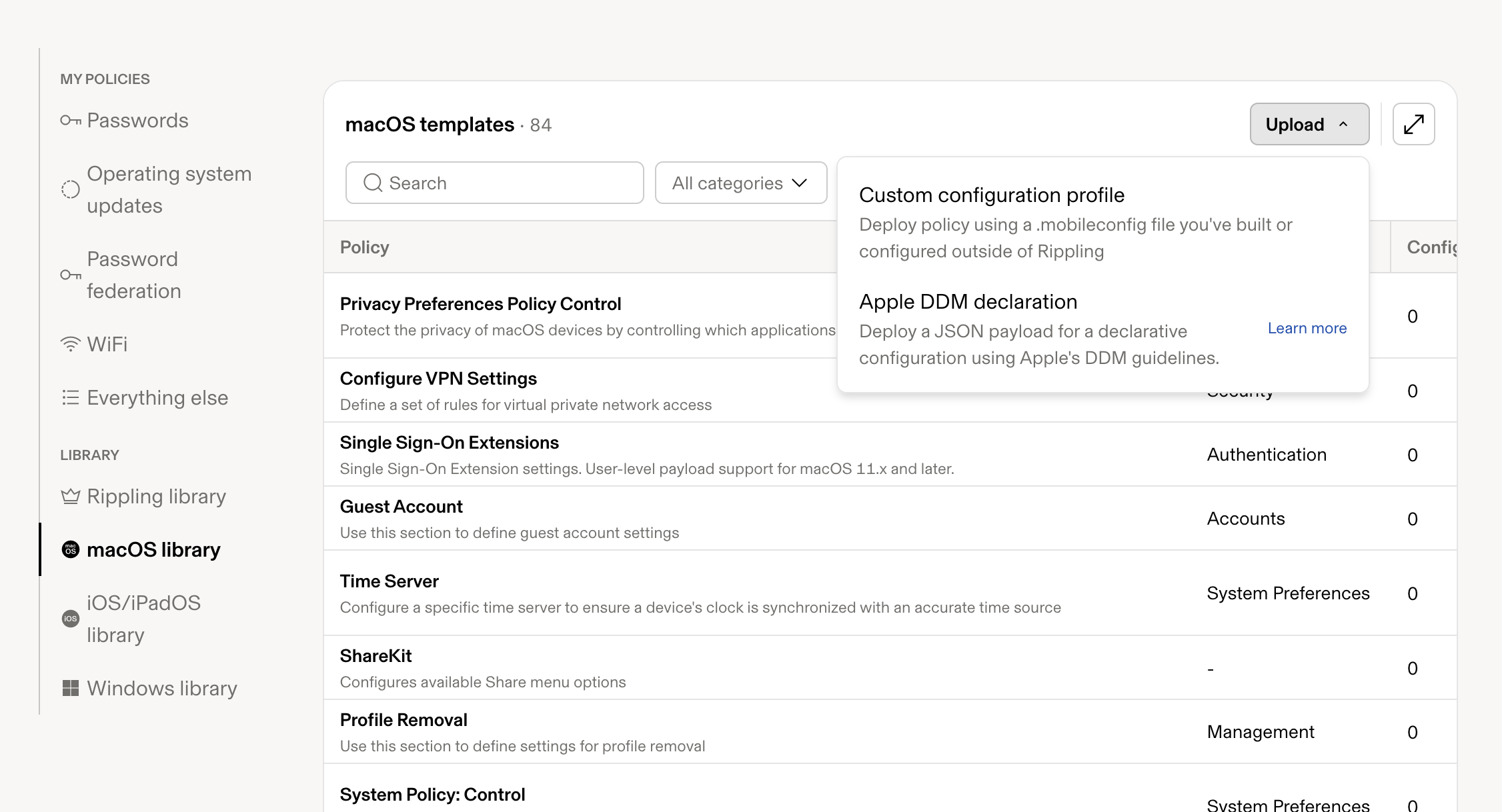 Deployed custom profiles then appear under **My policies** → **Everything else**, which is where you retarget or remove one.
An existing uploaded policy cannot be edited. To ship a changed profile, upload the new file as a new policy, deploy it to the same devices, and only then remove the old one. Two deployed copies of the same payload leave a Mac with whichever one the MDM applied last.
IT → **Devices** → **Scripts** tab: add `install-latest.sh` as a **root-level recurring macOS script** on those devices. It reads the release manifest; you do not upload a `.pkg` per release.
Configure the resolver first, then deploy.
Order matters more on Rippling than on Iru: profiles before the script, so permissions and the backend pin exist at first launch.
Do not also add Barndoor under the **Software** tab. That catalog pushes one fixed `.pkg` and has no downgrade guard, so a later manual push can roll a Mac back to an older Bridge, and the updater script will then refuse to move it forward. The script is the only update path.
The script's result in Rippling may show `accepted source=Notarized Developer ID` under **Error**. That is the macOS notarization check reporting success on stderr, not a failure; the **Output** column carries the real result (`barndoor-mdm-update: installed `).
## 4. How updates work
Bridge has two release channels. **Stable** is the default and is what customer fleets follow; it moves only when Barndoor promotes a release. **Edge** receives every Bridge build and is meant for a small pilot group that wants to see changes before stable.
The updater script follows stable as written. MDM consoles run the script body you paste and do not pass arguments, so to put a pilot device group on edge, deploy a second copy of the script to that group with this line near the top changed:
```bash theme={null}
CHANNEL="${BARNDOOR_MDM_CHANNEL:-stable}" # change stable to edge for the pilot group
```
A Mac that has installed an edge build stays on it until stable catches up; the script never downgrades.
A stable release is published on `downloads.barndoor.ai` only after the matching signed, notarized `.pkg` is available. The updater script:
* accepts only that host
* checks SHA-256, package signature, and Gatekeeper (Barndoor Developer ID Installer)
* refuses to downgrade
* lets the package post-install restart the menu-bar agent
Once the managed settings profile has landed, `barndoor update` and `barndoor update-gui` refuse with "updates are managed by your organization's MDM". That lockout is intended: IT owns the version. Without the profile there is no lockout, so deploy the profile before or with the app. Note that `barndoor update` never modifies `/Applications/Barndoor.app`; it installs a separate per-user CLI, which is exactly what the lockout prevents on a managed Mac.
## 5. Verify a Mac
On an enrolled laptop, after the user has logged into macOS:
```bash theme={null}
barndoor doctor
# Expect under "Managed preferences (MDM)": Present: yes, Updates managed: true
# "Present: no" means the managed settings profile has not landed on this Mac.
barndoor update
# With the profile present: refuses, "updates are managed by your organization's MDM"
# Without it: proceeds — the lockout only exists once the profile has landed
plutil -p "/Library/Managed Preferences/ai.barndoor.cli.plist"
launchctl print gui/$(id -u)/ai.barndoor.gui | head
# Agent should be running
# Optional DNS profile:
dig api.anthropic.com # block response from the resolver
```
Then in the app: sign in, confirm **Connected**, click **Launch Claude Desktop**.
If `barndoor doctor` shows `Present: no`, the managed settings profile did not land. Check that the payload domain is exactly `ai.barndoor.cli` and that the device is in the assigned group.
## Unmanaged or lab install
For a single Mac that is not in MDM:
1. Download and install the current stable package: [https://downloads.barndoor.ai/barndoor-gui/latest/Barndoor.pkg](https://downloads.barndoor.ai/barndoor-gui/latest/Barndoor.pkg). The matching checksum is at the same path with `.sha256` appended.
2. Open **Barndoor** from Applications and sign in.
3. To keep it running at login without MDM, add it under System Settings → General → Login Items. The user can still disable that.
`barndoor update-gui` can install or upgrade the menu-bar app for developers who already have the CLI. It is **not** the fleet path, and it is locked out once `updates_managed` is set.
This documentation is built and hosted on [Mintlify](https://mintlify.com), a developer documentation platform.
Deployed custom profiles then appear under **My policies** → **Everything else**, which is where you retarget or remove one.
An existing uploaded policy cannot be edited. To ship a changed profile, upload the new file as a new policy, deploy it to the same devices, and only then remove the old one. Two deployed copies of the same payload leave a Mac with whichever one the MDM applied last.
IT → **Devices** → **Scripts** tab: add `install-latest.sh` as a **root-level recurring macOS script** on those devices. It reads the release manifest; you do not upload a `.pkg` per release.
Configure the resolver first, then deploy.
Order matters more on Rippling than on Iru: profiles before the script, so permissions and the backend pin exist at first launch.
Do not also add Barndoor under the **Software** tab. That catalog pushes one fixed `.pkg` and has no downgrade guard, so a later manual push can roll a Mac back to an older Bridge, and the updater script will then refuse to move it forward. The script is the only update path.
The script's result in Rippling may show `accepted source=Notarized Developer ID` under **Error**. That is the macOS notarization check reporting success on stderr, not a failure; the **Output** column carries the real result (`barndoor-mdm-update: installed `).
## 4. How updates work
Bridge has two release channels. **Stable** is the default and is what customer fleets follow; it moves only when Barndoor promotes a release. **Edge** receives every Bridge build and is meant for a small pilot group that wants to see changes before stable.
The updater script follows stable as written. MDM consoles run the script body you paste and do not pass arguments, so to put a pilot device group on edge, deploy a second copy of the script to that group with this line near the top changed:
```bash theme={null}
CHANNEL="${BARNDOOR_MDM_CHANNEL:-stable}" # change stable to edge for the pilot group
```
A Mac that has installed an edge build stays on it until stable catches up; the script never downgrades.
A stable release is published on `downloads.barndoor.ai` only after the matching signed, notarized `.pkg` is available. The updater script:
* accepts only that host
* checks SHA-256, package signature, and Gatekeeper (Barndoor Developer ID Installer)
* refuses to downgrade
* lets the package post-install restart the menu-bar agent
Once the managed settings profile has landed, `barndoor update` and `barndoor update-gui` refuse with "updates are managed by your organization's MDM". That lockout is intended: IT owns the version. Without the profile there is no lockout, so deploy the profile before or with the app. Note that `barndoor update` never modifies `/Applications/Barndoor.app`; it installs a separate per-user CLI, which is exactly what the lockout prevents on a managed Mac.
## 5. Verify a Mac
On an enrolled laptop, after the user has logged into macOS:
```bash theme={null}
barndoor doctor
# Expect under "Managed preferences (MDM)": Present: yes, Updates managed: true
# "Present: no" means the managed settings profile has not landed on this Mac.
barndoor update
# With the profile present: refuses, "updates are managed by your organization's MDM"
# Without it: proceeds — the lockout only exists once the profile has landed
plutil -p "/Library/Managed Preferences/ai.barndoor.cli.plist"
launchctl print gui/$(id -u)/ai.barndoor.gui | head
# Agent should be running
# Optional DNS profile:
dig api.anthropic.com # block response from the resolver
```
Then in the app: sign in, confirm **Connected**, click **Launch Claude Desktop**.
If `barndoor doctor` shows `Present: no`, the managed settings profile did not land. Check that the payload domain is exactly `ai.barndoor.cli` and that the device is in the assigned group.
## Unmanaged or lab install
For a single Mac that is not in MDM:
1. Download and install the current stable package: [https://downloads.barndoor.ai/barndoor-gui/latest/Barndoor.pkg](https://downloads.barndoor.ai/barndoor-gui/latest/Barndoor.pkg). The matching checksum is at the same path with `.sha256` appended.
2. Open **Barndoor** from Applications and sign in.
3. To keep it running at login without MDM, add it under System Settings → General → Login Items. The user can still disable that.
`barndoor update-gui` can install or upgrade the menu-bar app for developers who already have the CLI. It is **not** the fleet path, and it is locked out once `updates_managed` is set.
This documentation is built and hosted on [Mintlify](https://mintlify.com), a developer documentation platform.