> ## Documentation Index
> Fetch the complete documentation index at: https://docs.barndoor.ai/llms.txt
> Use this file to discover all available pages before exploring further.
# Agent Profiles: LLM Binding & Usage
> Bind LLM Gateway keys to an agent to attribute model cost, traffic, and errors directly to that agent.
## Overview
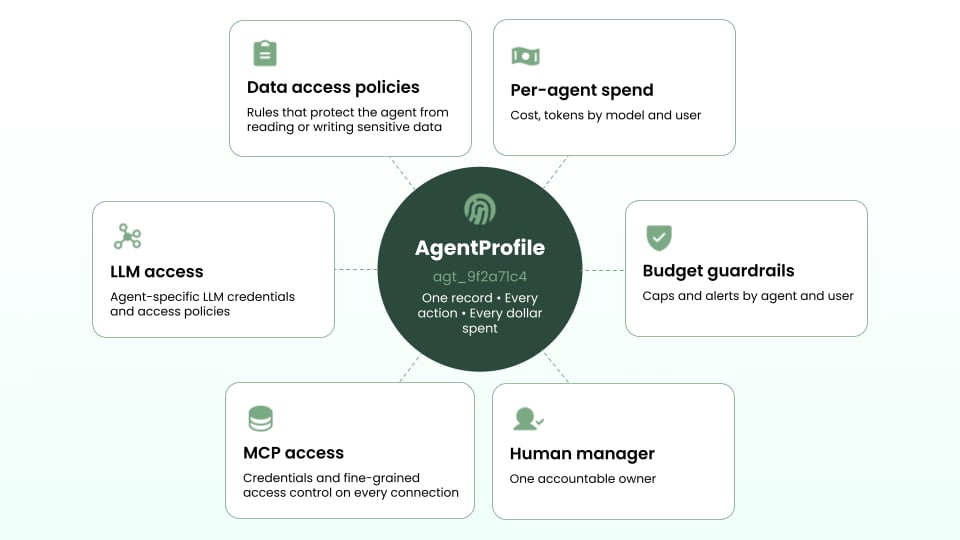 Every agent in Barndoor has an **AgentProfile** — a single record that ties together its MCP access, LLM access, spend, budget guardrails, data access policies, and accountable human manager. This page covers the **LLM access** piece: binding LLM Gateway keys to an agent so you can see cost, traffic, token usage, and error rate for that agent, right alongside its existing MCP policy enforcement data.
This closes the gap between the LLM Gateway and MCP Gateway products: instead of two disconnected views, the AgentProfile becomes the central object for both governed tool traffic and LLM usage.
## Enabling LLM Gateway on an agent
Every agent has an **LLM Gateway Enabled** toggle in the Edit AI Agent modal, grouped near the existing ToolIQ Write Confirmations setting.
* **Default:** off for new and existing agents.
* **When enabled:** the agent can be bound to LLM Gateway keys, and Barndoor starts routing and tracking its model calls.
* **When disabled after keys are bound:** a confirmation dialog warns you that bindings will be preserved but disabled. Turning the toggle back on automatically reactivates them.
This flag — not Application Type — controls all LLM-related UI described below. The **Manage Connections** button is unaffected and continues to be gated by Application Type = Machine to Machine.
## Managing key bindings
Once LLM Gateway is enabled, a **Manage keys** button appears on the agent detail page header. It opens a dedicated screen listing keys you're authorized to bind (your own keys, plus keys for groups you belong to — admins see all).
### Binding a key
Click **Bind** on any available key, then supply:
| Field | Required | Notes |
| ----------- | -------- | ----------------------------- |
| Environment | Yes | e.g. `prod`, `staging`, `dev` |
| Notes | No | Free text |
A given key can only be bound to the same agent once per environment.
### Row states
* **Available** — unbound, shows a Bind button.
* **Bound + active** — shows the bound environment.
* **Bound + disabled** — still shows the environment; use the kebab menu to re-enable.
* **Available with warning** — a compatibility hint is shown below the table.
### Managing an existing binding
Use the kebab menu (`⋮`) on any bound row to **Edit binding**, **Disable / Enable**, or **Unbind**.
### Creating a key from this screen
**Create new key** opens the standard key-creation form. The resulting key is automatically bound to the current agent as part of the same action.
## Agent detail page changes
### MCP Policy Enforcement
The former **Actions** block is renamed **MCP Policy Enforcement** (same tiles and chart). Its date range selector has moved up to the page level, and now drives both this block and the new LLM Usage block together.
### LLM Usage block
Visible when LLM Gateway is enabled. Sits between MCP Policy Enforcement and the Activity Log.
Total spend for the selected period, with a per-day average.
Total request count, with a per-day average.
Total tokens, broken out as input vs. output.
`(4xx + 5xx + timeouts + policy denials) / total requests`
Below the tiles:
* **Cost over time** — a stacked area chart, cost on the y-axis, stacked by model, with a legend below.
* **Top models table** — Model, Provider, Requests, Tokens, and Cost (with an inline percentage-of-total bar), sorted by cost descending. Shows the top 5 with a "Show all" expansion.
If LLM Gateway is enabled but no traffic has been recorded yet, the block shows a single centered empty-state message in place of the chart. If there are no requests in the selected period, the Error rate tile shows `—`.
### Keys tab
A new **Keys** tab appears in the right rail next to MCP Servers and Users. Each row shows the key name, environment, cost for the selected period, and a small cost sparkline. The tab label shows the total count of bound keys (e.g. `Keys 4`). If no keys are bound yet, the tab shows an empty state linking to Manage keys.
## Audit history
Audit History events for LLM Gateway traffic now display the associated AI Agent, so you can trace a logged event back to the agent that generated it.
## Summary
Toggle it on from the Edit AI Agent modal.
Use Manage keys to bind existing keys or create and auto-bind a new one, tagging each with an environment.
Cost, traffic, tokens, and error rate now show up in the LLM Usage block and the Keys tab, on the same date range as MCP Policy Enforcement.
Every agent in Barndoor has an **AgentProfile** — a single record that ties together its MCP access, LLM access, spend, budget guardrails, data access policies, and accountable human manager. This page covers the **LLM access** piece: binding LLM Gateway keys to an agent so you can see cost, traffic, token usage, and error rate for that agent, right alongside its existing MCP policy enforcement data.
This closes the gap between the LLM Gateway and MCP Gateway products: instead of two disconnected views, the AgentProfile becomes the central object for both governed tool traffic and LLM usage.
## Enabling LLM Gateway on an agent
Every agent has an **LLM Gateway Enabled** toggle in the Edit AI Agent modal, grouped near the existing ToolIQ Write Confirmations setting.
* **Default:** off for new and existing agents.
* **When enabled:** the agent can be bound to LLM Gateway keys, and Barndoor starts routing and tracking its model calls.
* **When disabled after keys are bound:** a confirmation dialog warns you that bindings will be preserved but disabled. Turning the toggle back on automatically reactivates them.
This flag — not Application Type — controls all LLM-related UI described below. The **Manage Connections** button is unaffected and continues to be gated by Application Type = Machine to Machine.
## Managing key bindings
Once LLM Gateway is enabled, a **Manage keys** button appears on the agent detail page header. It opens a dedicated screen listing keys you're authorized to bind (your own keys, plus keys for groups you belong to — admins see all).
### Binding a key
Click **Bind** on any available key, then supply:
| Field | Required | Notes |
| ----------- | -------- | ----------------------------- |
| Environment | Yes | e.g. `prod`, `staging`, `dev` |
| Notes | No | Free text |
A given key can only be bound to the same agent once per environment.
### Row states
* **Available** — unbound, shows a Bind button.
* **Bound + active** — shows the bound environment.
* **Bound + disabled** — still shows the environment; use the kebab menu to re-enable.
* **Available with warning** — a compatibility hint is shown below the table.
### Managing an existing binding
Use the kebab menu (`⋮`) on any bound row to **Edit binding**, **Disable / Enable**, or **Unbind**.
### Creating a key from this screen
**Create new key** opens the standard key-creation form. The resulting key is automatically bound to the current agent as part of the same action.
## Agent detail page changes
### MCP Policy Enforcement
The former **Actions** block is renamed **MCP Policy Enforcement** (same tiles and chart). Its date range selector has moved up to the page level, and now drives both this block and the new LLM Usage block together.
### LLM Usage block
Visible when LLM Gateway is enabled. Sits between MCP Policy Enforcement and the Activity Log.
Total spend for the selected period, with a per-day average.
Total request count, with a per-day average.
Total tokens, broken out as input vs. output.
`(4xx + 5xx + timeouts + policy denials) / total requests`
Below the tiles:
* **Cost over time** — a stacked area chart, cost on the y-axis, stacked by model, with a legend below.
* **Top models table** — Model, Provider, Requests, Tokens, and Cost (with an inline percentage-of-total bar), sorted by cost descending. Shows the top 5 with a "Show all" expansion.
If LLM Gateway is enabled but no traffic has been recorded yet, the block shows a single centered empty-state message in place of the chart. If there are no requests in the selected period, the Error rate tile shows `—`.
### Keys tab
A new **Keys** tab appears in the right rail next to MCP Servers and Users. Each row shows the key name, environment, cost for the selected period, and a small cost sparkline. The tab label shows the total count of bound keys (e.g. `Keys 4`). If no keys are bound yet, the tab shows an empty state linking to Manage keys.
## Audit history
Audit History events for LLM Gateway traffic now display the associated AI Agent, so you can trace a logged event back to the agent that generated it.
## Summary
Toggle it on from the Edit AI Agent modal.
Use Manage keys to bind existing keys or create and auto-bind a new one, tagging each with an environment.
Cost, traffic, tokens, and error rate now show up in the LLM Usage block and the Keys tab, on the same date range as MCP Policy Enforcement.