> ## Documentation Index
> Fetch the complete documentation index at: https://docs.barndoor.ai/llms.txt
> Use this file to discover all available pages before exploring further.
# Adding Your Agents
> Step-by-step guide for adding an agent in Barndoor.
Adding your agents to Barndoor
**Prerequisites**
* Admin privileges in your Barndoor organization.
* Application details for your agent, including application type (guidance below) and OAuth callback URL(s)
## Step-by-step guide
1. Go to **AI Agents**: [https://app.barndoor.ai/agents](https://app.barndoor.ai/agents).
2. Click **Add Agent** button (top-right).\
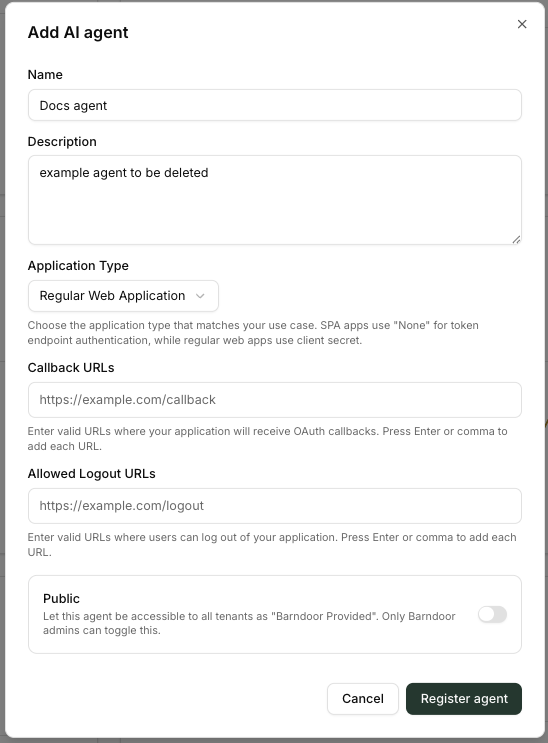
This opens the **Add AI agent** registration form.
 > Tip: If you don't see the button, ensure your user has admin access.
## Fill out the registration form
1. **Name**\
Clear, human-readable name (e.g., `Snowflake Assistant`, `Sales Ops Agent`).
2. **Description**\
Short sentence on what the agent does and which services it connects to.
3. **Application Type**\
Choose one that matches how your agent will run:
* **Regular Web Application** – Server-rendered web apps that keep secrets on the server.
* **Single Page Application (SPA)** – Front-end only apps; tokens handled in the browser.
* **Native Application** – Desktop or mobile apps running on user devices.
* **Machine to Machine** – Autonomous agent, backend services or daemons without user interaction.
4. **Callback URLs**\*
Enter one or more URLs where Barndoor should send callbacks after users sign in through your Identity Provider or authorize Barndoor to access an MCP server.
5. **Allowed Logout URLs**\
One or more URLs where users can be safely redirected after logging out (press **Enter** after each URL).
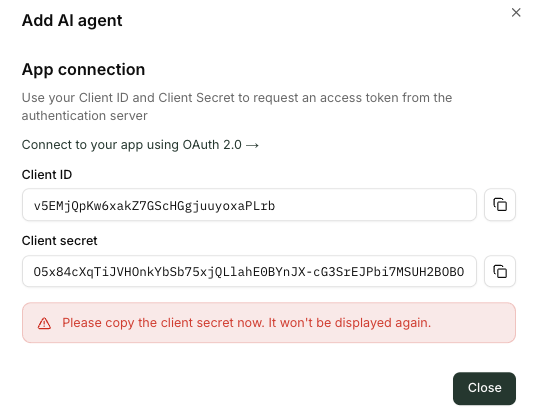
When you're done, click **Register agent**. Upon successful agent creation, you'll be presented your agents credentials. These credentials are required for authenticating your application to make authorized requests to Barndoor operations.
## Your Agent Credentials
> Tip: If you don't see the button, ensure your user has admin access.
## Fill out the registration form
1. **Name**\
Clear, human-readable name (e.g., `Snowflake Assistant`, `Sales Ops Agent`).
2. **Description**\
Short sentence on what the agent does and which services it connects to.
3. **Application Type**\
Choose one that matches how your agent will run:
* **Regular Web Application** – Server-rendered web apps that keep secrets on the server.
* **Single Page Application (SPA)** – Front-end only apps; tokens handled in the browser.
* **Native Application** – Desktop or mobile apps running on user devices.
* **Machine to Machine** – Autonomous agent, backend services or daemons without user interaction.
4. **Callback URLs**\*
Enter one or more URLs where Barndoor should send callbacks after users sign in through your Identity Provider or authorize Barndoor to access an MCP server.
5. **Allowed Logout URLs**\
One or more URLs where users can be safely redirected after logging out (press **Enter** after each URL).
When you're done, click **Register agent**. Upon successful agent creation, you'll be presented your agents credentials. These credentials are required for authenticating your application to make authorized requests to Barndoor operations.
## Your Agent Credentials
 ## What happens next?
* Your new agent appears in the **All Agents** list.
* From there you can:
* Configure **access policies** for the agent by adding the agent to the scope of MCP servers such as Snowflake, Salesforce, and Notion in Access Control Center.
* For Machine to Machine or Autonomous Agents, you can directly connect them to MCPs with service account credentials.
* Manage **auth settings** and rotate credentials if your application type requires it.
* Monitor **Active users** and **Monitored actions** over time.
## Machine to Machine Agent Configuration
Agents configured with the "Machine to Machine" agent type can connect directly to MCPs without requiring per-user authorization. Instead, they use service accounts registered in the underlying systems of the MCPs you want your autonomous agent to access.
**To configure a Machine to Machine agent:**
1. Select the agent from the **All Agents** list.
2. (Recommended) Turn off **ToolIQ Write Confirmations** so the agent can operate without a human in the loop. Be sure to test thoroughly before allowing it to make system updates.
3. Click **Manage Connections**.
4. Click **Connect** for each MCP the agent needs access to.
5. When prompted, authenticate to the underlying system using the appropriate service account credentials.
Your agent now has MCP credentials configured, and these will be used each time it connects to the underlying system.
**Next step:** Create an [access control policy](https://docs.barndoor.ai/how-tos/manage-policies) for the agent to fine-tune which tools it can use and define any exception conditions that should limit its behavior.
## Troubleshooting
* **"Register agent" is disabled**\
Ensure **Name**, **Application Type**, and at least one **Allowed Logout URL** are provided.
* **Not sure which application type to pick?**\
Use **Regular Web Application** for server-based apps, **SPA** for purely browser apps, **Native** for desktop/mobile clients, and **Machine to Machine** for backend jobs with no user login.
* **Can't access Agents page**\
Ask an org admin to grant you the necessary permissions or create the agent on your behalf.
***
**Next steps:** After creating the agent, head to **Connected Services** to connect MCP servers your agent will use.
## What happens next?
* Your new agent appears in the **All Agents** list.
* From there you can:
* Configure **access policies** for the agent by adding the agent to the scope of MCP servers such as Snowflake, Salesforce, and Notion in Access Control Center.
* For Machine to Machine or Autonomous Agents, you can directly connect them to MCPs with service account credentials.
* Manage **auth settings** and rotate credentials if your application type requires it.
* Monitor **Active users** and **Monitored actions** over time.
## Machine to Machine Agent Configuration
Agents configured with the "Machine to Machine" agent type can connect directly to MCPs without requiring per-user authorization. Instead, they use service accounts registered in the underlying systems of the MCPs you want your autonomous agent to access.
**To configure a Machine to Machine agent:**
1. Select the agent from the **All Agents** list.
2. (Recommended) Turn off **ToolIQ Write Confirmations** so the agent can operate without a human in the loop. Be sure to test thoroughly before allowing it to make system updates.
3. Click **Manage Connections**.
4. Click **Connect** for each MCP the agent needs access to.
5. When prompted, authenticate to the underlying system using the appropriate service account credentials.
Your agent now has MCP credentials configured, and these will be used each time it connects to the underlying system.
**Next step:** Create an [access control policy](https://docs.barndoor.ai/how-tos/manage-policies) for the agent to fine-tune which tools it can use and define any exception conditions that should limit its behavior.
## Troubleshooting
* **"Register agent" is disabled**\
Ensure **Name**, **Application Type**, and at least one **Allowed Logout URL** are provided.
* **Not sure which application type to pick?**\
Use **Regular Web Application** for server-based apps, **SPA** for purely browser apps, **Native** for desktop/mobile clients, and **Machine to Machine** for backend jobs with no user login.
* **Can't access Agents page**\
Ask an org admin to grant you the necessary permissions or create the agent on your behalf.
***
**Next steps:** After creating the agent, head to **Connected Services** to connect MCP servers your agent will use.