> ## Documentation Index
> Fetch the complete documentation index at: https://docs.barndoor.ai/llms.txt
> Use this file to discover all available pages before exploring further.
# Registering MCP Servers
> Step-by-step guide to register a new MCP server in Barndoor.
One of the first steps to getting started with Barndoor is to register your
MCP servers. You can register servers that are built and hosted by Barndoor,
curated by Barndoor but hosted by third parties, or hosted internally on your own infrastructure.
### Prerequisites
Before getting started with Register an MCP server in Barndoor, you’ll need:
* A Barndoor account with **admin privileges** for your organization
* Credentials from your MCP provider to authenticate a Barndoor connection
**Tip:** To learn how to authenticate Barndoor to an MCP provider, visit the [MCP Servers Catalog](/mcp-servers/servers), select an MCP server, and follow the **Setup Instructions**. **For example:** [here](/mcp-servers/atlassian#setup-instructions) is how to connect Atlassian's Rovo MCP server.
### Understanding MCP Server Types
When adding a MCP server, you'll choose from one of three categories.
| Server Type | Description |
| :-------------------- | :----------------------------------------------------------------------------- |
| **Barndoor Managed** | Secure, turnkey MCP servers built, managed, and hosted by Barndoor. |
| **Official (Remote)** | Remotely hosted third-party MCP servers offered by the SaaS/platform provider. |
| **Custom Servers** | Any remotely hosted MCP servers created/registered by your organization. |
### How to Register an MCP Server
1. In the Barndoor web UI, navigate to the **Admin** > **MCP Servers** section (left nav).
2. Click **"Add a Server"**.
3. Select the type of MCP server to add: Barndoor Managed, Official (third-party remote), or Custom (created by your organization).
#### **Option A: Add a Barndoor Managed or Official (remote) MCP server**
This is the simplest method, used for adding MCP servers for common enterprise services/platforms.
1. Select either **"Barndoor Managed"** or **"Official (remote) servers"**.
2. Find the server you wish to add (e.g., *Salesforce*, *GitHub*, *Atlassian*, etc.).
3. Click **"Add New"** (or "Enable") next to the server
4. Provide configuration details for the MCP server.
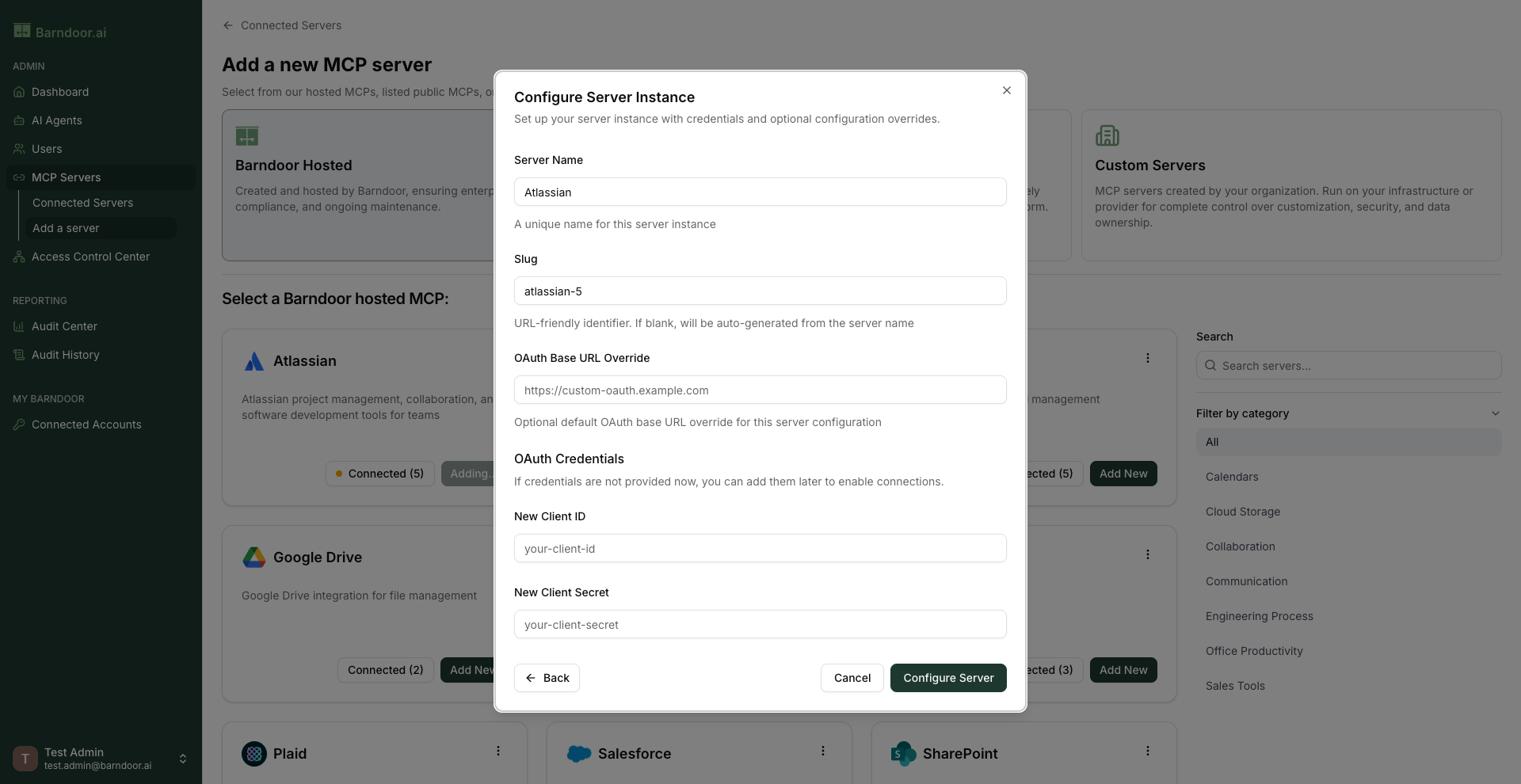 * Server Name: Unique name for the new MCP server.
* Slug: A URL friendly identifier that will be appended to an endpoint URL for connecting to the server.
* OAuth Base URL Override (optional): Allows you to change the root URL used when the OAuth 2.0 authentication
flow is performed.
* OAuth Credentials: Client ID and secret for the MCP server that was registered with upstream service.
When connecting an OAuth Client, you must ensure your OAuth Client has allowlisted your Barndoor Trial hostname to avoid a redirect URI mismatch error.
You are allowed to create multiple instances of MCP server registrations within Barndoor.
#### **Option B: Add a Custom internal or other public remote MCP server**
Use this method to register a server hosted on your own infrastructure, or any other remotely
accessible MCP server that isn't already in our lists.
Adding a custom MCP server that hasn't been vetted by Barndoor or by your own security team is not recommended.
1. Select the **"Internal Servers"** option from the prompt.
2. You will see a list of internal servers you have already defined.
3. To add a new one, click the **"Add Custom MCP"** (or "Define New Server") button.
4. Provide connection information for the MCP server:
* Server Name: Unique name for the new MCP server.
* Slug: A URL friendly identifier that will be appended to an endpoint URL for connecting to the server.
* OAuth Base URL Override (optional): Allows you to change the root URL used when the OAuth 2.0 authentication
flow is performed.
* OAuth Credentials: Client ID and secret for the MCP server that was registered with upstream service.
When connecting an OAuth Client, you must ensure your OAuth Client has allowlisted your Barndoor Trial hostname to avoid a redirect URI mismatch error.
You are allowed to create multiple instances of MCP server registrations within Barndoor.
#### **Option B: Add a Custom internal or other public remote MCP server**
Use this method to register a server hosted on your own infrastructure, or any other remotely
accessible MCP server that isn't already in our lists.
Adding a custom MCP server that hasn't been vetted by Barndoor or by your own security team is not recommended.
1. Select the **"Internal Servers"** option from the prompt.
2. You will see a list of internal servers you have already defined.
3. To add a new one, click the **"Add Custom MCP"** (or "Define New Server") button.
4. Provide connection information for the MCP server:
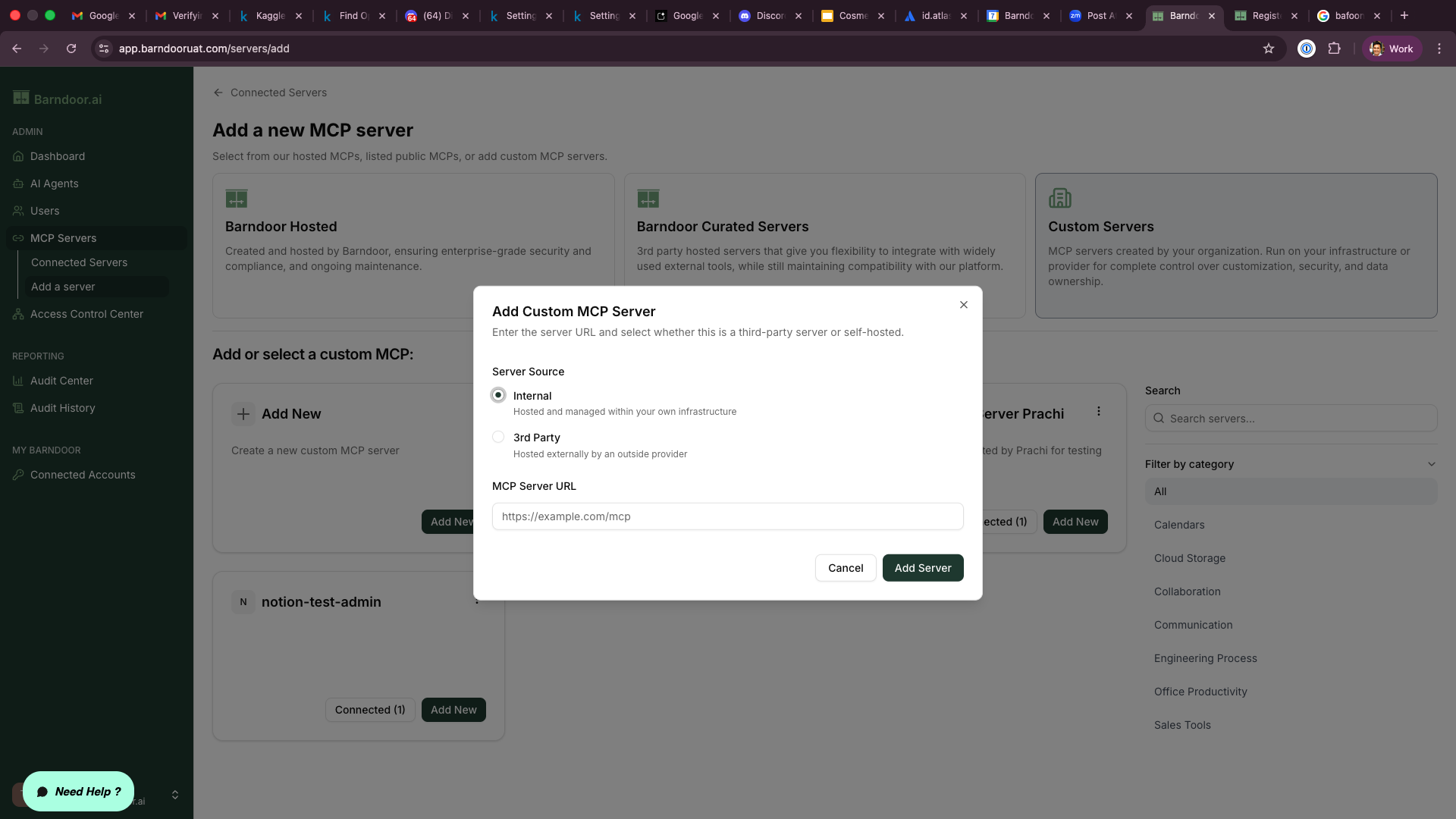 * **Server Source:** Choose Internal if hosted and managed on your own infrastructure, or 3rd Party if the server is
hosted and managed by an outside provider.
* **MCP Server URL:** The full URL where the Barndoor Gateway can reach this server (e.g., `https://mcp.somecompany.com`).
5. After clicking "Add Server" provide configuration details fo the MCP server:
* **Server Source:** Choose Internal if hosted and managed on your own infrastructure, or 3rd Party if the server is
hosted and managed by an outside provider.
* **MCP Server URL:** The full URL where the Barndoor Gateway can reach this server (e.g., `https://mcp.somecompany.com`).
5. After clicking "Add Server" provide configuration details fo the MCP server:
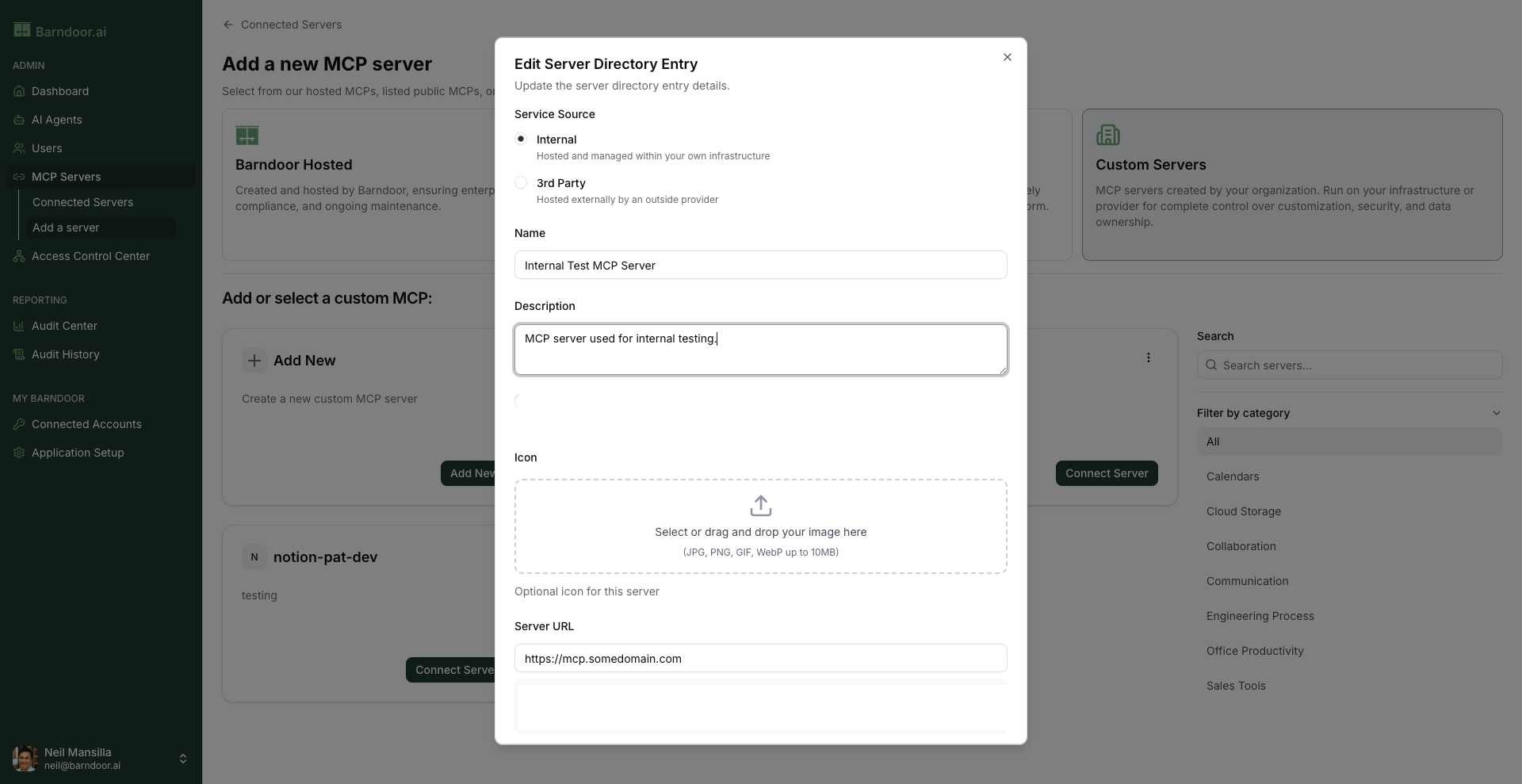
 * **Server Source:** Same as last step.
* **Name:** Unique name for the new MCP server.
* **Description:** Useful verbose description for this server.
* **Icon:** Optional icon that's displayed next to server within Barndoor.
* **Server URL:** The full URL where the Barndoor Gateway can reach this server (e.g., `https://mcp.somedomain.com`).
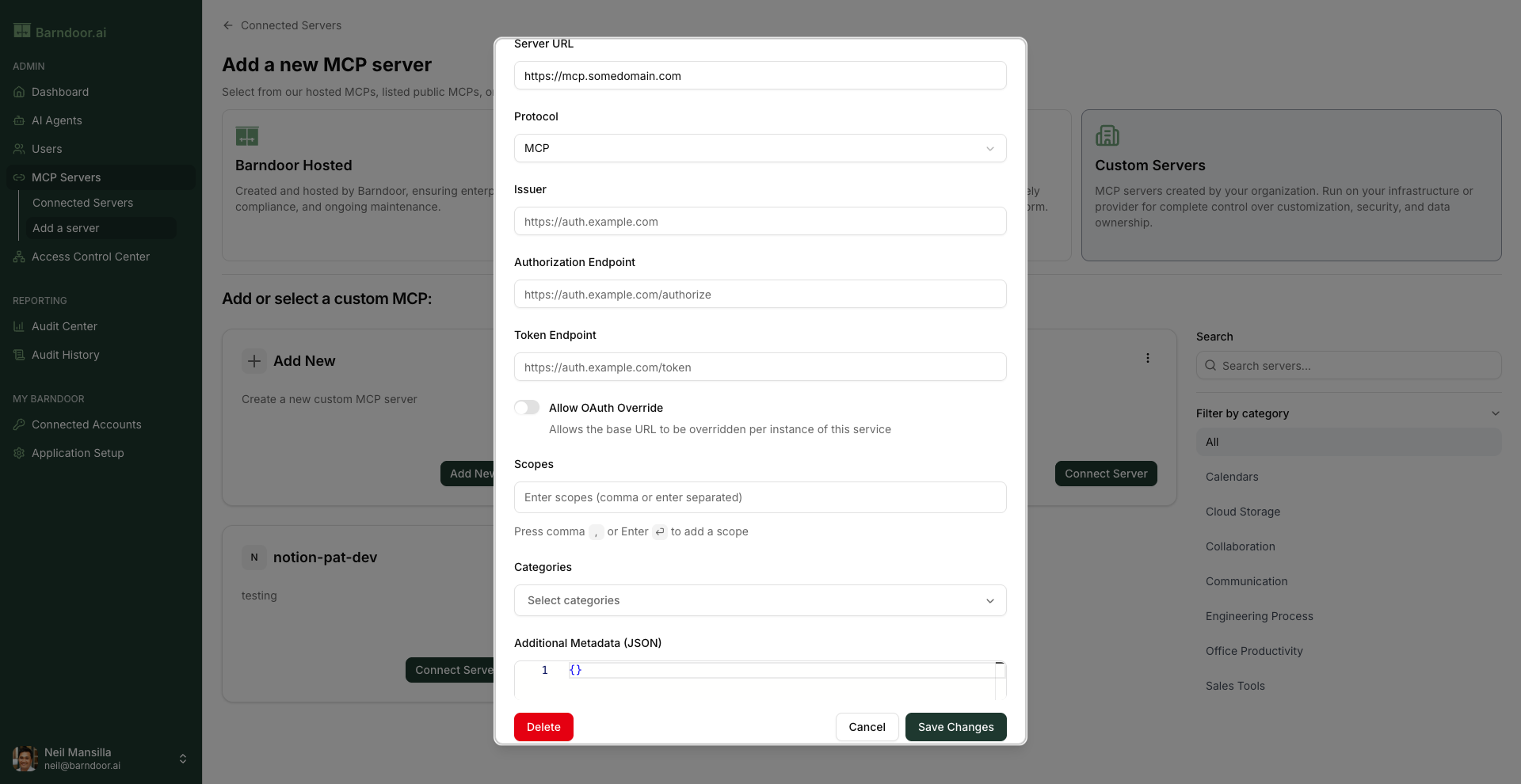
* **Protocol:** Choose MCP (Streamable HTTP) or SSE (Server-Sent Events). While SSE is supported, please note
that it has been deprecated.
* **Issuer:** The unique URL of the authorization server for this MCP server.
* **Authorization Endpoint:** The authorization server's endpoint URL where a user will be redirected to log in and grant consent. This can either be a relative path to the Issuer URL above, or an absolute (full) endpoint URL.
* **Token Endpoint:** The authorization server's endpoint URL that Barndoor will use to exchange an authorization code for an access token. This can either be a relative path to the Issuer URL above, or an absolute (full) endpoint URL.
* **Allow OAuth Override:** Allows the issuer (base URL) to be overridden per instance of this MCP server.
* **Scopes:** A list of OAuth scopes (permissions) that Barndoor will request during the authentication flow (e.g., "read:profile read:issues write:comments")
* **Categories:** Select one or more categories for this MCP server which is used to improve server discovery.
* **Additional Metadata (JSON):** Optional field of additional metadata to be passed between MCP clients and servers.
When connecting an OAuth Client, you must ensure your OAuth Client has allowlisted your Barndoor Trial hostname to avoid a redirect URI mismatch error.
* **Server Source:** Same as last step.
* **Name:** Unique name for the new MCP server.
* **Description:** Useful verbose description for this server.
* **Icon:** Optional icon that's displayed next to server within Barndoor.
* **Server URL:** The full URL where the Barndoor Gateway can reach this server (e.g., `https://mcp.somedomain.com`).
* **Protocol:** Choose MCP (Streamable HTTP) or SSE (Server-Sent Events). While SSE is supported, please note
that it has been deprecated.
* **Issuer:** The unique URL of the authorization server for this MCP server.
* **Authorization Endpoint:** The authorization server's endpoint URL where a user will be redirected to log in and grant consent. This can either be a relative path to the Issuer URL above, or an absolute (full) endpoint URL.
* **Token Endpoint:** The authorization server's endpoint URL that Barndoor will use to exchange an authorization code for an access token. This can either be a relative path to the Issuer URL above, or an absolute (full) endpoint URL.
* **Allow OAuth Override:** Allows the issuer (base URL) to be overridden per instance of this MCP server.
* **Scopes:** A list of OAuth scopes (permissions) that Barndoor will request during the authentication flow (e.g., "read:profile read:issues write:comments")
* **Categories:** Select one or more categories for this MCP server which is used to improve server discovery.
* **Additional Metadata (JSON):** Optional field of additional metadata to be passed between MCP clients and servers.
When connecting an OAuth Client, you must ensure your OAuth Client has allowlisted your Barndoor Trial hostname to avoid a redirect URI mismatch error.